Bulk Upload
Table of Contents
- Overview
- Getting Started
- Accessing Bulk Upload
- Supported Entity Types
- Upload Process
- Step 1: Select Entity Type
- Step 2: Upload CSV File
- Step 3: Validation
- Step 4: Processing
- CSV File Requirements
- Serial-Tracked Products
- Job Management
- Error Handling
- Best Practices
- Troubleshooting
Overview
The Bulk Upload feature enables efficient mass data import into the Zora Tech Logistics Platform. Upload CSV files containing hundreds or thousands of records for products, receiving orders, customers, and more - eliminating manual data entry and accelerating onboarding.
Key Capabilities:
- Support for multiple entity types (products, orders, customers, locations, etc.)
- CSV file validation with detailed error reporting
- Document extract - Intelligent parsing of PDFs and images to extract structured data
- Background job processing for large uploads
- Serial number validation for serial-tracked products
- Real-time job status tracking
- Automatic data validation against business rules
- Warehouse-scoped uploads for multi-tenant operations
Getting Started
Prerequisites
Before using bulk upload:
- Warehouse Context: Select your target warehouse from the warehouse selector
- CSV Template: Download the appropriate template for your entity type
- Data Preparation: Ensure your data follows the required format
- Permissions: Admin or manager role with bulk upload permissions
When to Use Bulk Upload
Bulk upload is ideal for:
- Initial System Setup: Import existing product catalogs and customer lists
- Inventory Onboarding: Create receiving orders for new inventory
- Location Management: Set up warehouse locations in bulk
- Data Migration: Transfer data from legacy systems
- Seasonal Operations: Quickly add new products for seasonal inventory
Accessing Bulk Upload
Navigate to the Bulk Upload interface through the Administration section:
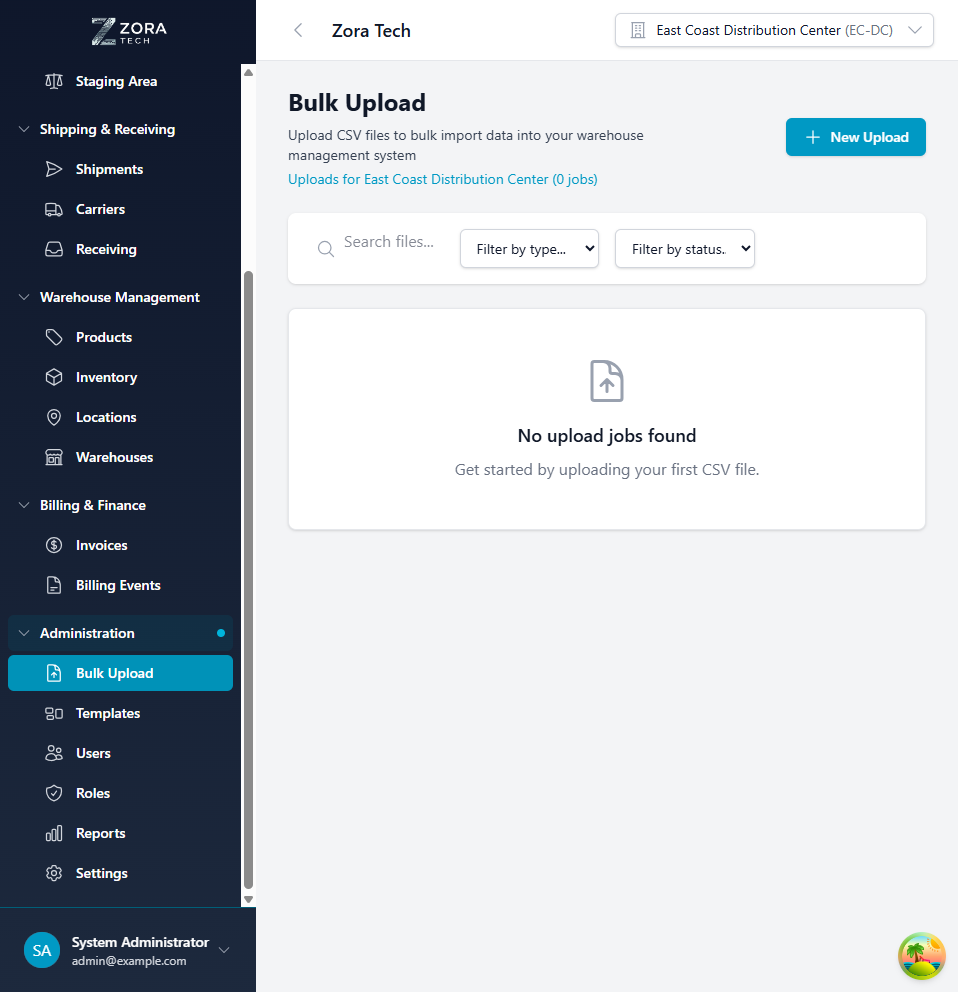
Navigation Steps:
- Click Administration in the left sidebar
- Select Bulk Upload from the submenu
- The bulk upload interface displays with:
- Quick access to entity type selection
- Upload history (if any previous uploads exist)
- Job status tracking panel
Supported Entity Types
The platform supports bulk upload for the following entity types:
| Entity Type | Description | Common Use Cases |
|---|---|---|
| Products | Product catalog entries with SKUs, names, barcodes | Initial catalog setup, new product launches |
| Receiving Orders | Purchase orders with expected inventory | Inventory receiving preparation |
| Customers | Customer records with contact information | CRM data import, customer onboarding |
| Locations | Warehouse locations with zone assignments | Warehouse setup, location expansion |
| Inventory Adjustments | Quantity adjustments for cycle counts | Physical inventory reconciliation |
| Serial Numbers | Serial-tracked product identifiers | Device tracking, warranty management |
Upload Process
Step 1: Select Entity Type
Begin the upload process by selecting your data type:
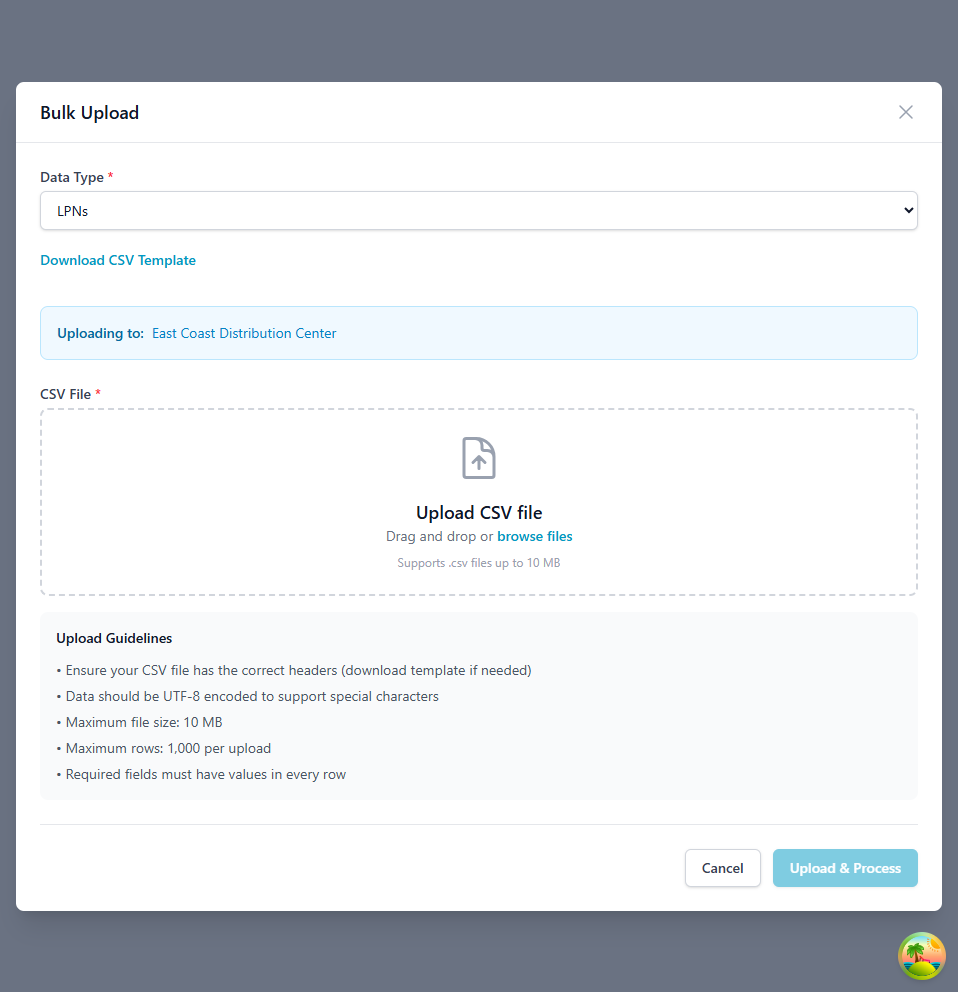
- Click the New Upload button
- Select the Entity Type from the dropdown
- Review the guidelines displayed for your selected type
Step 2: Upload CSV File
Upload your prepared CSV file:
Upload Methods:
- Drag and Drop: Drag your CSV file into the upload zone
- File Browser: Click "Browse files" to select from your computer
- Document Extract: Upload a PDF, image, or other document and the system will intelligently extract structured data to pre-populate upload fields
File Requirements:
- Format: CSV (Comma-Separated Values) or supported document format for extract
- Maximum size: 10MB per file
- Character encoding: UTF-8
- Column headers: Must match template exactly (for CSV uploads)
Download Template
Click the "Download Template" link in the upload modal to get a pre-formatted CSV with the correct column headers and sample data.
Step 3: Validation
The system validates your file before processing:
Validation Checks:
- File Format: Confirms valid CSV structure
- Column Headers: Verifies required columns are present
- Data Types: Validates field formats (numbers, dates, emails)
- Business Rules: Checks for:
- Duplicate SKUs or barcodes
- Invalid warehouse references
- Serial number conflicts (for serial-tracked products)
- Missing required fields
Validation Results:
- Success: File passes all checks → proceeds to processing
- Warnings: Minor issues detected → option to continue or fix
- Errors: Critical issues found → upload rejected with detailed error report
Step 4: Processing
Once validated, the system processes your upload:
- Job Creation: Background job created for processing
- Progress Tracking: Real-time status updates
- Record Processing: Each row imported sequentially
- Error Collection: Any row-level errors logged
- Completion: Summary report generated
Processing States:
- Pending: Job queued for processing
- Processing: Actively importing records
- Completed: All records successfully imported
- Failed: Critical error stopped processing
- Partial: Some records succeeded, some failed
CSV File Requirements
General Format Rules
All CSV files must follow these standards:
Important Guidelines:
- First row must contain column headers (exact match to template)
- Use commas as field separators
- Enclose text containing commas in double quotes
- Leave cells empty for optional fields (don't use "null" or "N/A")
- Use consistent date format: YYYY-MM-DD
- Boolean values: true/false or 1/0
Products CSV Template
sku,name,description,barcode,category,unit_of_measure,is_serial_tracked,reorder_point,reorder_quantity
WIDGET-001,Premium Widget,High-quality widget for industrial use,0123456789012,Widgets,EA,false,10,50
DEVICE-002,Smart Device,IoT-enabled monitoring device,0987654321098,Electronics,EA,true,5,20
Required Fields: - sku: Unique product identifier - name: Product display name - unit_of_measure: EA, BOX, CASE, PALLET, etc.
Optional Fields: - description, barcode, category - is_serial_tracked: Set to true for devices requiring serial numbers - reorder_point, reorder_quantity: Inventory management settings
Receiving Orders CSV Template
Warehouse-Wide Visibility:
When you upload receiving orders, they are visible to your entire warehouse team. This enables collaborative receiving where multiple team members can process different POs simultaneously. All receiving staff can view the queue and select orders to receive.
po_number,supplier_name,expected_date,product_sku,expected_quantity,unit_cost
PO-2025-001,Acme Suppliers,2025-11-20,WIDGET-001,100,15.50
PO-2025-001,Acme Suppliers,2025-11-20,DEVICE-002,25,125.00
PO-2025-002,Global Distributors,2025-11-22,WIDGET-001,200,14.75
Required Fields: - po_number: Purchase order number (groups items into single PO) - product_sku: Must match existing product SKU in the system - expected_quantity: Number of units expected to receive
Optional Fields: - supplier_name: Supplier/vendor name for reference - expected_date: Expected delivery date (format: YYYY-MM-DD) - unit_cost: Cost per unit for inventory valuation
Advanced Features:
Grouping and Validation: - Multiple line items with same po_number are grouped into single receiving order - System validates all product_sku values exist before processing - Duplicate detection prevents re-uploading same PO
Indefinite Job History: - All receiving order uploads retained permanently - View historical imports for audit purposes - Track who uploaded which POs and when - Review upload status and any validation errors
Role-Based Permissions: - Admins and managers can upload receiving orders - All warehouse staff can view and process uploaded POs - System tracks which user processed each receiving order
Serial-Tracked Products
When uploading serial-tracked products or receiving orders containing serial-tracked items, additional validation applies:
Serial Number Requirements
For products with is_serial_tracked=true:
- Uniqueness: Each serial number must be globally unique
- Format: Alphanumeric, typically 8-20 characters
- Pre-registration: Serial numbers can be uploaded before receiving
- Validation: System checks for duplicates across all products
Serial Numbers CSV Template
product_sku,serial_number,status
DEVICE-002,SN2025-001-0001,expected
DEVICE-002,SN2025-001-0002,expected
DEVICE-002,SN2025-001-0003,expected
Status Values: - expected: Awaiting receipt - available: In stock, available for allocation - allocated: Reserved for an order - shipped: Dispatched to customer
Receiving Orders with Serial Numbers
When uploading receiving orders for serial-tracked products:
- Upload the receiving order CSV first
- Upload the serial numbers CSV referencing the products
- During receiving, warehouse staff scan serial numbers
- System validates scanned serials against expected list
Job Management
Viewing Upload History
The bulk upload page displays all upload jobs:
Job Information Displayed: - Job ID and creation timestamp - Entity type and file name - Current status and progress percentage - Total records and success/failure counts - Error download link (for failed jobs)
Monitoring Job Progress
For large uploads, monitor progress in real-time:
- Job appears in the jobs list immediately after upload
- Status updates automatically as processing progresses
- Click job row to view detailed progress
- Download error report if any records failed
Canceling Jobs
To cancel a processing job:
- Locate the job in the jobs list
- Click the Cancel button (only available for pending/processing jobs)
- Confirm cancellation
- Job status changes to "Canceled" - already processed records remain
Error Handling
Common Validation Errors
| Error | Cause | Solution |
|---|---|---|
| "Duplicate SKU" | SKU already exists in system | Use unique SKUs or update existing products |
| "Invalid barcode format" | Barcode doesn't match standard format | Verify barcode is 12-14 digit UPC/EAN |
| "Product not found" | Referenced SKU doesn't exist | Create product first or fix SKU reference |
| "Serial number conflict" | Serial number already registered | Use unique serial numbers |
| "Missing required field" | Required column empty | Fill in all required fields |
Row-Level Errors
If individual rows fail during processing:
- Job completes with "Partial Success" status
- Error report generated listing failed rows
- Download error CSV to identify issues
- Fix errors and re-upload failed records only
Error Report Format
row_number,error_code,error_message,original_data
5,DUPLICATE_SKU,Product with SKU 'WIDGET-001' already exists,"WIDGET-001,Premium Widget,..."
12,INVALID_BARCODE,Barcode '123' is not a valid UPC/EAN format,"WIDGET-005,Another Widget,..."
Best Practices
File Preparation
- Start Small: Test with 10-20 records before uploading thousands
- Validate Externally: Use spreadsheet validation before upload
- Clean Data: Remove special characters, extra spaces, formatting
- UTF-8 Encoding: Save CSV as UTF-8 to preserve special characters
- Template Compliance: Always start from the downloaded template
Upload Strategy
- Off-Peak Hours: Schedule large uploads during low-traffic periods
- Batch Size: Keep uploads under 5,000 records per file
- Incremental Uploads: Upload in logical batches (by category, supplier, etc.)
- Test Data: Use test warehouse for trial uploads before production
Data Quality
- Unique Identifiers: Ensure SKUs, barcodes, serial numbers are truly unique
- Complete Information: Provide optional fields when available for better reporting
- Consistent Formatting: Use same date format, capitalization throughout file
- Reference Validation: Verify all referenced entities (products, warehouses) exist
Serial Number Management
- Pre-Upload: Upload serial numbers before receiving inventory
- Organized Numbering: Use consistent, sequential serial number schemes
- Product Linkage: Ensure serial numbers are uploaded for correct product SKUs
- Status Accuracy: Set appropriate initial status (typically "expected")
Troubleshooting
Upload File Not Accepted
Symptom: File upload rejected immediately
Solutions: 1. Verify file is CSV format (not Excel .xlsx) 2. Check file size is under 10MB 3. Ensure UTF-8 encoding 4. Confirm column headers match template exactly 5. Remove any hidden characters or byte-order marks (BOM)
Validation Errors
Symptom: Upload fails validation with errors
Solutions: 1. Download error report for specific issues 2. Compare your CSV against template 3. Check for: - Missing required columns - Incorrect data types (text in number fields) - Invalid dates (use YYYY-MM-DD) - Duplicate values in unique fields
Job Stuck in Processing
Symptom: Job status shows "Processing" for extended period
Solutions: 1. Wait - large uploads can take 10-15 minutes 2. Refresh browser to update status 3. Check system performance - may be slow during peak usage 4. Contact support if stuck >30 minutes
Partial Success with Many Errors
Symptom: Many rows failed during processing
Solutions: 1. Download and review error report 2. Identify common error patterns 3. Fix source data and re-upload failed records 4. Consider data quality issues in source system
Serial Number Conflicts
Symptom: Serial number uploads fail with duplicate errors
Solutions: 1. Check if serial numbers already exist in system 2. Verify serial numbers are unique in your CSV 3. Use serial number search to find existing records 4. Contact support if serial numbers should not exist
Related Documentation
- Templates - Label and document template management
- Users - User permissions for bulk upload access
- Receiving Operations - Processing uploaded receiving orders
Support
For bulk upload assistance:
- Email: support@zoratech.io
- FAQ: Bulk Upload FAQ
- Troubleshooting: Common Issues