Bulk upload
Import hundreds or thousands of records at once from a CSV file, instead of typing them in one at a time. Bulk upload handles four entity types: LPNs, locations, products, and receiving orders.
Before you begin
You need an admin or manager role with bulk upload permissions. Select your target warehouse from the warehouse selector first, and download the CSV template for the entity type you're importing.
When to use bulk upload
| Situation | Use bulk upload for |
|---|---|
| Setting up the system | Importing an existing product catalog |
| Onboarding new inventory | Creating receiving orders for stock on the way in |
| Onboarding LPNs | Registering pallets and containers in bulk |
| Setting up locations | Creating warehouse locations in bulk |
| Migrating data | Moving records over from a legacy system |
| Seasonal changes | Adding new products for seasonal inventory quickly |
Accessing bulk upload
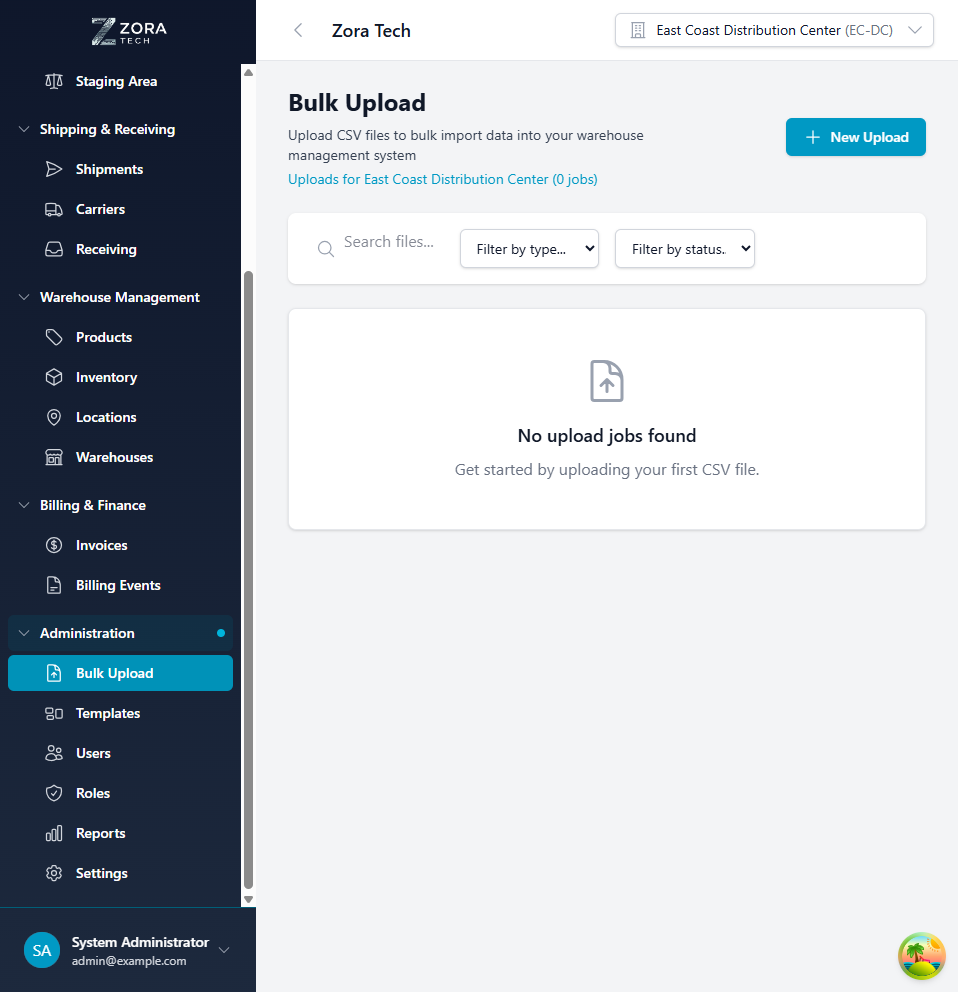
- Select Administration in the left sidebar.
- Select Bulk Upload from the submenu.
The bulk upload interface opens, showing entity type selection, your upload history (if you have any), and a job status tracking panel.
Supported entity types
Bulk upload supports four entity types. These are the complete set — the Data Type dropdown in the upload modal offers exactly these four, in this order, and defaults to LPNs:
| Entity Type | Description | Common Use Cases |
|---|---|---|
| LPNs | License plate numbers with type, status, and current location | Pallet and container onboarding, staging setup |
| Locations | Warehouse locations with zone assignments | Warehouse setup, location expansion |
| Products | Product catalog entries with SKUs, names, barcodes | Initial catalog setup, new product launches |
| Receiving Orders | Purchase orders with expected inventory | Inventory receiving preparation |
There is no bulk upload for customers, inventory adjustments, or serial numbers. Serial numbers are imported as a column on the receiving orders upload rather than on their own — see Serial-tracked products.
Calling the API directly
GET /bulk-upload/entity-types returns only the four types above. The BulkUploadEntityType enum also defines inventory, orders, users, and warehouses, but no processor is registered for them - a job submitted for one of those passes request validation and then fails with PROCESSOR_NOT_FOUND. Treat the endpoint's response as the authoritative list, not the enum.
Upload process
1. Select entity type
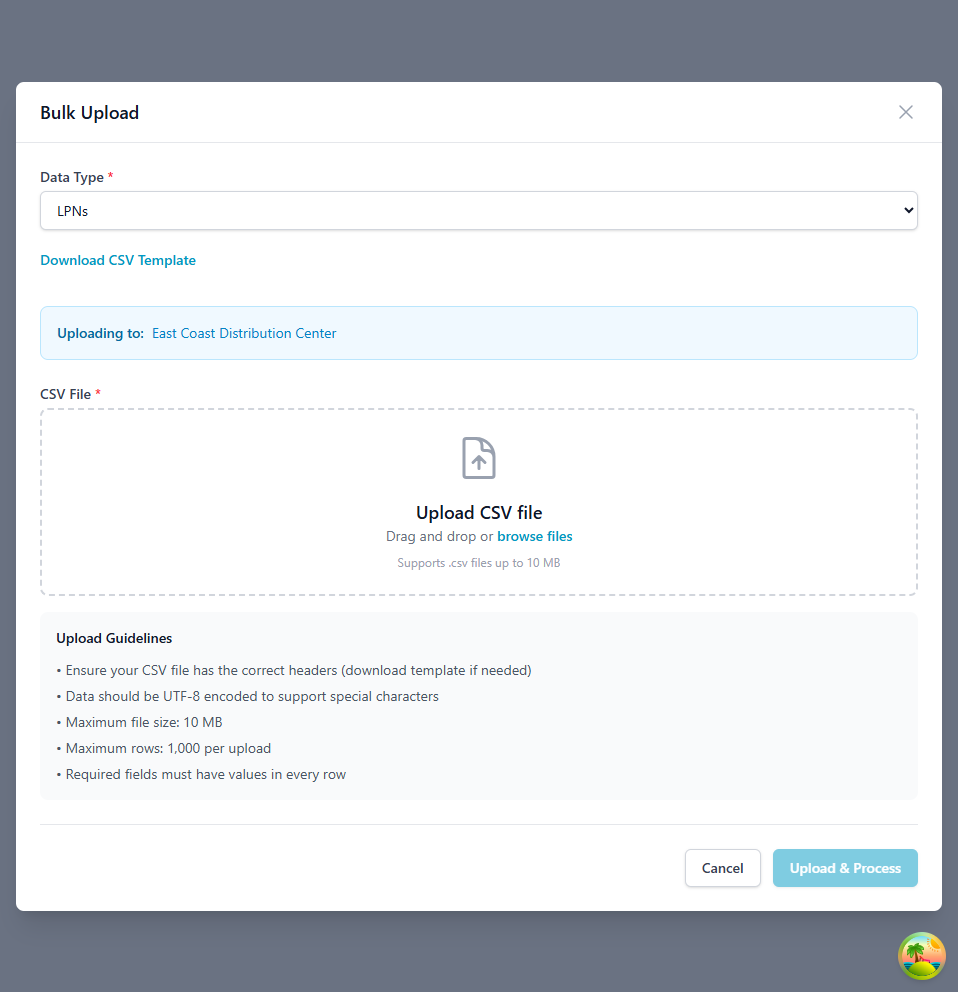
- Select New Upload.
- Select the Entity Type from the dropdown.
- Review the guidelines shown for that type.
2. Upload your CSV file
You can start the upload three ways:
| Method | How it works |
|---|---|
| Drag and drop | Drag your CSV file into the upload zone |
| File browser | Select Browse files to pick a file from your computer |
| Document extract | Upload a PDF, image, or other document, and the system extracts structured data to pre-populate the upload fields |
The file has to meet these requirements:
| Requirement | Value |
|---|---|
| Format | CSV, or a supported document format for extract |
| Maximum size | 10MB per file |
| Maximum rows | 2,000 data rows per upload — see Row limit and skipped rows |
| Character encoding | UTF-8 |
| Column headers | Must match the template exactly (CSV uploads) |
Download template
Select Download Template in the upload modal to get a pre-formatted CSV with the correct column headers and sample data.
3. Validation
The system checks your file before processing it:
| Check | What it confirms |
|---|---|
| File format | The CSV structure is valid |
| Column headers | The required columns are present |
| Data types | Field formats are correct — numbers, dates, emails |
| Business rules | No duplicate SKUs or barcodes, no invalid warehouse references, no serial number conflicts, no missing required fields |
| Result | Meaning |
|---|---|
| Success | The file passes every check and moves to processing |
| Warnings | Minor issues found — you can continue or fix them first |
| Errors | Critical issues found — the upload is rejected, with a detailed error report |
4. Processing
Once your file passes validation, the system creates a background job, processes each row in sequence, and logs any row-level errors as it goes. When it finishes, it generates a summary report.
| Status | Meaning |
|---|---|
| Pending | Job queued for processing |
| Processing | Actively importing records |
| Completed | The job finished. Some rows may still have failed |
| Failed | No rows imported — every row failed, or a critical error stopped the job |
| Cancelled | You cancelled the job before it finished |
Completed doesn't mean every row imported
A job that imports 40 rows and rejects 10 still ends as Completed. There's no separate partial status. Check the success and error counts on the job, and download the error report, before you assume the whole file landed.
Row limit and skipped rows
A single upload processes at most 2,000 data rows (the header row doesn't count). The limit applies the same way to CSV uploads and to rows extracted from a document.
Files larger than the limit are not rejected, and the extra rows are not discarded. The job processes the first 2,000 rows and records every remaining row as a Skipped result, so you can see exactly which records weren't captured and finish the import in a second upload.
A file over the limit imports partially
Uploading a 3,000-row file creates 2,000 records, not 3,000. The upload still reports success for the rows it processed, so check the skipped-rows notice before assuming the whole file landed.
What you see
When an upload exceeds the limit:
- A warning notification appears: "N rows not imported"
- An amber notice on the results view states how many rows the file contained, how many were processed, and which row numbers were skipped - for example, "This file has 3,000 data rows, but a single upload processes at most 2,000. The first 2,000 rows were processed; data rows 2,001 through 3,000 were skipped."
- Each skipped row appears in the results table with the status Skipped, keeping its original row number from your file
- The jobs list shows a Skipped (row limit) count on the job
The same notice appears later on the job's detail view, so you can return to a past upload and still recover its skipped rows.
Skipped rows count toward progress
A job's progress percentage counts skipped rows as accounted for, so a partially imported file still reaches 100%. The Processed count stays an honest count of rows actually handled.
Finishing the import
- Open the upload results — from the upload modal, or by selecting the job in the jobs list.
- Select Download skipped rows (CSV) in the amber notice, or Skipped Rows (Re-upload) in the Download Results panel.
The file downloads as <your-filename>-skipped-rows.csv, using the same columns and order as the upload template.
- Upload that file as-is for the same entity type. No editing required.
- Repeat if the remainder is still over 2,000 rows.
Split large files up front
If you know a file exceeds 2,000 rows, splitting it into batches before uploading avoids the download-and-re-upload round trip entirely.
Downloading skipped rows requires bulk upload export permissions. The download is only available for jobs the row limit actually truncated.
CSV file requirements
General format rules
All CSV files must follow these standards:
| Rule | Detail |
|---|---|
| Header row | First row must contain column headers, an exact match to the template |
| Separator | Commas |
| Text with commas | Enclose it in double quotes |
| Optional fields | Leave the cell empty — don't use "null" or "N/A" |
| Dates | Use YYYY-MM-DD |
| Booleans | true/false or 1/0 |
Columns the template doesn't define are ignored, not rejected
Header validation fails only on a missing required column or a duplicate header. A column name the platform doesn't recognize produces a warning — "Unexpected columns (will be ignored)" — and the upload proceeds without it. A misspelled or invented header therefore imports a row with that value silently dropped rather than telling you the file is wrong. Start from the downloaded template rather than typing headers by hand.
Products CSV template
sku,name,description,barcode,unit_of_measure,weight,reorder_point,reorder_quantity,is_lot_tracked,is_serial_tracked
WIDGET-001,Blue Widget,Standard blue widget for testing,123456789012,EACH,1.5,10,50,false,false
DEVICE-002,Smart Device,IoT-enabled monitoring device,987654321098,EACH,2.0,5,20,false,true
Required fields:
sku: Unique product identifier. Uppercase letters, numbers and hyphens only (for exampleWIDGET-001)name: Product display name
Those two are the only required columns — every other column below may be omitted entirely.
Optional fields:
| Group | Columns |
|---|---|
| Description | description, barcode, image_url |
| Packaging and dimensions | unit_of_measure, weight, length, width, height |
| Inventory management | reorder_point, reorder_quantity, max_stock |
| Pricing | cost, price |
| Tracking | is_lot_tracked, is_serial_tracked, is_active |
| Handling and storage | is_hazmat, temperature_requirement, storage_class, handling_requirements, preferred_location_type, max_stack_height, fragile |
Values the template suggests for the constrained columns:
unit_of_measure:EACH,CASE,BOX,PACK,PALLETtemperature_requirement:AMBIENT(room temperature),REFRIGERATED(35–45°F),FROZEN(below 32°F)preferred_location_type:FLOOR,RACK,SHELF,BULKstorage_class: user-defined (for exampleA,B,FRAGILE). Must match a location's storage class restriction for putaway to consider that location- Boolean columns accept
true/false,yes/noor1/0
There is no category column
Products are organized by storage_class and preferred_location_type, not by a free-text category. A category header is one of the unrecognized columns the uploader drops.
Receiving orders CSV template
When you upload receiving orders, they become visible to your entire warehouse team, so several people can process different POs from the same import at once.
Each row is one line item. Header-level columns (the purchase order, carrier and equipment details) repeat on every row of the same order, or are left blank after the first row.
purchase_order_number,customer_name,carrier_name,expected_date,carrier_reference,product_sku,expected_quantity,unit_cost,lot_number,serial_number
PO-001,Acme Corp,FedEx,2024-01-20T10:00:00Z,TRUCK-ABC123,APP-SHIRT-001,100,8.99,LOT-001,
PO-001,,,,,ELEC-LAPTOP-001,1,1299.99,,SN-12345678
PO-002,Tech Solutions Inc,,2024-01-21T14:00:00Z,,ELEC-PHONE-001,25,899.99,,
Required fields:
product_sku: Must match an existing product SKU in the warehouseexpected_quantity: Number of units expected to receive
Those two are the only required columns. In particular purchase_order_number is optional — see the grouping note below for what happens when you leave it out.
Optional fields:
| Level | Columns |
|---|---|
| Purchase order | purchase_order_number, customer_name, carrier_name, priority, expected_date, carrier_reference, tracking_number, notes, assigned_to_email |
| Equipment and paperwork | expected_seal, equipment_type, equipment_size, equipment_number, mbol_number, bol_number |
| Line item | lot_number, serial_number, expiration_date, unit_cost, unit_weight, line_notes |
Values accepted by the constrained columns:
priority:LOW,NORMAL,HIGH,URGENTequipment_type:TRAILER,CONTAINER,FLATBED,FLAT_RACK,LOWBOY,CHASSISequipment_size:20,40,45,53expected_date: ISO 8601 with time (YYYY-MM-DDTHH:MM:SSZ)expiration_date: date only (YYYY-MM-DD)mbol_numberandbol_number: maximum 50 characters
Grouping and validation:
- Rows are grouped into one receiving order by
purchase_order_numbertogether withcarrier_reference— the same PO arriving on two different carrier references becomes two receiving orders. - Rows with no
purchase_order_numberare not grouped with each other; each becomes its own receiving order under a generated placeholder reference. Supply the column whenever you want multiple line items on one order. - The system checks that every
product_skuvalue exists before processing.
po_number is not the column name
Earlier versions of this page named the grouping column po_number. The platform reads purchase_order_number. Because unrecognized headers are ignored rather than rejected, a file using po_number uploads successfully and silently produces one receiving order per line item, with no purchase order number recorded.
Job history and permissions:
Receiving order uploads are retained permanently — you can review historical imports for audit purposes, see who uploaded which POs and when, and check upload status and validation errors. Admins and managers can upload receiving orders; all warehouse staff can view and process the uploaded POs, and the system tracks which user processed each one.
Serial-tracked products
Serial numbers have no entity type of their own. They are imported as an optional serial_number column on the receiving orders CSV, and the platform validates them while it validates the rest of the row.
Serial numbers on a receiving orders upload
purchase_order_number,product_sku,expected_quantity,serial_number
PO-2025-001,DEVICE-002,1,SN2025-001-0001
PO-2025-001,DEVICE-002,1,SN2025-001-0002
PO-2025-001,DEVICE-002,1,SN2025-001-0003
One row per unit. When a serial number is supplied, expected_quantity must be 1. A serial-tracked product with a quantity above 1 fails with "must have expected quantity of 1 when serial number is provided" - so three units of DEVICE-002 need three rows, as above.
Serial number validation
For products saved with serial tracking enabled:
| Condition | Result |
|---|---|
Product is serial-tracked and serial_number is empty | Error - "Serial number is required for serial-tracked product" |
serial_number supplied with expected_quantity other than 1 | Error - quantity must be 1 |
| Same serial number and SKU appear twice in the file | Error - names the earlier row number |
| Serial number already exists for that SKU in the system | Error - includes the existing record's status |
serial_number supplied for a product that is not serial-tracked | Warning - the row imports and the serial number is ignored |
Uniqueness is per product, not global
A serial number is checked against the combination of serial number and product SKU, case-insensitively. The same serial number can therefore exist on two different SKUs without conflict. Do not rely on serial numbers being unique across your whole catalog.
Lot-tracked products
Lot numbers use the same pattern - an optional lot_number column on the receiving orders CSV. Lot tracking is more forgiving than serial tracking: a lot-tracked product with no lot_number produces a warning ("Lot number recommended"), not an error, so the row still imports.
Job management
Viewing upload history
The bulk upload page lists every upload job, with its ID and creation timestamp, entity type and file name, current status and progress, total records and success/failure counts, and an error download link for failed jobs.
Monitoring job progress
For large uploads:
- The job appears in the jobs list immediately after upload.
- Its status updates automatically as processing progresses.
- Select the job row to see detailed progress.
- Download the error report if any records failed.
Canceling jobs
- Find the job in the jobs list.
- Select Cancel (only available for pending or processing jobs).
- Confirm the cancellation.
The job status changes to Cancelled. Records already processed before you cancelled stay in the system.
Error handling
Common validation errors
| Error | Cause | Solution |
|---|---|---|
| "Duplicate SKU" | SKU already exists in system | Use unique SKUs or update existing products |
| "Invalid barcode format" | Barcode doesn't match standard format | Verify barcode is 12-14 digit UPC/EAN |
| "Product not found" | Referenced SKU doesn't exist | Create product first or fix SKU reference |
| "Serial number conflict" | Serial number already registered | Use unique serial numbers |
| "Missing required field" | Required column empty | Fill in all required fields |
Row-level errors
If individual rows fail during processing:
- The job finishes as Completed, even though some rows failed.
- An error report listing the failed rows is generated.
- Download the error CSV to identify the issues.
- Fix the errors and re-upload only the failed records.
Error report format
row_number,error_code,error_message,original_data
5,DUPLICATE_SKU,Product with SKU 'WIDGET-001' already exists,"WIDGET-001,Premium Widget,..."
12,INVALID_BARCODE,Barcode '123' is not a valid UPC/EAN format,"WIDGET-005,Another Widget,..."
Getting it right
Test with 10-20 records before uploading thousands, and validate the file in a spreadsheet first. Remove special characters and extra spaces, save it as UTF-8, and always start from the downloaded template rather than typing headers by hand.
Schedule large uploads during off-peak hours, keep each file at or under 2,000 records — see Row limit and skipped rows — and upload in logical batches, by storage class or supplier, rather than one giant file. Try a trial upload in a test warehouse before running it in production.
Make sure SKUs, barcodes, and serial numbers are genuinely unique, fill in optional fields where you have the data for better reporting, keep formatting consistent throughout the file, and confirm every referenced product or warehouse actually exists.
For serial numbers, expand quantities into individual rows — a serial-tracked line must have expected_quantity of 1 — and use a consistent, sequential numbering scheme. Uniqueness is checked per SKU, so a mislabeled serial won't be caught as a duplicate; make sure each one sits on the correct product_sku. A serial number already in the system fails the row, so re-upload only the units that haven't been received yet.
Troubleshooting
| Problem | What to check |
|---|---|
| File upload rejected immediately | The file is CSV, not Excel .xlsx; it's under 10MB; it's UTF-8 encoded; the column headers match the template exactly; there are no hidden characters or byte-order marks (BOM) |
| Upload fails validation with errors | Download the error report, compare your CSV against the template, and check for missing required columns, wrong data types, invalid dates (use YYYY-MM-DD), or duplicate values in unique fields |
| Job stuck in "Processing" | Large uploads can take 10-15 minutes — refresh the browser to update the status. Check system performance during peak usage. Contact support if it's stuck over 30 minutes |
| Many rows failed during processing | Download and review the error report, look for a common pattern, fix the source data, and re-upload the failed records |
| Fewer records imported than rows uploaded | Check the job for a Skipped (row limit) count — files over 2,000 data rows import only the first 2,000. Download the skipped rows and upload them as a second file (see Row limit and skipped rows). If nothing was skipped, filter the results table by Validation Errors and Processing Errors. Confirm the file has no blank rows — they're filtered out before processing and never reach the record count |
| Duplicate serial number errors | Check whether the serial number already exists for that SKU — the error names the existing record's status. Check the same serial number and SKU pair doesn't appear twice in your CSV — the error names the earlier row. Use serial number search to find the existing record, remove the already-received units, and re-upload the remainder |
Related guides
- Templates - Label and document template management
- Users - User permissions for bulk upload access
- Receiving Operations - Processing uploaded receiving orders
Support
For bulk upload assistance:
- Email: support@zoratech.io
- FAQ: Bulk Upload FAQ
- Troubleshooting: Common Issues