Carrier management
Set up the carriers you ship with — their service levels, cutoff times, and pickup schedules — so orders route to the right carrier automatically.
Before you begin
Carrier management needs administrative permissions. Have the carrier's account numbers, service details, and SCAC code (for freight carriers) ready before you start.
Key terms
| Term | Meaning |
|---|---|
| Carrier | A shipping or logistics company — UPS, FedEx, a regional freight company |
| Service Level | A specific service a carrier offers — Ground, Express, Overnight |
| Cutoff Time | The daily deadline for an order to make same-day pickup |
| Pickup Schedule | The days the carrier picks up from your facility |
| SCAC Code | The 2-4 character code used in freight and EDI transactions |
| Default Service Level | The service selected automatically when you create a shipment |
The carriers page
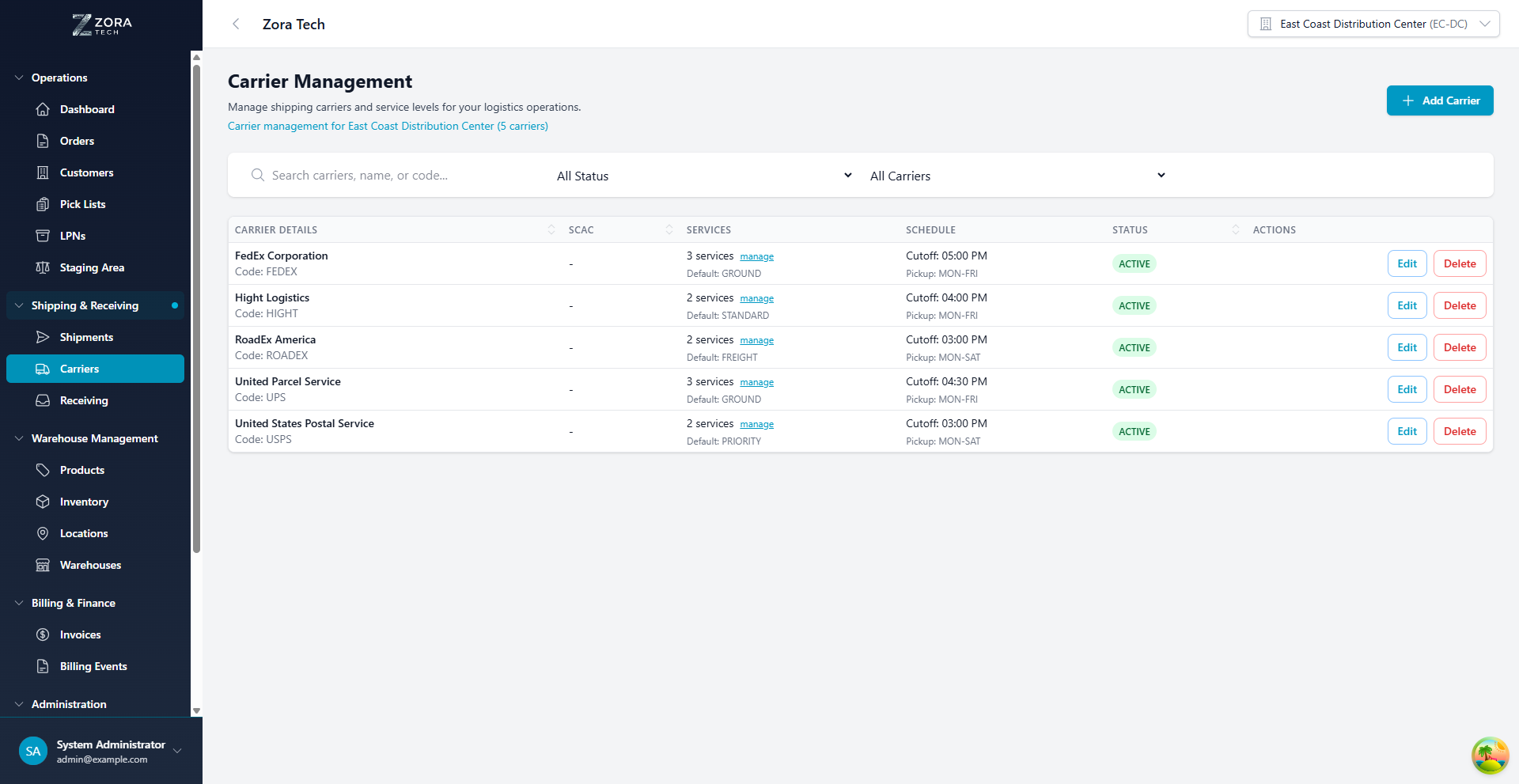
Open Shipping & Receiving → Carriers.
| Tool | What it does |
|---|---|
| Header | Shows the total carrier count and the current warehouse |
| Add Carrier | Creates a new carrier |
| Search & filters | Find carriers by name, code, status, or service availability |
| Carriers table | Lists every carrier with its key details |
| Actions | Edit or delete a carrier directly from the table |
What the carrier table shows
| Column | Shows |
|---|---|
| Carrier Details | Name, code, account number, and default service level |
| SCAC | Standard Carrier Alpha Code, for freight |
| Services | Number of configured service levels, plus a manage link |
| Schedule | Cutoff time and pickup schedule |
| Status | Active or Inactive badge |
| Actions | Edit and Delete buttons |
Adding a carrier
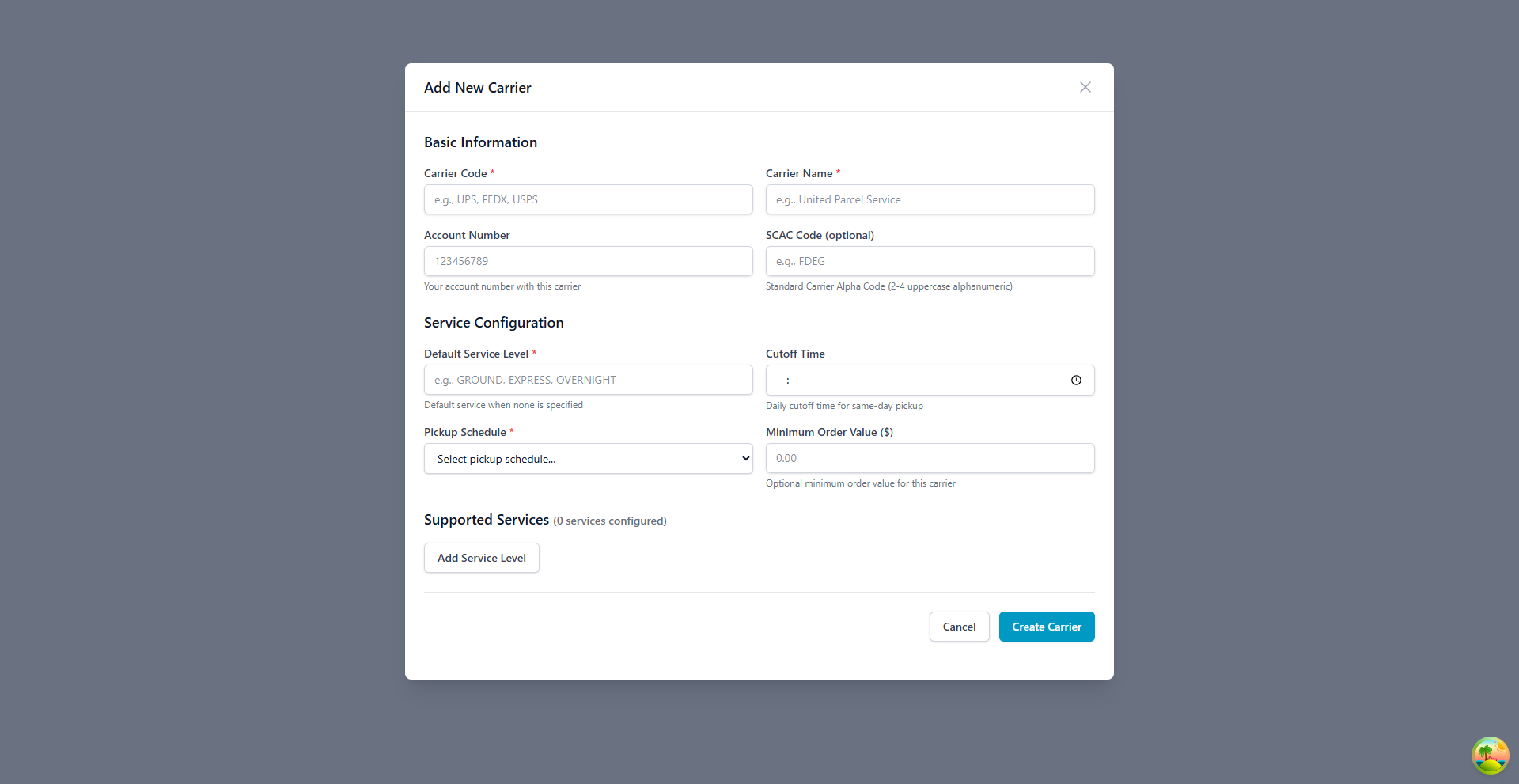
- Select Add Carrier (top right).
-
Enter the Carrier Code and Carrier Name. Both are required.
Field Notes Carrier Code Short internal identifier, like UPSorFEDEX. Must be uniqueCarrier Name Full company name, shown to users throughout the system — for example "United Parcel Service" -
Add the Account Number and SCAC Code if you have them.
Field Notes Account Number Your account with this carrier, used for billing and tracking SCAC Code 2-4 uppercase alphanumeric characters. Required for freight carriers and EDI transactions. Examples: FDEG(FedEx),UPGF(UPS Ground Freight) -
Set the Default Service Level — the service used when none is specified, for example
GROUND,EXPRESS,OVERNIGHT, orSTANDARD. It should match one of your service levels. - Set the Cutoff Time, the daily deadline for same-day pickup, in 24-hour
HH:MMformat — for example17:00for 5:00 PM. - Choose a Pickup Schedule: Daily, Monday to Friday, Tuesday & Thursday, Monday/Wednesday/Friday, On Demand, or Custom Schedule.
- Set a Minimum Order Value if this carrier has one. Orders below it may carry additional fees. Leave it at
0.00if there's no minimum. - Add service levels now, or skip this step. It's usually easier to create the carrier first and add service levels afterward — see Managing service levels.
-
Review what you entered and select Create Carrier.
The carrier appears in the list immediately.
Managing service levels
Service levels define the specific shipping services each carrier offers.
Open them either of two ways: select manage in the carrier's Services column, or select the carrier row, then Service Levels in the details modal.
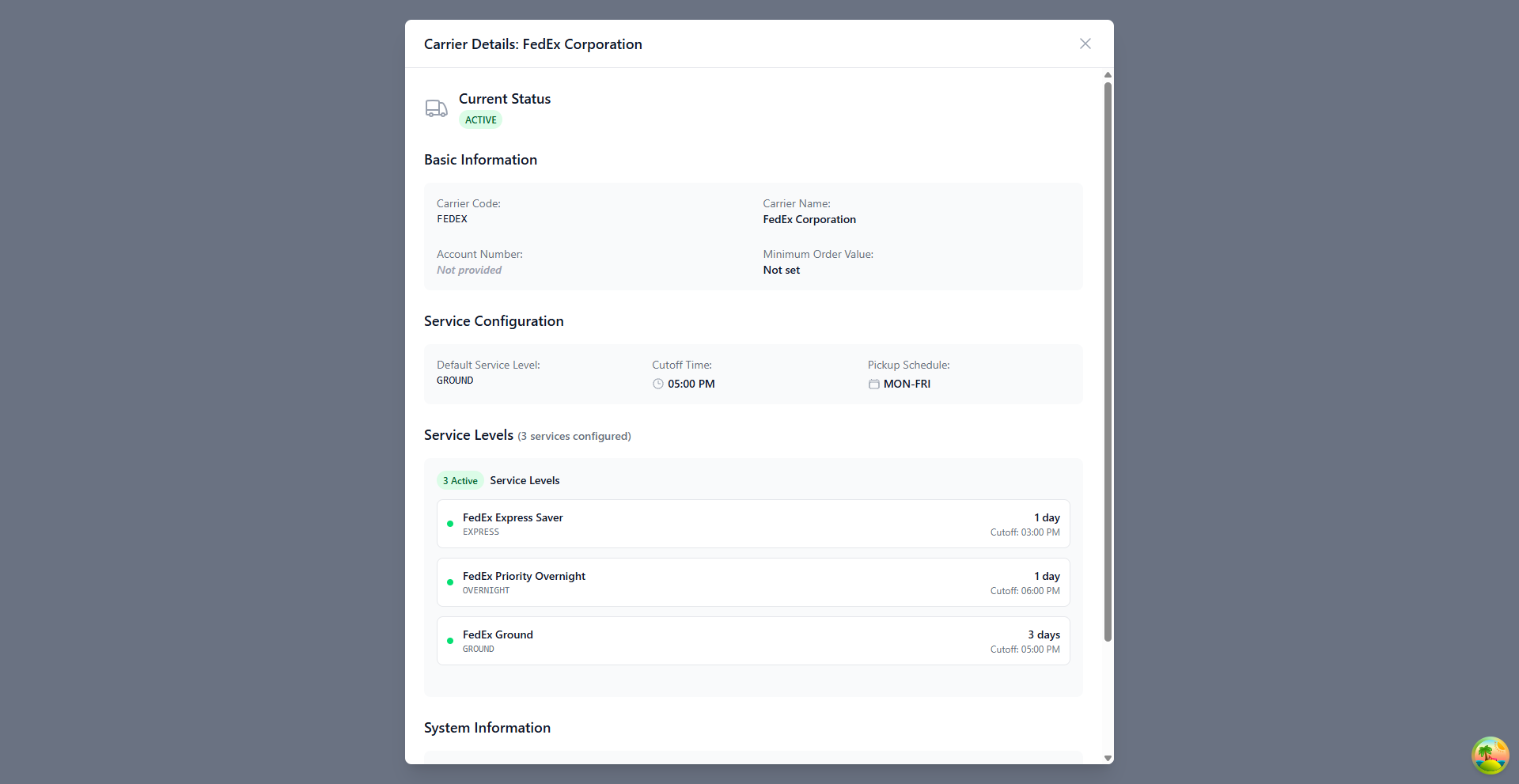
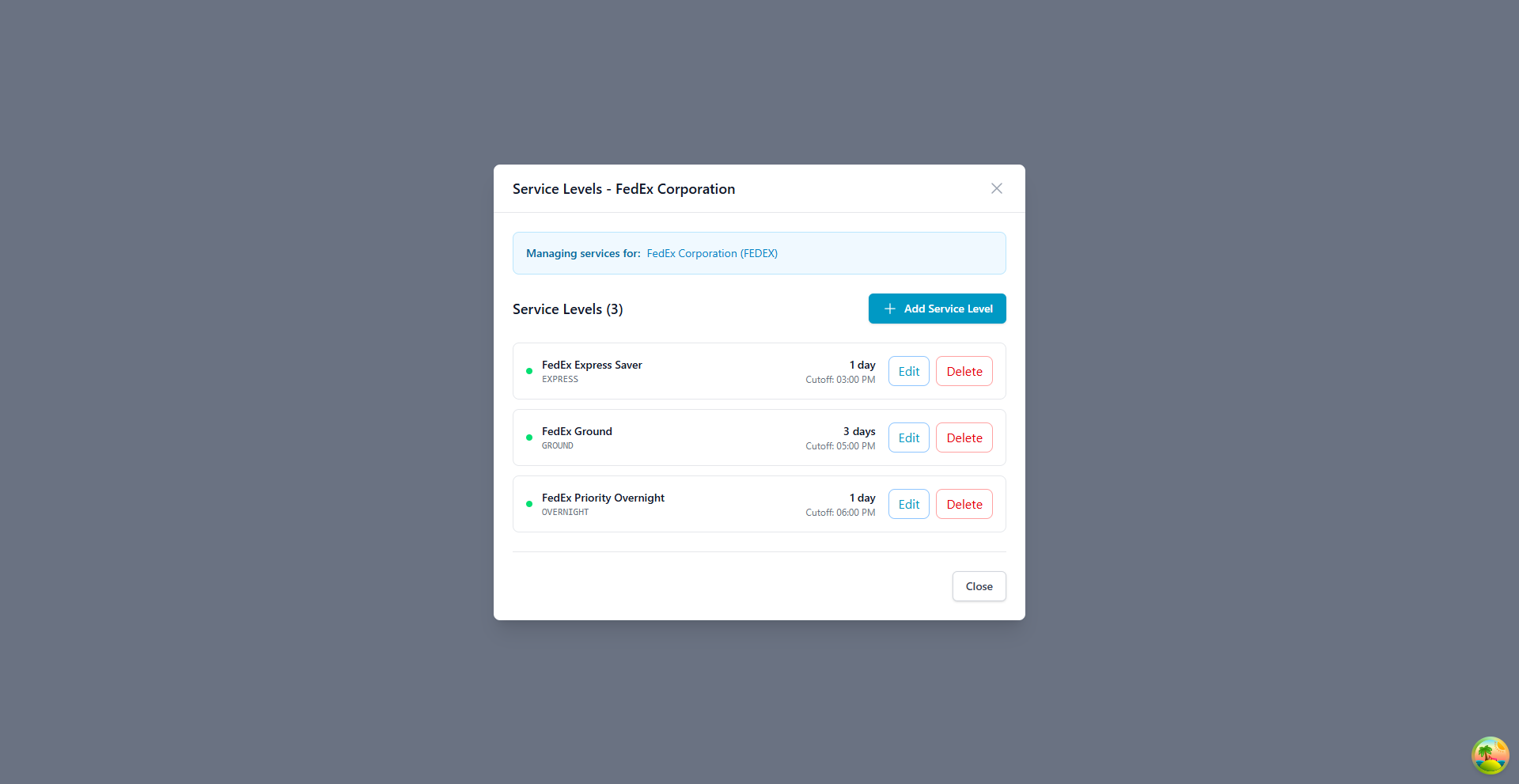
The Service Levels modal shows the carrier's name and code, the total number of configured services, the full service list, and an Add Service Level button.
Adding a service level
- Open the Service Levels modal.
- Select Add Service Level.
- Enter the Service Name — a display name, like "FedEx Ground" or "UPS Next Day Air".
- Enter the Service Code — an internal code, like
GROUNDorEXPRESS, unique per carrier. - Enter the Transit Time (Days) — the expected delivery time, used for rate shopping and customer expectations.
- Set a Cutoff Time for this service if it differs from the carrier's general cutoff.
- Set Active Status. Inactive services don't appear in service selection.
- Select Save.
Editing a service level
- Open the Service Levels modal.
- Select Edit on the service you want to change.
- Update the details and select Save.
Deleting a service level
This can't be undone
Confirm no active shipments are using this service level before you delete it.
- Open the Service Levels modal.
- Select Delete on the service you want to remove.
- Confirm the deletion.
Editing carrier details
Open the edit modal by selecting Edit in the carrier's row, or by selecting the row and then Edit in the details modal.
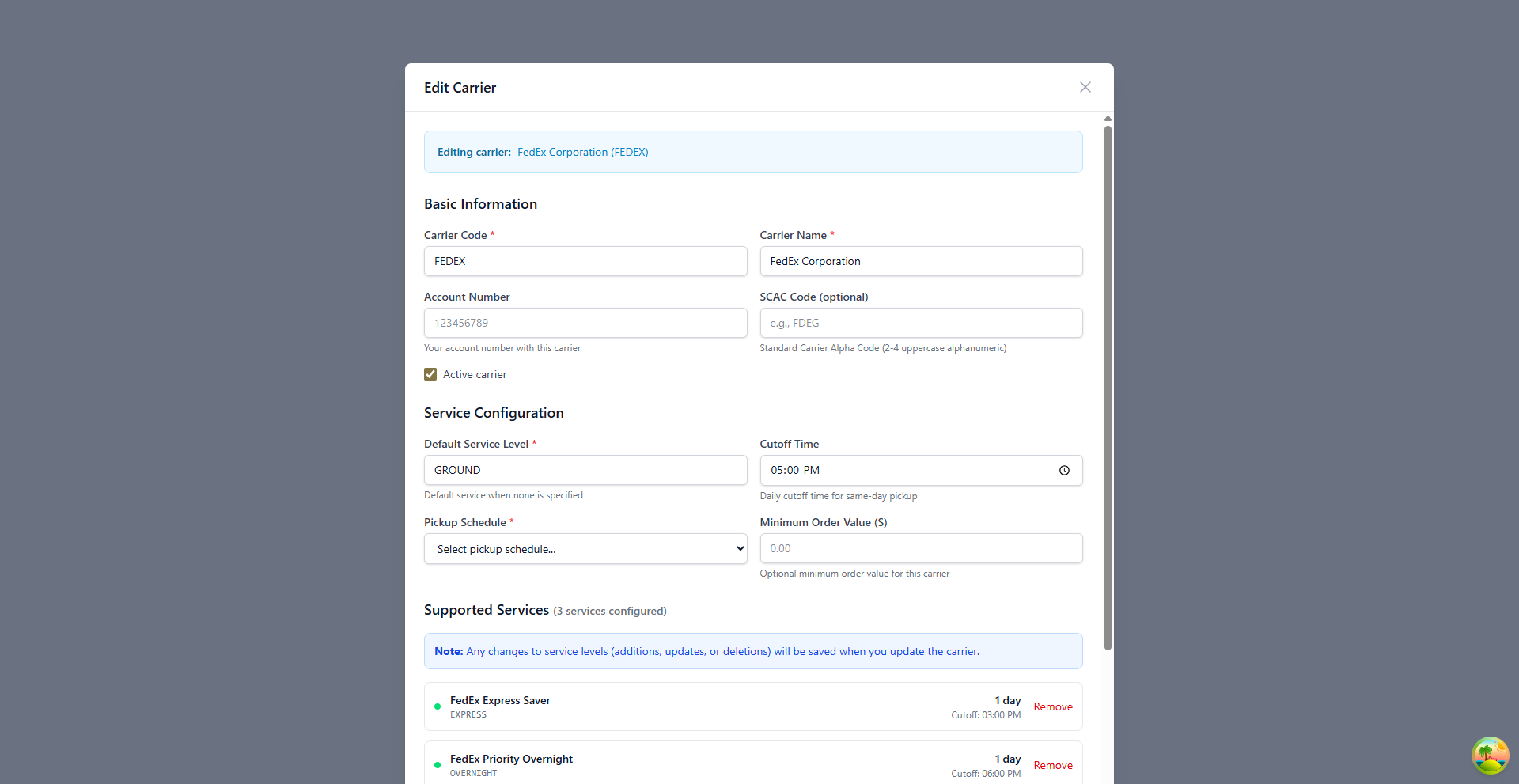
You can change any carrier field — code, name, account number, SCAC code, active status, default service level, cutoff time, pickup schedule, and minimum order value — and add, remove, or edit service levels from the same form.
Service changes save with the carrier
Any changes to service levels — additions, updates, or deletions — save when you select Update Carrier & Services.
- Make your changes in the Edit Carrier modal.
- Review what you changed.
-
Select Update Carrier & Services.
The changes take effect immediately.
Carrier status
| Status | Badge | Effect |
|---|---|---|
| Active | Green "ACTIVE" | Available for new shipments, appears in carrier dropdowns, service levels accessible |
| Inactive | Gray "INACTIVE" | Hidden from new shipments and dropdowns; existing shipments are unaffected |
To change it, open the edit modal, toggle Active carrier, and select Update Carrier & Services.
Prefer inactive over delete
Marking a carrier inactive preserves its historical shipment data. Save deleting for records created by mistake.
Deleting a carrier
Deleting is permanent, and the carrier's service levels are removed with it. The Delete action is always available on the carrier row — the platform decides whether the delete can proceed when you confirm it, not before, so there is no disabled button to interpret.
The platform refuses to delete a carrier that any shipment still references, and names the blocker:
Cannot delete carrier "name" — N shipment(s) reference it. Deactivate the carrier instead to keep its shipment and billing history intact.
Delivered and cancelled shipments still block the delete
The check is not limited to shipments in progress. A carrier whose shipments are all delivered or cancelled is still blocked, because the Bill of Lading, rate, and invoice history on those shipments resolves the carrier record. Other records that reference the carrier — receiving orders, for example — produce the same refusal, worded as "other records still reference it".
When the delete is refused, the confirmation dialog stays open and switches to Carrier Cannot Be Deleted, showing the reason and offering the remedy:
- Deactivate Instead — sets the carrier inactive without leaving the dialog. This is the supported way to retire a carrier that has history.
- Close — dismisses the dialog, leaving the carrier unchanged.
If the carrier is already inactive there is no Deactivate Instead button, and the dialog explains that the carrier is already hidden from new shipments and can be deleted once the records referencing it are archived.
Deleting a carrier requires the orders: delete permission. The referencing-records check is not a permission gate — no role can override it.
When to inactivate a carrier
- The carrier relationship has ended
- The carrier is seasonal and it's off-season
- You're testing a new carrier configuration
- Rate negotiations are in progress
- You're seeing service quality issues
Search and filtering
Search by carrier name, code, or account number (partial matches). "FedEx" finds FedEx Corporation, "UPS" finds United Parcel Service and UPS freight, and "FEDEX" finds carriers with code FEDEX.
| Filter | Options |
|---|---|
| Status | All Status, Active, Inactive |
| Services | All Carriers, With Services, No Services |
Select Clear Filters to reset every filter and show the full carrier list.
Freight forwarding integration
Book LTL and truckload freight — request rate quotes, book shipments, generate a Bill of Lading (BOL), and track the shipment — without leaving the platform.
| Carrier | Notes |
|---|---|
| TForce WorldWide (formerly UPS Freight) | National LTL carrier |
| Unishippers / Speedship | Multi-carrier freight network |
| Additional carriers | Available through API integration |
| Capability | Details |
|---|---|
| Rate quotes | Request real-time quotes from multiple carriers, compare pricing and transit times, select accessorial services like liftgate or residential delivery, and see a detailed cost breakdown |
| Shipment booking | Book directly from a rate quote, set pickup and delivery time windows, add reference numbers and special instructions, and get automatic confirmation |
| Bill of Lading (BOL) | Generate a BOL with every shipment detail and a barcode for carrier scanning, and download it as a PDF |
| Tracking | See real-time status by PRO number or BOL number, with delivery notifications and exception alerts |
| Proof of delivery | View the POD after delivery, including the consignee's signature and the delivery date and time |
Setting up a freight carrier
- Use the carrier's standard SCAC code — for example
UPSCorTFWWfor TForce WorldWide (formerly UPS Freight). - Add the account number for billing. API credentials and service region coverage are set up by an admin.
- Add the service levels you use: Standard LTL, Expedited Freight, Guaranteed Service, or Time-Definite options.
For the full workflow — requesting and comparing quotes, understanding freight classes, booking shipments, generating and printing BOLs, tracking shipments, handling pickups and deliveries, accessorials, and cost optimization — see the freight forwarding guide.
Getting it right
Standardize your carrier codes across the organization, use industry-standard codes where they exist, and document any custom ones.
Configure every service level you actually use, with accurate transit times and, where it differs from the carrier default, a specific cutoff time per service.
Set cutoffs with room to spare. Account for your own warehouse processing time and the carrier's pickup schedule, and build in extra buffer during peak seasons.
Keep account numbers and billing information current, and link them to contracts where you have one.
Review carriers quarterly. Update service levels as carriers change their offerings, and verify cutoff times each season.
Manage service levels actively. Remove ones you no longer use, keep the default set to the one you use most, and test a new service before making it the default.
Keep SCAC codes accurate — verify them against carrier documentation, and update them when a carrier merges or rebrands. They matter for freight and EDI transactions.
Prefer inactivating a carrier to deleting it. It preserves historical shipment data and lets you reactivate the relationship later.
Use full, official carrier names, saving abbreviations for the carrier code. Name service levels the way the carrier does, and include the carrier name in the service level name — "FedEx Ground", not just "Ground".
Keep minimum order values current as carrier contracts change, document any exceptions, and set the value to 0 where no minimum applies.
For freight: request quotes from more than one carrier and compare total cost including accessorials, not just the base rate. Use the correct freight class to avoid reclassification. Keep BOL copies for at least 2 years, keep proof-of-delivery records, document any damage or shortage at delivery, and file claims within the carrier's timeframe. Link freight shipments to customer orders so you can track freight costs and report on freight metrics by order.
Troubleshooting
| Problem | What to check |
|---|---|
| Configured carrier doesn't appear in the shipment creation dropdown | The carrier's status is Active, it has at least one service level, that service level is also Active, and your user has permission to use this carrier |
| Orders submitted before cutoff are missing pickup | The cutoff time is correct in 24-hour format, the timezone setting is right, the pickup schedule includes today, and you're checking the correct cutoff — carrier-level or service-level |
| Delete fails with "Cannot delete carrier ... shipment(s) reference it" | Expected whenever any shipment references the carrier, including delivered and cancelled ones. Select Deactivate Instead in the same dialog to retire the carrier while keeping its history. If it's already inactive, no further action is needed. To delete it outright, the referencing shipments and receiving orders must be archived first — no permission level bypasses the check |
| Delete fails without mentioning shipments | Confirm you have the orders: delete permission — without it the request is rejected as Access Denied. Check the carrier still exists; another user may have deleted it since the page loaded, so reload the carrier list |
| System rejects the SCAC code you entered | SCAC must be 2-4 characters, uppercase letters and numbers only. Verify the code against carrier documentation, or leave it blank if the carrier doesn't have one |
| Can't create a carrier with the code you want | Carrier codes must be unique system-wide. Check existing carriers for a conflict, use a variation such as UPSFREIGHT, or edit or delete the conflicting carrier if it's obsolete |
Error messages
| Error | Cause | Resolution |
|---|---|---|
| "Carrier code already exists" | Duplicate code | Use a different code or edit the existing carrier |
| "Default service level required" | Missing required field | Enter a default service level |
| "Invalid SCAC code format" | Format validation | Use 2-4 uppercase alphanumeric characters |
| "Cannot delete carrier ... N shipment(s) reference it" | Carrier referenced by shipments, in any status | Use Deactivate Instead in the delete dialog |
| "Cannot delete carrier ... other records still reference it" | Carrier referenced outside shipments, e.g. a receiving order | Deactivate the carrier; archive the referencing records to delete it |
| "Cutoff time must be valid 24-hour time" | Invalid time format | Use HH:MM format (00:00 to 23:59) |
Still stuck? Check the error message against the table above and confirm your permissions, then contact support with the carrier name and the exact error message.
Related guides
- Shipping & Logistics - Shipment creation and management
- Settings - Carrier integration configuration
- Receiving Operations - Inbound carrier management
Need more help? Email support@zoratech.io, or check the FAQ and troubleshooting guide.