Company Branding
Customize the platform's appearance with your company logo and information. Your branding appears on all generated documents including invoices, packing slips, pick lists, and shipping manifests.
Overview
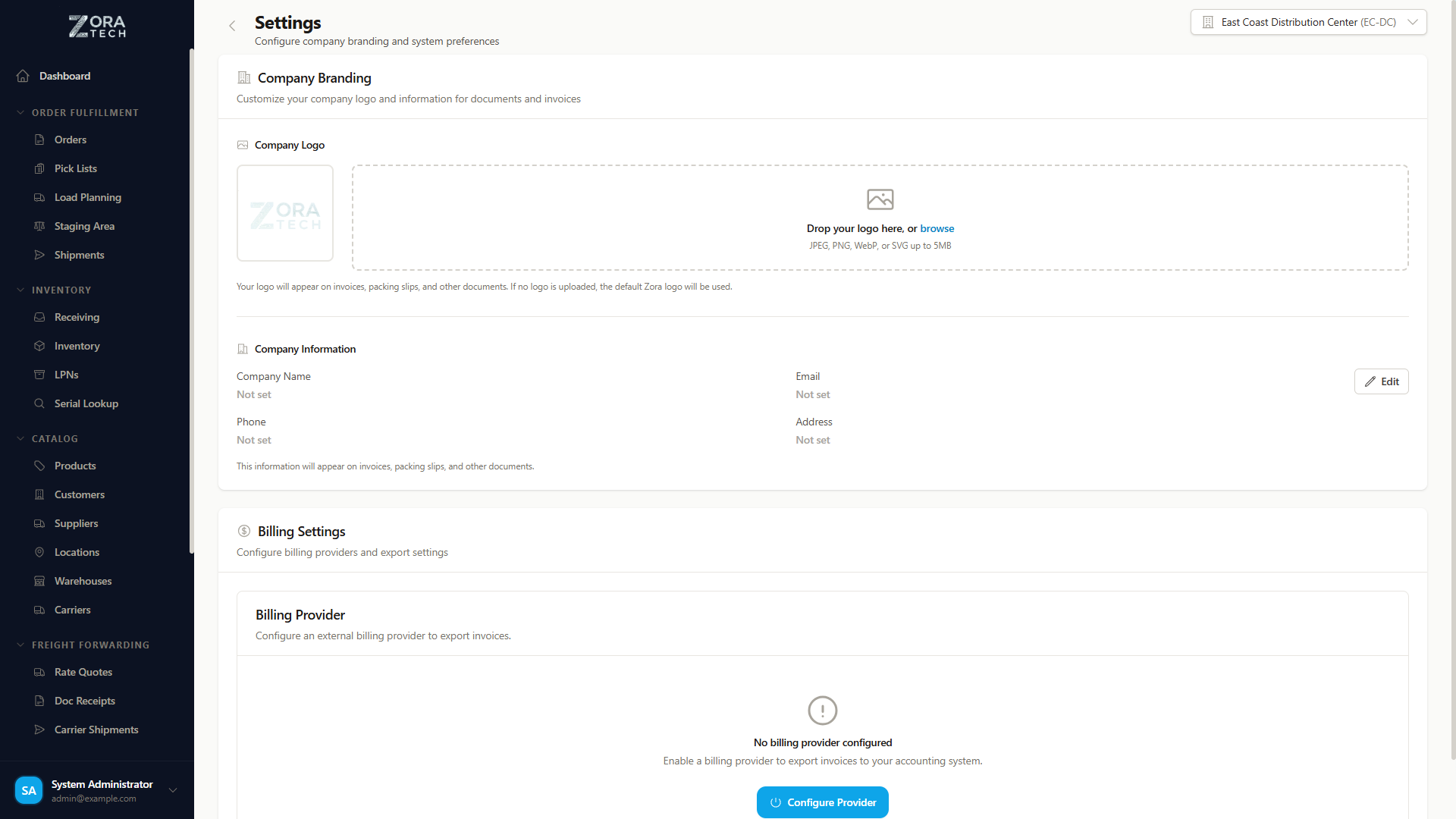
The Company Branding settings allow administrators to:
- Upload a custom company logo
- Edit company contact information
- Preview branding on document templates
- Revert to the default Zora logo at any time
Administrator Access Required
Company branding settings are only accessible to users with administrator privileges.
Uploading Your Company Logo
Supported Formats
| Format | Extension | Notes |
|---|---|---|
| JPEG | .jpg, .jpeg | Best for photographs |
| PNG | .png | Best for logos with transparency |
| WebP | .webp | Modern format with small file sizes |
| SVG | .svg | Vector format, scales to any size |
Maximum file size: 5 MB
Upload Process
- Navigate to Settings > Company Branding
- Click Upload Logo or drag and drop your logo file
- The system validates the file format and size
- Your logo uploads directly to secure cloud storage
- The new logo appears immediately across all document templates
Logo Recommendations
- Use a transparent background (PNG or SVG) for the best appearance on documents
- Recommended dimensions: at least 200px wide for crisp rendering
- Keep the file size small for fast loading on generated documents
Replacing Your Logo
Upload a new logo at any time. The previous logo is automatically removed and replaced.
Reverting to Default
To remove your custom logo and revert to the Zora Tech default:
- Navigate to Settings > Company Branding
- Click Remove Logo
- Confirm the removal
- The default Zora logo will be used on all documents going forward
Company Information
Edit your company details that appear on generated documents:
| Field | Description | Example |
|---|---|---|
| Company Name | Legal or display name | Acme Logistics Inc. |
| Address | Street address | 123 Warehouse Blvd |
| City | City | Chicago |
| State | State or province | IL |
| Postal Code | ZIP or postal code | 60601 |
| Phone | Contact phone number | (312) 555-0100 |
| Contact email address | info@acmelogistics.com |
Editing Company Information
- Navigate to Settings > Company Branding
- Update any of the company information fields
- Click Save Changes
- Changes take effect immediately on newly generated documents
Document Templates
Your company branding appears on the following document types:
| Document | Logo Placement | Company Info |
|---|---|---|
| Invoices | Top header | Full company details in header |
| Packing Slips | Top header | Company name and address |
| Pick Lists | Top header | Company name |
| Shipping Manifests | Top header | Full company details |
Existing Documents
Previously generated documents retain the branding that was active at the time of generation. Only newly generated documents will reflect branding changes.
Best Practices
- Use high-resolution logos for professional-looking documents
- Keep company information current to ensure accurate documents for customers and carriers
- Test with a document preview after uploading a new logo to verify appearance
- Use SVG format when possible for the sharpest rendering at any size