Company branding
Put your company logo and details on the documents you hand to customers and carriers — invoices, bills of lading, and reports.
Before you begin
Company branding is available only to administrators.
Branding is managed on the Warehouses page, in two layers:
- Company defaults — the logo and company details used everywhere by default.
- Per-warehouse overrides — any warehouse can print its own name, remit-to address, or logo instead.
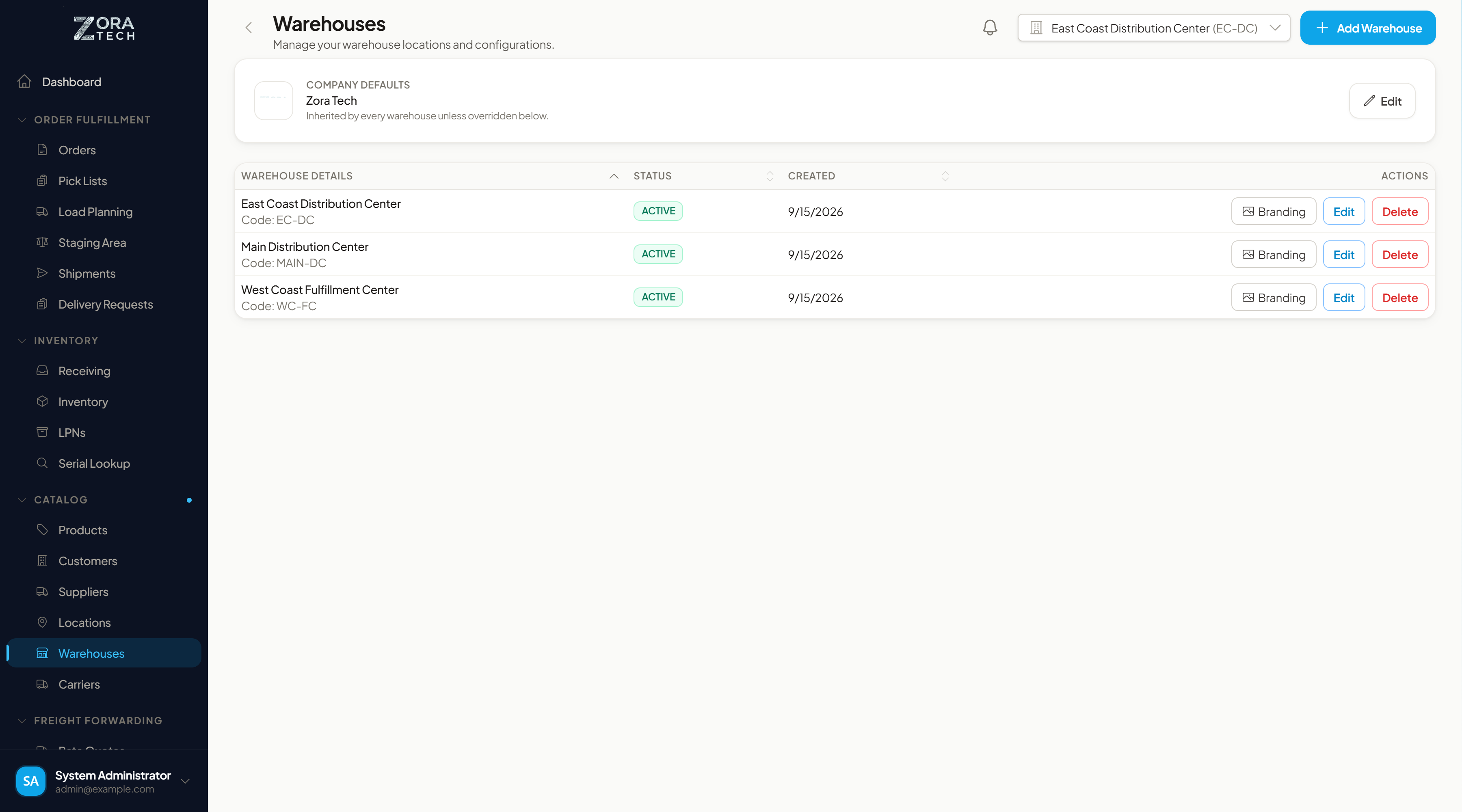
Figure: the Company Defaults card sits above the warehouse list, with a Branding action on each warehouse
For any given field, the platform uses the warehouse's override if it has one, then the company default, then its own built-in fallback.
Branding moved off the Settings page
Company branding now lives on Warehouses, so the company defaults and the per-warehouse overrides can be edited side by side. Settings covers billing, invoice email, and compliance rules.
Uploading your company logo
Supported formats
| Format | Extension | Notes |
|---|---|---|
| JPEG | .jpg, .jpeg | Best for photographs |
| PNG | .png | Best for logos with transparency |
| WebP | .webp | Modern format with small file sizes |
| SVG | .svg | Vector format, scales to any size |
Maximum file size: 5 MB
Upload process
- Go to Warehouses and choose Edit on the Company Defaults card.
- Drop your logo on the upload area, or choose browse to pick a file.
- The platform checks the file format and size.
-
Your logo uploads to secure cloud storage.
The new logo appears immediately across every document template.
Logo recommendations
- Use a transparent background (PNG or SVG) for the best appearance on documents.
- Aim for at least 200px wide, for crisp rendering.
- Keep the file size small, for fast loading on generated documents.
Replacing your logo
Upload a new logo at any time. The previous logo is removed and replaced automatically.
Reverting to default
- Go to Warehouses and choose Edit on the Company Defaults card.
- Choose Remove Logo.
-
Confirm the removal.
The default Zora logo is used on every document from now on.
Company information
These fields appear on your generated documents:
| Field | Holds | Example |
|---|---|---|
| Company Name | Your legal or display name | Acme Logistics Inc. |
| Address | Street address | 123 Warehouse Blvd |
| City | City | Chicago |
| State | State or province | IL |
| Postal Code | ZIP or postal code | 60601 |
| Phone | Contact phone number | (312) 555-0100 |
| Contact email address | info@acmelogistics.com |
Editing company information
- Go to Warehouses and choose Edit on the Company Defaults card.
- Update the company information fields you need.
-
Choose Save Changes.
Newly generated documents reflect the change right away.
Per-warehouse branding
A warehouse that trades under its own name — a separate legal entity, a DBA, or a different remit-to address — can override any branding field for the documents it produces.
Choose Branding on the warehouse's row in the warehouse list.
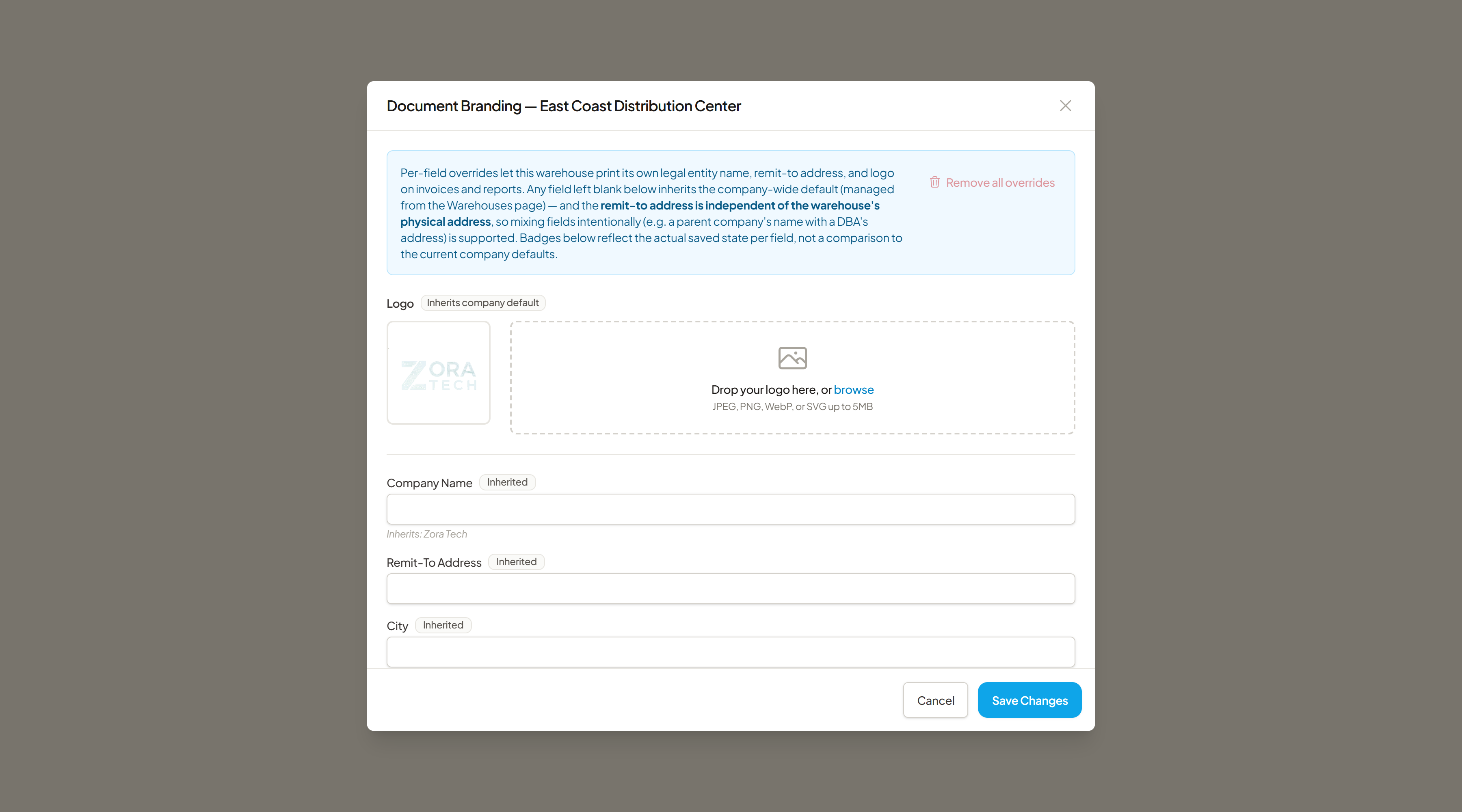
How overrides work
- Blank means inherit. Any field you leave empty uses the company default, and the field shows what it is inheriting.
- Each field carries a badge — Inherited or an override — reflecting what is actually saved for that warehouse.
- Fields are independent. You can override the company name while still inheriting the address, or the other way round.
| Field | Notes |
|---|---|
| Logo | Same formats and 5 MB limit as the company logo |
| Company Name | The legal entity this warehouse prints |
| Remit-To Address, City, State, Postal Code | Where this warehouse asks to be paid |
| Phone, Email | Contact details on this warehouse's documents |
Remit-to is not the warehouse's physical address
The remit-to address here is independent of where the warehouse actually sits. Changing it doesn't move the warehouse, and changing the warehouse's physical address doesn't change where customers send payment.
Removing overrides
To clear one field, empty it and save — it goes back to inheriting the company default.
To clear all fields, choose Remove all overrides. The warehouse inherits company branding for everything again.
Where branding appears
| Document | What it uses |
|---|---|
| Invoices (PDF) | Logo and full company details |
| Invoice email drafts | The company email address as the from-address — see Emailing invoices |
| Bills of Lading | Logo and company details |
| Reports (PDF) | Logo and company details |
| Freight forwarding documents | Logo and company details |
Which branding a document gets follows the warehouse it belongs to: the warehouse's overrides first, then the company defaults.
Existing documents
Previously generated documents retain the branding that was active at the time of generation. Only newly generated documents reflect branding changes.
Getting it right
Use a high-resolution logo. It keeps documents looking sharp.
Keep company information current, so customers and carriers always get an accurate document.
Generate one document after a change to confirm the new branding looks right.
Use SVG when you can. It renders sharpest at any size.
Override only what differs at a warehouse, so a change to the company defaults still reaches it.