Customer Management
Overview
The Customer Management feature enables you to create, manage, and maintain comprehensive customer records within the Zora Tech Logistics Platform. Customers are the foundation of order processing, billing, and relationship management across your logistics operations.
Table of Contents
- Overview
- Getting Started
- Accessing Customer Management
- Customer Information Structure
- Creating a New Customer
- Managing Customer Details
- Customer Addresses
- Customer Contacts
- Customer Status Management
- Customer Tiers
- Financial Information
- Searching and Filtering
- Customer Actions
- Importing Customers from Billing Providers
- Best Practices
- Troubleshooting
Getting Started
Customer management is essential for:
- Order Processing: Link orders to customer accounts for tracking and billing
- Relationship Management: Maintain complete customer profiles with contacts and preferences
- Financial Control: Track credit limits, payment terms, and billing information
- Delivery Management: Store shipping addresses and special delivery requirements
- Business Intelligence: Analyze customer activity and performance metrics
Accessing Customer Management
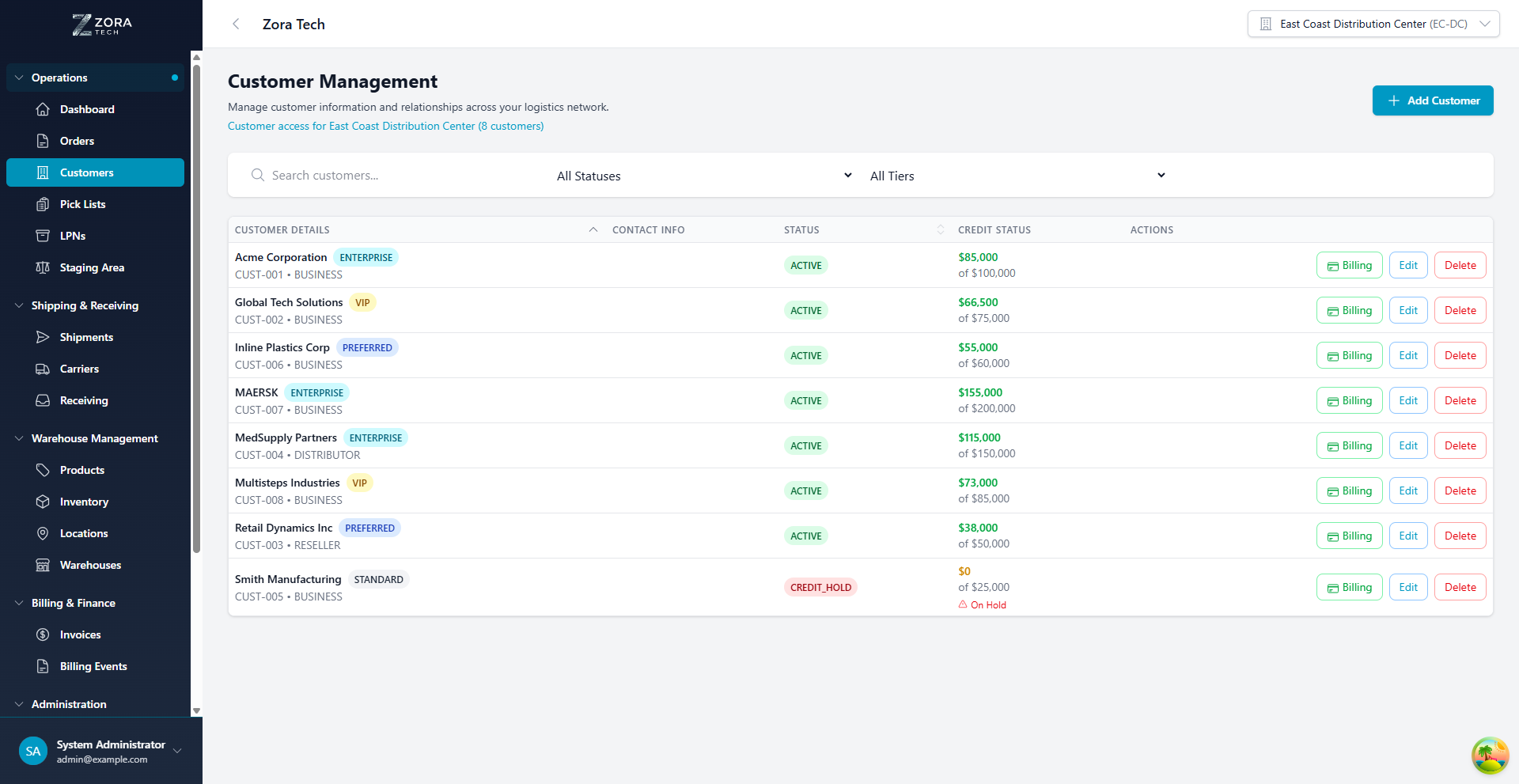
Navigate to Catalog > Customers from the main sidebar to access the Customer Management interface.
Key Interface Elements:
- Search Bar: Quick customer lookup by name or customer code
- Status Filter: Filter customers by status (Active, Credit Hold, Suspended, etc.)
- Tier Filter: Filter by customer tier (Standard, Preferred, VIP, Enterprise)
- Add Customer Button: Create new customer records
- Customer Table: View all customers with key information at a glance
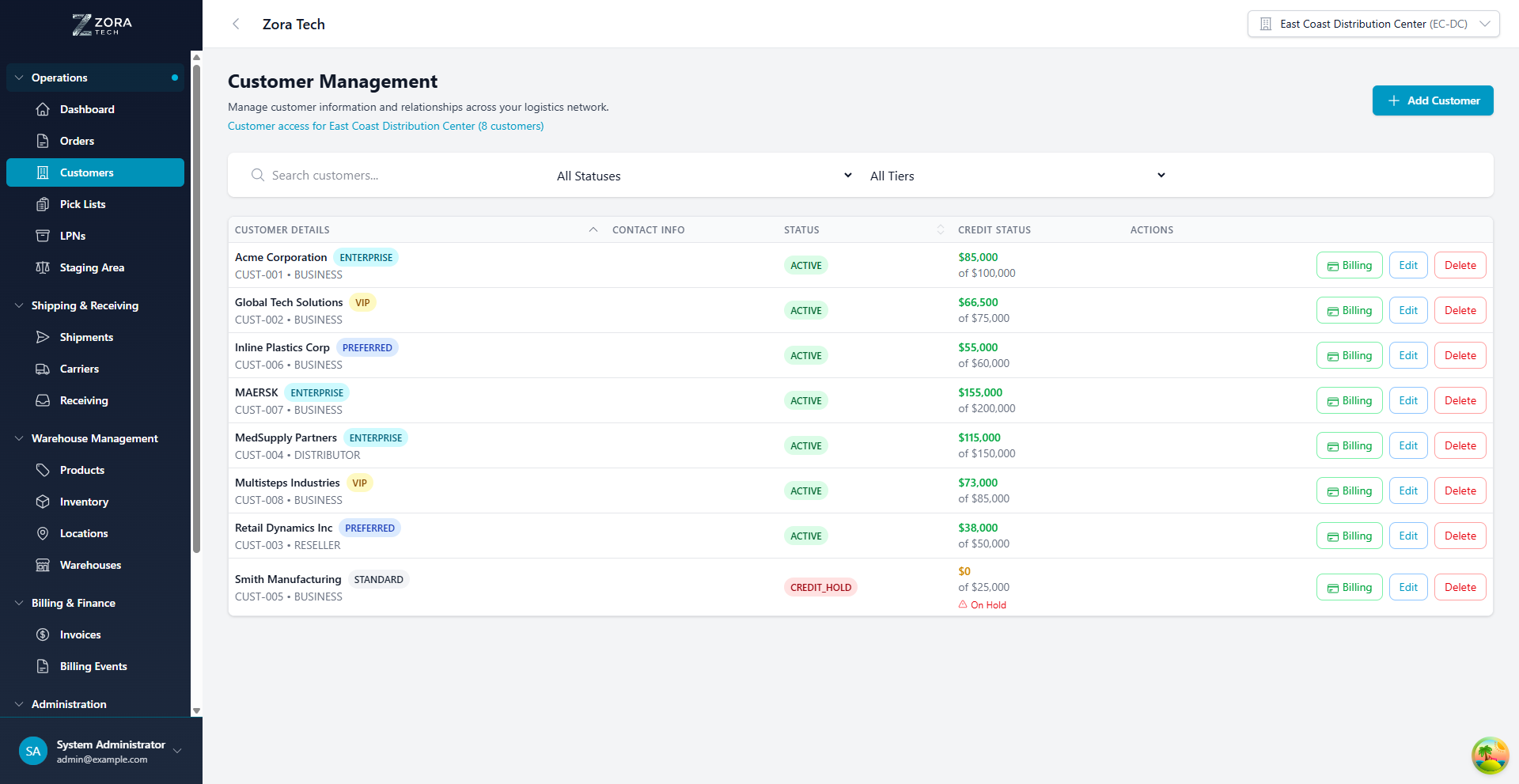
Figure: Customer table displaying company details, tier badges, status, credit information, and action buttons
Customer Information Structure
Each customer record contains:
Basic Information
- Company Name: Customer business name (required)
- Customer Code: Auto-generated unique identifier (e.g., CUST-001)
- Customer Type: Business classification
- Individual
- Business
- Reseller
- Distributor
- Customer Tier: Service level classification
- Status: Current account status
- Tax ID: Tax identification number (optional)
- Sales Rep: Assigned sales representative for the account (optional)
Financial Information
- Credit Limit: Maximum outstanding balance allowed
- Current Balance: Total amount owed
- Payment Terms: Default payment conditions (e.g., NET30, NET60)
- Preferred Shipping Method: Default carrier preference
Addresses
- Billing Address: Invoice destination
- Shipping Address(es): Delivery locations
- Address Labels: Descriptive names for multiple locations
Contacts
- Primary Contact: Main point of contact
- Additional Contacts: Purchasing, billing, receiving contacts
- Contact Types: Primary, Billing, Purchasing, Receiving
Creating a New Customer
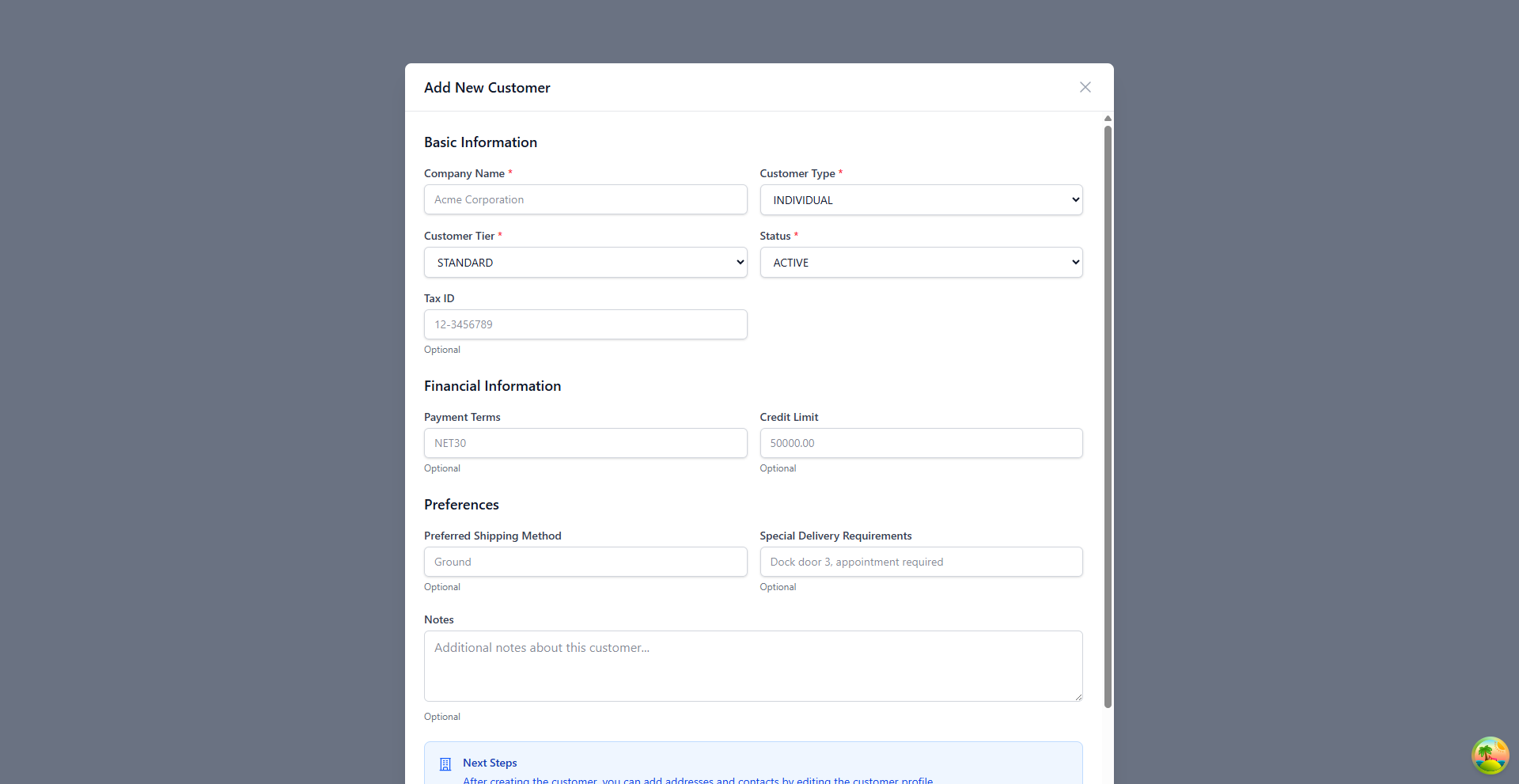
Figure: Add New Customer dialog showing all required and optional fields
Step-by-Step Process
- Click "Add Customer" button in the top-right corner
- Fill in Basic Information:
- Enter company name (required)
- Select customer type from dropdown
- Choose customer tier
- Set initial status (typically "Active")
- Add Tax ID if applicable
-
Assign a Sales Rep if applicable
-
Configure Financial Information:
- Set credit limit amount
- Define payment terms (e.g., NET30)
- Specify preferred shipping method
-
Add special delivery requirements if needed
-
Add Preferences:
- Preferred shipping method
- Special delivery requirements
-
Any custom notes
-
Click "Create Customer" to save
Important: After creating the customer, you can add addresses and contacts by editing the customer profile.
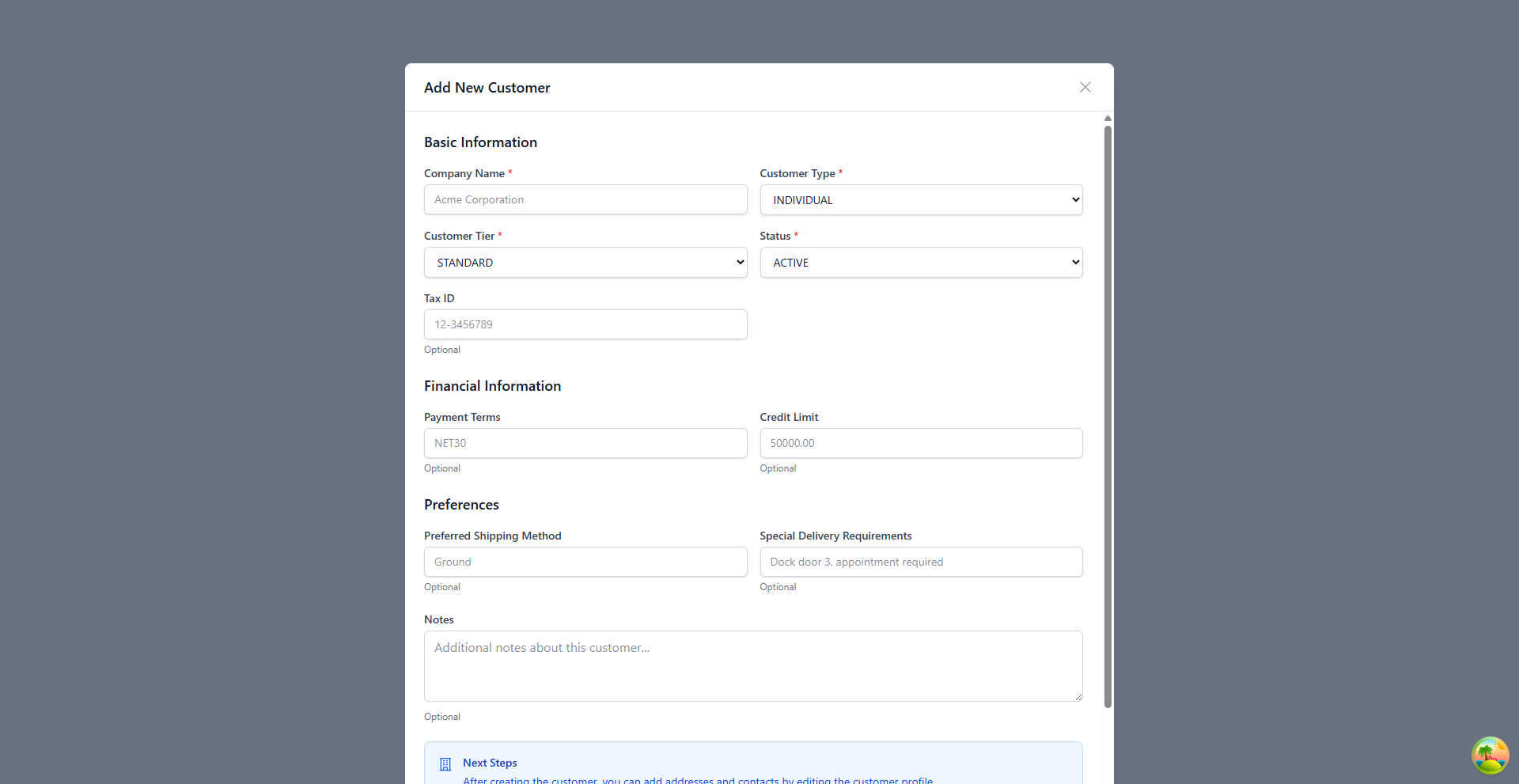
Figure: Complete Add New Customer form showing all sections - Basic Information, Financial Information, Preferences, and Notes
Required Fields
- Company Name
- Customer Type
- Customer Tier
- Status
All other fields are optional but recommended for complete customer profiles.
Managing Customer Details
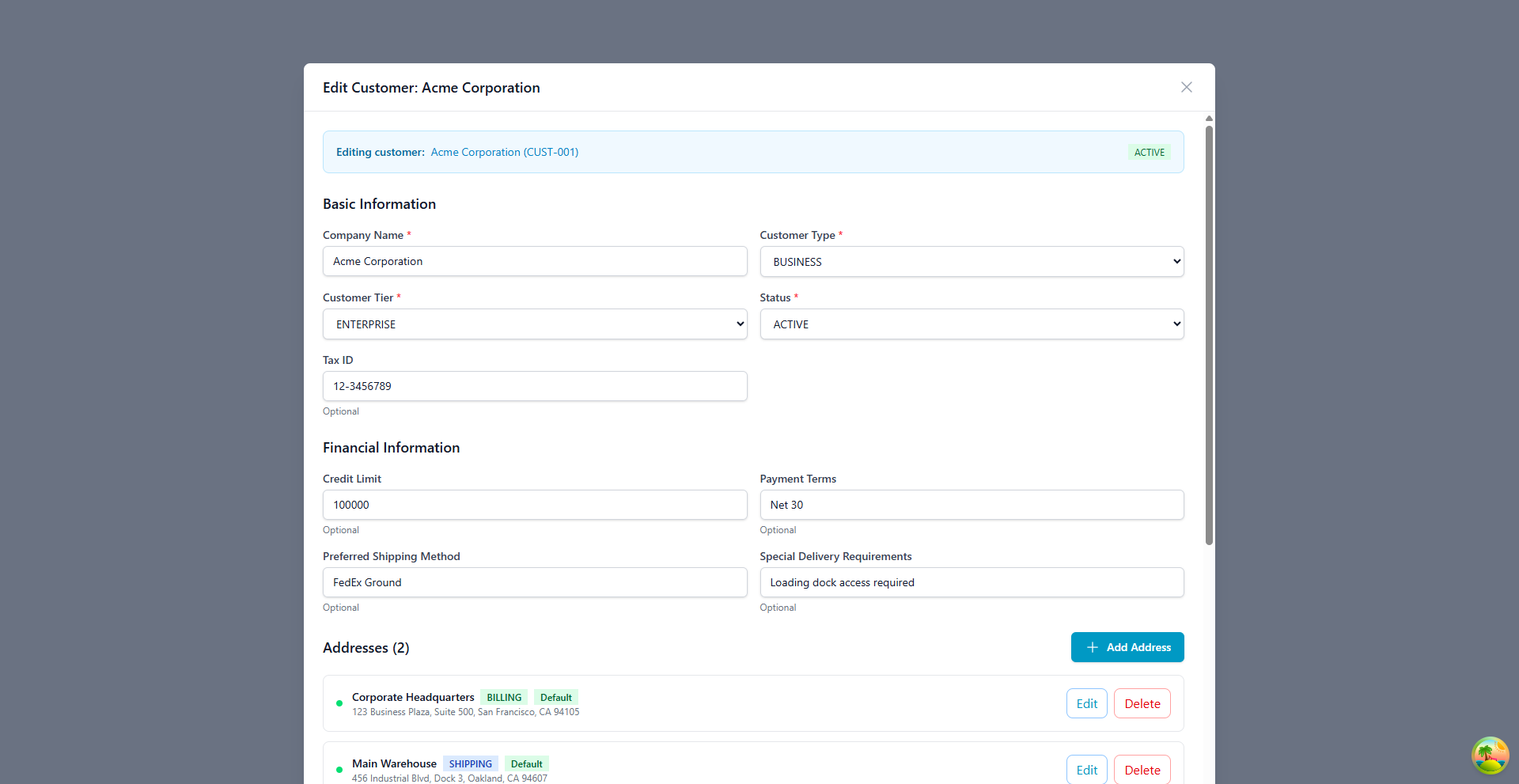
Figure: Edit Customer dialog showing complete customer profile with addresses and contacts
Editing Customer Information
- Click the Edit button next to any customer in the table
- Modify any customer information as needed
- Update financial settings
- Manage addresses and contacts
- Click Update Customer to save changes
Customer Information Sections
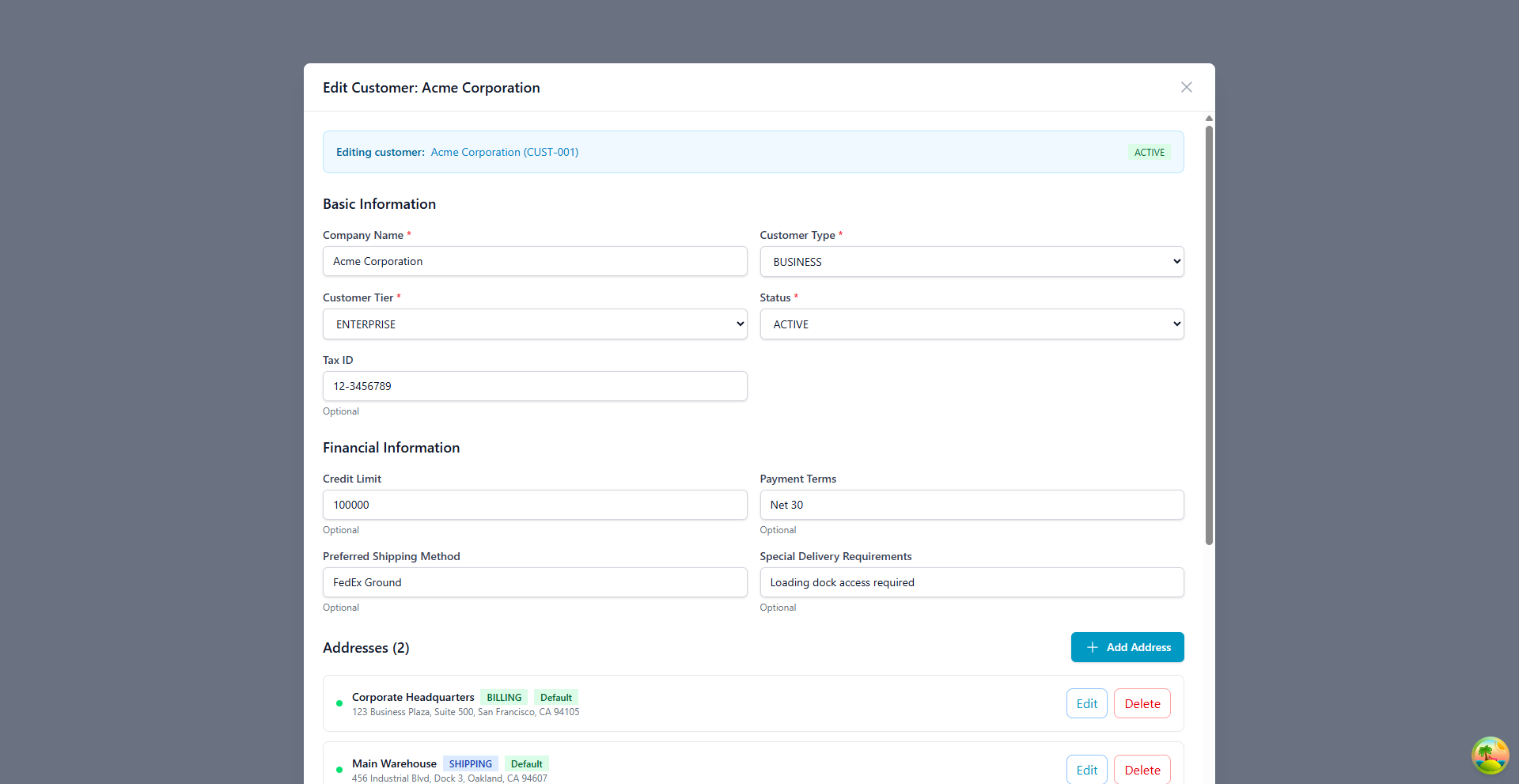
Figure: Complete customer edit form showing Basic Information, Financial Information, Addresses, and Contacts sections
Basic Information: - Company name and type - Customer tier and status - Tax identification - Sales representative assignment
Also a Supplier: - Toggle the "Also a Supplier" checkbox to reveal additional supplier fields - Lead Time Days, Minimum Order Value, and Supplier Rating - Supplier information section appears in a highlighted panel when active
Financial Information: - Credit limit and current balance - Payment terms - Shipping preferences - Special delivery requirements
Addresses: - View all customer addresses - Add new addresses - Edit or delete existing addresses - Set default billing and shipping addresses
Contacts: - Manage contact persons - Set contact types (Primary, Billing, Purchasing) - Update contact information
Customer Addresses
Customers can have multiple addresses for different purposes:
Address Types
- Billing: Invoice destination
- Shipping: Delivery location
- Both: Combined billing and shipping
Managing Addresses
- Add Address:
- Click "Add Address" button in edit modal
- Enter address label (e.g., "Corporate Headquarters", "Main Warehouse")
- Fill in complete address details
- Select address type
-
Set as default if needed
-
Edit Address:
- Click Edit next to the address
- Update address information
-
Change address type or default status
-
Delete Address:
- Click Delete next to the address
- Confirm deletion (cannot delete if it's the only address)
Address Best Practices
- Use descriptive labels (e.g., "Dock 3 Warehouse" instead of "Location 1")
- Always maintain at least one billing and one shipping address
- Mark the most frequently used addresses as default
- Include special delivery instructions in the address notes
Customer Contacts
Maintain multiple contacts for each customer to ensure proper communication:
Contact Types
- Primary: Main point of contact
- Billing: Accounts payable, invoicing
- Purchasing: Procurement, ordering
- Receiving: Warehouse, delivery coordination
Managing Contacts
- Add Contact:
- Click "Add Contact" button in edit modal
- Enter contact name
- Select contact type
- Add email address
-
Include phone number and title
-
Edit Contact:
- Update contact information as needed
-
Change contact type if responsibilities change
-
Delete Contact:
- Remove outdated or invalid contacts
- Ensure at least one primary contact remains
Customer Status Management
Available Statuses
| Status | Description | Impact |
|---|---|---|
| Active | Normal operations | Full access to all services |
| Inactive | Temporarily dormant | Cannot create new orders |
| Credit Hold | Payment issues | Orders blocked until resolved |
| Suspended | Account frozen | All operations blocked |
| Pending Approval | New customer | Limited until approved |
Changing Customer Status
- Edit the customer record
- Select new status from dropdown
- Save changes
- System automatically applies restrictions based on status
Credit Hold Behavior: - Existing orders continue processing - New order creation is blocked - Warning badge displayed next to credit status - Automatic email notification sent (if configured)
Customer Tiers
Customer tiers enable differentiated service levels and pricing:
Tier Levels
| Tier | Typical Use | Benefits |
|---|---|---|
| Standard | Regular customers | Standard pricing and service |
| Preferred | Frequent customers | Priority support, volume discounts |
| VIP | Key accounts | Dedicated support, best pricing |
| Enterprise | Large corporations | Custom solutions, strategic partnership |
Using Customer Tiers
- Assign tiers based on volume, relationship, or strategic value
- Use tiers to filter reports and analytics
- Apply tier-based pricing rules
- Prioritize service based on tier level
Financial Information
Credit Limits
Purpose: Control customer exposure and manage risk
Setting Credit Limits: - Enter maximum allowed outstanding balance - System warns when approaching limit - Orders blocked when limit exceeded
Monitoring Credit: - Current balance shown vs. credit limit - Visual indicators (green = good, yellow = warning, red = over limit) - Credit hold automatically triggered if over limit
Payment Terms
Common Terms: - NET30: Payment due 30 days from invoice - NET60: Payment due 60 days from invoice - Due on Receipt: Immediate payment required - COD: Cash on delivery - Prepay: Payment before shipment
Using Payment Terms: - Set default terms for each customer - Terms automatically apply to invoices - Can override on individual orders if needed
Searching and Filtering
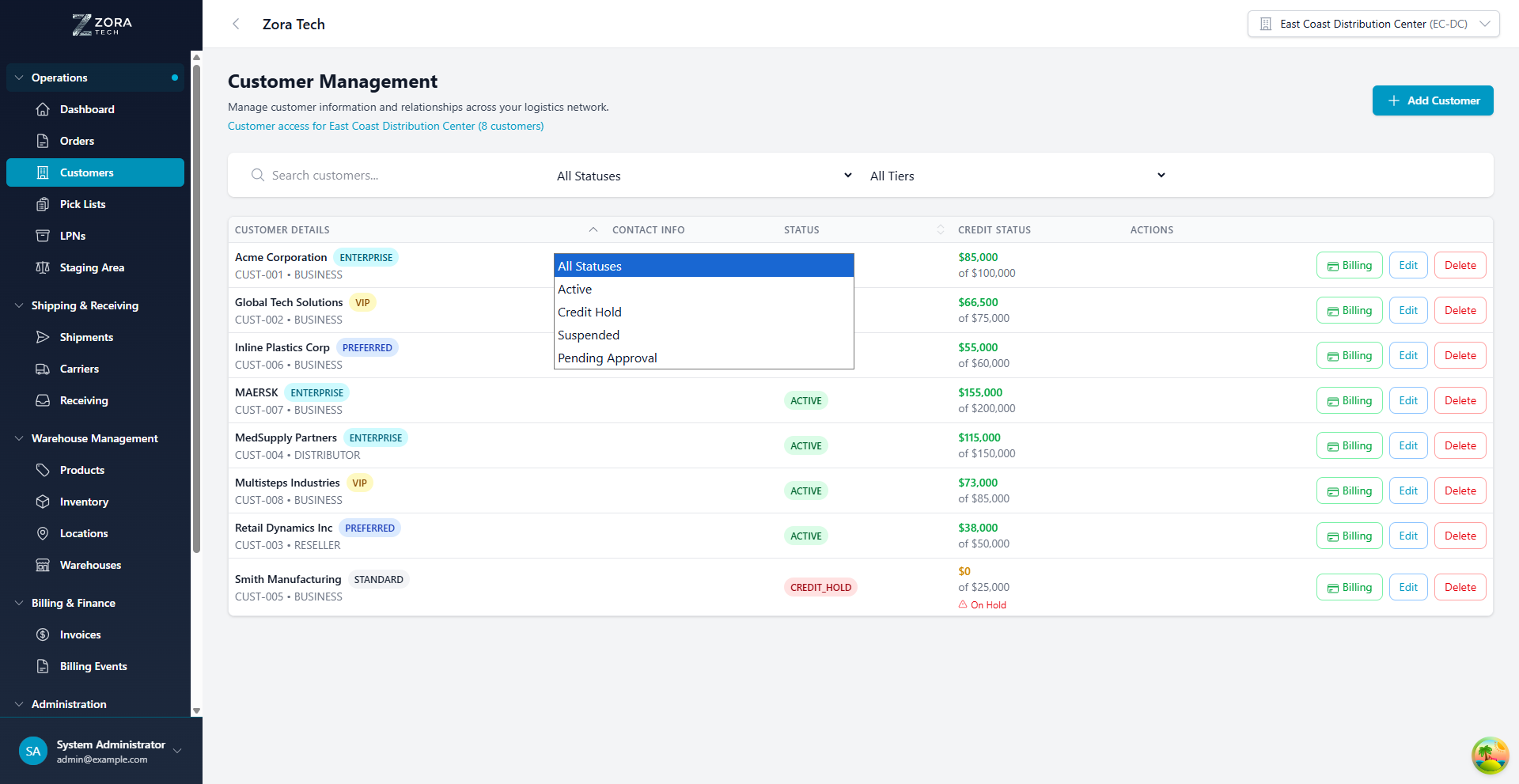
Figure: Status filter dropdown showing all available customer status options
Search Functionality
- Quick Search: Type customer name or code in search bar
- Real-time Results: Table updates as you type
- Search Fields: Searches across company name and customer code
Filter Options
Status Filter: - All Statuses - Active - Credit Hold - Suspended - Pending Approval
Tier Filter: - All Tiers - Standard - Preferred - VIP - Enterprise
Combined Filtering: Use status and tier filters together for precise results
Sorting
Click column headers to sort by: - Customer name (alphabetical) - Status - Credit status (balance/limit) - Customer type
Customer Actions
Available Actions
| Action | Description | Access Level |
|---|---|---|
| Billing Settings | Configure rate cards and billing preferences | Billing, Admin |
| Billing | View billing history and invoices | Billing, Admin |
| Edit | Modify customer information | Manager, Admin |
| Delete | Remove customer record | Admin only |
Billing Settings Action
Access the customer's billing configuration:
- Configure rate cards (Receiving, Outbound, Storage) with tiered pricing
- Set storage billing frequency (Monthly, Weekly, Split Monthly)
- Enable storage dimensions (Per Pallet, Per Case, Per Sq Ft, Per Container)
- Manage billing cycle, payment terms, and tax rate
See Billing & Invoicing for full details.
Billing Action
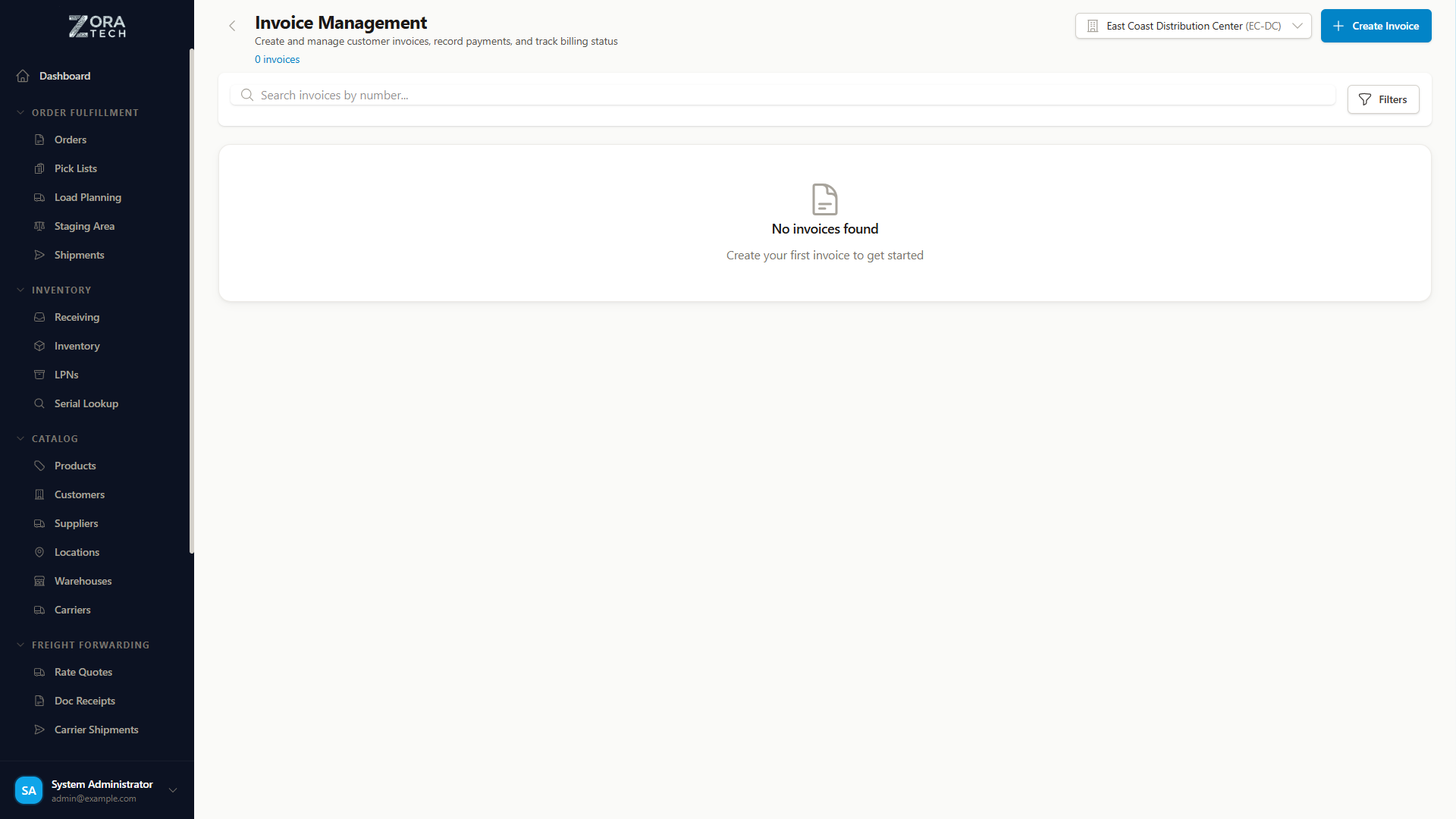
- View complete billing history
- Access all invoices
- Review payment history
- Generate billing reports
Delete Customer
Important Considerations: - Cannot delete customers with active orders - Cannot delete customers with outstanding balances - Historical data is preserved for reporting - Soft delete maintains referential integrity
Deletion Process: 1. Ensure no active orders or balances 2. Click Delete button 3. Confirm deletion in dialog 4. Customer marked as deleted (not permanently removed)
Importing Customers from Billing Providers
You can import customer records directly from your connected billing provider, saving time and ensuring consistency between your billing and warehouse systems.
Supported Providers
- QuickBooks Desktop - Import customers with company details and billing addresses
Billing Provider Setup
A billing provider must be connected in Settings before the import option is available. Contact your administrator if you do not see the import button.
Import Workflow
Step 1: Preview Available Customers
- Navigate to Catalog > Customers
- Click Import from Billing Provider
- The system fetches available customers from your billing provider (up to 100 at a time)
- Review the preview list showing company names and addresses
Step 2: Review Duplicate Detection
The system automatically detects potential duplicates by matching company names and billing identifiers:
| Status | Meaning |
|---|---|
| Available | No matching customer found - safe to import |
| Duplicate | A customer with the same company name or billing ID already exists |
Handling Duplicates
Duplicates are flagged but not blocked. You can choose to skip them or review the existing record before deciding.
Step 3: Select and Import
- Check the customers you want to import
- Click Import Selected
- The system creates customer records with:
- Company name and contact details
- A billing address (when address data is available from the provider)
- Auto-generated customer number (CUST-XXX format)
- A link to the billing provider record for future reference
Step 4: Review Import Results
After import completes, review the results summary:
| Result | Description |
|---|---|
| Imported | Successfully created in the platform |
| Skipped | Intentionally excluded by the user |
| Duplicate | Skipped due to existing match |
| Error | Failed to import (see error message for details) |
Partial Success
The import continues even if individual records fail. Successfully imported customers are available immediately, and failed records are logged with error details for review.
Import History
View previous imports and their results:
- Navigate to Catalog > Customers
- Click Import History
- Review past import sessions with timestamps, counts, and status
Best Practices
Customer Record Management
- Complete Profiles: Always add addresses and contacts after creating customers
- Accurate Information: Verify customer details, especially tax IDs and billing addresses
- Regular Updates: Keep contact information current to avoid delivery issues
- Descriptive Names: Use clear, descriptive labels for addresses and contacts
Financial Management
- Appropriate Credit Limits: Set limits based on customer relationship and history
- Monitor Balances: Review credit status regularly
- Clear Payment Terms: Document terms clearly to avoid disputes
- Consistent Tier Assignment: Use tiers systematically across all customers
Data Quality
- Standardize Formats: Use consistent formats for addresses and phone numbers
- Avoid Duplicates: Search before creating to prevent duplicate records
- Archive vs. Delete: Use Inactive status instead of deleting when possible
- Document Changes: Use notes field to track significant customer events
Workflow Integration
- Link Orders: Always associate orders with customer accounts
- Update Status: Change status immediately when issues arise
- Communicate Changes: Notify customers of status changes
- Review Regularly: Periodic customer data audits maintain accuracy
Troubleshooting
Common Issues
Cannot Create Order for Customer
Possible causes: - Customer status is not "Active" - Credit limit exceeded - Customer marked as deleted
Solution: Check customer status and credit balance. Update status or increase credit limit as needed.
Duplicate Customer Records
Cause: Creating customers without searching first
Solution: 1. Search thoroughly before creating new customers 2. Use the search function to find similar names 3. If duplicates exist, consolidate into one record 4. Mark duplicate as Inactive (do not delete if it has history)
Cannot Delete Customer
Possible causes: - Customer has active orders - Outstanding balance exists - Historical transactions present
Solution: 1. Resolve all active orders 2. Clear outstanding balances 3. Use "Inactive" status instead of deleting 4. Contact system administrator if deletion is absolutely necessary
Address Not Appearing in Order
Cause: Address not set as default or wrong address type
Solution: 1. Edit customer record 2. Verify address exists 3. Set appropriate default shipping address 4. Ensure address type is "Shipping" or "Both"
Credit Hold Not Blocking Orders
Cause: Status changed but system cache not refreshed
Solution: 1. Verify status is saved correctly 2. Refresh browser page 3. Try creating test order to confirm block 4. Check system configuration for credit hold settings
Contact Email Not Receiving Notifications
Cause: Contact marked as inactive or wrong contact type
Solution: 1. Verify contact email address is correct 2. Check contact is marked as active 3. Ensure contact type matches notification type (Billing for invoices, etc.) 4. Test email delivery through system tools
Getting Additional Help
For complex customer management issues:
- Check the FAQ for common questions
- Review Troubleshooting Guide for system-wide issues
- Contact your system administrator
- Refer to Order Processing for order-customer linkage
For related functionality, see Order Processing, Bulk Upload for importing customers, and Reports for customer analytics.