LPN Management
Overview
The LPN (License Plate Number) Management system in Zora Tech Logistics Platform provides comprehensive container tracking and management for warehouse operations. LPNs are essential for tracking inventory through all warehouse processes including receiving, putaway, picking, and shipping.
Key Features: - Multiple container types (Tote, Bin, Box, Pallet, Case, Cart, Cage) - Automatic barcode generation or custom barcodes - Real-time capacity tracking (weight, volume, orders) - Inventory container vs operational LPN distinction - Status tracking through entire warehouse lifecycle - Location-based LPN management - Priority-based processing
Table of Contents
- Getting Started
- Understanding LPNs
- Accessing LPN Management
- LPN Information Structure
- Creating a New LPN
- LPN Details and Contents
- LPN Status Lifecycle
- Search and Filtering
- LPN Types
- Inventory Containers vs Operational LPNs
- LPN Movements
- Best Practices
- Troubleshooting
Getting Started
Prerequisites
Before managing LPNs, ensure you have:
- Warehouse Access: Select an active warehouse from the warehouse selector
- Appropriate Permissions: User role with LPN management access
- Container Types Understanding: Knowledge of your warehouse container types
- Barcode Scanners: (Optional) For scanning LPN barcodes
Key Concepts
LPN (License Plate Number): A unique identifier for a physical container used in warehouse operations
Inventory Container: An LPN that stores inventory in a fixed location for long-term storage
Operational LPN: An LPN used for temporary operations like picking, packing, or staging
Container Type: Physical container category (Tote, Bin, Box, Pallet, Case, Cart, Cage)
LPN Status: Current state in the warehouse workflow (Available, In Use, At Staging, etc.)
Capacity: Maximum weight, volume, and order limits for an LPN
Priority: Processing priority level from 1 (highest) to 7 (lowest)
Understanding LPNs
What is an LPN?
An LPN is a licensed container with a unique barcode identifier used to track inventory and orders throughout warehouse operations. Think of it as a tracked bin, box, pallet, or cart that can hold products and move through your warehouse workflows.
LPN Lifecycle
- Creation: LPN is created with specific type and capacity
- Available: LPN is ready for use
- Building/In Use: LPN is being filled with inventory or orders
- At Staging: LPN is moved to staging area
- Processing: LPN contents are being processed
- Shipped/Completed: LPN contents shipped, LPN becomes available again
LPN Categories
Inventory Containers - Used for long-term inventory storage - Assigned to specific warehouse locations - Status: IN_INVENTORY or INVENTORY_LOCKED - Not actively moving through workflows
Operational LPNs - Used for active warehouse operations - Move through picking, packing, staging workflows - Various statuses based on current operation - Return to AVAILABLE status when empty
Accessing LPN Management
Navigation
- Click Operations in the left sidebar
- Select LPNs
- Ensure a warehouse is selected in the header
Page Layout
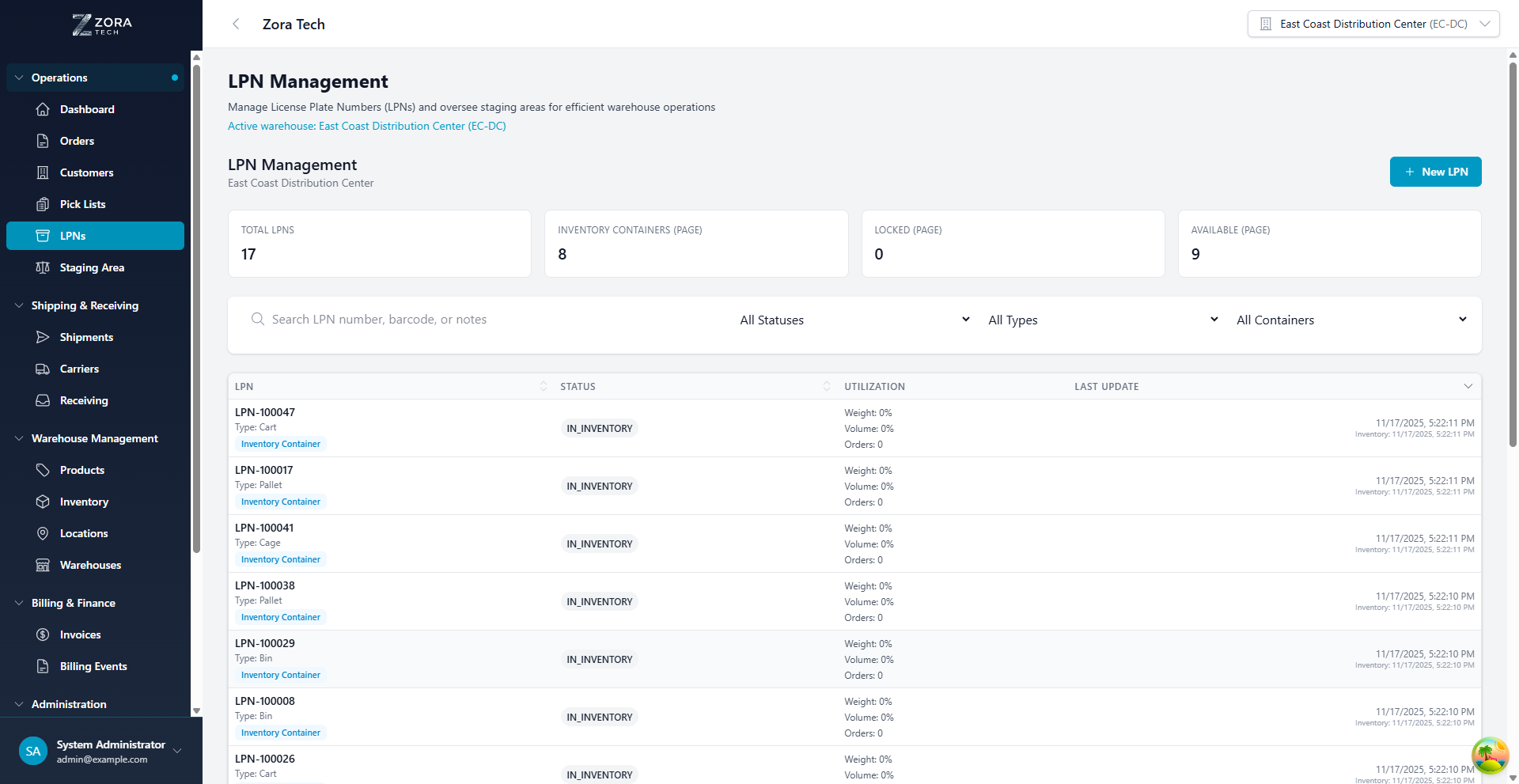
The LPN Management page includes:
- Header: Shows warehouse context and total LPN count
- Summary Cards: Quick metrics (Total, Inventory Containers, Locked, Available)
- New LPN Button: Create new LPNs
- Search & Filters: Find LPNs by number, barcode, status, type
- LPN Table: Lists all LPNs with key details and utilization
LPN Information Structure
LPN Table Columns
| Column | Description |
|---|---|
| LPN | LPN number, type, and inventory container badge |
| Status | Current status badge (Available, In Use, In Inventory, etc.) |
| Utilization | Weight, volume, and order count usage |
| Last Update | Last activity timestamp and inventory update time |
Summary Metrics
Total LPNs: All LPNs in the warehouse
Inventory Containers (page): LPNs designated as inventory storage
Locked (page): LPNs with inventory lock status
Available (page): LPNs ready for use in operations
Creating a New LPN
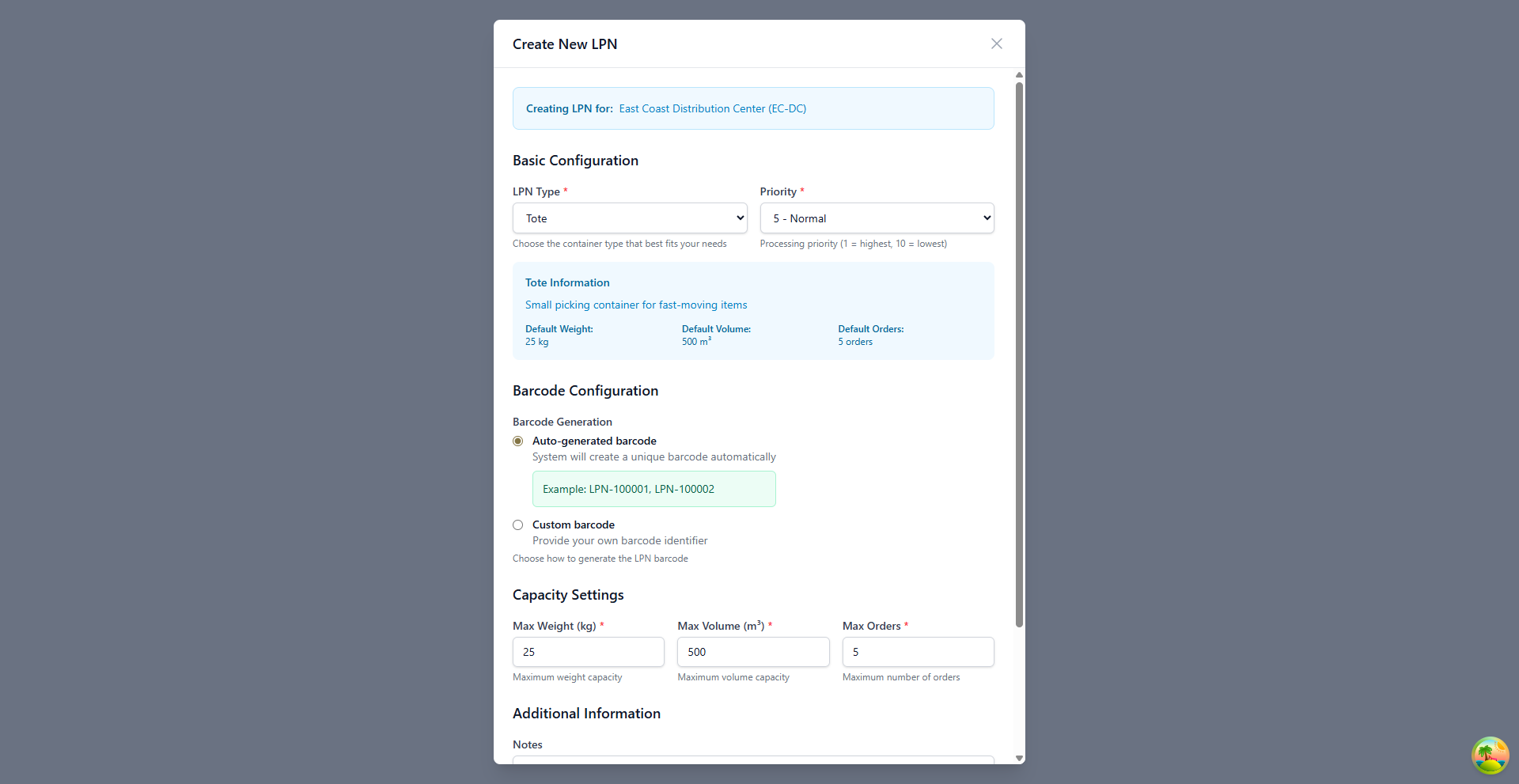
Step 1: Open Create LPN Modal
- Click the New LPN button (top right)
- The Create New LPN modal opens
Step 2: Basic Configuration
LPN Type *
Select the container type that best fits your needs:
- Tote: Small picking container for fast-moving items
-
Default: 25 kg, 500 m³, 5 orders
-
Bin: Medium storage container for organized inventory
-
Default: 50 kg, 1000 m³, 10 orders
-
Box: Standard shipping box for individual orders
-
Default: 20 kg, 300 m³, 1 order
-
Pallet: Large storage unit for bulk inventory
-
Default: 500 kg, 5000 m³, 20 orders
-
Case: Standardized case for product groupings
-
Default: 30 kg, 600 m³, 3 orders
-
Cart: Mobile container for order picking
-
Default: 100 kg, 3000 m³, 8 orders
-
Cage: Secure enclosed container for high-value items
- Default: 200 kg, 2000 m³, 15 orders
Priority *
Select processing priority:
- 1 - Highest: Urgent, process immediately
- 2 - High: Priority processing
- 3 - Medium-High: Above normal priority
- 4 - Medium: Standard elevated priority
- 5 - Normal: Default processing (selected by default)
- 6 - Low: Lower priority
- 7 - Lowest: Process when capacity available
Step 3: Barcode Configuration
Choose barcode generation method:
Auto-generated barcode (Recommended)
- System creates unique barcode automatically
- Format: LPN-100001, LPN-100002, etc.
- No manual input required
- Ensures uniqueness
Custom barcode
- Provide your own barcode identifier
- Must be unique across all LPNs
- Use when integrating with external systems
- Supports alphanumeric characters
Step 4: Capacity Settings
Configure maximum capacity limits:
Max Weight (kg) * - Maximum weight the container can hold - Pre-filled with type defaults - Adjust based on actual container capacity
Max Volume (m³) * - Maximum volume capacity - Pre-filled with type defaults - Cubic meters or cubic feet based on settings
Max Orders * - Maximum number of orders the LPN can hold - Important for picking operations - Pre-filled with type defaults
Step 5: Additional Information
Notes (Optional) - Special handling requirements - Operational notes - Container-specific instructions - Maintenance information
Step 6: Create LPN
- Review all configuration
- Click Create LPN
- LPN appears in the list with AVAILABLE status
- Barcode is generated and ready for printing
LPN Details and Contents
Viewing LPN Details
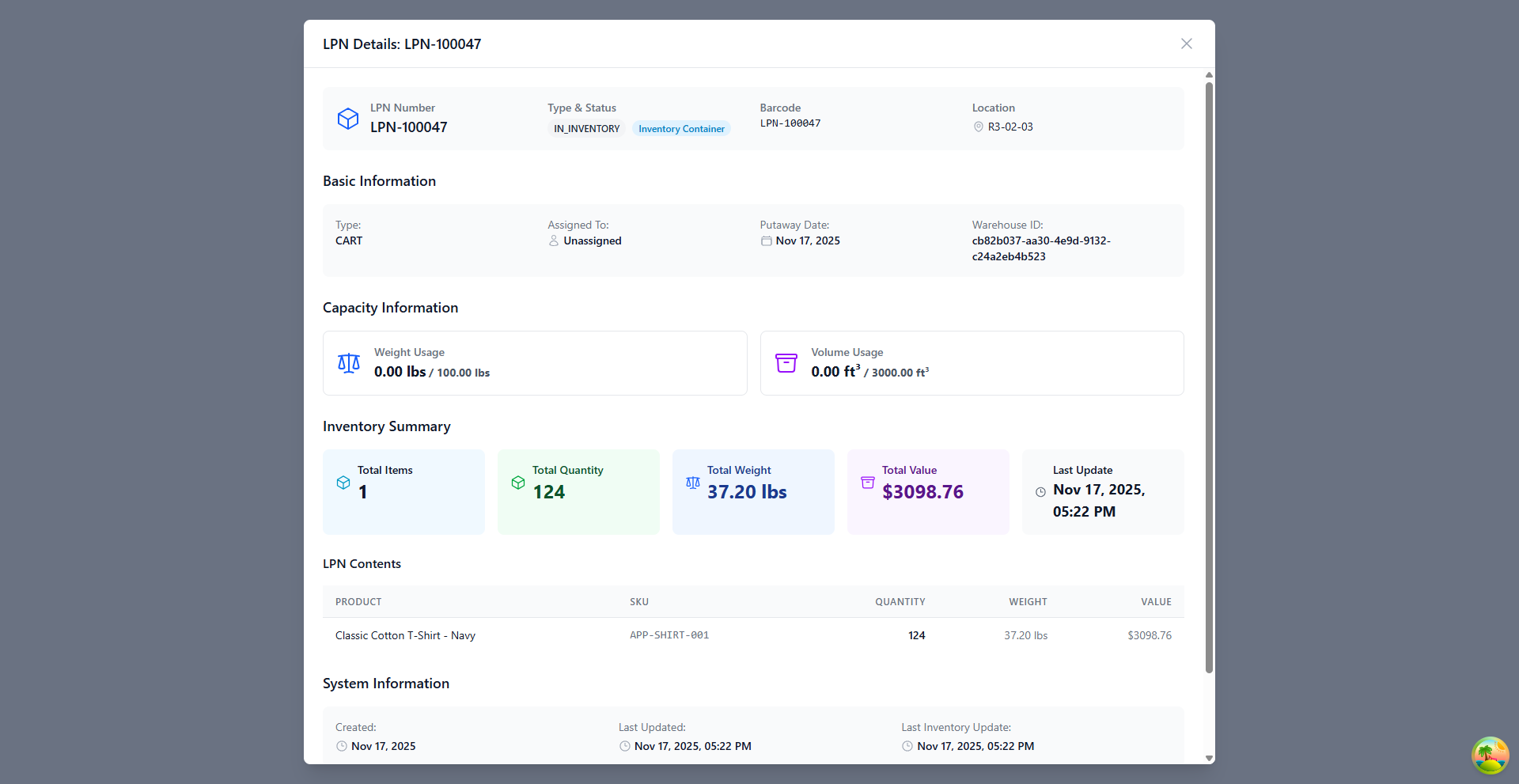
Click on any LPN row to open the LPN Details modal.
Header Information
LPN Number: Unique identifier (e.g., LPN-100047)
Type & Status: - Current status badge - Inventory Container indicator (if applicable)
Barcode: Scannable barcode number
Location: Current warehouse location (if assigned)
Basic Information
| Field | Description |
|---|---|
| Type | Container type (CART, TOTE, PALLET, etc.) |
| Assigned To | User or process assigned to this LPN |
| Putaway Date | Date LPN was put away to inventory |
| Warehouse ID | Associated warehouse identifier |
Capacity Information
Weight Usage - Current weight vs maximum capacity - Shows percentage utilization - Example: 0.00 lbs / 100.00 lbs (0%)
Volume Usage - Current volume vs maximum capacity - Shows percentage utilization - Example: 0.00 ft³ / 3000.00 ft³ (0%)
Inventory Summary
Visual cards showing:
- Total Items: Number of different products
- Total Quantity: Total units across all products
- Total Weight: Aggregate weight
- Total Value: Dollar value of contents
- Last Update: Most recent inventory change
LPN Contents Table
Detailed product breakdown:
| Column | Description |
|---|---|
| Product | Product name |
| SKU | Product SKU code |
| Quantity | Number of units |
| Weight | Total weight for this product |
| Value | Dollar value (quantity × unit price) |
System Information
- Created: LPN creation date
- Last Updated: Most recent LPN modification
- Last Inventory Update: Most recent inventory change
LPN Status Lifecycle
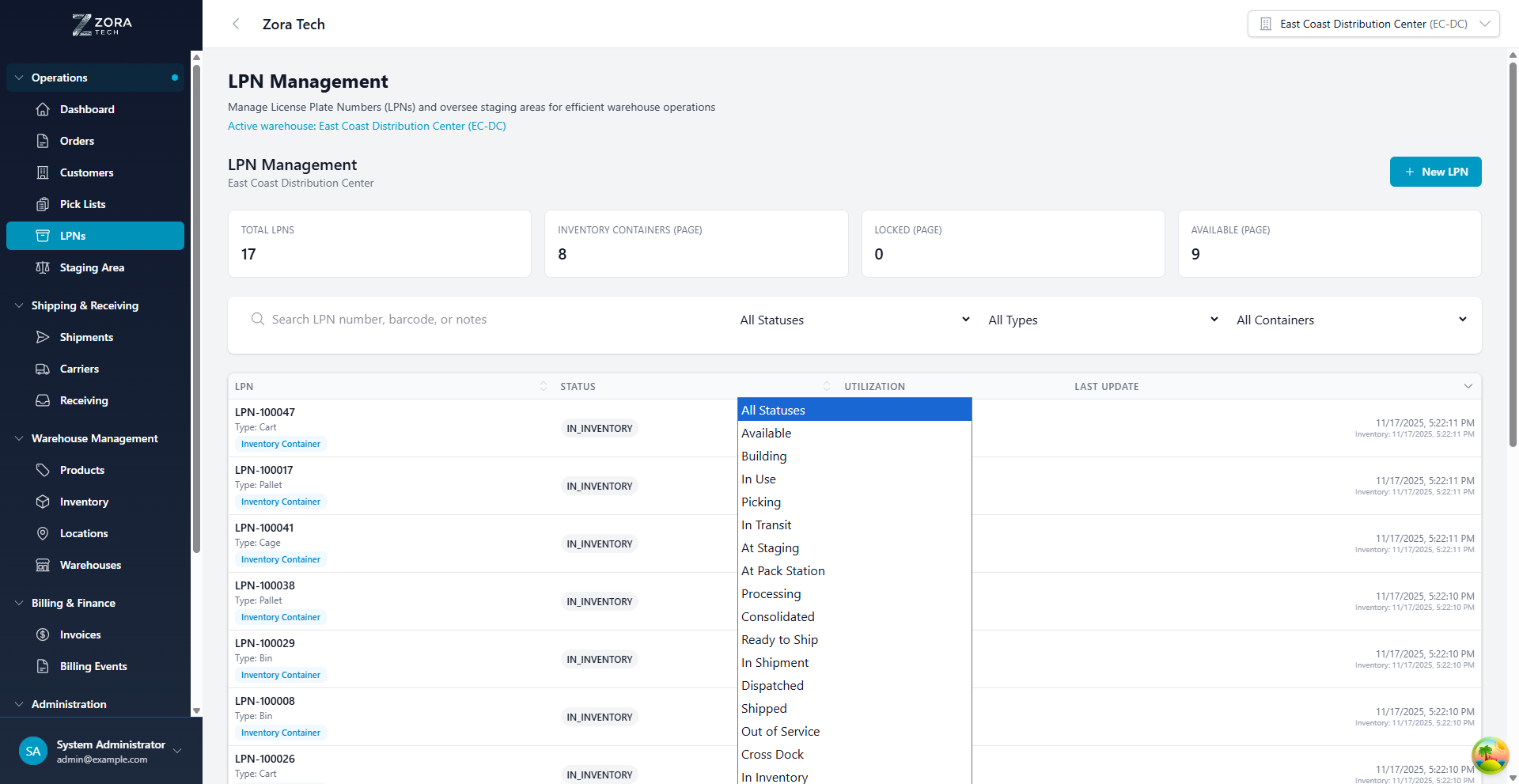
Available Statuses
Operational Statuses
AVAILABLE - LPN is empty and ready for use - Can be assigned to picking, receiving, or staging - Default status for new operational LPNs
BUILDING - LPN is being filled with inventory or orders - Active in receiving or picking process - Cannot be assigned to other operations
IN_USE - LPN is actively being used in an operation - May be in transit between locations - Locked to current operation
PICKING - LPN is assigned to a pick list - Being filled during order picking - Moves to At Staging when picking complete
AT_STAGING - LPN has been moved to staging area - Awaiting next processing step - Common for orders awaiting packing
AT_PACK_STATION - LPN is at a packing station - Contents being packed for shipment - Moves to Processing when packing starts
PROCESSING - LPN contents are being actively processed - Packing, quality check, or other operations - Cannot be reassigned
CONSOLIDATED - Multiple LPNs consolidated into one - Part of order consolidation workflow - Awaiting final packing
READY_TO_SHIP - LPN contents packed and labeled - Awaiting carrier pickup - Final pre-shipment status
IN_SHIPMENT - LPN included in a shipment - Assigned to specific carrier and tracking number - In transit
DISPATCHED - Shipment has left the warehouse - LPN in transit to destination - Tracking active
SHIPPED - Delivery confirmed - LPN cycle complete - Returns to AVAILABLE if reusable
Inventory Statuses
IN_INVENTORY - LPN is an inventory container - Holds inventory in a fixed location - Not moving through operational workflows
INVENTORY_LOCKED - Inventory container with locked status - No changes allowed to contents - Used during cycle counts or quality holds
PUTAWAY_PENDING - LPN received and awaiting putaway - Contents verified but not yet stored - Awaiting location assignment
Special Statuses
IN_TRANSIT - LPN moving between warehouse locations - Internal transfer in progress - Not yet at destination
CROSS_DOCK - LPN in cross-docking operation - Received and immediately staged for outbound - Minimizes storage time
OUT_OF_SERVICE - LPN damaged or unavailable - Requires maintenance or repair - Cannot be assigned to operations
Search and Filtering
Search Functionality
The search bar filters LPNs by: - LPN number (e.g., LPN-100047) - Barcode - Notes or special instructions
Filter Options
Status Filter - Filter by any LPN status - See LPN Status Lifecycle for all statuses - Multiple status filtering available
Type Filter - All Types - Tote - Bin - Box - Pallet - Case - Cart - Cage
Container Filter - All Containers: Shows all LPNs - Inventory Containers: Only LPNs designated for inventory storage - Operational LPNs: Only LPNs used in active operations
Clearing Filters
- Filters persist across page refreshes
- Change filter selections to update results
- Search and filters work together
LPN Types
Tote
Use Case: Small picking container for fast-moving items
Default Capacity: - Weight: 25 kg - Volume: 500 m³ - Orders: 5
Best For: - Individual order picking - Small parts storage - Fast-moving SKUs - Returns processing
Bin
Use Case: Medium storage container for organized inventory
Default Capacity: - Weight: 50 kg - Volume: 1000 m³ - Orders: 10
Best For: - Inventory storage - Medium-sized products - Multi-SKU storage - Batch picking
Box
Use Case: Standard shipping box for individual orders
Default Capacity: - Weight: 20 kg - Volume: 300 m³ - Orders: 1
Best For: - Single order fulfillment - Direct-to-consumer shipping - Small item shipments - Gift packaging
Pallet
Use Case: Large storage unit for bulk inventory
Default Capacity: - Weight: 500 kg - Volume: 5000 m³ - Orders: 20
Best For: - Bulk inventory storage - Large product storage - Inbound receiving - Transfer operations
Case
Use Case: Standardized case for product groupings
Default Capacity: - Weight: 30 kg - Volume: 600 m³ - Orders: 3
Best For: - Case picking - Product groupings - Wholesale orders - Store replenishment
Cart
Use Case: Mobile container for order picking
Default Capacity: - Weight: 100 kg - Volume: 3000 m³ - Orders: 8
Best For: - Multi-order picking - Wave picking - Zone picking - Mobile operations
Cage
Use Case: Secure enclosed container for high-value items
Default Capacity: - Weight: 200 kg - Volume: 2000 m³ - Orders: 15
Best For: - High-value inventory - Secure storage - Electronics - Pharmaceuticals
Inventory Containers vs Operational LPNs
Inventory Containers
Purpose: Long-term inventory storage
Characteristics: - Assigned to specific warehouse locations - Status: IN_INVENTORY or INVENTORY_LOCKED - Not actively moving through workflows - Focus on inventory tracking - Higher capacity (usually Pallets, Bins, Cages)
Usage: - Bulk inventory storage - Slow-moving SKU storage - Reserve inventory - Cycle count units
Operational LPNs
Purpose: Active warehouse operations
Characteristics: - Move through picking, packing, staging workflows - Various statuses based on current operation - Return to AVAILABLE when empty - Focus on order fulfillment - Smaller, mobile containers (Totes, Boxes, Carts)
Usage: - Order picking - Packing operations - Staging management - Transfer operations
LPN Movements
Overview
LPN Movements allow manual relocation of LPN containers throughout your warehouse independently of standard receiving, picking, and shipping workflows. This provides flexibility for warehouse reorganization, replenishment, and inventory management.
When to Use LPN Movement:
- Warehouse reorganization and optimization
- Replenishment (bulk to pick locations)
- Consolidation of partial pallets
- Staging preparation for shipments
- Returns processing (staging back to inventory)
- Error correction (misplaced LPNs)
Movement Types
Inventory to Inventory - Move LPN between storage locations - Status remains IN_INVENTORY - Use for reorganization and optimization
Inventory to Staging - Move LPN to shipping staging area - Status changes to STAGED - Prepares items for shipment loading
Staging to Shipment - Load LPN onto outbound shipment - Status changes to SHIPPED - Final step before dispatch
Staging to Inventory - Return LPN from staging to storage - Status returns to IN_INVENTORY - Use for cancelled orders or returns
Mobile-Optimized Workflow
LPN Movements are optimized for mobile devices with barcode scanning:
- Scan Source LPN - System shows current location
- Scan Destination - Location, staging area, or shipment
- System Validates - Ensures valid movement
- Confirm Movement - Single tap confirmation
- Physically Move - Relocate LPN to match system
- Complete - Movement recorded with audit trail
Quick Movement Features
- Batch Movement: Move multiple LPNs to same destination efficiently
- Recent Destinations: System remembers common movements
- Offline Queue: Movements sync when connection restored
- Haptic Feedback: Physical confirmation of successful scans
- Movement History: Complete audit trail for all LPN movements
System Validations
The system prevents invalid movements:
- ✅ Valid source and destination
- ✅ Sufficient capacity at destination (if enforced)
- ✅ LPN not locked by active process
- ✅ Shipment not yet dispatched (for shipment loads)
- ❌ Cannot unload from dispatched shipment
- ❌ Cannot move during active receiving/picking
Learn More
For complete LPN Movement workflow, best practices, and scenarios:
Covers: - Detailed step-by-step workflows - Common movement scenarios - Mobile scanning procedures - Troubleshooting and validation - Integration with other warehouse operations
Partial LPN Selection
When working with load plans or shipment planning, you can select a portion of an LPN's contents rather than the entire container.
When to Use Partial Selection
- An LPN contains products for multiple shipments
- Only part of a multi-SKU LPN is needed for an order
- You need to split an LPN's contents across different load plans
How Partial Selection Works
- During load planning, click Partial Select on an LPN card
- For each product in the LPN, adjust the quantity you want to include
- The system calculates accurate weight and volume for the partial selection
- Confirm the selection
The remaining inventory in the LPN stays available for other operations.
Multi-SKU LPN Support
LPNs containing multiple products (SKUs) allow per-product quantity selection:
- View all products within the LPN with their available quantities
- Set different quantities for each product
- The system prevents selecting more than what is available
- Over-allocation protection spans across multiple load plans
Enhanced Product Details
LPN cards display detailed product information to help with planning decisions:
| Detail | Description |
|---|---|
| Dimensions | Product length, width, height |
| Weight | Unit weight and total weight |
| Lot number | Lot identifier and expiration date |
| Document receipt | Clickable link to the original receiving document |
Warning Badges
Visual indicators flag products requiring special handling:
| Badge | Color | Meaning |
|---|---|---|
| HAZMAT | Orange | Contains hazardous materials - follow handling procedures |
| FRAGILE | Purple | Requires careful handling during movement |
| EXPIRING | Red | Items nearing or past expiration date |
Best Practices
LPN Creation
- Standardize Container Types
- Use consistent types across similar operations
- Match container type to warehouse processes
-
Document type usage in SOPs
-
Set Realistic Capacities
- Adjust defaults based on actual container sizes
- Account for product characteristics
-
Consider operational constraints
-
Use Auto-Generated Barcodes
- Ensures uniqueness
- Simplifies LPN creation
- Reduces manual errors
-
Use custom barcodes only for integration needs
-
Appropriate Priority Levels
- Reserve priority 1-2 for urgent operations
- Use priority 5 (Normal) for standard operations
- Lower priorities for slow-moving operations
Operational Best Practices
- Regular Status Updates
- Scan LPNs at each workflow step
- Update status immediately after changes
-
Resolve stuck LPNs promptly
-
Maintain LPN Pool
- Keep adequate AVAILABLE LPNs for each type
- Monitor LPN utilization rates
-
Create additional LPNs during peak periods
-
Inventory Container Management
- Assign to fixed locations
- Perform regular cycle counts
- Use INVENTORY_LOCKED during counts
-
Document putaway dates
-
Clean Up Completed LPNs
- Return operational LPNs to AVAILABLE promptly
- Clear contents when operations complete
- Inspect containers for damage
- Mark damaged containers OUT_OF_SERVICE
Data Integrity
- Accurate Capacity Tracking
- Update weight and volume after changes
- Verify capacity limits not exceeded
-
Investigate utilization anomalies
-
Location Accuracy
- Update location after every move
- Scan LPNs at destination
-
Reconcile location discrepancies
-
Notes and Documentation
- Add notes for special handling
- Document operational issues
- Track damage or maintenance needs
Troubleshooting
Common Issues
LPN Not Appearing in List
Problem: Created LPN doesn't show in the table
Solutions: 1. Check status filter - LPN may be filtered out 2. Verify correct warehouse selected 3. Clear search filters 4. Refresh the page 5. Check if LPN was created successfully
Cannot Create New LPN
Problem: Create LPN button disabled or creation fails
Solutions: 1. Verify warehouse is selected 2. Check user permissions for LPN creation 3. Ensure all required fields are filled 4. Check for duplicate barcode (if using custom) 5. Contact system administrator if issue persists
LPN Stuck in Status
Problem: LPN not progressing through workflow statuses
Solutions: 1. Check associated process (pick list, shipment, etc.) 2. Verify scan at workflow checkpoints 3. Complete or cancel associated operation 4. Contact supervisor for manual status override 5. Check system logs for errors
Capacity Exceeded Errors
Problem: Cannot add items to LPN - capacity exceeded
Solutions: 1. Check current weight and volume utilization 2. Verify max capacity settings are correct 3. Use larger container type if needed 4. Split contents across multiple LPNs 5. Remove some items to stay within limits
LPN Not Scanning
Problem: Barcode scanner doesn't recognize LPN
Solutions: 1. Verify scanner is configured for LPN barcodes 2. Clean barcode label if dirty or damaged 3. Manually enter LPN number 4. Reprint barcode label 5. Check scanner battery and connection
Inventory Discrepancies
Problem: LPN contents don't match system records
Solutions: 1. Perform physical count of LPN contents 2. Compare against LPN Contents table 3. Check recent inventory transactions 4. Look for duplicate LPNs with similar numbers 5. Submit discrepancy report for investigation
Error Messages
| Error | Cause | Resolution |
|---|---|---|
| "LPN number already exists" | Duplicate custom barcode | Use different barcode or auto-generate |
| "Warehouse required" | No warehouse selected | Select warehouse from header dropdown |
| "Invalid capacity values" | Negative or zero capacity | Enter positive capacity values |
| "Maximum capacity exceeded" | Adding too much to LPN | Use larger LPN or split across multiple |
| "LPN is locked" | Inventory locked status | Complete cycle count or unlock inventory |
| "Cannot delete LPN with contents" | LPN has inventory | Clear contents first, then delete |
Getting Help
If you encounter issues not covered here:
- Check LPN Details: Review all fields for accuracy
- Review Workflow Status: Ensure LPN is in correct workflow step
- Contact Supervisor: For operational workflow issues
- System Administrator: For technical or permission issues
- Support Team: Provide LPN number and error details
Related Topics
- Receiving Operations - LPN usage in receiving
- Order Processing - LPN usage in fulfillment
- Inventory Management - Inventory container management
- Staging Area - LPN staging operations
Support
For LPN-related questions or issues:
- Email: support@zoratech.io
- Documentation: Troubleshooting Guide
- FAQ: Frequently Asked Questions