LPN management
Create and track the containers — totes, bins, boxes, pallets, cases, carts, and cages — that your stock travels around the warehouse in.
Before you begin
Select a warehouse in the header, and make sure your role includes LPN management. A barcode scanner makes everything here faster, but you can type LPN numbers by hand.
What an LPN is
A License Plate Number (LPN) is a physical container with its own barcode. Scan the container and you know what's inside it, where it is, and what it's waiting for — without opening it.
Think of it as a tracked pallet, tote, or cart. Products go in, the LPN moves through receiving, putaway, picking, and shipping, and the platform follows it the whole way.
LPNs come in two flavors:
| Inventory container | Operational LPN | |
|---|---|---|
| What it's for | Holding stock in a fixed location, long term | Moving stock through a job |
| Where it lives | Assigned to a storage location | Wherever the work is |
| Status | IN_INVENTORY or INVENTORY_LOCKED | Changes as the job progresses |
| Typical type | Pallets, bins, cages | Totes, boxes, carts |
| Typical use | Bulk stock, slow movers, reserve stock, cycle count units | Picking, packing, staging, transfers |
| When empty | Stays where it is | Returns to AVAILABLE |
The LPNs page
Open Operations → LPNs.
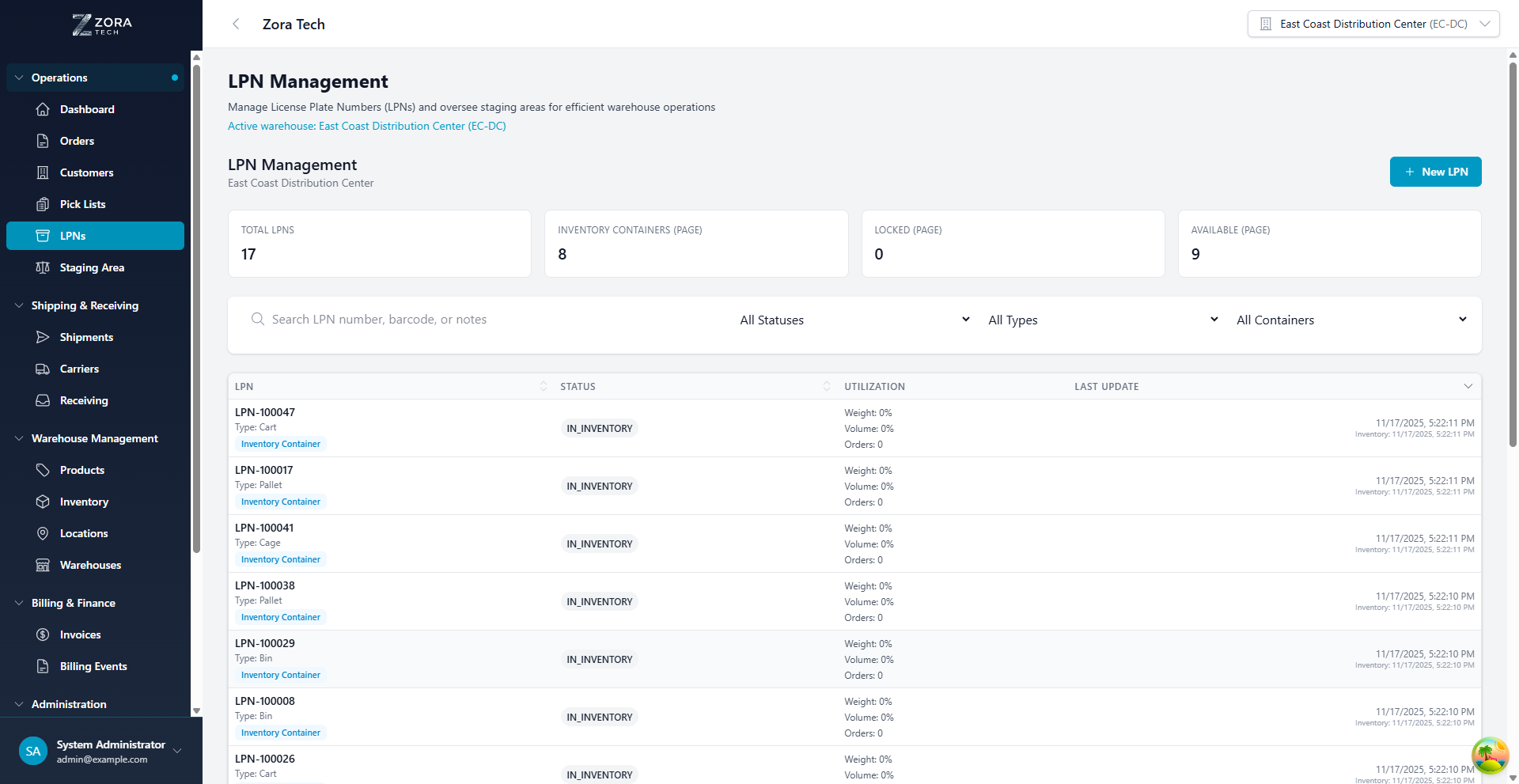
Across the top, summary cards show the total number of LPNs, how many are inventory containers, how many are locked, and how many are available. Below that is the list.
| Column | What it shows |
|---|---|
| LPN | The LPN number, its type, and an inventory container badge if it is one |
| Status | Where it is in its lifecycle |
| Utilization | How full it is by weight, volume, and order count |
| Last Update | When it last changed, and when its contents last changed |
Finding an LPN
Search by LPN number (LPN-100047), barcode, or the text in its notes.
Three filters narrow the list:
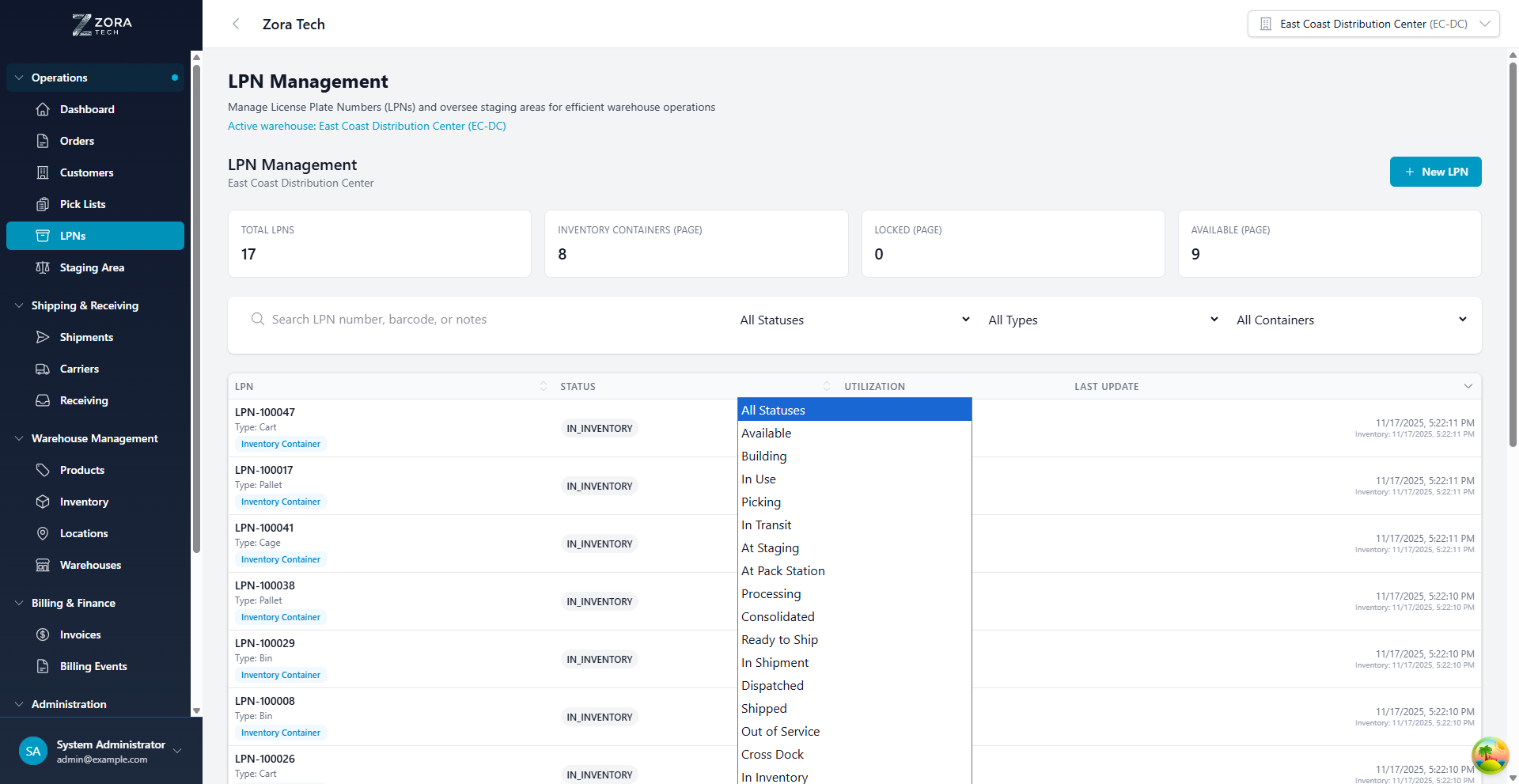
- Status — any of the statuses below.
- Type — tote, bin, box, pallet, case, cart, or cage.
- Container — all LPNs, only inventory containers, or only operational LPNs.
Filters stay set when you refresh the page, so if the list looks emptier than you expect, check what's still filtered.
Container types
Each type comes with default capacities you can change per LPN.
| Type | Max weight | Max volume | Max orders | Suits |
|---|---|---|---|---|
| Tote | 25 kg | 500 m³ | 5 | Picking fast movers, small parts, returns |
| Bin | 50 kg | 1000 m³ | 3 | Storing medium-sized stock, batch picking |
| Box | 30 kg | 800 m³ | 2 | One order, shipped direct to a customer |
| Pallet | 2000 kg | 10000 m³ | 20 | Bulk storage, inbound receiving, transfers |
| Case | 40 kg | 1200 m³ | 1 | Case picking, wholesale, store replenishment |
| Cart | 100 kg | 3000 m³ | 10 | Picking several orders in one walk |
| Cage | 200 kg | 5000 m³ | 8 | High-value stock — electronics, pharmaceuticals |
Weight and volume show as kilograms and cubic meters throughout the platform.
Check the volume defaults before you rely on them
The volume figures above are what the platform fills in, but they are far too large to be literal cubic meters — 500 m³ is about the volume of a house, not a tote. Treat them as placeholders and set a real capacity on each container, or volume utilization will always read close to zero.
Set capacities to your actual containers
The defaults are starting points. Measure what your containers really hold and set the numbers to match — capacity warnings are only useful if the limits are real.
Creating an LPN
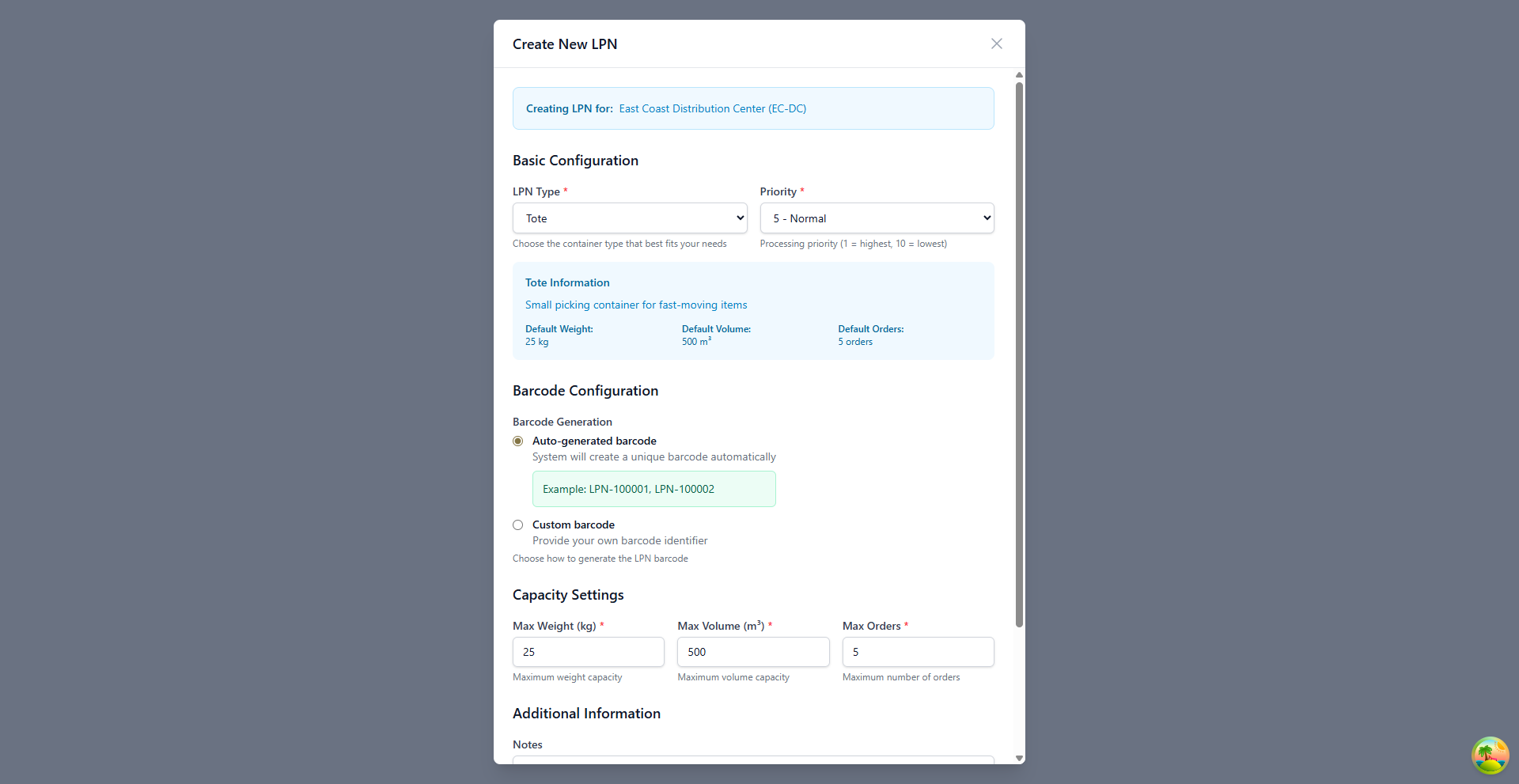
- Choose New LPN.
- Pick the LPN type from the table above. The capacity fields fill in with that type's defaults.
-
Set the priority, from 1 (deal with it first) to 10 (deal with it last). Most LPNs should be 5.
Keep 1 and 2 for genuinely urgent work.
-
Choose how the barcode is made:
- Auto-generated (recommended) — the platform issues the next number in sequence, like
LPN-100001. It can't clash with an existing one. - Custom — type your own. It has to be unique across every LPN. Use this only when an outside system decides the number.
- Auto-generated (recommended) — the platform issues the next number in sequence, like
-
Adjust Max Weight, Max Volume, and Max Orders if this container differs from the type default.
- Add Notes for anything the handler needs to know.
-
Choose Create LPN.
The LPN appears in the list as
AVAILABLE, with a barcode ready to print.
Opening an LPN
Click any row to open it.
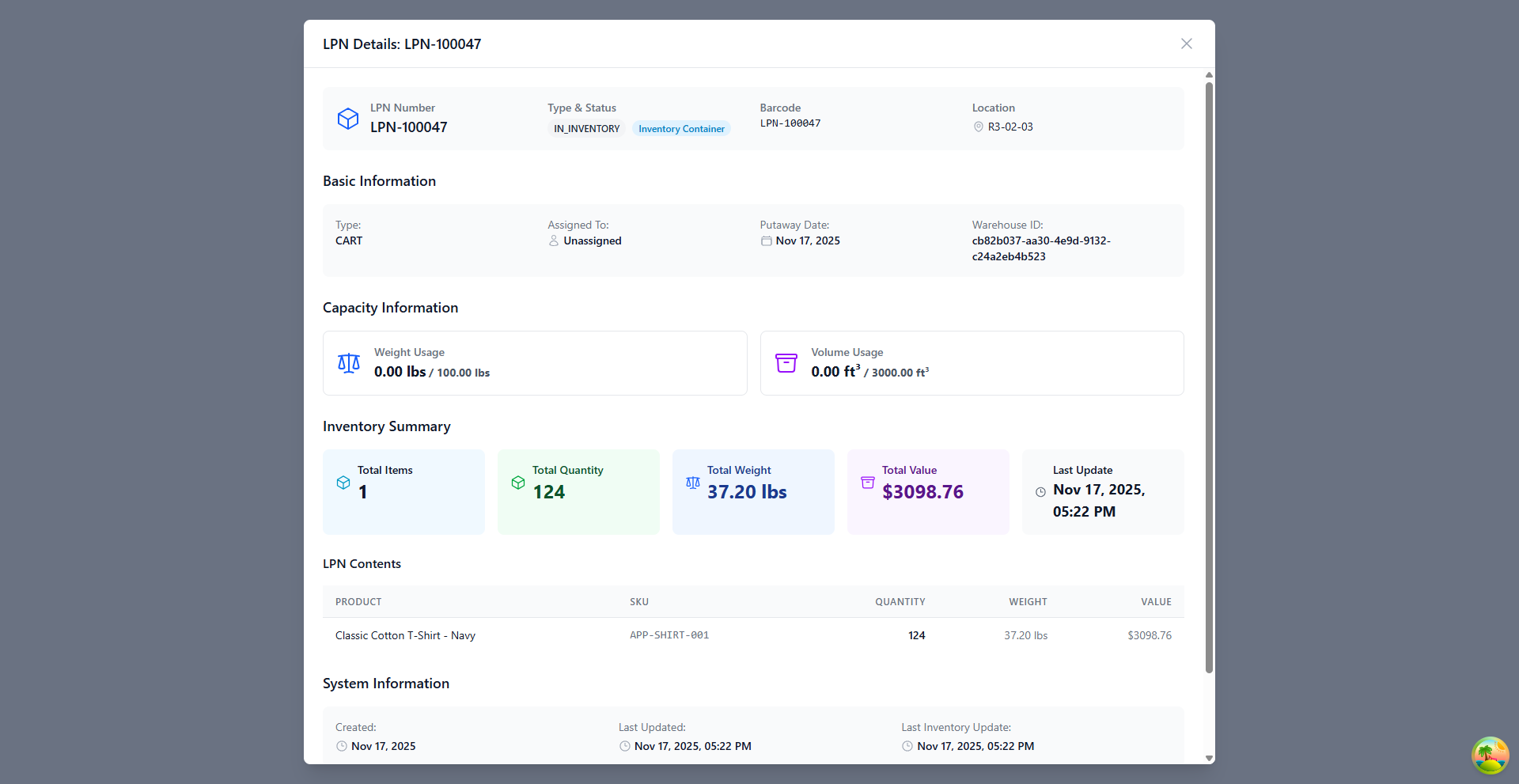
The header shows the LPN number, its type and status, its barcode, and where it is now.
| Section | What you'll find |
|---|---|
| Basic information | Type, who or what it's assigned to, putaway date, and warehouse |
| Capacity | Current weight and volume against the maximum, as a percentage |
| Inventory summary | Number of different products, total units, total weight, total value, and when the contents last changed |
| Contents | One row per product: name, SKU, quantity, weight, and value |
| System information | Created, last updated, and last inventory change |
Statuses
While an LPN is working
| Status | Means |
|---|---|
AVAILABLE | Empty and ready for anything |
BUILDING | Being filled during receiving or picking |
IN_USE | Tied up in an operation, possibly in transit |
PICKING | Assigned to a pick list and being filled |
AT_STAGING | Moved to a staging area, waiting for the next step |
AT_PACK_STATION | At a packing station |
PROCESSING | Contents being packed or checked |
CONSOLIDATED | Merged with other LPNs into one, waiting to be packed |
READY_TO_SHIP | Packed and labeled, waiting for the carrier |
IN_SHIPMENT | Assigned to a shipment with a tracking number |
DISPATCHED | Left the warehouse |
SHIPPED | Delivery confirmed. Returns to AVAILABLE if the container comes back |
While an LPN is holding stock
| Status | Means |
|---|---|
IN_INVENTORY | Holding stock in a fixed location |
INVENTORY_LOCKED | Contents frozen — used during a cycle count or a quality hold |
PUTAWAY_PENDING | Received and checked, waiting for a location |
Everything else
| Status | Means |
|---|---|
IN_TRANSIT | Moving between locations inside the warehouse |
CROSS_DOCK | Received and staged straight for outbound |
OUT_OF_SERVICE | Damaged or unusable. Can't be assigned to anything |
Moving an LPN
Beyond the normal receiving, picking, and shipping flows, you can move an LPN by hand. Use it to reorganize the warehouse, replenish pick faces from bulk, consolidate part-pallets, stage for a shipment, put returns back into stock, or fix an LPN that ended up in the wrong place.
| Move | What changes |
|---|---|
| Inventory → inventory | New storage location. Status stays IN_INVENTORY |
| Inventory → staging | Status becomes AT_STAGING, ready for loading |
| Staging → shipment | Loaded onto an outbound shipment |
| Staging → inventory | Back into storage as IN_INVENTORY — for cancelled orders and returns |
On a phone
- Scan the LPN. Its current location appears.
- Scan the destination — a location, a staging area, or a shipment.
- Check the move the platform proposes, and confirm it.
- Physically move the LPN so the shelf matches the screen.
You can send several LPNs to the same destination in one go, and the phone remembers destinations you use often. Moves made without signal queue up and sync when you're back in range, and each scan gives you a buzz so you know it registered.
Moves the platform won't allow
- A source or destination that doesn't exist.
- A destination without room, where capacity is enforced.
- An LPN locked by an active process, or in the middle of receiving or picking.
- Unloading from a shipment that has already been dispatched.
For the full workflow and more scenarios, see the LPN movements guide.
Taking part of an LPN
When you're building a load plan, you can take some of an LPN's contents instead of the whole container. Use it when an LPN holds stock for more than one shipment, or when only part of a mixed pallet is needed.
- On the LPN card, choose Partial Select.
- Set the quantity you want for each product in the LPN.
- Confirm.
The platform works out the weight and volume of what you selected, and leaves the rest of the LPN available for other work. It won't let you take more than there is, and that protection holds across several load plans at once.
What an LPN card tells you
| Detail | Why it matters |
|---|---|
| Dimensions | Length, width, and height of the product |
| Weight | Per unit and in total |
| Lot number | The lot, and its expiry date |
| Document receipt | A link straight to the original receiving document |
Three badges flag stock that needs care:
| Badge | Color | Means |
|---|---|---|
| HAZMAT | Orange | Hazardous material — follow the handling procedure |
| FRAGILE | Purple | Handle carefully |
| EXPIRING | Red | At or past its expiry date |
Getting it right
Standardize your container types. Use the same type for the same job across the warehouse, and write it into your SOPs. Mixed conventions make utilization figures meaningless.
Keep enough LPNs available. Watch how many of each type sit at AVAILABLE, and create more before a busy period rather than during one.
Scan at every step. An LPN whose status is out of date sends someone to the wrong place. Clear stuck LPNs the same day.
Empty them promptly. An operational LPN that still shows contents after the job finished is a container nobody can use.
Check containers for damage when they come back, and mark anything broken OUT_OF_SERVICE so it can't be assigned.
Lock inventory containers during a cycle count using INVENTORY_LOCKED, so nothing changes underneath the count.
Troubleshooting
| Problem | What to check |
|---|---|
| A new LPN isn't in the list | The status and type filters, the search box, and that you're in the right warehouse. |
| Can't create an LPN | A warehouse is selected, you have permission, every required field is filled, and a custom barcode isn't already taken. |
| LPN stuck in one status | Open the pick list or shipment it's attached to and finish or cancel it. A supervisor can override the status. |
| "Maximum capacity exceeded" | Check the current weight and volume against the limits. Use a bigger container or split the contents. |
| The barcode won't scan | Clean the label, or reprint it. Type the LPN number in the meantime. |
| Contents don't match the system | Count the container physically, compare against the contents table, then check recent transactions for the difference. Look for a near-duplicate LPN number. |
Error messages
| Error | Why | Fix |
|---|---|---|
| "LPN number already exists" | A custom barcode is already in use | Use a different one, or auto-generate |
| "Warehouse required" | No warehouse selected | Pick one from the header |
| "Invalid capacity values" | A capacity is zero or negative | Enter a positive number |
| "Maximum capacity exceeded" | Too much for this container | Use a bigger LPN, or split the contents |
| "LPN is locked" | It's INVENTORY_LOCKED | Finish the cycle count, or unlock it |
| "Cannot delete LPN with contents" | It still holds stock | Empty it first |
Related guides
- LPN movements - Moving containers around the warehouse
- Managing receiving orders - Receiving stock onto an LPN
- Order processing - LPNs during picking and shipping
- Staging areas - Where LPNs wait between steps
- Inventory management - Managing inventory containers
Need more help? Email support@zoratech.io, or check the FAQ and troubleshooting guide.