Roles
A role is a set of permissions. Every user holds exactly one, and it decides which pages they can open and which actions they can take.
The platform ships with five roles and lets you build your own. There are 104 permissions across 22 modules, and each one is checked on its own — nothing is granted implicitly.
Before you begin
You need the Administrator role. Every screen behind Roles requires manage_permissions:users, and no other system role holds it — not even Manager.
Work out what each position actually needs to do before you start checking boxes. It is far easier to widen a role later than to explain why a picker could void invoices.
The roles page
Open Administration → Roles.
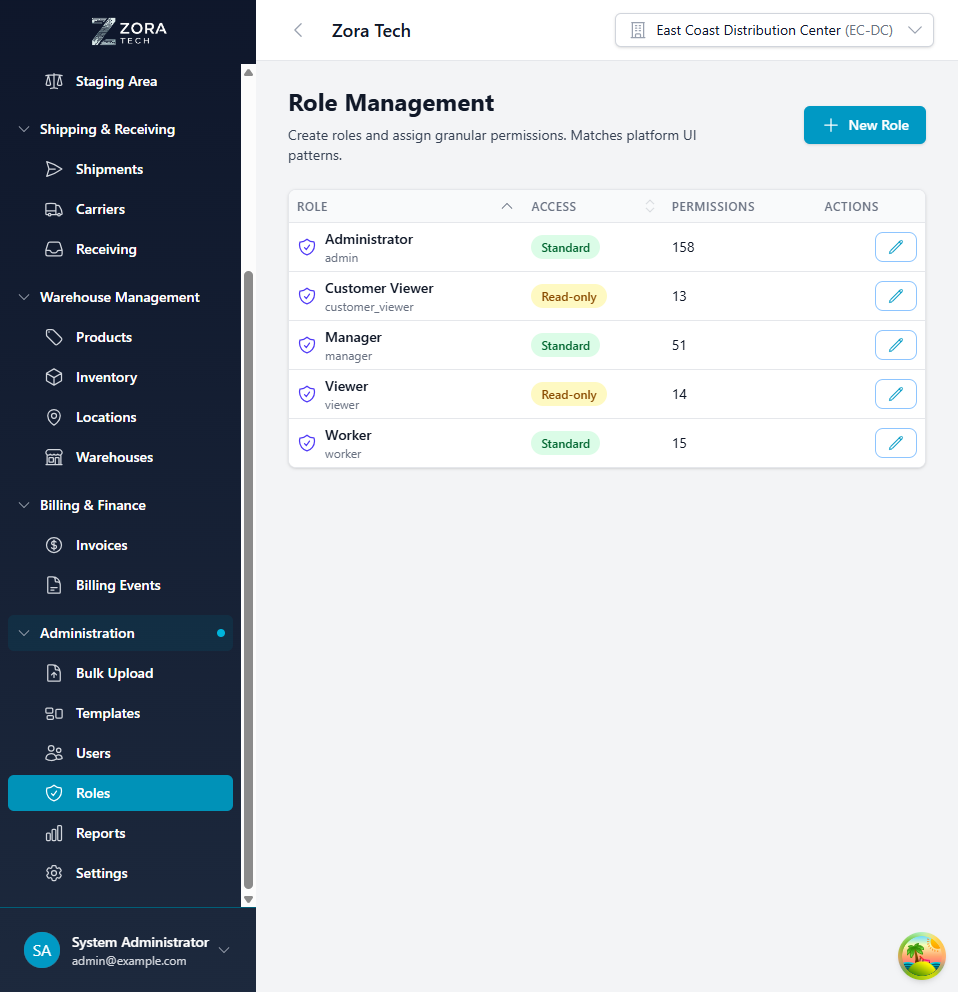
Each row shows the role's display name with its internal name beneath, and whether its access is STANDARD or READ_ONLY. New Role creates one from scratch.
The actions on a row tell you what kind of role it is: every role offers Copy, but only custom roles offer Edit and Delete.
Standard roles
The platform ships with five system roles. You can tell them apart in the role list by their actions: a system role offers only Copy, never Edit or Delete, because it cannot be changed or removed. To base a new role on one, copy it.
The Access column shows whether the role is read-only:
| Role | Internal name | Access | Description |
|---|---|---|---|
| Administrator | admin | STANDARD | Full system access |
| Manager | manager | STANDARD | Manage operations and users |
| Worker | worker | STANDARD | Perform warehouse operations |
| Viewer | viewer | READ_ONLY | Read-only access to all modules |
| Customer Viewer | customer_viewer | READ_ONLY | Read-only access to specific customer data |
System roles are access tiers, not job titles
The five system roles are broad tiers, not warehouse positions. For position-shaped access — a receiving clerk who never touches billing, a picker who cannot delete inventory — create a custom role and grant only the permissions that position needs.
Administrator
Access Level: Full system access
Permissions: All 104 permissions across all 22 modules, including manage_permissions:users.
Administrator is the only role that reaches role management at all — every endpoint behind the Roles page requires manage_permissions:users.
Typical Users: - IT administrators - Platform administrators - System integrators
Manager
Access Level: Everything except permission management
Permissions: All 104 permissions except manage_permissions:users — 103 in total.
A Manager can create, edit and deactivate user accounts, but cannot open the Roles page, create roles, or change which permissions a user holds. Those are Administrator-only.
Typical Users: - Warehouse managers - Operations managers - Shift supervisors
Worker
Access Level: Read everywhere, plus two operational actions
Permissions: The 21 view/read permissions — one for every module except sessions, which has only force-end — plus complete:receiving and allocate:orders. 23 in total.
A Worker can open every screen and can finish receiving operations and allocate inventory to orders, but cannot create, edit or delete records. If your floor staff need to record cycle counts, pick orders or move inventory, build a custom role rather than assigning Worker.
Typical Users: - Warehouse associates - Receiving and putaway staff - Pickers and packers
Viewer
Access Level: Read-only across the platform
Permissions: The same 21 view/read permissions as Worker, without the two operational actions.
Viewer carries the read-only flag, which is what shows as READ_ONLY in the Access column.
Typical Users: - Auditors and analysts - Customer service representatives - Anyone who needs visibility without the ability to change records
Customer viewer
Access Level: Read-only, customer portal
Permissions: 13 grants covering the customer-facing screens — view:customers, view:delivery_requests, create:delivery_requests, view:inventory, view:locations, view:lpns, view:orders, view:products, submit:products, view:receiving, view:reports, view:shipments, view:warehouses.
Customer Viewer is the only system role with the Customer Portal Role flag set: users holding it see the customer-facing portal — where they submit delivery requests and product submissions — instead of the staff view. What they can actually see is narrowed further by the customer records granted to them individually, which is set per user rather than on the role. See Users.
Typical Users: - Customer contacts with portal logins - Brokers submitting requests on behalf of several accounts
Creating your own role
Building one from scratch
1. Open the role form
Choose Add Role.
2. Name it and set its flags
- Display Name (required): The name shown throughout the platform, e.g. "Quality Control Specialist". The internal name is generated for you.
- Read-only role: Holds the role to viewing. Shows as
READ_ONLYin the Access column. - Receive Delivery Request Notifications: Users with this role are notified when customers submit delivery requests.
- Customer Portal Role: Users with this role see the customer-facing portal instead of the staff view.
- Description: Optional explanation of the role's purpose and responsibilities.
3. Choose the permissions
- Every permission is listed, grouped by module and sorted alphabetically
- Each is labeled
action:resource—view:orders,adjust:inventory,read:rate-quotes - Hover a permission to see its description
- Check the boxes to grant them, one at a time
Each module heading shows how many of its permissions you have selected, and the footer shows the total — "Selected 22 of 104 total permissions".
4. Check it and save
Compare the selected count against what the position needs, and confirm the role can view every module it can act in — nothing is granted implicitly. Then choose Create Role.
The role is available to assign straight away.
Copying an existing role
To quickly create a new role based on an existing one:
- Find the role you want to copy in the role list
- Click the Copy action button on that role's row
- The system creates a new role with the same permissions pre-selected
- Edit the role name and description to reflect the new purpose
- Adjust permissions as needed
- Click Create Role to save
Start from a template
Copying is the fastest way to create a variation of an existing role. Because there is no "select all", copying Worker and adding the handful of actions a position needs is almost always quicker than checking 20-odd boxes from scratch.
System role protection
Standard (system) roles cannot be edited or deleted. This prevents accidental modification of the built-in roles that many users depend on. If you need a variation of a system role, use the Copy feature to duplicate it as a custom role, then modify the copy.
Custom role examples
Quality Control Inspector: - Receiving: View, Create (inspection records) - Inventory: View, Update (quality holds) - Products: View only - Reporting: Quality reports
Cycle Count Specialist: - Inventory: View, Update (counts) - Cycle Counts: Full CRUD access - Locations: View only - Products: View only - Reporting: Cycle count reports
Returns Processor: - Orders: View, Update (return status) - Receiving: Create (return receipts) - Inventory: Create (restocking) - Customers: View only - Reporting: Returns reports
Permission system
A permission is a module + action pair, sometimes with a resource. The role editor groups them by module and labels each one action:resource, where the resource defaults to the module name — so view:orders, force-end:sessions, and, for the one module that names a resource explicitly, read:rate-quotes.
There are 104 permissions across 22 modules. The editor lists every one of them; the count beside each module heading shows how many you have selected.
Module permissions
Modules appear in the editor alphabetically:
| Module | Permissions |
|---|---|
billing | view, create, update, delete, void |
bulk_upload | view, create, update, delete, export |
customers | view, create, update, delete, crm_view, crm_manage |
cycle_counts | view, create, update, submit |
dashboard | view |
delivery_requests | view, create, manage |
doc_receipts | read, create, update, delete (see the warning below) |
freight-forwarding | create, read, delete — all on the rate-quotes resource |
inventory | view, create, update, delete, adjust, move, export |
load_planning | read, create, update, delete, generate_picklist |
locations | view, create, update, delete |
lpns | view, create, update, delete, manage_inventory, allocate, workflow |
orders | view, create, update, delete, allocate, pick, ship, export |
products | view, create, update, delete, export, submit, manage |
receiving | view, create, update, delete, complete |
reports | view, create, update, delete, export |
sessions | force-end |
settings | view, create, update, delete |
shipments | view, create, update, delete, manifest, dispatch |
templates | view, create, update, delete, export |
users | view, create, update, delete, manage_permissions |
warehouses | view, create, update, delete |
Some screens draw on more than one module. The customer portal, for example, needs both view:delivery_requests and create:delivery_requests; freight forwarding covers rate quotes under freight-forwarding but doc receipts under doc_receipts.
dashboard is the newest module and holds a single permission. view:dashboard gates the warehouse KPI sections of the dashboard — Today's Activity, Picking & Containers, and the Last 14 Days trends. The four internal system roles (Administrator, Manager, Worker, Viewer) all hold it; customer portal roles deliberately do not, because the KPI figures roll up across every customer in the warehouse.
Operation permissions
Most modules use the familiar four:
- view (or read) — open the list and the detail views. No changes.
- create — add new records.
- update — modify existing records.
- delete — remove or cancel records.
Two details matter when you assign them:
Not every module has all four. sessions has only force-end; dashboard has only view; freight-forwarding has no update; cycle_counts has no delete; delivery_requests has no update or delete.
The read action is named view on most modules but read on doc_receipts, load_planning and freight-forwarding. They mean the same thing — the editor shows whichever name the module uses.
Doc receipts cannot currently be opened by any role
The permission catalogue defines read:doc_receipts, and that is the only read entry the role editor offers for this module. The endpoints behind the Doc Receipts screens, however, require view:doc_receipts — a permission the catalogue never defines, so it cannot be granted to anyone.
The result is that the two read routes return 403 for every role except Administrator, which bypasses every permission check and is unaffected. Manager, Worker, Viewer and any custom role are locked out. Creating, updating and deleting doc receipts work normally for everyone — those routes require create, update and delete, which the catalogue does define.
Granting read:doc_receipts is still correct and costs nothing, but it will not open the screens on its own. This is a platform defect rather than a configuration mistake; it is tracked as logistics-platform#946 and needs a code fix to resolve.
Permissions do not imply one another
Each permission is checked on its own. Granting create:orders does not grant view:orders, and delete:inventory does not imply update:inventory. A role that can create records but cannot view them is a valid — and confusing — configuration. Grant the read permission for every module a role needs to work in.
Authorization also fails closed: a user whose role is missing the permission a screen needs gets a 403 and the "no access" panel rather than an empty page.
Special permissions
Beyond the four standard actions, these grant specific operations:
| Permission | What it allows |
|---|---|
void:billing | Void invoices |
crm_view:customers | View customer activities and tags |
crm_manage:customers | Create and manage customer activities and tags |
submit:cycle_counts | Submit and complete cycle counts |
manage:delivery_requests | Manage delivery request statuses |
adjust:inventory | Adjust inventory quantities |
move:inventory | Move inventory between locations |
generate_picklist:load_planning | Generate pick lists from load plans |
manage_inventory:lpns | Manage LPN contents |
allocate:lpns | Allocate LPNs to orders and shipments |
workflow:lpns | Manage LPN workflows |
allocate:orders | Allocate inventory to orders |
pick:orders | Pick orders for fulfillment |
ship:orders | Ship orders and create shipments |
submit:products | Submit new products for approval |
manage:products | Approve or reject product submissions |
complete:receiving | Complete receiving operations |
force-end:sessions | Force-end a receiving session (manager override) |
manifest:shipments | Manifest shipments and generate tracking |
dispatch:shipments | Dispatch shipments with the carrier |
manage_permissions:users | Manage roles and user permissions |
export is available on bulk_upload, inventory, orders, products, reports and templates, and controls downloading that module's data.
Assigning permissions
Individual permission assignment
Assign permissions one at a time:
- Edit role
- Scroll to the module's group
- Check the permission checkboxes
- Save role
There is no "select all" control and no predefined permission bundles — grants are made one checkbox at a time. For anything broader than a handful, start from an existing role instead.
Do permissions depend on each other?
No — every permission is checked independently, and nothing is granted implicitly. The dependency is practical rather than enforced: grant a module's view (or read) permission alongside its create, update, delete or special actions, or the role can act on records it cannot open. Screens that pull from several modules need the read permission for each of them.
Starting from an existing role
- Find a role close to what you want.
- Choose Copy.
- Edit the display name, then add or remove permissions.
- Save.
Role hierarchy
There is no hierarchy
Roles are flat. No role inherits from another, and no role is "above" another — each one is simply the set of permissions checked against it. Administrator holds every permission because it was granted every permission, not because it sits at the top of a tree.
The practical consequence: widening one role never widens another. Adding adjust:inventory to a custom Inventory Specialist role does not give it to anyone else, and removing a permission from a custom role cannot be undone by some parent role granting it back.
One role per user
A user holds exactly one role. Both the user form and the Manage Permissions modal offer a single Role selector, and what a user can do is what that one role grants.
If someone needs the access of two roles — a receiver who also ships — you cannot stack them. Create a custom role holding both permission sets and assign that instead: Copy whichever role is closer, then add the missing permissions to the copy.
Changing a user's role replaces their access; it does not add to it.
Two things sit on the user rather than the role, and narrow access further without granting any:
- Customer access grants, set per user in Manage Permissions, limit a portal user to particular customers.
- Data filters limit a user to particular warehouses. See Users.
Editing roles
What you can change
| Role kind | What you can do |
|---|---|
| System role | Look at its permissions, and Copy it. Nothing else — there is no Edit or Delete button at all. |
| Custom role | Add or remove permissions, change the display name and description, and change the read-only, portal, and notification flags. |
Making the change
- Choose Edit on the role's row.
- Adjust the properties and the permission checkboxes.
-
Choose Update Role.
The change applies to everyone holding that role immediately — new permissions are usable at once, and removed ones stop working at once. The audit log records what changed.
Anyone signed in at the time may need to sign out and back in before they see the difference.
Suspending access
Roles have no active/inactive status — a role either exists or it does not. To suspend someone's access:
- For one person, deactivate the user account. Every permission check fails for an inactive user, and their role assignment is preserved for when they return.
- For a whole group, move those users to a narrower role, or strip the permissions from the role they share. Both take effect immediately.
Role assignment
Giving someone a role
When you create a user, pick the role from the Role dropdown on the form.
To change it later, open Manage Permissions on the user, choose a different User Role, and save. The new role replaces the old one — it does not add to it.
Covering hybrid positions
Because a user holds one role, hybrid positions are handled with a role, not with a stack of them:
- Receiver who also ships — copy Worker, add the receiving and shipment permissions that position needs.
- Covering for a manager — reassign the user to Manager for the duration, then reassign back. There is no temporary or additive grant.
- Base role plus reporting — copy the base role and add
export:reports.
Name these roles for the position they serve, and review them when the position changes.
Effective permissions
What a user actually has
A user's effective permissions are their role's permissions, evaluated per request. There is no inheritance to trace and no second role to reconcile — to audit someone's access, open their role.
Three things can override the role, all of them restricting rather than granting:
- Inactive users are denied everything. Deactivating a user revokes access without touching their role.
- Read-only users are held to viewing, exporting, submitting and creating, whatever else the role grants.
- Customer access grants and data filters narrow which records the user sees within the permissions they hold. A user with
view:ordersand one customer grant sees that customer's orders, not the warehouse's.
Reviewing a user's access
- Open Users and find the account
- Choose Manage Permissions
- The Role Assignment section shows the assigned role and its description
- The Customer Access section shows which customers the user is scoped to
- To see the permissions themselves, open the role in Roles
There is no per-user permission list
Permissions are granted to roles, not to people. If one person needs something nobody else's role grants, that is a new custom role — not an exception on the account.
Getting it right
Grant the least that does the job. Start restrictive and add permissions when someone hits a wall. That is a two-minute fix; discovering a warehouse associate could delete invoices is not.
Build roles around positions, not people. "Receiving Clerk" survives staff turnover. "Dave's role" does not.
Name roles for the position they serve and fill in the description. Six months on, nobody remembers why "Custom Role 3" exists.
Test a new role with a test account before you assign it to a shift. The most common mistake is granting an action without the matching view, which leaves someone able to change records they cannot open.
Review roles a few times a year. Roles drift as jobs change, and permissions are almost never removed unless someone goes looking.
Cover a temporary need by reassigning the user to a wider role and reassigning back afterwards. Grants are never additive and never time-boxed, so there is no other mechanism.
Keeping roles secure
Splitting duties
The point of separating duties is that the person who records something is not the person who can quietly correct it. Some examples:
- A receiving role that holds
complete:receivingbut notadjust:inventory, so the person booking stock in cannot also correct the count - A picking role that holds
pick:ordersbut notship:orders, so dispatch stays a second pair of eyes - A cycle-count role that holds
submit:cycle_countsbut notdelete:inventory
Create a distinct custom role for each function and grant only its actions. Because a user holds one role, keeping the two actions in separate roles is what enforces the split. Watch the audit log for role changes that quietly merge them again.
Administrator access
Keep Administrator for IT staff, and keep it separate from the account those people use for day-to-day warehouse work. The role short-circuits every permission check, so there is no narrowing it once assigned.
manage_permissions:users is effectively full access
Anyone holding it can create and modify roles — including the one they hold themselves. Treat granting it as granting everything, and review role changes in the audit log regularly.
Troubleshooting
User cannot access feature
What you see: User cannot see or use specific feature despite having apparent access
What to check: 1. Check the user's assigned role 2. Open that role and confirm it holds the permission the screen needs 3. Confirm it also holds the module's view (or read) permission — nothing is implied 4. Check whether the user or their role is read-only, which blocks everything but viewing, exporting, submitting and creating 5. Verify the user account is Active 6. For customer-scoped data, check the user's customer access grants and data filters 7. Ask the user to log out and back in
Permission not taking effect
What you see: Role updated but user still has old permissions
What to check: 1. Wait a few seconds for cache refresh 2. User should log out and log back in 3. Check role edit was saved successfully 4. Verify user still assigned to role 5. Re-open the role to confirm the change stuck 6. Check browser cache (clear if needed)
Too many permissions
What you see: User has more access than intended
What to check: 1. Check which role the user is assigned — access comes from that one role 2. Review that role's permissions; the count in the editor is a quick sanity check 3. If the role is a system role, assign a narrower one, or copy it and remove what is not needed 4. Remember Administrator bypasses every permission check — assign it only to platform administrators 5. If the concern is which records rather than which actions, add customer access grants or data filters
Cannot edit system role
What you see: No Edit or Delete button on a standard role
What to check: 1. System roles cannot be edited (by design) — the actions are not rendered at all 2. Use Copy to create a custom role with the same permissions 3. Modify the copy and assign it to users instead 4. Document customizations for audit purposes
Role deletion blocked
What you see: Cannot delete custom role
What to check: 1. Check if users are currently assigned to the role 2. Reassign those users to a different role first 3. System roles cannot be deleted (ever) — they have no Delete action at all 4. Review the audit log for role usage history
Related guides
- Users - Creating accounts and assigning roles
- Audit log - Who changed a role, and when
- Settings - System-wide configuration
Need more help? Email support@zoratech.io, or check the FAQ and troubleshooting guide.