Settings
Table of Contents
- Overview
- Getting Started
- Settings Interface
- User Preferences
- Default Warehouse
- Theme Settings
- Language Settings
- Notification Preferences
- Picking & Fulfillment
- Warehouse Operations
- Order Management
- Inventory Control
- Notifications
- General Settings
- System Configuration
- Integration Settings
- Security Settings
- Best Practices
- Troubleshooting
Overview
The Settings module provides comprehensive configuration options for personalizing your experience and managing system-wide operational parameters. Configure user preferences, operational defaults, notification settings, and system behaviors to optimize the platform for your workflow.
Key Capabilities:
- Personal user preferences (theme, language, default warehouse)
- Operational configuration (picking strategies, allocation rules)
- System-wide defaults (time zones, date formats, units of measure)
- Notification management (email, push, SMS preferences)
- Integration configuration (carriers, ERP systems, APIs)
- Security policies (password rules, session timeouts)
- Warehouse-specific operational settings
Getting Started
Prerequisites
Before configuring settings:
- Permissions: Settings access based on role
- Users can modify own preferences
- Managers can configure warehouse operational settings
- Administrators can modify all system settings
- Warehouse Context: Some settings are warehouse-specific
- Understanding: Knowledge of operational impacts of changes
When to Modify Settings
Settings should be reviewed and configured:
- User Onboarding: Set personal preferences at first login
- Warehouse Setup: Configure operational parameters during setup
- Process Changes: Adjust settings when workflows change
- Integration Setup: Configure external system connections
- Seasonal Operations: Modify allocation rules for peak periods
- Troubleshooting: Adjust settings to resolve operational issues
Settings Interface
Access settings through the Administration section:
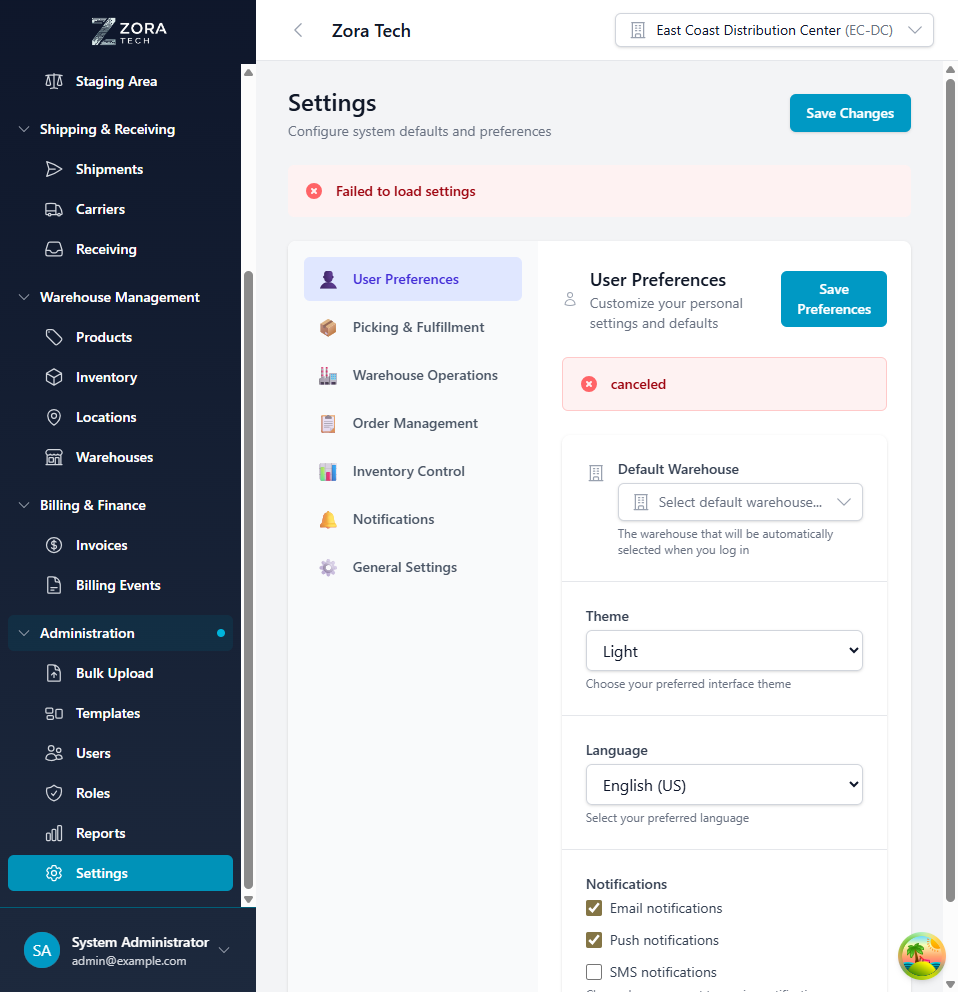
Interface Components:
- Settings Categories: Left sidebar navigation between setting groups
- Active Category: Highlighted in left navigation
- Settings Panel: Main area displaying configuration options
- Save Changes Button: Apply configuration updates
- Reset Button: Revert to last saved state
Settings Categories:
- User Preferences: Personal customization settings
- Picking & Fulfillment: Order picking and packing configuration
- Warehouse Operations: Receiving, putaway, and location management
- Order Management: Order processing rules and automation
- Inventory Control: Stock management and counting parameters
- Notifications: Alert and notification preferences
- General Settings: System-wide operational defaults
User Preferences
Personal settings that customize your platform experience:
Default Warehouse
Set your primary warehouse for automatic selection:
Configuration: - Default Warehouse Dropdown: Select from assigned warehouses - Auto-Select on Login: Automatically switch to default warehouse when logging in - Description: "The warehouse that will be automatically selected when you log in"
Usage: - Users with single warehouse access: Setting shows that warehouse (read-only) - Multi-warehouse users: Select most frequently used warehouse - Can change warehouse anytime via warehouse selector in header - All operations default to this warehouse unless explicitly changed
Benefits: - Reduces clicks by pre-selecting common warehouse - Prevents accidentally operating in wrong warehouse - Streamlines daily workflow
Theme Settings
Choose interface appearance:
Theme Options: - Light: Light background, dark text (default, better for bright environments) - Dark: Dark background, light text (reduces eye strain in low light) - Auto: Matches system/browser theme preference
Configuration: - Theme Dropdown: Select preferred theme - Changes apply immediately (no page refresh required) - Persists across sessions and devices
Considerations: - Dark theme may be preferable for extended computer use - Light theme typically better for printing and screenshots - Auto theme switches based on time of day or OS setting
Language Settings
Select interface language:
Language Options: - English (US): Default - English (UK): British spellings and conventions - Spanish (Latin America): Español (Latinoamérica) - French: Français - German: Deutsch - Additional languages available based on platform configuration
Configuration: - Language Dropdown: Select preferred language - Changes require page refresh - Affects all interface text, menus, labels - Does not translate user-entered data (product names, descriptions)
Notes: - Date and number formats adjust to selected language locale - Some technical terms may remain in English - Help documentation available in selected language
Notification Preferences
Control how you receive alerts and updates:
Email Notifications: - ☑ Enable email notifications - Receive alerts via email - Includes: Order status changes, inventory alerts, system notifications - Email sent to address in user profile
Push Notifications: - ☑ Enable push notifications - Browser-based notifications when logged in - Real-time alerts for critical events - Requires browser notification permission
SMS Notifications: - ☐ Enable SMS notifications - Text message alerts to mobile phone - Requires phone number in user profile - Charges may apply based on plan
Notification Types: - System updates and maintenance - Order processing milestones - Inventory low stock alerts - Receiving notifications - Shipping updates - Error and exception alerts
Picking & Fulfillment
Configure order picking and fulfillment operations:
Picking Strategy
Define how pick lists are organized:
Strategy Options:
Wave Picking - Group orders into waves - Pick multiple orders simultaneously - Optimize by zone or product - Best for: High-volume operations with multiple pickers
Batch Picking - Pick same SKU for multiple orders at once - Consolidate similar items - Reduce travel time - Best for: Many orders with common products
Zone Picking - Assign pickers to specific zones - Each picker handles their zone only - Pass orders between zones - Best for: Large warehouses with defined zones
Discrete Picking - One order at a time, start to finish - Simple, straightforward process - Complete isolation of orders - Best for: Low volume, high accuracy requirements
Allocation Rules
Control how inventory is allocated to orders:
FIFO (First In, First Out) - Allocate oldest inventory first - Default for most operations - Minimizes aging inventory - Best for: Perishable goods, date-sensitive products
FEFO (First Expiry, First Out) - Allocate based on expiration date (earliest first) - Items without expiration dates are allocated after items with dates - Falls back to FIFO ordering when expiration dates match - Configurable at the warehouse level or overridden per allocation - Expired inventory allocations are flagged with a warning - Best for: Food, pharmaceuticals, time-sensitive items
LIFO (Last In, First Out) - Allocate newest inventory first - Useful for non-perishable goods - Can leave old stock - Best for: Specific accounting methods
Location Preference - Prioritize specific zones or locations - Forward picking locations first - Minimize travel distance - Best for: Optimized warehouse layouts
Pick Confirmation
Requirements for confirming picks:
- ☑ Require Barcode Scan: Picker must scan product barcode
- ☑ Require Location Scan: Picker must scan location before picking
- ☑ Require Quantity Confirmation: Picker must confirm picked quantity
- ☐ Allow Short Picks: Permit picking less than allocated quantity
- ☐ Allow Over Picks: Permit picking more than allocated quantity
Benefits: - Barcode scanning reduces pick errors - Location scanning ensures correct location - Quantity confirmation prevents over/under picks - Strict controls improve accuracy but may slow picking
Packing Requirements
Configure packing workflow:
- ☑ Require Pack Verification: Scan items during packing
- ☑ Require Weight Capture: Weigh package and record
- ☑ Print Packing Slip: Automatically print when packing complete
- ☐ Generate Box Labels: Auto-generate box/carton labels
- Default Box Sizes: Pre-defined carton dimensions
Allocation Strategy
Each warehouse can be configured with a default allocation strategy:
| Strategy | Description |
|---|---|
| FIFO | First In, First Out (default) - allocates oldest inventory first by received date |
| FEFO | First Expired, First Out - allocates inventory with earliest expiration date first |
| LIFO | Last In, First Out - allocates newest inventory first |
Configuring Warehouse Allocation Strategy:
- Navigate to Settings > Picking & Fulfillment
- Under Allocation Rules, select the default strategy for the current warehouse
- Save changes
Per-Allocation Override
The warehouse default strategy can be overridden on individual orders at allocation time. This is useful when specific orders require different handling (e.g., a FIFO warehouse that occasionally needs FEFO for a perishable order).
Expired Inventory Warnings
When using FEFO, if the system allocates inventory that is past its expiration date, the allocation result will include a warning flag. Review these warnings before confirming the shipment.
Warehouse Operations
Settings for receiving, putaway, and warehouse management:
Receiving Configuration
Receipt Verification: - ☑ Require PO Validation: Verify purchase order exists before receiving - ☑ Require Product Scan: Scan product barcode during receipt - ☐ Allow Overages: Accept quantities exceeding PO - ☐ Allow Damages: Record damaged goods during receiving - Overage Tolerance: Percentage/quantity tolerance for overages
LPN Generation: - Auto-Generate LPNs: Automatically create LPN for received inventory - LPN Format: Prefix and numbering scheme (e.g., LPN-{date}-{sequence}) - Print on Receipt: Auto-print LPN label when created
Quality Control: - ☐ Require QC Inspection: Hold inventory for quality review - QC Hold Location: Designated location for QC inventory - Auto-Release After: Days until auto-release if not inspected
Putaway Rules
Location Assignment:
Auto-Suggest Location - System recommends putaway location - Based on: Product type, available space, zone rules - User can override if needed
Enforce Location Type - Products can only go in compatible location types - Prevents storing in wrong zones - Example: Hazmat only in designated hazmat locations
Capacity Validation - Check location capacity before putaway - Prevent overfilling locations - Alert if location at/near capacity
Putaway Strategy:
Nearest Empty Location - Assign to closest available location to receiving dock - Minimizes travel time - May spread inventory across warehouse
Fixed Location (Primary/Overflow) - Each product has designated primary location - Overflow goes to secondary locations - Easy to find products, harder to manage space
Zone-Based - Putaway to specific zones by product category - Keeps like products together - Supports zone picking strategies
Location Management
Location Types: - Receiving Staging - Primary Picking (forward pick) - Reserve Storage (bulk storage) - Packing Stations - Shipping Staging - Returns Processing - Quality Control Hold
Location Attributes: - Max Weight: Weight capacity limit - Max Volume: Cubic dimension limit - Supported Units: Pallet, case, each, etc. - Hazmat Compatible: Allows hazardous materials - Temperature Zone: Ambient, refrigerated, frozen
Order Management
Configure order processing behavior:
Auto-Allocation
Enable Auto-Allocation: - ☑ Automatically allocate inventory when order created - ☐ Wait for manual allocation release
Allocation Timing: - Immediate (upon order creation) - Scheduled (daily at specified time) - Manual only (no auto-allocation)
Allocation Priority: - Order priority level (high, medium, low) - Customer priority (VIP customers first) - Order date (oldest first) - Ship date (earliest ship date first)
Order Hold Rules
Auto-Hold Conditions: - ☑ Credit hold (customer over credit limit) - ☑ Address validation failure - ☑ Fraud review flagged - ☐ Inventory shortage (partial allocation)
Hold Release: - Manual approval required - Auto-release when condition resolved - Notification to customer service
Shipping Rules
Carrier Selection:
Auto-Assign Carrier - Based on: Customer preference, service level, cost, weight/dimensions - Override allowed by warehouse staff - Default carrier if no rules match
Service Level Mapping: - Map order service levels to carrier services - Example: "2-Day" → UPS 2nd Day Air - Consider cutoff times and zone/destination
Rate Shopping: - ☐ Enable rate shopping across carriers - Select cheapest option meeting service level - Requires carrier API integrations
Inventory Control
Settings for inventory tracking and cycle counting:
Counting Procedures
Cycle Count Frequency: - ABC Analysis: A items monthly, B quarterly, C annually - Fixed Schedule: All locations on rotation - Event-Driven: Count after significant transactions
Count Configuration: - ☑ Require Second Count: If variance exceeds threshold, require recount - Variance Threshold: Percentage or quantity variance triggering review - ☑ Freeze Location: Prevent transactions during count - Auto-Adjust: Automatically adjust inventory after count (or require approval)
Inventory Policies
Reorder Automation: - ☑ Auto-Generate Reorder Alerts: When inventory below reorder point - Reorder Calculation: Reorder point + lead time demand - Notification Recipients: Inventory managers, purchasing
Stock Transfer Rules: - Approval Required: Transfers between warehouses require approval - Notification: Alert receiving warehouse of incoming transfer - Transit Time: Expected days for inter-warehouse transfers
Serial Number Tracking
Serial Tracking: - ☑ Enforce Serial Validation: All serial-tracked products must have valid serial - ☑ Unique Serials: Prevent duplicate serial numbers globally - Serial Format: Validation regex for serial number format - Warranty Tracking: Link serials to warranty expiration dates
Notifications
System-wide notification configuration:
Email Settings
Email Server: - SMTP Server configuration - Sender name and email address - Email templates for various notification types
Email Notifications Sent For: - ☑ Order status changes - ☑ Low inventory alerts - ☑ Receiving notifications - ☑ Shipment tracking updates - ☑ Cycle count requests - ☑ System errors and exceptions - ☑ Scheduled report delivery
Alert Thresholds
Inventory Alerts: - Low Stock Alert: When quantity below reorder point - Out of Stock Alert: When quantity reaches zero - Overstock Alert: When quantity exceeds maximum threshold - Aging Inventory Alert: Days before aging alert triggered
Operational Alerts: - Order Backlog: Number of orders before alert - Late Shipments: Hours past expected ship time before alert - Receiving Delays: Hours in staging before putaway alert
General Settings
System-wide operational defaults:
Per-Warehouse Timezone
Each warehouse can now be configured with its own timezone. This affects all date-sensitive operations for that warehouse including report generation, scheduled tasks, and date/time display in the UI.
Configuration:
- Navigate to Settings or the warehouse detail page
- Select the Timezone for the warehouse from the dropdown
- Save changes
Impact: - Reports generated for this warehouse use the warehouse's timezone for date filtering and display - Billing events and storage charge calculations use the warehouse timezone - All timestamps in the UI reflect the warehouse's local time when viewing warehouse-scoped data
Multi-Timezone Operations
If you operate warehouses across multiple timezones, per-warehouse timezone ensures reports and operations reflect the correct local time for each facility.
Dynamic Storage Classes
Storage classes are now user-defined rather than hardcoded. Create custom storage classifications that match your warehouse operations.
Managing Storage Classes:
- Navigate to Settings
- Find the Storage Classes section
- Add, edit, or remove storage class definitions
- Assign storage classes to locations and products
Common Storage Classes:
- Ambient, Refrigerated, Frozen (temperature-controlled)
- Hazmat, Flammable, Corrosive (safety classifications)
- High-Value, Bonded (security classifications)
Regional Settings
Time Zone: - Select system-level time zone (can be overridden per-warehouse) - Affects: Timestamps, report schedules, date displays - User can override with personal time zone preference
Date Format: - MM/DD/YYYY (US) - DD/MM/YYYY (International) - YYYY-MM-DD (ISO)
Number Format: - Decimal separator: . or , - Thousands separator: , or . - Currency symbol position
Units of Measure
Default Units: - Weight: Pounds (lbs), Kilograms (kg), Ounces (oz) - Dimensions: Inches (in), Centimeters (cm) - Volume: Cubic feet (cu ft), Cubic meters (cu m) - Quantity: Each (EA), Case, Pallet
Unit Conversions: - Configure conversion factors - Enable multi-unit tracking - Support UOM in order entry and reporting
Session Management
Session Settings: - Session Timeout: Minutes of inactivity before auto-logout (default: 30) - Remember Me: Allow "Remember Me" option on login (stays logged in for 30 days) - Force Logout on Close: Log out when browser closes - Concurrent Sessions: Allow multiple simultaneous logins
System Configuration
Administrator-only system settings:
Performance Tuning
Caching: - Enable query result caching - Cache expiration time (seconds) - Clear cache function
Batch Processing: - Background job batch size - Concurrent job processing threads - Job queue priority settings
Data Retention
Archive Policies: - Completed orders: Archive after 2 years - Inventory transactions: Retain indefinitely - Audit logs: Retain 7 years - Temp files: Delete after 30 days
Soft Delete: - ☑ Use soft delete (mark as deleted, don't remove from database) - Retention period before hard delete - Restore capabilities
Integration Settings
Configure external system connections:
Carrier Integrations
Configured Carriers: - UPS - FedEx - USPS - DHL - Regional carriers
API Configuration: - Account credentials - API endpoints - Test vs production mode - Rate shopping enabled - Tracking webhook URLs
ERP Integration
Connection Settings: - ERP system type (SAP, Oracle, NetSuite, etc.) - API endpoint URL - Authentication method (OAuth, API key, username/password) - Sync frequency (real-time, hourly, daily)
Data Sync: - ☑ Sync orders to ERP - ☑ Sync inventory from ERP - ☑ Sync products from ERP - ☑ Sync customers from ERP - Sync Schedule: Time of day for scheduled syncs
Webhook Configuration
Outbound Webhooks: - Configure URLs to POST events - Event types: Order created, shipment created, inventory change - Authentication headers - Retry logic on failure
Security Settings
Configure security policies and access controls:
Password Policies
Requirements: - Minimum length: 8 characters - ☑ Require uppercase letter - ☑ Require lowercase letter - ☑ Require number - ☑ Require special character
Password Management: - Expiration: Require password change every 90 days (or never) - History: Remember last 5 passwords, prevent reuse - Lockout: Lock account after 5 failed attempts - Lockout Duration: 30 minutes (or until admin unlocks)
Multi-Factor Authentication
MFA Settings: - ☐ Require MFA for all users - ☑ Require MFA for administrators - MFA Methods: Authenticator app, SMS, email - Trusted Devices: Remember device for 30 days
API Access
API Keys: - Generate API keys for integrations - Key expiration: 1 year - Revoke keys feature - Rate limiting: 1000 requests/hour per key
IP Whitelisting: - Restrict API access to specific IP addresses - Separate whitelists for production vs test environments
Best Practices
User Preferences
- Set Default Warehouse: Saves time and reduces errors
- Choose Comfortable Theme: Dark theme for extended use, light for printing
- Configure Notifications: Enable critical alerts, disable noise
- Test Settings: Verify changes in test environment before production
Operational Settings
- Document Changes: Record why settings were changed and expected impact
- Incremental Adjustments: Make small changes, measure impact, iterate
- Warehouse-Specific: Tailor settings to each warehouse's unique needs
- Seasonal Adjustments: Modify allocation and picking for peak periods
- Regular Review: Quarterly review of all operational settings
Security
- Strong Password Policy: Enforce complexity requirements
- Enable MFA: Especially for administrative accounts
- Session Timeouts: Balance security with user convenience
- Regular Audits: Review user access and permissions quarterly
- Monitor Changes: Audit log of all settings modifications
Performance
- Appropriate Timeouts: Not too short (user frustration) or too long (security risk)
- Optimize Batch Sizes: Balance processing speed with resource usage
- Cache Settings: Improve performance without stale data issues
- Archive Old Data: Keep active database lean and fast
Troubleshooting
Changes Not Saving
Symptom: Click "Save Changes" but settings revert
Solutions: 1. Check for validation errors on page 2. Ensure you have permission to modify these settings 3. Verify network connection 4. Try refreshing page and re-entering changes 5. Clear browser cache 6. Contact support if persists
Settings Not Taking Effect
Symptom: Saved settings but behavior unchanged
Solutions: 1. Log out and log back in 2. Clear browser cache 3. Check if setting is user-specific or system-wide 4. Verify warehouse context if setting is warehouse-specific 5. Confirm setting affects the operation you're testing 6. Allow time for system-wide changes to propagate
Cannot Access Settings Category
Symptom: Some settings categories not visible
Solutions: 1. Check your role permissions 2. Administrators see all categories 3. Users only see User Preferences 4. Managers see operational settings for their warehouses 5. Contact administrator for access if needed
Default Warehouse Not Changing
Symptom: Still defaulting to old warehouse after change
Solutions: 1. Verify save was successful (check for confirmation message) 2. Log out completely and log back in 3. Clear browser cookies 4. Ensure you have access to selected warehouse 5. Check if warehouse is active (not deleted)
Notification Emails Not Received
Symptom: Enabled email notifications but not receiving
Solutions: 1. Check spam/junk folder 2. Verify email address in user profile is correct 3. Confirm notification type is enabled in settings 4. Check email server status (admin) 5. Test with different email address 6. Review email server logs (admin)
Related Documentation
- Company Branding - Upload company logo and edit company information for document templates
- Billing & Invoicing - Billing configuration, rate cards, and storage charges
- Users - User account and preference management
- Roles - Role-based access to settings
- Reports - Report scheduling and notification settings
Support
For settings assistance:
- Email: support@zoratech.io
- FAQ: Settings FAQ
- Troubleshooting: Common Issues