Settings
Connect your accounting system, word the emails that carry your invoices, and set the compliance limits enforced on every load.
Before you begin
The Settings page and everything on its tabs are available only to administrators. Personal table preferences (below) are available to every user.
The Settings page is the administrator area for billing configuration and system preferences. It is split into three tabs:
- Billing — how the platform connects to your accounting system for invoicing.
- Invoice Email — the wording used when you email an invoice to a customer.
- Compliance Rules — the ammunition and lithium battery limits enforced when freight is loaded.
Each tab has its own address, so you can bookmark or link to one directly — for example /settings?tab=invoice-email.
Company branding has moved
Your company name, contact details, and logo are no longer edited here. They now live on the Warehouses page, alongside per-warehouse overrides — see Company Branding.
Operational behavior — how picking allocates stock, each warehouse's time zone, and so on — is configured per warehouse, not here; see Warehouse Management.
What settings does not include
Settings has no per-user theme, language, SMS, or push-notification options, and no ERP/webhook, session-timeout, or password-policy settings. Notifications are delivered in-app (the bell in the top bar), with no per-user notification channel preferences to configure here.
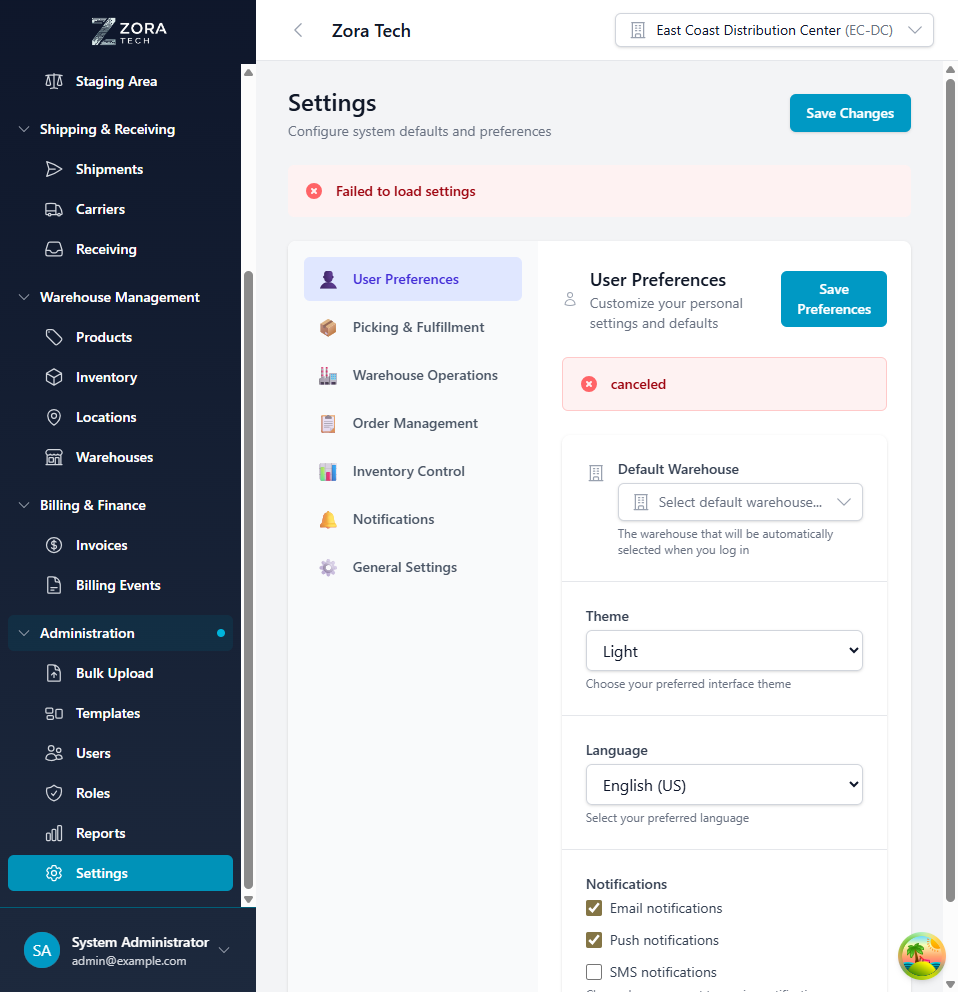
Figure: the Settings page on the Billing tab, before a billing provider has been connected
Company branding
Company branding — your logo, company name, address, phone, and email — is maintained on the Warehouses page rather than on Settings, so each warehouse can override the global details. These values appear on platform-generated documents, including invoice PDFs and the from-address on invoice email drafts. For the full walkthrough, see Company Branding.
Billing settings
The Billing tab connects the platform to your accounting system so invoices can be exported to it. QuickBooks Desktop is the provider available today.
Until a provider is connected, the tab shows No billing provider configured and a Configure Provider button. Once connected, the Billing Provider panel carries the connection's status, a Test Connection action, and the QuickBooks Configuration settings that exports depend on — a default service item and an A/R account. A Customer Mapping section appears alongside them for exporting your QuickBooks customer list.
Setting all of that up is covered end to end in QuickBooks Desktop integration:
- Connect the provider
- Configure invoice defaults — the service item and A/R account exports require
- Map customers
For day-to-day invoicing, rate cards, and storage charges, see Billing and invoicing.
Invoice email
The Invoice Email tab holds the wording used when someone emails an invoice from the Invoices page. Because Zora builds a draft that you send from your own mail client, this copy is exactly what your customer reads — so it is worth setting in your own voice.
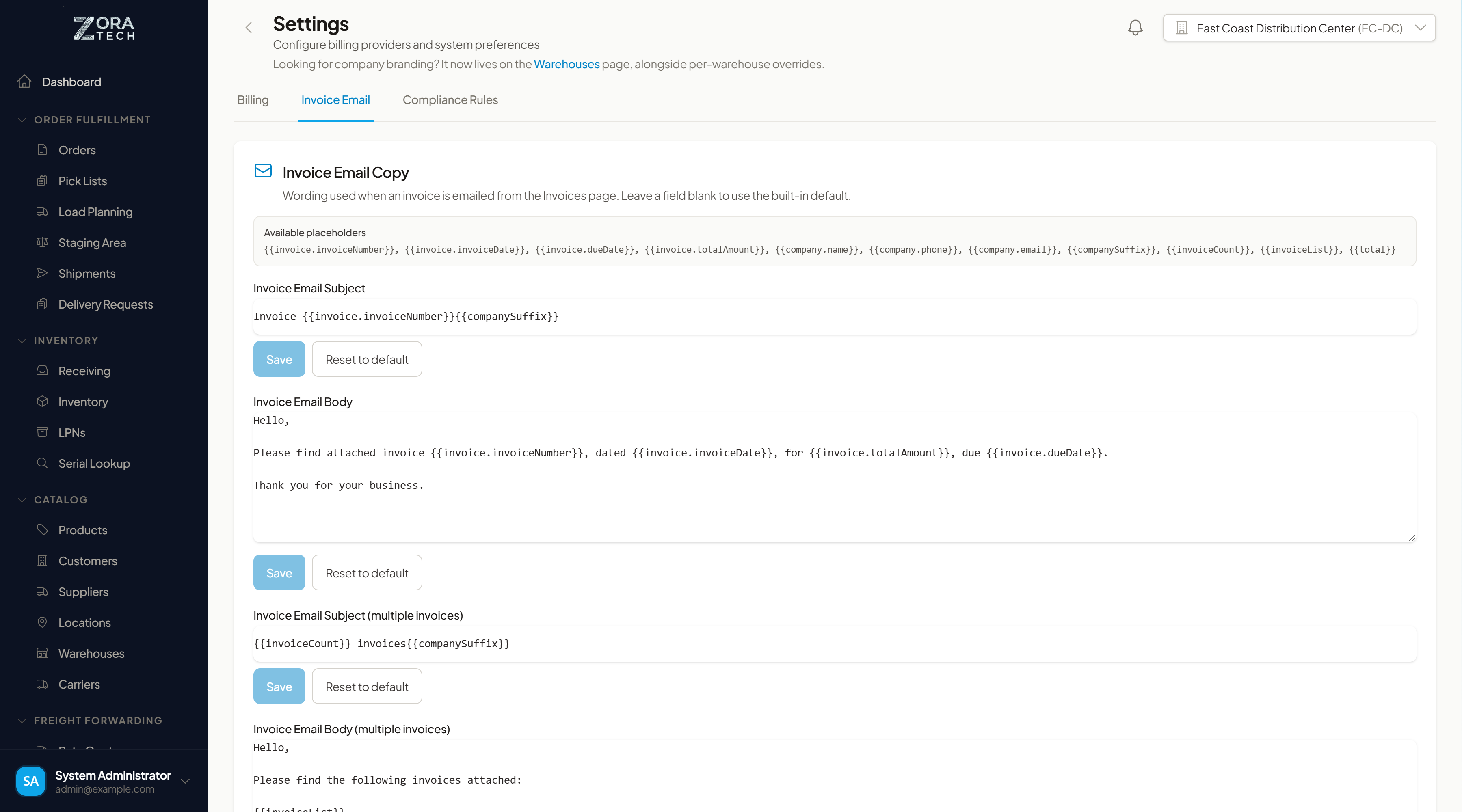
The four templates
A draft can carry one invoice or several, and each case gets its own subject and body:
| Field | Used when |
|---|---|
| Invoice Email Subject | One invoice is attached |
| Invoice Email Body | One invoice is attached |
| Invoice Email Subject (multiple invoices) | Two or more invoices are attached |
| Invoice Email Body (multiple invoices) | Two or more invoices are attached |
Editing a template
- Go to Settings → Invoice Email.
- Edit the field you want to change. Unsaved changes appears while it differs from what is stored.
- Choose Save under that field.
Each field saves on its own, so you can change the single-invoice subject without touching anything else. Reset to default puts the shipped wording back in the box; click Save to store it.
Leave a field blank to use the default
A blank subject or body falls back to the built-in wording rather than sending an empty message. Your customer never receives an empty subject line because someone cleared a field.
Placeholders
Wrap a placeholder in double braces and the platform substitutes the real value when the draft is built:
| Placeholder | Becomes |
|---|---|
{{invoice.invoiceNumber}} | The invoice number |
{{invoice.invoiceDate}} | The invoice date |
{{invoice.dueDate}} | The due date |
{{invoice.totalAmount}} | The invoice total |
{{company.name}} | Your company name |
{{company.phone}} | Your company phone number |
{{company.email}} | Your company email address |
{{companySuffix}} | from <your company name> — or nothing, if no company name is set |
{{invoiceCount}} | How many invoices are attached |
{{invoiceList}} | One line per invoice: number, amount, and due date |
{{total}} | The combined total of every attached invoice |
On a multi-invoice draft, the invoice-specific placeholders ({{invoice.*}}) resolve to the first invoice in the batch. Use {{invoiceList}} and {{total}} in the multiple-invoice templates instead.
Check placeholder spelling
A placeholder the platform does not recognize renders as empty text, not as an error — {{invoice.invoicenumber}} would quietly produce "Please find attached invoice , dated …". The editor flags unrecognized placeholders under the field as you type; it lets you save anyway, so read the caution before you do.
Signatures
The default body has no sign-off block. That is intentional: most desktop mail clients insert their own signature when the draft opens, and a built-in one would give the customer two. If your client does not add a signature, add your own using the {{company.*}} placeholders.
Where the copy is used
These templates fill the draft that Email Draft produces on the Invoices page. See Emailing Invoices for the full sending workflow, including how the recipient is chosen and the 25-invoice limit per draft.
Compliance rules
The Compliance Rules tab holds the ammunition and lithium battery limits the platform enforces when freight is loaded. They are checked on load plans and on every move into a shipment, and the same limits drive the NEW / grain and lithium battery worksheets.
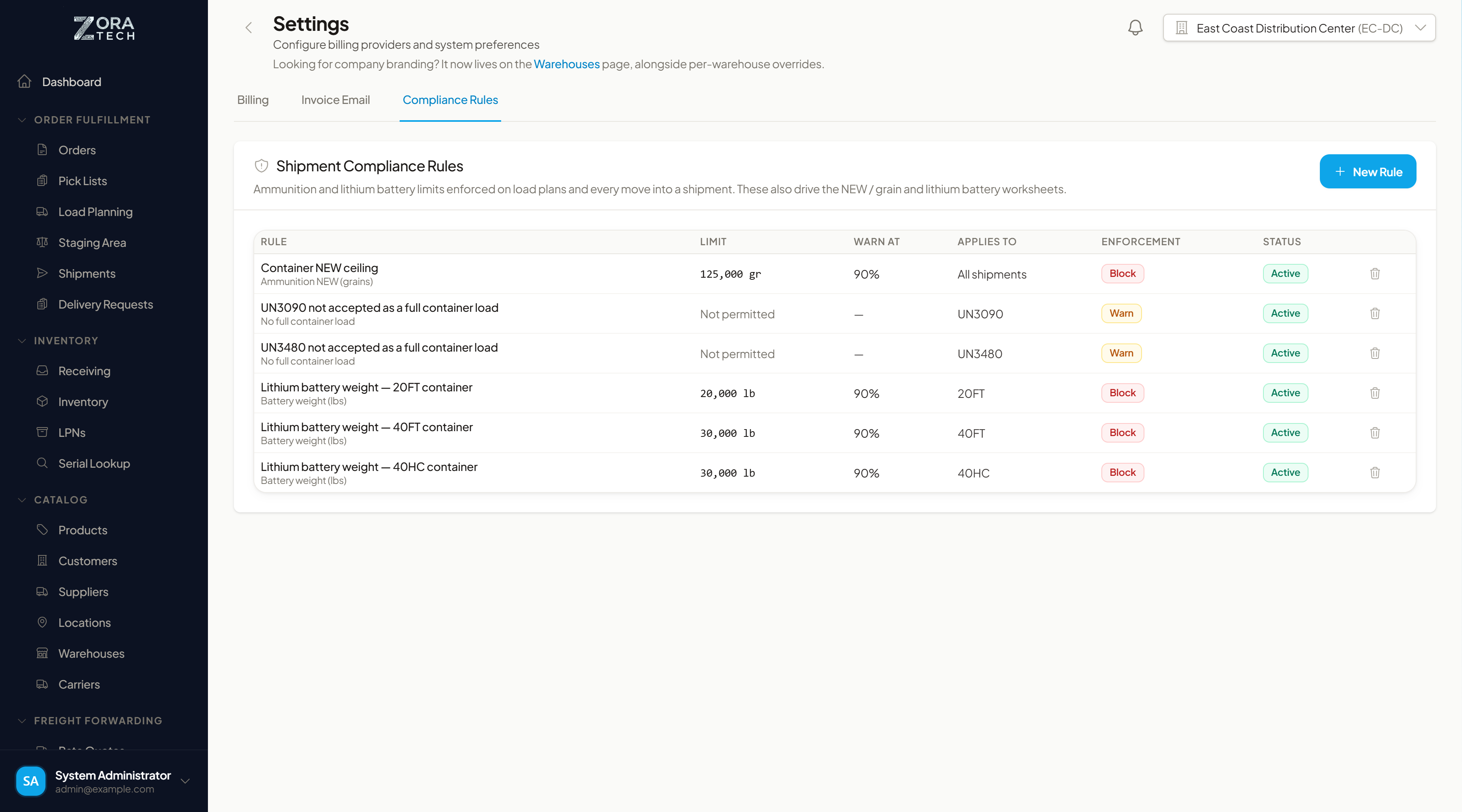
Editing a rule takes effect on the next move — there is nothing to deploy or restart.
No rules means no checking
These limits exist only as rules. With the list empty, ammunition and battery loads are not checked against anything.
What a rule measures
Every rule is one of four types:
| Rule type | Limit is expressed in | Typical use |
|---|---|---|
| Ammunition NEW (grains) | Grains (gr) | A net explosive weight ceiling per container |
| Ammunition weight (lbs) | Pounds (lb) | A gross ammunition weight ceiling |
| Battery weight (lbs) | Pounds (lb) | A lithium battery weight ceiling, usually per container size |
| No full container load | — | Bans a UN class from travelling as a full container load |
The first three take a numeric limit. No full container load is a prohibition rather than a threshold, so it shows Not permitted in the Limit column and has no warn threshold.
Rule fields
| Field | What it controls |
|---|---|
| Rule Name | How the rule appears in the list and in the message an operator sees |
| What It Measures | The rule type from the table above |
| Enforcement | Block rejects the load; Warn records the finding and lets it continue |
| Limit | The ceiling, in the unit for that rule type |
| Warn At (% of limit) | Raises a warning as the load approaches the limit — 90% warns at nine-tenths of it |
| Container Type | Restricts the rule to 20' (20FT), 40' (40FT), or 40' high cube (40HC) containers; leave as Any container type to apply everywhere |
| UN Class | Restricts the rule to one class — UN3480, UN3481, UN3090, or UN3091 |
| Rule is active | Whether the rule is currently enforced |
| Notes | The rationale shown to operators when the rule blocks a load |
Rules created here apply across the whole platform. The Applies to column summarizes each rule's scope — a container type, a UN class, or All shipments when it is unrestricted.
Block or warn?
Block is for limits a load must never exceed — regulatory ceilings. Warn is for limits that need a human decision rather than a hard stop. Set Warn At so the warning arrives while there is still time to re-plan the load.
Adding or changing a rule
- Go to Settings → Compliance Rules.
- Choose New Rule, or choose an existing row to edit it.
- Fill in the fields above and save.
The list shows inactive rules alongside active ones, each with a Status badge.
Retiring a rule
To stop enforcing a rule but keep it on file, edit it and untick Rule is active. Use the delete (trash) action only when the rule should disappear entirely — once deleted, loads are no longer checked against that limit and the rule is gone.
Where these rules are enforced
- Load Planning — when freight is planned onto a load
- LPN Movements — when an LPN is moved into a shipment
- Packing & Shipping — on shipment operations
A rule set to Block stops the move and shows the operator the rule's name and notes. A rule set to Warn records the finding and allows the move.
Personalizing your tables
Beyond the admin Settings page, every user has personal table preferences that the platform remembers automatically. On the platform's data tables — orders, inventory, pick lists, and so on — you can:
- Show, hide, and reorder columns
- Resize columns
- Set the sort column and direction
- Choose how many rows appear per page
Your choices are saved per table (and per warehouse where relevant), so each table reopens the way you left it. There's nothing to set up on the Settings page — adjust a table and it remembers.
System defaults
The platform also keeps a small set of system-wide operational defaults — for example, the default pick strategy, a global fallback time zone, whether orders auto-allocate when created, whether negative inventory is allowed, and a global email-notification flag. These are established when your platform is set up. From there, most day-to-day operational behavior is controlled per warehouse (see Warehouse Management) rather than through a single global switch.
Related guides
- Company branding — upload your logo and edit company information
- QuickBooks Desktop integration — connect accounting and export invoices
- Billing and invoicing — invoicing, rate cards, and storage charges
- Emailing invoices — how the wording above reaches your customer
- Warehouse Management — per-warehouse time zone and allocation strategy
- Users — add and manage user accounts
- Load Planning — where compliance rules are enforced
- Roles & Permissions — control who can access Settings