Staging Area Management
Overview
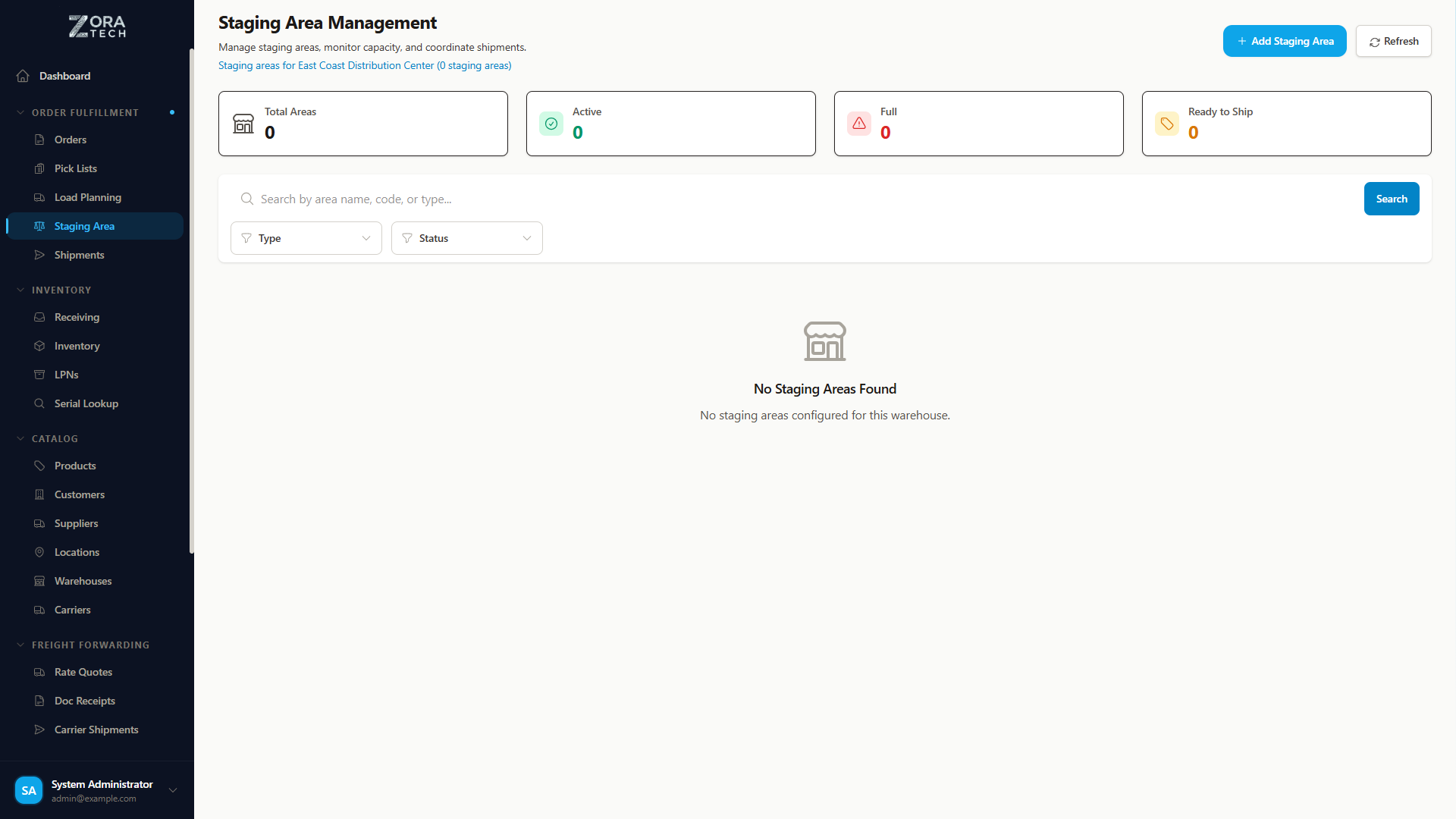
Staging Areas in the Zora Tech Logistics Platform are designated zones within warehouses where LPNs (License Plate Numbers) and orders are temporarily held during various warehouse operations. Staging areas facilitate efficient order fulfillment, packing, consolidation, and shipping workflows by providing organized buffer zones between warehouse processes.
Key Features: - Multiple staging area types (Pack Station, Consolidation Zone, Dock Door, etc.) - Real-time capacity tracking (LPN and order limits) - Priority-based processing - Carrier and service level assignments for dock doors - Automated cutoff time management - Status tracking and utilization monitoring
Table of Contents
- Getting Started
- Understanding Staging Areas
- Staging Area Types
- Accessing Staging Area Management
- Creating a Staging Area
- Staging Area Status Lifecycle
- Capacity Management
- Best Practices
- Troubleshooting
Getting Started
Prerequisites
Before managing staging areas, ensure you have:
- Warehouse Access: Select an active warehouse from the warehouse selector
- Appropriate Permissions: User role with staging area management access
- Workflow Understanding: Knowledge of warehouse operational workflows
- Zone Mapping: Physical warehouse zone codes and layout
Key Concepts
Staging Area: A designated zone where LPNs or orders temporarily reside during processing
Area Type: Category defining the staging area's purpose (Pack Station, Dock Door, etc.)
Capacity: Maximum number of LPNs and orders the area can hold
Status: Current operational state (Active, Inactive, Maintenance, Full)
Priority: Processing priority level from 1 (highest) to 7 (lowest)
Utilization: Percentage of capacity currently in use
Cutoff Time: Deadline for orders to be processed for same-day shipping
Understanding Staging Areas
What is a Staging Area?
A staging area is a physical zone in the warehouse where items, LPNs, or orders are temporarily held between operational steps. Think of it as an organized waiting area that ensures smooth workflow transitions and prevents bottlenecks.
Staging Area Workflow
- LPN Arrival: LPN is moved to staging area after picking or receiving
- Temporary Hold: LPN waits in staging for next processing step
- Processing: Worker retrieves LPN from staging for packing, consolidation, or shipping
- Departure: LPN leaves staging area, freeing up capacity
- Capacity Reset: Area becomes available for new LPNs
Why Use Staging Areas?
Workflow Organization - Separate zones for different operations - Clear handoff points between processes - Reduced congestion in main warehouse areas
Capacity Management - Control work-in-progress levels - Prevent overloading of processing stations - Monitor throughput and bottlenecks
Carrier Optimization - Group orders by carrier and service level - Meet carrier pickup times and cutoffs - Optimize shipment consolidation
Quality and Exceptions - Dedicated areas for quality control - Separate exception handling zones - Returns processing isolation
Staging Area Types
Pack Station
Purpose: Dedicated packing workstation for order fulfillment
Characteristics: - Equipped with packing materials and label printer - Scale for weight verification - Individual worker assignment - Typical capacity: 5-10 LPNs, 10-15 orders
Best For: - Individual order packing - Multi-item order assembly - Label generation and application - Quality verification before shipping
Equipment: - Thermal label printer - Digital scale - Barcode scanner - Packing tape dispenser - Box sizing station
Consolidation Zone
Purpose: Area for combining multiple orders or LPNs
Characteristics: - Larger capacity for multiple LPNs - Temporary holding for grouping - Order consolidation workflows - Typical capacity: 20-50 LPNs, 50-100 orders
Best For: - Multi-order shipments - Pallet building - Customer-specific grouping - Wave consolidation
Usage: - Combine multiple pick LPNs into shipping LPNs - Group orders by destination - Build full truckload shipments - Consolidate customer orders
Dock Door
Purpose: Shipping staging area assigned to specific carrier
Characteristics: - Carrier-specific assignment - Service level tracking (Ground, Express, etc.) - Pickup time management - Cutoff time enforcement - Typical capacity: 15-30 LPNs, 30-60 orders
Best For: - Carrier-specific shipment staging - Scheduled pickup management - Time-sensitive shipping - Outbound load building
Configuration: - Assigned carrier (FedEx, UPS, etc.) - Service level (Ground, 2-Day, Overnight) - Pickup time (e.g., 17:00) - Cutoff time (e.g., 16:30)
Exception Area
Purpose: Holding zone for orders requiring special attention
Characteristics: - Problem resolution workflow - Extended dwell time - Supervisor oversight - Typical capacity: 10-20 LPNs, 20-40 orders
Best For: - Damaged items - Missing products - Address validation issues - Customer holds - Quality concerns
Handling: - Investigation and resolution - Customer communication - Replacement processing - Return initiation
Quality Control
Purpose: Inspection and verification staging
Characteristics: - Inspection equipment - Quality checklist workflows - Pass/fail processing - Typical capacity: 5-15 LPNs, 10-30 orders
Best For: - Random quality checks - High-value item verification - Customer-requested inspection - Compliance verification
Process: - Product inspection - Packaging verification - Labeling accuracy - Documentation review
Returns Processing
Purpose: Area dedicated to customer return handling
Characteristics: - Return verification workflow - Restocking assessment - Disposition determination - Typical capacity: 10-25 LPNs, 20-50 orders
Best For: - Customer returns receiving - Product condition assessment - Restocking or disposal routing - Refund/exchange processing
Workflow: - Return authorization verification - Condition inspection - Inventory disposition - Customer resolution
Accessing Staging Area Management
Navigation
- Click Operations in the left sidebar
- Select Staging Areas
- Ensure a warehouse is selected in the header
Page Layout
The Staging Area Management page includes:
- Header: Shows warehouse context and total staging area count
- Summary Cards: Quick metrics (Total, Active, Near Capacity, Full)
- New Staging Area Button: Create new staging areas
- Search & Filters: Find staging areas by code, type, status
- Staging Area Table: Lists all staging areas with utilization
Creating a Staging Area
Step 1: Open Create Staging Area Modal
- Click the New Staging Area button (top right)
- The Create New Staging Area modal opens
Step 2: Basic Configuration
Staging Area Code *
Unique identifier for the staging area: - Format: PACK-01, DOCK-A, CONSOL-01, QC-01 - Must be unique across the warehouse - Alphanumeric characters and hyphens - Used for scanning and system reference
Staging Area Name *
Descriptive name for easy identification: - Example: "Pack Station 1", "FedEx Ground Dock", "Main Consolidation Zone" - Clear and descriptive - Includes location or purpose - Used in displays and reports
Area Type *
Select the staging area type:
- PACK_STATION: Individual packing workstation
- CONSOLIDATION_ZONE: Order/LPN consolidation area
- DOCK_DOOR: Carrier-specific shipping dock
- EXCEPTION_AREA: Problem resolution holding zone
- QUALITY_CONTROL: Inspection and verification station
- RETURNS_PROCESSING: Returns handling area
Step 3: Capacity Settings
Max LPNs *
Maximum number of LPNs the area can hold: - Pack Station: 5-10 LPNs - Consolidation Zone: 20-50 LPNs - Dock Door: 15-30 LPNs - Exception Area: 10-20 LPNs - Quality Control: 5-15 LPNs - Returns Processing: 10-25 LPNs
Max Orders *
Maximum number of orders the area can process: - Pack Station: 10-15 orders - Consolidation Zone: 50-100 orders - Dock Door: 30-60 orders - Exception Area: 20-40 orders - Quality Control: 10-30 orders - Returns Processing: 20-50 orders
Step 4: Priority and Location
Priority *
Processing priority level: - 1 - Highest: Critical operations - 2 - High: Priority processing - 3 - Medium-High: Above normal - 4 - Medium: Standard elevated - 5 - Normal: Default (selected by default) - 6 - Low: Lower priority - 7 - Lowest: Process when available
Zone Code (Optional)
Physical warehouse zone identifier: - Example: A1, B2, ZONE-PACK - Links to warehouse floor plan - Aids navigation and labor assignment
Step 5: Carrier Configuration (Dock Doors Only)
Carrier (Optional)
Assigned carrier name: - FedEx, UPS, USPS, DHL, etc. - Applies to DOCK_DOOR type only - Routes shipments to correct dock
Service Level (Optional)
Carrier service level: - GROUND, EXPRESS, 2-DAY, OVERNIGHT, etc. - Further refines carrier routing - Ensures proper service selection
Pickup Time (Optional)
Expected carrier pickup time: - Format: HH:MM (24-hour) - Example: 17:00 for 5:00 PM pickup - Guides staging timing
Cutoff Time (Optional)
Order cutoff for same-day shipping: - Format: HH:MM (24-hour) - Example: 16:30 for 4:30 PM cutoff - System prevents staging after cutoff
Step 6: Additional Information
Equipment (Optional)
Equipment available at the staging area: - "Scale, label printer, tape dispenser" - "Forklift access, pallet jack" - "Inspection table, lighting" - Helps workers know what's available
Notes (Optional)
Special instructions or information: - Operational procedures - Special handling requirements - Shift assignments - Maintenance schedules
Step 7: Create Staging Area
- Review all configuration
- Click Create Staging Area
- Staging area appears in list with ACTIVE status
- Ready for LPN assignment
Staging Area Status Lifecycle
Active Statuses
ACTIVE
- Staging area is operational and accepting LPNs
- Normal processing workflow
- Capacity tracking enabled
- Default status for new staging areas
INACTIVE
- Staging area temporarily not in use
- Cannot accept new LPNs or orders
- Existing items remain until cleared
- Used for schedule changes or temporary closures
MAINTENANCE
- Staging area under maintenance or repair
- Equipment servicing in progress
- Cannot accept new items
- Requires clearance before reactivation
FULL
- Staging area at maximum capacity
- Automatically set when max LPNs/orders reached
- Cannot accept additional items
- Clears when items are processed and removed
Status Transitions
ACTIVE → FULL (when capacity reached)
FULL → ACTIVE (when items removed, capacity available)
ACTIVE → MAINTENANCE (manual intervention required)
MAINTENANCE → ACTIVE (after service complete)
ACTIVE → INACTIVE (end of shift, schedule change)
INACTIVE → ACTIVE (shift start, schedule activation)
Capacity Management
Real-Time Utilization
LPN Utilization: - Formula: (Current LPNs / Max LPNs) × 100% - Visual indicator on dashboard - Alert when >80% (near capacity) - Auto-status to FULL at 100%
Order Utilization: - Formula: (Current Orders / Max Orders) × 100% - Tracks order processing load - Capacity planning metric - Prevents overloading
Utilization Monitoring
Near Capacity Threshold: 80% utilization - Visual warning indicator - Supervisor notification - Plan for capacity expansion or flow adjustment
Available Slots: - LPN slots: Max LPNs - Current LPNs - Order slots: Max Orders - Current Orders - Real-time availability display - Assignment decision support
Capacity Alerts
Approaching Capacity (80-99%): - Yellow warning indicator - Consider routing to alternate staging - Expedite processing to free space
Full Capacity (100%): - Red alert indicator - Status automatically set to FULL - System prevents additional assignments - Process existing items to restore capacity
Best Practices
Staging Area Design
- Right-Size Capacity
- Match capacity to operational throughput
- Consider peak periods and seasonality
- Monitor historical utilization data
-
Adjust limits based on actual performance
-
Strategic Placement
- Position near related workflows
- Minimize travel distance for workers
- Group similar area types
-
Ensure adequate physical space
-
Type Selection
- Use appropriate type for function
- Don't repurpose area types
- Maintain consistent workflows
-
Clear signage and labeling
-
Carrier Optimization (Dock Doors)
- One dock per carrier-service combination
- Set realistic cutoff times
- Coordinate with carrier schedules
- Build buffer time before pickup
Operational Best Practices
- Regular Monitoring
- Check utilization throughout shift
- Address near-capacity situations
- Clear completed items promptly
-
Track dwell time metrics
-
Dwell Time Management
- Establish maximum dwell times
- Alert on extended holds
- Investigate stuck LPNs
-
Escalate exceptions quickly
-
Priority Assignment
- Reserve priority 1-2 for urgent areas
- Use normal (5) for standard operations
- Lower priorities for exception handling
-
Consistent priority logic
-
Status Maintenance
- Update status when equipment fails
- Set to MAINTENANCE during service
- Mark INACTIVE outside operating hours
- Document status changes
Performance Optimization
- Throughput Analysis
- Track items per hour per staging area
- Identify bottlenecks
- Balance workload across areas
-
Adjust capacity as needed
-
Utilization Targets
- Aim for 60-80% average utilization
- Too low: excess capacity, wasted space
- Too high: constant congestion, delays
-
Right-size for smooth flow
-
Carrier Cutoffs
- Build 30-60 minute buffer before pickup
- Account for label generation time
- Factor in manifesting procedures
- Test and validate timing
Troubleshooting
Common Issues
Staging Area Constantly Full
Problem: Area reaches capacity frequently
Solutions: 1. Increase max LPN/order capacity 2. Add additional staging areas of same type 3. Expedite processing to clear items faster 4. Review workflow for bottlenecks 5. Check if items are stuck in area
LPNs Not Moving to Staging
Problem: System not routing LPNs to staging area
Solutions: 1. Verify staging area status is ACTIVE 2. Check capacity is not FULL 3. Confirm appropriate area type for workflow 4. Review carrier/service level configuration 5. Check warehouse assignment matches
Missed Carrier Cutoff
Problem: Orders missed cutoff time for shipping
Solutions: 1. Adjust cutoff time earlier (add buffer) 2. Review pickup time accuracy 3. Monitor staging queue proactively 4. Alert workers as cutoff approaches 5. Consider earlier order processing start
Equipment Not Available
Problem: Staging area equipment missing or broken
Solutions: 1. Set status to MAINTENANCE 2. Document equipment issue in notes 3. Route work to alternate staging area 4. Schedule equipment repair/replacement 5. Update equipment field when resolved
Error Messages
| Error | Cause | Resolution |
|---|---|---|
| "Staging area code already exists" | Duplicate code | Use unique code |
| "Warehouse required" | No warehouse selected | Select warehouse from header |
| "Invalid capacity values" | Negative or zero capacity | Enter positive values |
| "Staging area is full" | At maximum capacity | Process items or increase capacity |
| "Cannot delete staging area with LPNs" | Area has items | Clear all LPNs first |
| "Cutoff time already passed" | Past cutoff for day | Orders route to next day |
Getting Help
If you encounter issues not covered here:
- Check Capacity Metrics: Review utilization and available slots
- Review LPN Locations: Identify what's in the staging area
- Contact Supervisor: For operational workflow issues
- System Administrator: For technical or configuration issues
- Support Team: Provide staging area code and error details
Related Topics
- LPN Management - License Plate Number operations and staging
- Order Processing - Order fulfillment workflows
- Receiving Operations - Inbound staging processes
- Warehouse Configuration - Warehouse zone setup
Support
For staging area-related questions or issues:
- Email: support@zoratech.io
- Documentation: Troubleshooting Guide
- FAQ: Frequently Asked Questions