Templates
Table of Contents
- Overview
- Getting Started
- Template Browser
- Template Types
- Template Editor
- Canvas Workspace
- Element Panel
- Properties Panel
- Creating Templates
- Label Templates
- Document Templates
- Working with Elements
- Text Elements
- Barcode Elements
- Image Elements
- Shape Elements
- Dynamic Fields
- Template Management
- Printing Templates
- Best Practices
- Troubleshooting
Overview
The Template Editor enables you to create and customize labels and documents for warehouse operations. Design professional barcode labels, packing slips, pick lists, and shipping labels with a visual drag-and-drop interface.
Key Capabilities:
- Visual template designer with real-time preview
- Support for multiple label sizes (2x1", 4x6", 8.5x11", custom)
- Barcode generation (Code 128, Code 39, QR codes)
- Dynamic field insertion for data binding
- Element library with text, images, shapes, and barcodes
- Template versioning and history
- Print-ready PDF generation
Getting Started
Prerequisites
Before creating templates:
- Printer Configuration: Ensure label printers are configured
- Label Stock: Know your label dimensions (e.g., 4x6" thermal labels)
- Data Requirements: Identify what data fields to include
- Permissions: Admin or manager role with template management access
When to Use Templates
Templates are essential for:
- Product Labels: SKU labels with barcodes for inventory tracking
- LPN Labels: License plate number labels for pallet/case tracking
- Shipping Labels: Carrier-compliant shipping labels with tracking
- Pick Lists: Custom pick list layouts for warehouse operations
- Packing Slips: Customer-facing packing documentation
- Location Labels: Warehouse location identification labels
Template Browser
Access and manage your templates from the template browser:
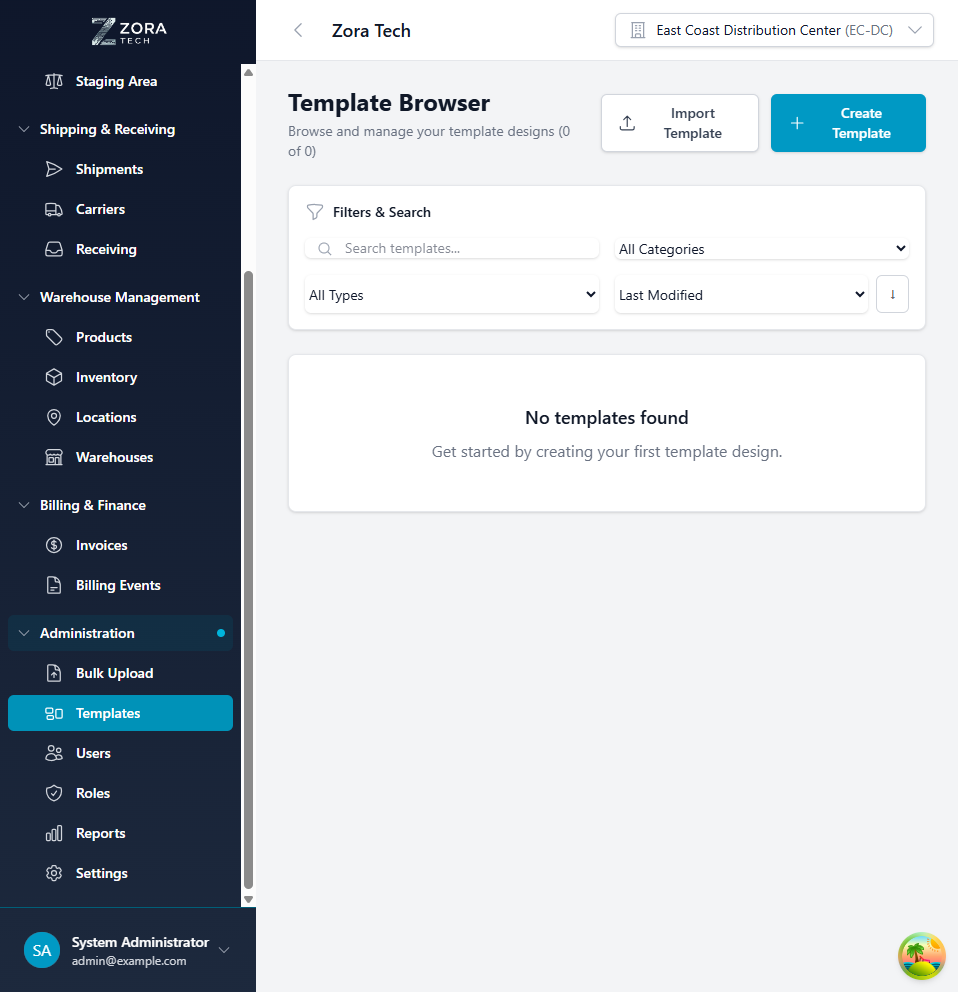
Browser Features:
- Search: Find templates by name or description
- Filters: Filter by template type, size, or status
- Preview: Thumbnail preview of each template
- Actions: Edit, duplicate, delete, or print test labels
- Organization: Sort by name, date modified, or usage frequency
Navigation Steps:
- Click Administration in the left sidebar
- Select Templates from the submenu
- Browse existing templates or create new ones
Template Types
The platform supports various template types for different warehouse operations:
| Template Type | Common Sizes | Use Cases |
|---|---|---|
| Product Labels | 2x1", 3x1" | Small product identification labels |
| LPN Labels | 4x6", 4x4" | Pallet and case labels |
| Shipping Labels | 4x6" | Carrier shipping labels with tracking |
| Pick Lists | 8.5x11" | Warehouse pick list documents |
| Packing Slips | 8.5x11" | Customer packing documentation |
| Location Labels | 2x1", 3x2" | Warehouse location markers |
| Custom Templates | Any size | Specialized operational documents |
Template Editor
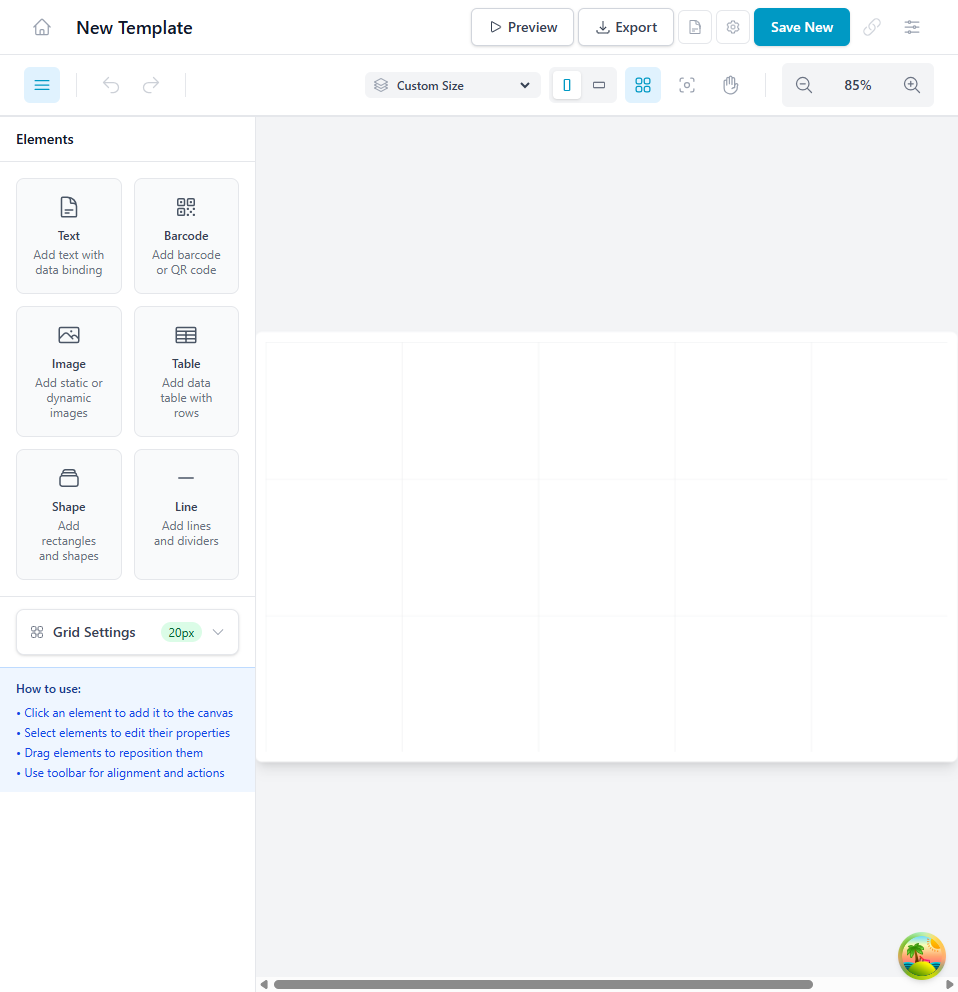
The visual template editor provides a powerful design environment:
Canvas Workspace
The central canvas represents your label or document:
Canvas Features:
- Zoom Controls: Zoom in/out for precise element placement
- Grid: Alignment grid for consistent positioning (can be toggled)
- Rulers: Measurement rulers in inches or millimeters
- Snap to Grid: Automatic alignment to grid lines
- Pan: Click and drag to move canvas view
- Background: Set background color or image
Canvas Shortcuts:
- Ctrl + Scroll: Zoom in/out
- Space + Drag: Pan canvas
- Ctrl + G: Toggle grid visibility
- Ctrl + R: Toggle rulers
Element Panel
The left panel contains element types you can add to your template:
Available Elements:
- Text: Static or dynamic text fields
- Barcode: 1D barcodes (Code 128, Code 39, UPC)
- QR Code: 2D QR codes for URLs or data
- Image: Logos, icons, or graphics
- Line: Horizontal or vertical lines
- Rectangle: Boxes and borders
- Circle/Ellipse: Circular design elements
Adding Elements:
- Click element type in the panel
- Click on canvas to place, or
- Drag and drop to specific position
Properties Panel
The right panel shows properties for the selected element:
Common Properties:
- Position: X, Y coordinates (in inches or mm)
- Size: Width and height dimensions
- Rotation: Rotation angle in degrees
- Layer Order: Bring to front, send to back
- Opacity: Transparency level (0-100%)
Text Properties:
- Font: Font family selection
- Size: Font size in points
- Style: Bold, italic, underline
- Alignment: Left, center, right, justify
- Color: Text color picker
- Data Binding: Dynamic field selection
Barcode Properties:
- Type: Barcode format (Code 128, Code 39, QR)
- Data Source: Static value or dynamic field
- Height: Barcode height in inches
- Show Text: Display human-readable text below barcode
- Text Size: Size of barcode text
Creating Templates
Label Templates
Create a new barcode label template:
Step-by-Step Process:
- Create New Template
- Click New Template button
- Select template type: "Label"
- Choose label size (e.g., 4x6" thermal label)
-
Enter template name and description
-
Add Header Text
- Click Text element in left panel
- Click on top area of canvas
- Enter company name or header text
- Set font size to 18pt, bold
-
Center align
-
Add Barcode
- Click Barcode element
- Place in center of label
- Select barcode type: Code 128
- Bind to dynamic field:
{{product.sku}}or{{lpn.number}} - Set height to 1 inch
-
Enable "Show Text" option
-
Add Product Details
- Add Text element for product name
- Bind to:
{{product.name}} - Set font size to 14pt
-
Position below barcode
-
Add Additional Fields
- Quantity:
{{quantity}} - Location:
{{location.name}} -
Date:
{{current_date}} -
Save Template
- Click Save in top toolbar
- Template now available in browser
Document Templates
Create a packing slip or pick list template:
Layout Structure:
- Header Section (top 2 inches)
- Company logo (Image element)
- Company information (Text)
-
Document title (Text, large font)
-
Order Information (next 1.5 inches)
- Order number:
{{order.number}} - Customer name:
{{customer.name}} - Shipping address:
{{customer.shipping_address}} -
Order date:
{{order.created_at}} -
Items Table (main body)
- Column headers (Text elements)
- Repeating item rows (data table element)
-
Dynamic fields:
{{item.sku}},{{item.name}},{{item.quantity}} -
Footer Section (bottom 1 inch)
- Total items:
{{total_items}} - Notes:
{{order.notes}} - Signature line
Working with Elements
Text Elements
Text elements display static or dynamic content:
Static Text: - Enter text directly in properties panel - Use for labels like "SKU:", "Qty:", company name
Dynamic Text: - Bind to data fields using double curly braces - Example: {{product.name}} displays product name - Text updates automatically when printing for different products
Formatting Options: - Font family, size, style (bold, italic) - Text color and background color - Text alignment (left, center, right) - Line spacing and letter spacing
Barcode Elements
Barcode elements generate scannable barcodes:
Barcode Types:
- Code 128: General purpose, alphanumeric
- Code 39: Legacy systems, limited character set
- UPC-A: Retail products (12 digits)
- EAN-13: International retail (13 digits)
- QR Code: 2D code for URLs, complex data
Configuration:
- Select barcode type
- Set data source (static or dynamic field)
- Adjust height (typical: 0.5-1.5 inches)
- Configure text display options
- Test scan with actual barcode scanner
Best Practices: - Minimum height: 0.5 inches for reliable scanning - Use Code 128 for SKUs and LPNs (supports full character set) - Always enable human-readable text below barcode - Leave 0.25" quiet zone (white space) around barcode
Image Elements
Add logos, icons, or graphics to templates:
Supported Formats: - PNG (recommended for logos with transparency) - JPEG (photos, backgrounds) - SVG (scalable vector graphics)
Adding Images: 1. Click Image element 2. Place on canvas 3. Click "Upload Image" in properties 4. Select image file from computer 5. Resize and position as needed
Image Tips: - Use high-resolution images (300 DPI minimum) - Logos should be PNG with transparent background - Keep file sizes reasonable (<1MB per image) - Position logos in header areas
Shape Elements
Lines, rectangles, and circles for visual structure:
Use Cases: - Lines: Dividers between sections - Rectangles: Borders, highlight boxes - Circles: Bullet points, badges
Styling Options: - Border color and width - Fill color and opacity - Dashed or solid lines - Corner radius (for rounded rectangles)
Dynamic Fields
Dynamic fields pull data from the system when printing:
Available Field Categories
Product Fields: - {{product.sku}} - Product SKU - {{product.name}} - Product name - {{product.barcode}} - Product barcode - {{product.category}} - Product category - {{product.description}} - Product description
LPN Fields: - {{lpn.number}} - LPN number - {{lpn.type}} - LPN type (pallet, case, each) - {{lpn.contents}} - LPN contents summary - {{lpn.location}} - Current location
Order Fields: - {{order.number}} - Order number - {{order.customer_name}} - Customer name - {{order.created_at}} - Order date - {{order.total_items}} - Total item count - {{order.notes}} - Order notes
Location Fields: - {{location.name}} - Location identifier - {{location.zone}} - Zone name - {{location.aisle}} - Aisle number - {{location.type}} - Location type
System Fields: - {{current_date}} - Current date - {{current_time}} - Current time - {{warehouse.name}} - Warehouse name - {{user.name}} - User who printed
Field Formatting
Apply formatting to dynamic fields:
Date Formatting: - {{order.created_at | date: 'MM/DD/YYYY'}} - 11/18/2025 - {{current_date | date: 'YYYY-MM-DD'}} - 2025-11-18
Number Formatting: - {{product.price | currency}} - $15.50 - {{quantity | number: 2}} - 100.00
Text Formatting: - {{product.name | uppercase}} - PREMIUM WIDGET - {{customer.name | titlecase}} - John Smith
Template Management
Editing Existing Templates
Modify templates after creation:
- Open template browser
- Click Edit button on template card
- Make changes in editor
- Click Save to update
- Previous version saved in version history
Duplicating Templates
Create variations of existing templates:
- Find template to duplicate
- Click Duplicate action
- New template created with " (Copy)" suffix
- Edit duplicated template as needed
Version History
Track template changes over time:
- Each save creates a new version
- Access version history from template browser
- View previous versions
- Restore older version if needed
- Compare versions side-by-side
Deleting Templates
Remove unused templates:
- Select template to delete
- Click Delete action
- Confirm deletion (cannot be undone)
- Template moved to trash (30-day retention)
Templates in Use
You cannot delete templates that are actively assigned to products or operations. Reassign first, then delete.
Printing Templates
Print Preview
Preview before printing:
- Open template in editor
- Click Preview button
- Enter sample data or select record
- View print-ready output
- Adjust template if needed
Print Settings
Configure print options:
Printer Selection: - Choose target printer (thermal, laser, etc.) - Verify printer supports label size
Print Quality: - Draft: Fast, lower quality (testing) - Normal: Standard quality (daily use) - High: Best quality (customer-facing)
Quantity: - Number of copies to print - Batch printing for multiple labels
Batch Printing
Print multiple labels at once:
- Navigate to products, LPNs, or orders
- Select multiple records (checkbox selection)
- Click Print Labels bulk action
- Choose template
- System generates label for each selected record
- Send to printer
Best Practices
Design Guidelines
- Keep It Simple: Avoid cluttered designs with too many elements
- Contrast: Use high contrast (black on white) for barcode readability
- Font Sizes: Minimum 10pt for readability at arm's length
- Margins: Leave 0.125" margin around all edges
- Test Prints: Always print test labels before production use
Barcode Standards
- Height: 0.75-1.0 inches for reliable scanning
- Quiet Zones: 0.25" white space on both sides
- Resolution: 203 DPI minimum for thermal printers
- Orientation: Horizontal barcodes scan more reliably than vertical
Template Organization
- Naming Convention: Use descriptive names (e.g., "4x6 LPN Label - Warehouse A")
- Categorization: Group templates by type or warehouse
- Version Control: Include version number in template name for major revisions
- Documentation: Add descriptions explaining template purpose and usage
Performance Optimization
- Image Compression: Compress images without losing quality
- Font Embedding: Use standard fonts to avoid embedding issues
- Element Count: Limit templates to <50 elements for fast rendering
- Testing: Test print speed with actual data before production rollout
Troubleshooting
Template Not Printing
Symptom: Template doesn't print or prints blank
Solutions: 1. Check printer connection and status 2. Verify printer supports label size 3. Ensure printer has paper/labels loaded 4. Check print queue for errors 5. Try printing from different browser 6. Restart printer and try again
Barcode Won't Scan
Symptom: Barcode appears on label but won't scan
Solutions: 1. Increase barcode height (minimum 0.75") 2. Ensure adequate contrast (black on white background) 3. Add quiet zones (white space) around barcode 4. Check barcode type matches scanner capabilities 5. Verify data source has valid value 6. Test with different barcode scanner
Dynamic Fields Not Populating
Symptom: Dynamic fields show {{field.name}} instead of actual data
Solutions: 1. Verify field syntax is correct (double curly braces) 2. Check field name matches available data fields 3. Ensure data exists for the record being printed 4. Review data binding in properties panel 5. Test with known good record
Layout Issues After Print
Symptom: Printed label layout doesn't match screen preview
Solutions: 1. Check printer DPI settings match template DPI 2. Verify label size in printer settings 3. Adjust margins in printer properties 4. Use print preview before final print 5. Calibrate printer if alignment is consistently off
Elements Overlapping
Symptom: Elements overlap or don't align properly
Solutions: 1. Enable grid and snap to grid 2. Use rulers for precise measurement 3. Check element layer order (bring to front/send to back) 4. Adjust element positions in properties panel 5. Zoom in for fine-tuned positioning
Related Documentation
- Bulk Upload - Import data for template fields
- Receiving Operations - Print LPN labels during receiving
- Shipping & Logistics - Print shipping labels
Support
For template assistance:
- Email: support@zoratech.io
- FAQ: Template FAQ
- Troubleshooting: Common Issues