Users
Create accounts for your staff, decide what each person can do, and switch off access when someone leaves.
Before you begin
You need the Users page, which needs the users permissions. Creating roles is separate and Administrator-only — see Roles and permissions.
Set your roles up before you create people, so you can give each new account the right one straight away.
The users page
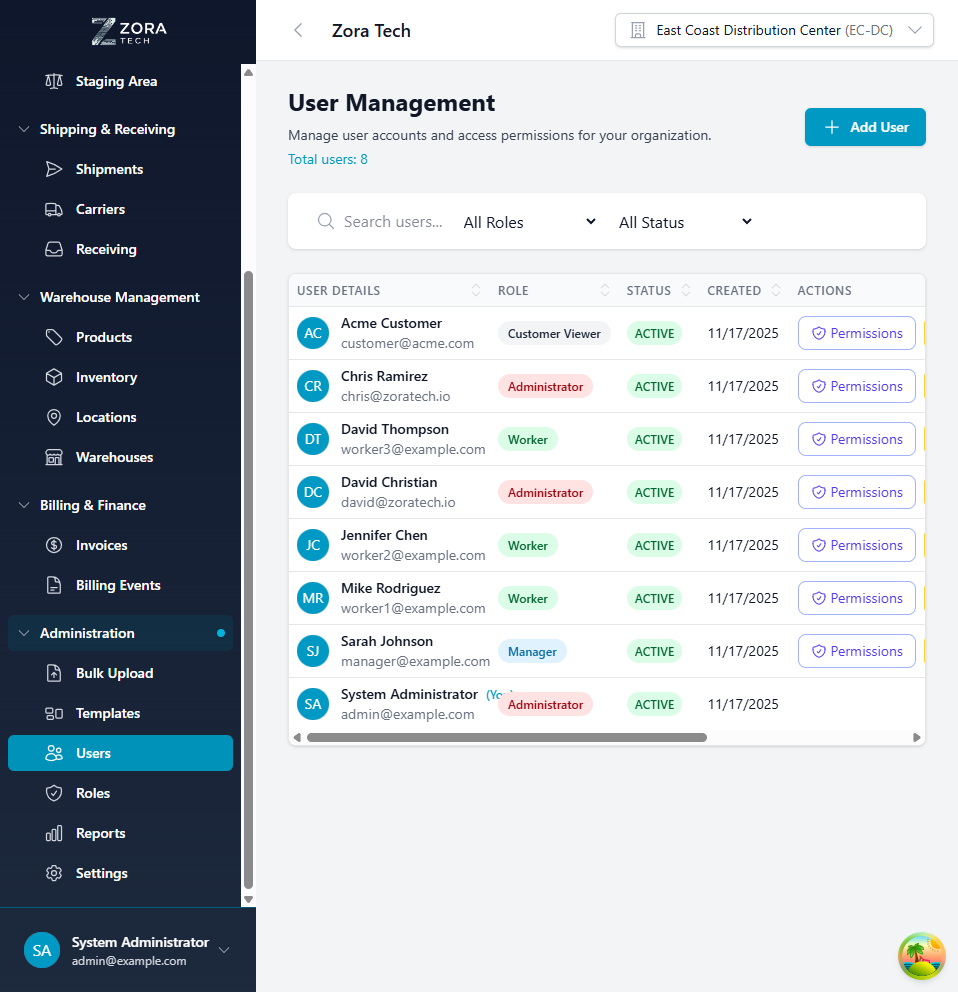
Open Administration → Users.
| Tool | What it does |
|---|---|
| Search | Finds users by name or email |
| Filters | Narrows by role or status |
| Add User | Creates an account |
Each row shows the person's name, email, role, whether they're active, and when they last signed in. Use the actions on the row to edit the account, reset the password, or remove it.
What a user account holds
| Field | Required | Notes |
|---|---|---|
| Yes | This is the login. It must be unique, and it can't be changed afterwards. | |
| Password | Yes | At least 6 characters. Note that when the user sets their own password afterwards, the minimum is 8 — see Passwords. |
| First name | Yes | |
| Last name | Yes | |
| Role | No, but give one | Decides what the person can do. One role per user. |
| Phone | No | Contact number. |
| Active | No | On by default. Turn it off to block sign-in without deleting anything. |
That is the whole account. There is no separate username, no employee ID field, and no profile picture.
One role per user
A user holds exactly one role. Permissions don't stack from several roles. If someone needs a combination the shipped roles don't cover, create a custom role with exactly the permissions that job needs. See Roles and permissions.
Adding a user
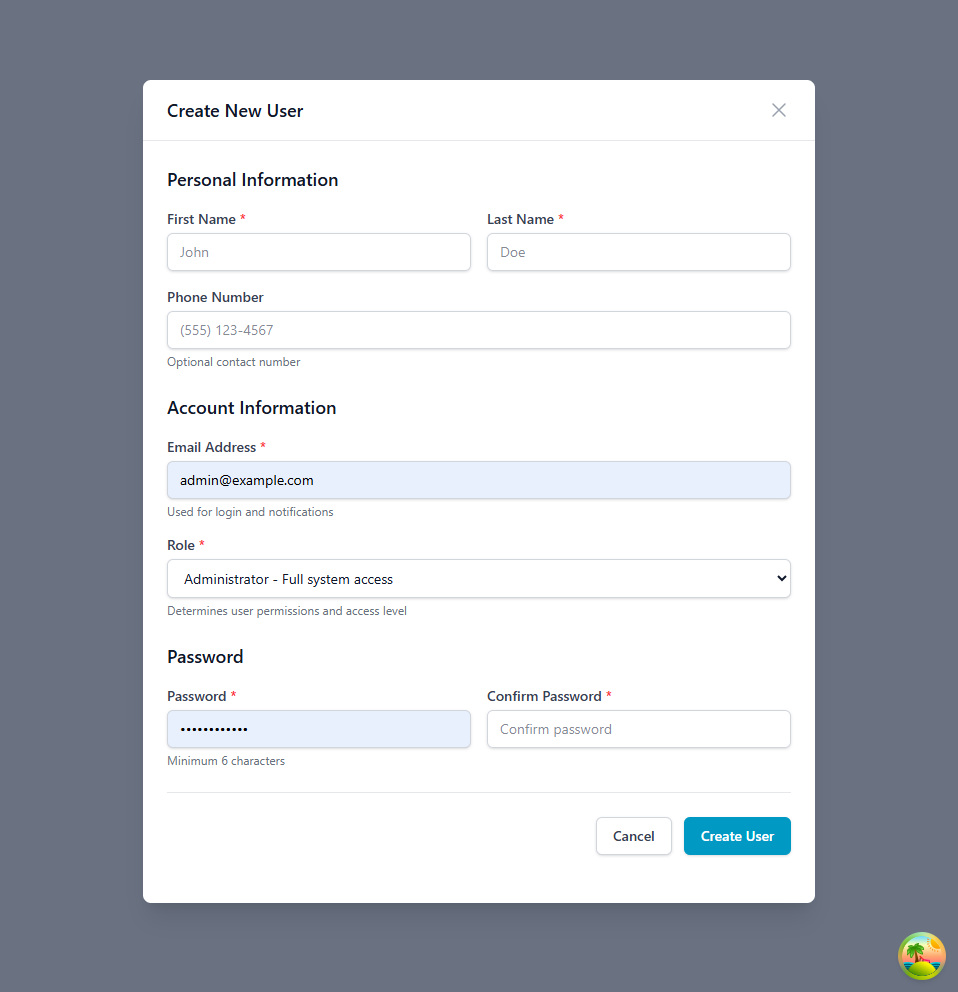
- On the Users page, choose Add User.
-
Enter the person's first name, last name, and email address.
The email address is what they'll sign in with, so get it right — you can't change it later.
-
Set an initial password of at least 6 characters.
-
Choose their role.
If you're not sure which one, start with the least access that lets them do their job. You can always widen it.
-
Leave Active on so they can sign in.
- Choose Create User.
Tell the person their email address and the initial password, and ask them to change it when they first sign in.
Editing a user
- Find the person in the list and choose Edit.
- Change what you need to and save.
You can change the name, phone number, role, and active status. You can't change the email address — it's the account's unique identifier. If someone's address changes, create a new account and deactivate the old one.
Every change is written to the audit log with who made it and when.
Switching access off
Turn Active off to stop someone signing in while keeping their account, their history, and everything they did. Use this for someone on leave, and for anyone who leaves the company.
Switching it back on restores access immediately.
Deactivate rather than delete
Deleting a user removes the account. Deactivating keeps the record and the audit trail intact, which is what you want when you need to answer "who received this shipment last March?" Delete only when an account was created by mistake.
Passwords
Someone changes their own
From their profile, a user can change their own password at any time. They need their current one to do it.
You reset someone else's
- Find the person in the list and choose Reset Password.
- The platform generates a 16-character temporary password and shows it to you once.
- Pass it to the person over the phone or in person — not by email if you can help it.
The next time they sign in, they'll be required to set a password of their own before they can do anything else. A password someone sets themselves must be at least 8 characters, even though you could create the account with 6.
Copy the temporary password before you close the dialog
It's shown once and isn't stored anywhere you can read it back. If you lose it, run the reset again.
You can't reset your own password this way
Administrators can't reset their own password from the Users page. Change it from your profile instead, or ask another administrator to reset it for you.
What the platform does not do
There is no "Forgot password?" self-service email on the sign-in screen. If someone is locked out, an administrator resets their password using the steps above.
There is also no automatic password expiry, no history check that stops someone reusing an old password, and no lockout after a run of failed attempts. If your organization needs those controls, they have to be a matter of policy rather than something the platform enforces.
What each person can see
A user's role decides which pages and actions they get. Two further settings narrow it further:
| Control | What it does |
|---|---|
| Read-only roles | The Viewer and Customer Viewer roles can see but never change anything. |
| Customer access | Restricts a user to named customers' data. This is how a 3PL gives each customer a login without showing them each other's stock. |
Both are set up on the Roles and permissions page.
Warehouses
Each user has a default warehouse, which is selected for them when they sign in. They can switch warehouses from the selector in the header, and the platform remembers the choice.
Personal preferences
From their profile, a user can change their own name, phone number, and password. That's all.
Their default warehouse is saved automatically whenever they switch warehouses from the header selector — it isn't a field on the profile page.
No theme, language, or notification settings
There's no dark mode, no interface language setting, and no per-user notification preferences. Fields for all three exist behind the scenes but nothing in the app reads them.
Keeping accounts tidy
Give the least access that does the job. It's easier to widen someone's role later than to explain why a picker could delete invoices.
Deactivate the same day someone leaves. An active account belonging to a former employee is the most common way warehouse systems get accessed by people who shouldn't.
Review the list every few months. Check that each person's role still matches what they actually do — roles drift as people change jobs.
Watch the audit log. It records every account change and every operational action. See Audit log.
Troubleshooting
| Problem | What to check |
|---|---|
| "Invalid credentials" on sign-in | The email is spelled correctly, the account is Active, and the password is right. Reset it if you're unsure. |
| Signed in but a menu is missing | Their role doesn't include that permission. Check the role on the Roles page. |
| They can see the page but every button is grayed out | They're on a read-only role — Viewer or Customer Viewer. |
| They can only see one customer's data | Customer access is restricted on their account. That's deliberate for portal users. |
| Warehouse selector won't switch | Check the warehouse is active, then refresh the page. |
| Can't change someone's email | You can't. Create a new account and deactivate the old one. |
Related guides
- Roles and permissions - What each role can do, and how to create your own
- Audit log - Who changed what, and when
- Settings - System-wide configuration
Need more help? Email support@zoratech.io, or check the FAQ and troubleshooting guide.