Hazmat Management
Classify products that contain hazardous materials so they are flagged for special handling throughout receiving, storage, and shipping.
Hazmat (hazardous materials) classification tags a product with its regulatory shipping data — its UN number, hazard class, packing group, and proper shipping name. Once a product is classified, the platform shows a HAZMAT indicator on the containers — License Plate Numbers (LPNs) — that hold it, so warehouse and load-planning staff know special handling applies.
Classification is built into the product workflow — there is no separate "Hazmat" page. You mark a product as hazardous when you create or edit it, and the platform looks up the official classification data for you.
Where the classification data comes from
Hazmat reference data (proper shipping names, hazard classes, packing groups) is retrieved from Zora's shared classification service by UN number — you don't maintain a table of materials yourself. Looked-up records are cached for performance, so repeated lookups of the same UN number are instant.
What makes a product hazmat
A product is treated as hazardous when it is linked to a UN number — the four-digit identifier (for example, UN1203 for gasoline) assigned to dangerous goods under U.S. Department of Transportation (DOT) and international transport regulations.
Linking a UN number to a product records the following classification fields:
| Field | Example | Meaning |
|---|---|---|
| UN Number | UN1203 | The regulatory identifier for the material. |
| Hazard Class | Class 3 | The primary hazard category (e.g., 3 = flammable liquid, 6.1 = toxic). |
| Packing Group | II | Degree of danger: I (high), II (medium), or III (low). |
| Proper Shipping Name | Gasoline | The legal name used on shipping documentation. |
These fields are populated automatically from the looked-up classification — you enter the UN number and the rest is filled in for you.
Marking a product as hazmat
You classify a product from the Create Product or Edit Product form.
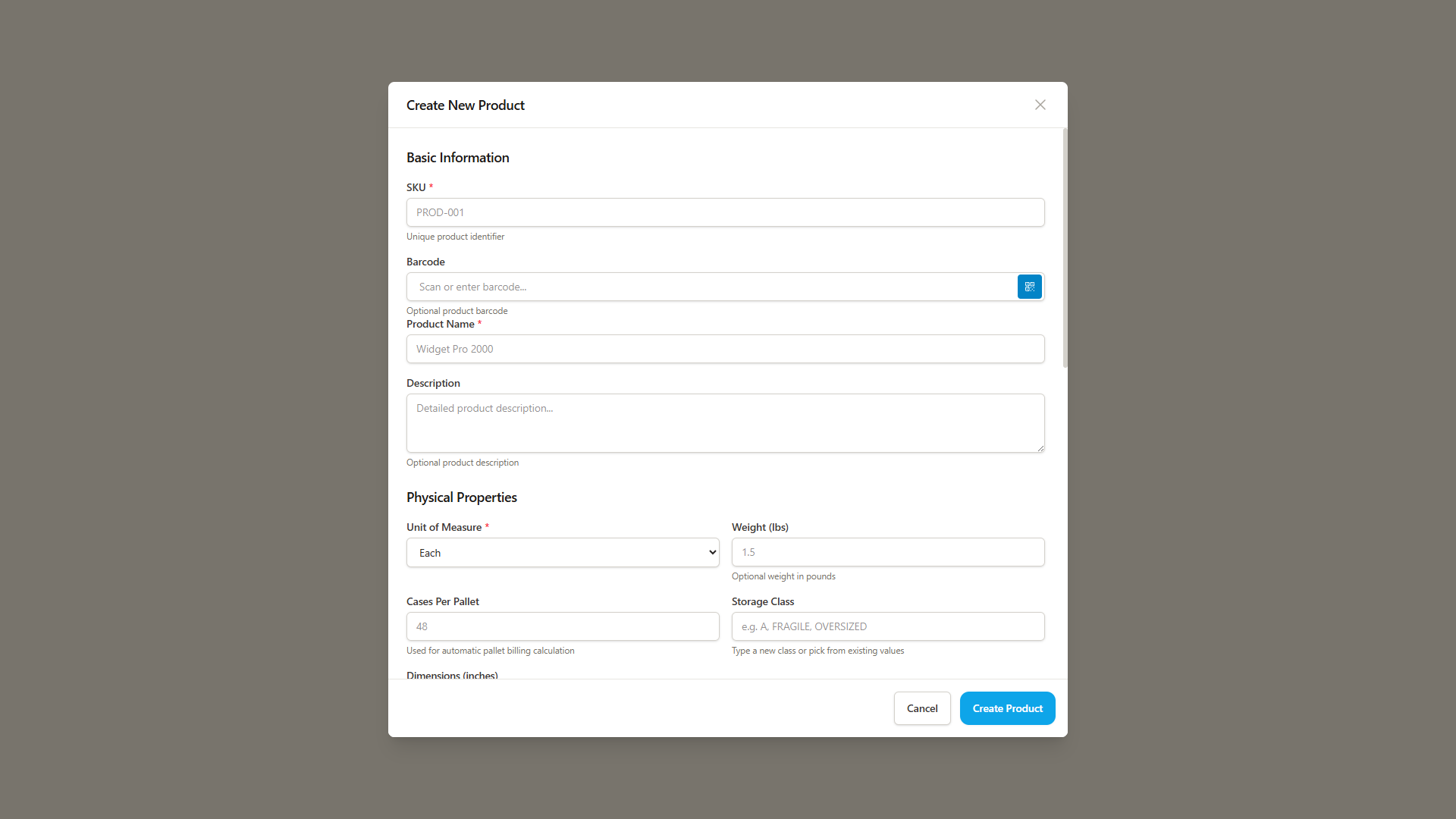
- Open the product you want to classify (or start creating a new one).
- In the Hazmat Classification section, check Hazardous Material — "This product contains hazardous materials requiring special handling."
- Enter the UN Number (for example,
UN1203). The format accepts the prefix or just the digits —UN1203,1203, andNA1993are all valid. - The platform looks up the UN number as you type:
- On success you'll see Hazmat data found and auto-filled, and the Hazard Class, Packing Group, and Proper Shipping Name fields populate automatically.
- If the number isn't recognized, you'll see an error message and the classification fields stay empty.
- Save the product.
Hazmat flag without a UN number
If you check Hazardous Material but don't provide a UN number, the form shows a warning. A product flagged as hazmat without a valid UN number has no classification data behind it — always complete the lookup before you save.
The auto-filled Hazard Class and Packing Group fields are locked once a UN number resolves, so the classification on the product always matches the official reference data.
Viewing a product's classification
On the product detail view, classified products show a Hazmat Classification panel (highlighted in orange) containing:
- The UN Number badge (shown as
UN1203) - The Hazard Class badge (shown as
Class 3) - The Packing Group
- The Proper Shipping Name
- A reminder that "This product is classified as hazardous material and requires special handling."
You can also filter the Products list by Hazmat to see only classified products.
Removing a hazmat classification
To declassify a product, edit it and uncheck Hazardous Material, then save. This clears the UN number, hazard class, packing group, and proper shipping name, and marks the product as non-hazardous.
HAZMAT badges on LPN cards
The clearest place hazmat status appears day-to-day is on LPN cards — in load planning, an LPN's card shows a colored badge when its contents need attention. An LPN is flagged HAZMAT whenever it holds at least one hazmat-classified product.
| Badge | Color | Meaning |
|---|---|---|
| HAZMAT | Orange | The LPN contains at least one product classified as hazardous. |
| FRAGILE | Purple | The LPN contains at least one product marked fragile. |
| EXPIRING | Red | The LPN holds inventory expiring within 30 days. |
| SPLIT | Blue | The LPN has partial allocations across load plans. |
These badges are calculated from the LPN's actual contents, so they appear automatically — there's nothing to toggle on the LPN itself. Classify the product correctly and any LPN holding it inherits the HAZMAT badge.
Why classification matters
Hazmat classification is a compliance feature, not just a label. Recording the correct UN number, hazard class, packing group, and proper shipping name is what allows the right people to:
- Identify dangerous goods on sight in the warehouse and during loading (via the HAZMAT badge).
- Apply the correct handling, segregation, and packaging procedures.
- Carry accurate shipping names and classifications onto outbound documentation.
Always confirm a product's classification against your Safety Data Sheet (SDS) and current regulations before shipping. The platform stores the regulatory identifiers; it does not replace your compliance obligations.
Enforced limits are a separate feature
Hazmat classification labels a product; it does not by itself cap what a container may carry. Quantity limits for ammunition and lithium batteries are configured as rules and enforced on every load — see Shipment Compliance. For a lithium battery, the UN number recorded here supplies the UN class those rules are measured against.
Related
The LPN HAZMAT badge was introduced in v1.4.0 (see the changelog).