Shipment Compliance
Set ammunition and lithium-battery limits that the platform enforces automatically on load plans and shipments, so an over-limit container is refused before it reaches the truck.
Shipment compliance has three moving parts, and all three have to be in place for a load to be checked:
- Products declare what they are. A SKU carries a Compliance Profile — Ammunition or Lithium battery — plus the figures the limits are measured against.
- Rules declare the limits. Administrators maintain a table of rules under Settings → Shipment Compliance Rules. A rule is data, not code — editing one takes effect on the next move, with no deployment.
- The platform checks every move. Whenever inventory is added to a load plan or a shipment, the platform projects what the container would hold and measures it against every rule that applies.
Limits are configuration, not constants
These rules replace figures that used to be fixed inside the NEW / grain shipment worksheet and the lithium battery checklist. Those worksheets now read the same rules the loading gates enforce, so a limit you change in Settings changes both the printed worksheet and what the platform will let onto a container.
Step 1 — declare compliance attributes on the product
Compliance figures live on the Product, in the Shipment Compliance section of the Create Product and Edit Product forms — below Hazmat Classification.
Start with the Compliance Profile dropdown, which decides which attributes apply:
| Option | Meaning |
|---|---|
| None — standard product | The SKU is excluded from compliance checks entirely. |
| Ammunition (NEW / grain tracked) | Contributes to Net Explosive Weight and packed ammunition weight. |
| Lithium battery | Contributes to battery weight, tracked per UN class. |
Clearing the profile removes the SKU from compliance checks.
Ammunition attributes
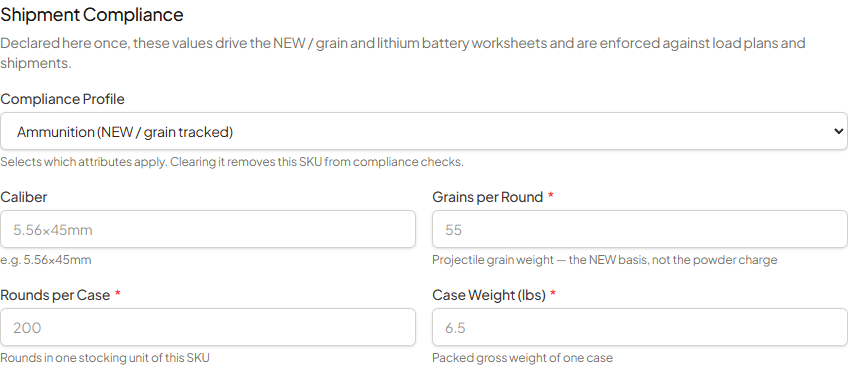
| Field | Required | Notes |
|---|---|---|
| Caliber | No | Free text, for example 5.56×45mm. |
| Grains per Round | Yes | The projectile grain weight — the NEW basis, not the powder charge. |
| Rounds per Case | Yes | Rounds in one stocking unit of this SKU. |
| Case Weight (lbs) | Yes | Packed gross weight of one case. Falls back to the product's general weight if left blank. |
Lithium battery attributes
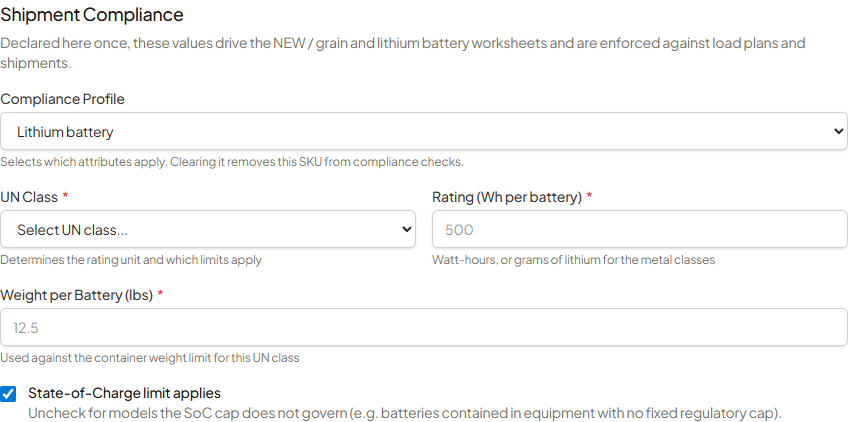
| Field | Required | Notes |
|---|---|---|
| UN Class | Yes, unless derived | UN3480, UN3481, UN3090, or UN3091. If the Hazmat Classification section already carries one of these as the UN number, the class is taken from there — set it here only to override. |
| Rating (Wh or g Li per battery) | Yes | Watt-hours, or grams of lithium for the metal classes (UN3090, UN3091). The field label changes to match the class you selected. |
| Weight per Battery (lbs) | Yes | Measured against the container weight limit for this UN class. Falls back to the product's general weight if left blank. |
| State-of-Charge limit applies | — | On by default. Uncheck for models the SoC cap does not govern, such as batteries contained in equipment with no fixed regulatory cap. |
An incomplete declaration blocks the load
A SKU tagged with a profile but missing the figures behind it is refused at loading time, naming the SKU and the missing attributes. This is deliberate: a product tagged Ammunition with no grain weight contributes exactly zero to the container's Net Explosive Weight, so allowing it through would report an unknown quantity of explosives as compliant.
The same requirement is enforced on the API and on bulk upload, not just in the product form — so a SKU created outside the UI cannot slip past it either.
Step 2 — configure the rules
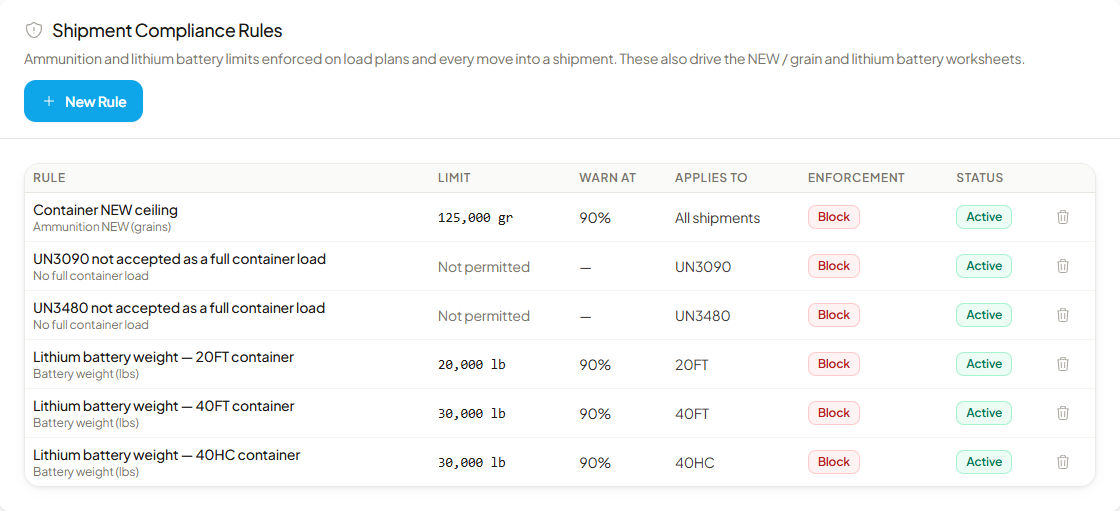
Go to Settings → Shipment Compliance Rules. The table lists every rule, including inactive ones, with its limit, warn threshold, scope, enforcement and status. Click a row to edit it, or New Rule to add one.
Rule types
| What It Measures | Unit | Measures |
|---|---|---|
| Ammunition NEW (grains) | gr | Total Net Explosive Weight across the container. |
| Ammunition weight (lbs) | lb | Total packed ammunition weight across the container. |
| Battery weight (lbs) | lb | Total battery weight — for all classes, or for one UN class if the rule names one. |
| No full container load | — | Blocks a container carrying nothing but batteries of one UN class. Takes no limit value; the table shows Not permitted. |
Rule fields
| Field | Notes |
|---|---|
| Rule Name | Operator-facing label, shown in the message when the rule stops a load. |
| What It Measures | The rule type, from the table above. |
| Enforcement | Block — reject the load, or Warn — allow with a warning. Defaults to Block. |
| Limit | The ceiling, in the rule type's unit. Required and must be greater than zero for every type except No full container load. |
| Warn At (% of limit) | Raises a warning once the projected total reaches this share of the limit. Defaults to 90; must be between 1 and 100. |
| Container Type | Any container type, or 20' (D20), 40' (D40), or 40' high cube (D40H). |
| UN Class | Narrows a battery rule to one class. Not accepted on ammunition rules — those always measure the whole container. |
| Rule is active | Inactive rules are kept on file but never evaluated. |
| Notes | Rationale shown to operators — why the limit exists and who approved it. |
Deactivate rather than delete
Deleting a rule stops loads being checked against that limit. To retire a rule while keeping it on file, edit it and untick Rule is active instead.
Scope
A scope field left blank means applies to everything; filling one in narrows the rule. The Settings form offers Container Type and UN Class. Rules can also be scoped to a single warehouse or carrier, but that is available through the API only — the Settings form does not offer it. Rules created there apply to all warehouses and carriers, and the table's Applies to column shows one warehouse or one carrier for any API-scoped rule.
Two rules of the same type with identical scope are rejected on save, since the effective limit would otherwise depend on row order. Edit the existing rule instead.
Who can do what
Any signed-in user can read the rules — the worksheets need them to grade a container, and a clerk filling one in is not an administrator. Creating, editing and deleting rules require the corresponding Settings permissions. Every create, edit and delete is written to Activity History with the fields that changed.
How totals are calculated
Totals are computed across the container's whole projected contents — what is already on it plus what is being added — never the addition alone. Checking only the addition would let a plan creep past a ceiling one compliant pallet at a time.
For ammunition, quantity means cases; for batteries it means individual batteries.
| Total | Formula |
|---|---|
| Ammunition NEW | cases × rounds per case × grains per round |
| Ammunition weight | cases × case weight (falls back to the product's weight) |
| Battery weight | batteries × weight per battery (falls back to the product's weight), also tracked per UN class |
A container where no line declares a profile is skipped without reading the rules at all.
Which rule wins
When several rules of the same type and UN class could apply, the strictest one wins — not the most specific one. The lowest limit governs; scope specificity only breaks ties between equally strict rules.
This is the opposite of what a scope-precedence model would do, and it is deliberate: a legal ceiling should not be quietly removed by adding a narrower, more permissive rule. A narrower scope may tighten a limit, never loosen it. To genuinely raise a ceiling, edit or deactivate the broader rule — a visible, audited act.
Block and Warn rules are resolved separately, so both survive. That makes "warn at 100,000, block at 125,000" expressible as two rules, and it means adding an early-warning tripwire cannot switch off the hard block sitting above it.
Where the checks run
Every path that can put inventory into a load plan or a shipment is gated:
| Where | What triggers the check |
|---|---|
| Load planning | Adding an LPN — or a partial selection from one — to a load plan. |
| Load planning | Scanning an item as loaded. The whole plan is re-checked at this point, because a rule may have tightened or an LPN's contents may have changed since the item was added. |
| Staging | Creating a shipment from staged LPNs. |
| Staging | Adding more LPNs to an existing shipment. |
| Orders | Linking LPNs to a shipment created from orders rather than from staging. |
| Shipments | Changing a shipment's container type — the contents are re-measured against the new container's limits before the change is saved. |
| LPN movements | Moving an LPN into a shipment. |
Concurrent adds to the same load plan or shipment are serialised, so two operators adding freight at the same moment cannot each pass a ceiling their combined load breaches.
Container-scoped rules need a container type
A shipment created from staging has no container type yet, so container-scoped limits cannot apply at that moment. The same LPNs are re-checked with the container type on every later add, when the container type changes, and at load time.
What operators see
- Blocked — the move is rejected and the message names the rule, the projected total, the limit and the amount over. For example: "Container NEW ceiling: Shipment SHP-1042 would reach 138,400 gr against a limit of 125,000 gr — over by 13,400 gr."
- Warned — the move goes through and the warning is recorded. Raised either by a Warn-enforced rule, or by a Block rule whose Warn At threshold has been reached while still under the limit. A warning states how much headroom is left.
- Missing attributes — the move is rejected naming the SKUs that declare a profile without the figures behind it. Complete the compliance attributes on the product, then retry.
Baseline rules
A newly seeded or migrated instance ships with six rules already in place:
| Rule | Measures | Limit | Scope | Enforcement when seeded |
|---|---|---|---|---|
| Container NEW ceiling | Ammunition NEW (grains) | 125,000 gr | All shipments | Block |
| Lithium battery weight — 20FT container | Battery weight (lbs) | 20,000 lb | 20FT | Block |
| Lithium battery weight — 40FT container | Battery weight (lbs) | 30,000 lb | 40FT | Block |
| Lithium battery weight — 40HC container | Battery weight (lbs) | 30,000 lb | 40HC | Block |
| UN3480 not accepted as a full container load | No full container load | — | UN3480 | Warn |
| UN3090 not accepted as a full container load | No full container load | — | UN3090 | Warn |
The four weight and NEW rules seed with a Warn At threshold of 90%. The threshold does not apply to No full container load, which has no limit to measure a percentage against, and the table shows — for it.
These are starting values, not fixed ones
Every field above is operator-editable, and the seed only ever inserts a rule that is missing by name — it never rewrites one that already exists. An instance that has been running for a while may therefore show different limits or enforcement from this table. Always read Settings → Shipment Compliance Rules for what your instance actually enforces.
Why the full-container-load rules only warn
The platform does not yet record whether a shipment is FCL or LTL, so the check asks the closest question it can: is every line in this container a battery of this class? A genuinely LTL shipment of a single battery SKU satisfies that too. Enforced as Block, those shipments would be refused with no way to comply, so the rules ship as Warn — visible without stopping legitimate freight. Adding any non-battery line clears the check.
If your operation needs these enforced as a hard block, edit the rules and change Enforcement to Block.
Related
- Hazmat Management — UN number classification, which supplies the battery UN class
- Load Planning
- System Settings
- Activity History