Delivery Requests (customer portal)
Request a delivery into or out of the warehouse, and track its status — all from your portal.
If you're a customer of a Zora Tech warehouse, the Delivery Requests portal lets you ask the warehouse team to:
- bring goods in to the warehouse (an Inbound request), or
- send goods out (an Outbound request),
on a date and time you choose. A request is a load made up of one or more stops — each stop has its own address and its own line items, so a single request can cover several pickups or drop-offs on the same date. You submit the request, the warehouse team reviews and books it, and you can follow its status the whole way through. Open /delivery-requests (or /portal/delivery-requests) to get started — the portal shows your submission form and your request history.
Before you begin
You need a portal login with permission to submit delivery requests for your company. If you act for more than one company, you'll choose which one each request is for. If you can't see the submission form, contact the warehouse team to check your access.
Submitting a request
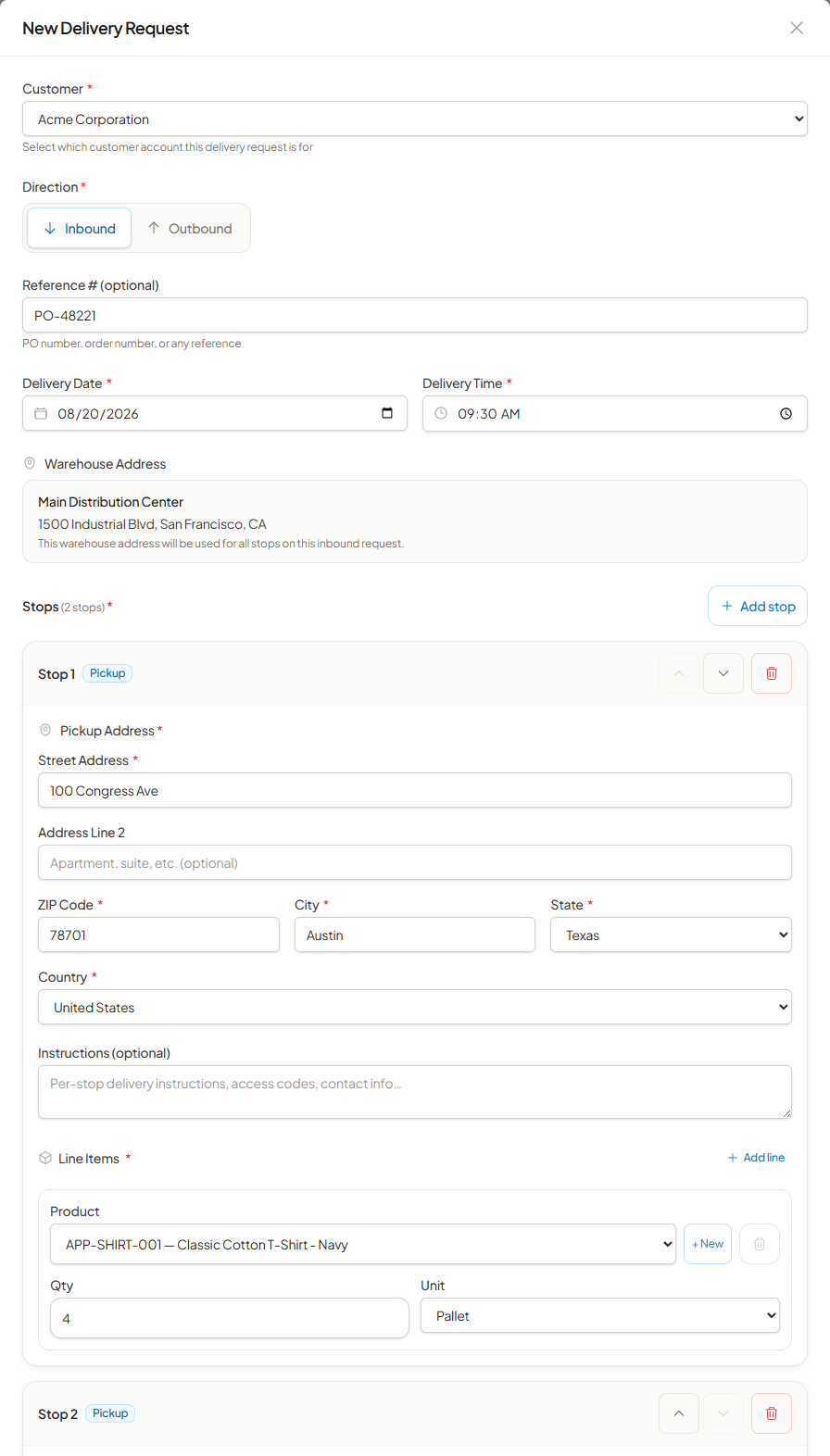
- Choose the Direction — Inbound (goods coming into the warehouse) or Outbound (goods leaving).
- If your login covers more than one company, pick the Customer the request is for. (If you only have one, it's selected for you.)
- Pick the Delivery Date and Delivery Time. The date can't be in the past.
- (Optional) Add a Reference Number — your PO number, order number, or any reference that helps you match this request to your own records.
- Fill in Stop 1. Each stop carries its own address, instructions, and line items:
- Set the stop's address:
- On an Inbound request, each stop is a Pickup Address — where the goods are collected from. Type it in; when you enter a postal code, the portal fills in the city and state for you, and if the code isn't recognized, enter them yourself. The warehouse address shown above the stops is the destination and applies to every stop on the request — there's nothing for you to enter there.
- On an Outbound request, each stop is a Delivery Address — where the goods go. Choose Saved to pick one of your company's stored addresses, or New to type one in. A new address you enter is saved for next time.
- (Optional) Add Instructions for that stop — access codes, contact details, or anything else specific to it.
-
Add the stop's line items — one row per product:
- Pick the product from your list (you can search once the list is long).
- If the product you need isn't in the list, choose + New to submit it for the warehouse to approve. You can add it to this request right away; it stays Pending until the warehouse approves it.
- Enter the quantity.
- Choose the unit — pallet (default), each, or crate.
Use Add line for additional products on that stop and the trash icon to drop one. 6. (Optional) Choose Add stop for each further pickup or drop-off, and fill it in the same way. Use the up and down arrows on a stop's header to reorder it, and the trash icon to remove it. Stops run in the order shown, top to bottom. 7. (Optional) Add overall Notes with any special instructions. 8. Choose Submit Request.
- Set the stop's address:
What every request needs
A request must have at least one stop, and every stop must have at least one line item — so you can't remove the last stop or a stop's last line. Direction is set once for the whole load: all of its stops are pickups, or all of them are drop-offs.
Your request is created with a unique Request # (format DR-YYMMDD-NNN) and starts in Pending status while the warehouse team reviews it.
Which products can I choose?
Your product list shows the items associated with your company — products you currently have in stock, plus any product submissions the warehouse has approved. If a product isn't listed yet, use + New on the line item to submit it, or contact the warehouse team.
Tracking your requests
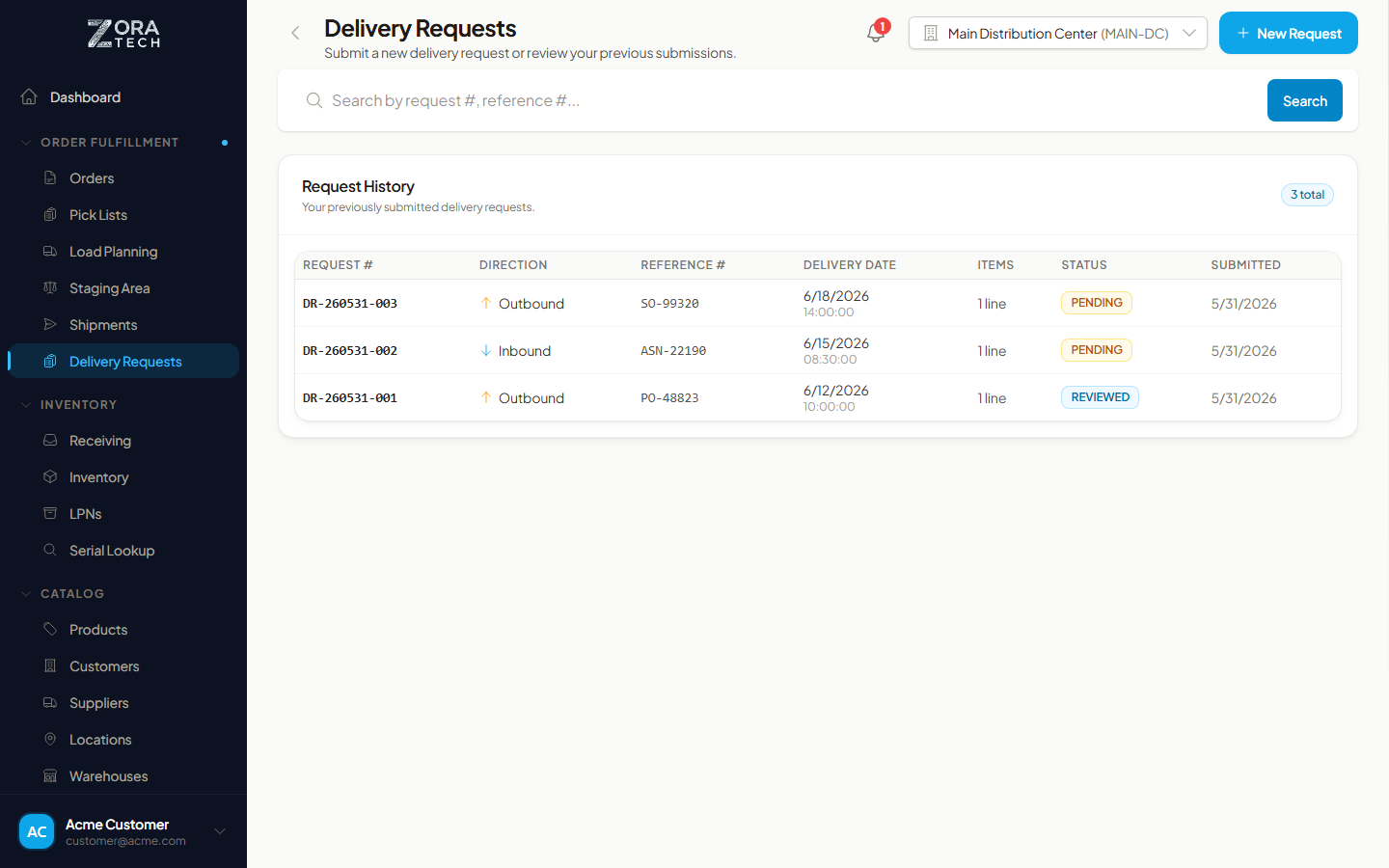
Below the form, your request history lists everything you've submitted, newest first. You can search it by request or reference number. Open any request to see its full details. The history is read-only — only the warehouse team can change a request's status — so to amend or withdraw a submitted request, contact them.
What the statuses mean
| Status | Meaning |
|---|---|
| Pending | Submitted and waiting for the warehouse team to review. |
| Reviewed | The team has checked your request and confirmed it. |
| Booked | The team has committed to fulfilling it and will arrange the receiving or shipment. |
| Cancelled | The request was withdrawn. |
Related guides
- Delivery Requests — Staff Guide - How the warehouse team reviews, books, and fulfills your requests
The Delivery Request Portal shipped in v1.6.0.
Need more help? Email support@zoratech.io, or check the FAQ.