Understanding Your Dashboard
The Zora Tech dashboard provides real-time visibility into your warehouse operations with key metrics and quick actions.
Dashboard Overview
When you log in to Zora Tech, you'll see the main dashboard displaying critical operational metrics and activity.
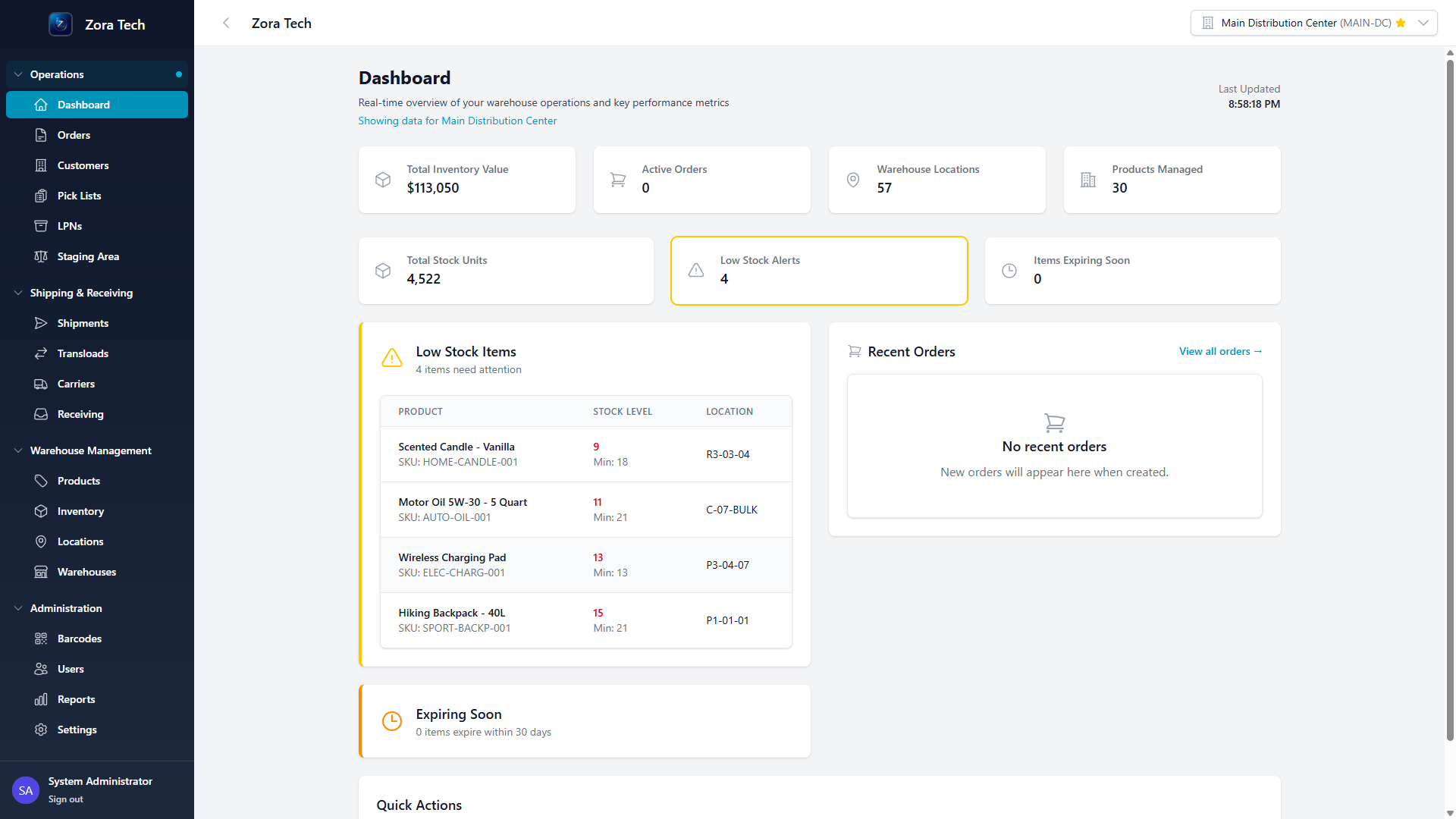
Key Metrics Cards
Inventory Value
Total value of all inventory across your warehouses
- What it shows: Sum of all product quantities × unit prices
- Why it matters: Track your total inventory investment
- How to use: Monitor trends over time to optimize stock levels
Active Orders
Number of orders currently being processed
- What it shows: Orders in pending, allocated, picked, or packed status
- Why it matters: Understand current workload and fulfillment capacity
- How to use: Track daily order volume and identify backlogs
Total Products
Unique SKUs in your product catalog
- What it shows: Count of distinct products managed in the system
- Why it matters: Track catalog growth and product diversity
- How to use: Monitor inventory complexity
Warehouses
Number of active warehouse facilities
- What it shows: Count of enabled warehouses in your account
- Why it matters: Multi-warehouse operations visibility
- How to use: Switch between warehouses using the selector
Warehouse Selector
Located at the top of the page, the warehouse selector allows you to filter all data by a specific warehouse.
How to Use
- Click the warehouse dropdown in the top navigation
- Select a warehouse to view warehouse-specific data
- Choose "All Warehouses" to see combined data across all locations
Warehouse Context
Your warehouse selection persists across sessions. The system remembers your last selected warehouse when you log back in.
Navigation Sidebar
The left sidebar provides access to all major platform features:
Organization
The sidebar is organized into functional sections:
- Dashboard - Main overview (this page)
- Order Fulfillment - Orders, Pick Lists, Load Planning, Staging Area, Shipments
- Inventory - Receiving, Inventory, LPNs, Serial Lookup
- Catalog - Products, Customers, Suppliers, Locations, Warehouses, Carriers
- Freight Forwarding - Rate Quotes, Doc Receipts, Carrier Shipments
- Billing - Invoices, Billing Events (feature-gated)
- Administration - Users, Roles, Reports, Templates, Bulk Upload, Settings
Quick Actions
Common tasks are available directly from the sidebar for fast access:
- Receive shipments
- Create orders
- Adjust inventory
- View reports
Activity Feed
The dashboard includes a real-time activity feed showing recent operations:
Recent Activities Shown:
- Order created/updated
- Inventory received
- Shipments processed
- Users added/modified
- System changes
Activity Details
Each activity shows:
- Action type (created, updated, deleted)
- Item affected (order #, product SKU, etc.)
- User who performed action
- Timestamp (relative time: "2 hours ago")
Mobile Dashboard
The dashboard is fully responsive and optimized for mobile devices:
Mobile Features
- Swipeable metric cards - Scroll horizontally through KPIs
- Collapsed navigation - Hamburger menu for space efficiency
- Touch targets - Large buttons for warehouse use
- Quick actions - Common tasks accessible with one tap
Using on Mobile
- Install the PWA for native app experience
- Tap the menu icon (☰) to open navigation
- Swipe metric cards to view all KPIs
- Use quick actions for common tasks
Dashboard Customization
Warehouse Preferences
Set your default warehouse for automatic selection:
- Navigate to User Profile (click your name in top right)
- Select Preferences
- Choose Default Warehouse
- Save changes
Notification Preferences
Control what alerts you receive:
- Order status changes
- Low inventory alerts
- System notifications
- Email preferences
Understanding Metric Trends
How to Read Trends
Each metric card may show trend indicators:
- ↑ Green arrow - Metric increased (context-dependent if this is good)
- ↓ Red arrow - Metric decreased (context-dependent if this is good)
- Percentage change - Comparison to previous period
Common Patterns
Inventory Value Increasing - More products received than shipped - May indicate healthy growth or potential overstocking
Active Orders Growing - Business growth or processing bottleneck - Monitor pick rates and fulfillment times
Product Count Stable - Consistent catalog size - Normal for established operations
Quick Actions
Common Dashboard Tasks
Receive Shipments
- Click Receiving in sidebar
- Select or create receiving order
- Scan items and quantities
- Complete receiving
Process Orders
- Click Orders in sidebar
- View pending orders
- Generate pick lists
- Begin picking workflow
Check Inventory
- Click Inventory in sidebar
- Use search or filters
- View stock levels by location
- Make adjustments if needed
Run Reports
- Click Reports in sidebar
- Select report type
- Apply date range and filters
- Export or view results
Dashboard Best Practices
Daily Routine
Morning: - Check active orders count - Review any alerts or notifications - Verify expected shipments in receiving queue
Throughout Day: - Monitor order processing progress - Check inventory levels for popular items - Respond to low stock alerts
End of Day: - Verify all orders shipped - Review day's activity feed - Check tomorrow's workload
Performance Monitoring
Weekly: - Compare order volume trends - Review inventory turnover - Check fulfillment metrics
Monthly: - Analyze inventory value trends - Review product catalog growth - Assess warehouse utilization
Troubleshooting
Common Issues
Metrics Not Updating
- Solution: Refresh the page (F5)
- Cause: Browser cache may be stale
Wrong Warehouse Showing
- Solution: Use warehouse selector to change
- Cause: System remembers last selection
Can't See Certain Metrics
- Solution: Check with administrator
- Cause: Permission restrictions may apply
Dashboard Slow to Load
- Solution: Check internet connection
- Cause: Large data volume or network issues
Next Steps
Now that you understand the dashboard:
- Learn Receiving - Process incoming shipments
- Process Orders - Fulfill customer orders
- Manage Inventory - Track and adjust stock
- View Reports - Analyze performance
Need Help?
Last Updated: March 2026