Quick Start Guide
Welcome! Get started with the Zora Tech Logistics Platform and learn how to manage your warehouse operations efficiently.
Accessing the Platform
Your system administrator will provide you with:
- Platform URL: Your organization's platform web address
- Login Credentials: Your username and password
- Role Assignment: Your permissions based on your role (Warehouse Staff, Manager, or Administrator)
Logging In
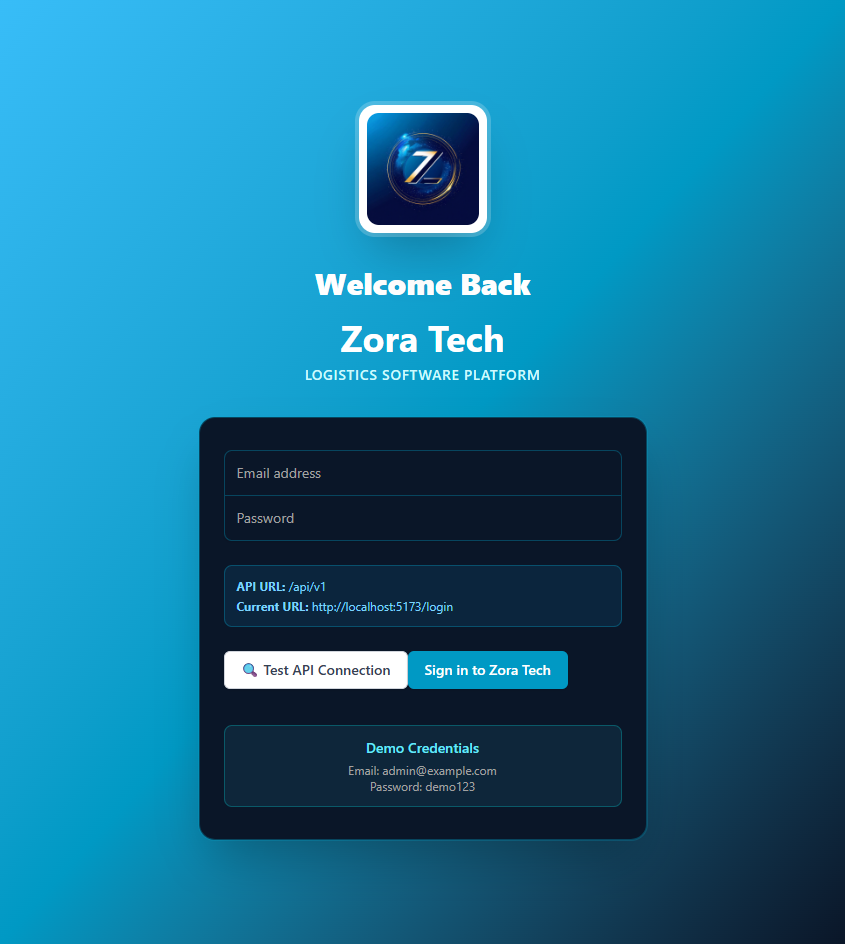
- Open your web browser and navigate to your organization's platform URL
- Enter your username and password
- Click Sign In
- You'll be directed to your personalized dashboard
Understanding Your Dashboard
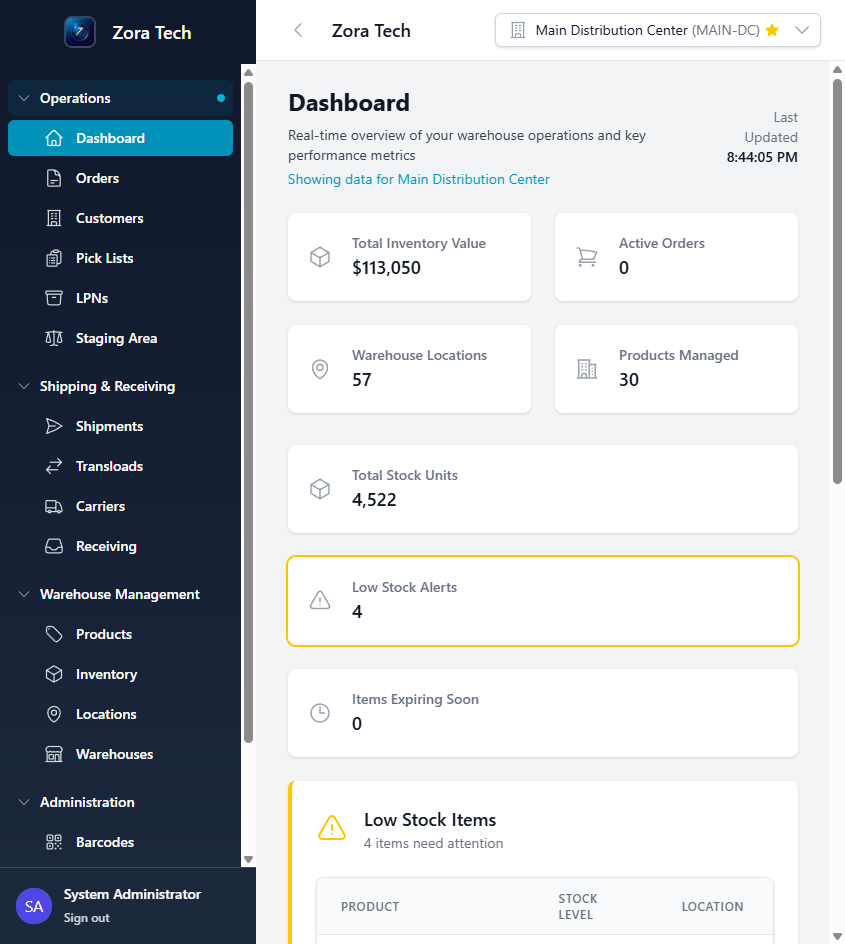
After logging in, you'll see your main dashboard with:
- Quick Stats: Key metrics like inventory levels, pending orders, and recent activities
- Navigation Menu: Access to all platform features based on your role
- Notifications: Important alerts and updates
- Quick Actions: Common tasks you can perform quickly
Your First Tasks
For Warehouse Staff
Receiving Shipments: 1. Navigate to Receiving in the Daily Operations menu 2. Scan incoming shipment barcodes 3. Verify quantities and condition 4. Confirm receipt to update inventory
Picking Orders: 1. Go to Order Processing 2. View your assigned pick lists 3. Scan items as you collect them 4. Mark orders as picked when complete
Cycle Counting: 1. Access Cycle Counting from Daily Operations 2. Follow the on-screen instructions for assigned locations 3. Scan and count items 4. Submit counts for verification
For Warehouse Managers
Managing Inventory: 1. Navigate to Inventory Management 2. View real-time stock levels 3. Create inventory adjustments as needed 4. Review low-stock alerts
Viewing Reports: 1. Go to Reports & Analytics 2. Select the report type you need 3. Filter by date range or warehouse 4. Export data for further analysis
For System Administrators
User Management: 1. Navigate to Users in the administration menu 2. Add new users with appropriate roles 3. Assign permissions based on job functions 4. Manage user access as needed
Warehouse Configuration: 1. Go to Warehouse Setup 2. Configure locations and zones 3. Set up staging areas 4. Define operational parameters
Using the Mobile App
The platform includes a mobile application for on-the-go warehouse operations:
- Download the mobile app from your organization's app distribution
- Sign in with your platform credentials
- Use your device camera for barcode scanning
- Complete warehouse tasks from anywhere in your facility
Mobile Features: - Barcode scanning for inventory and orders - Real-time inventory updates - Mobile picking and packing workflows - Offline mode for areas with poor connectivity
Next Steps
Now that you're familiar with the basics:
- Understanding Your Dashboard - Learn about dashboard features
- Daily Operations - Master daily workflows
- Mobile Guide - Use the mobile app effectively
- Configuration - Customize your experience
Getting Help
Support Resources
Documentation: Browse this documentation site for detailed guides and references
Email Support: Contact your system administrator or support@zoratech.io
Training: Ask your administrator about available training sessions
Common Questions
- Forgot your password? Use the "Forgot Password" link on the login page or contact your administrator
- Can't access a feature? Check with your administrator about your role permissions
- Need training? Request a training session from your warehouse manager
Next: Configuration Guide →