Quick start
Sign in to Zora for the first time, find your way around, and do the first task that matches your role.
Before you begin
You need a platform URL, a username, and a password from your system administrator. If you don't have them yet, ask before you start.
Accessing the platform
| You need | Where it comes from |
|---|---|
| Platform URL | Your organization's web address for Zora |
| Login credentials | A username and password from your administrator |
| Role | Sets what you can see and do — Warehouse Staff, Manager, or Administrator |
Logging in
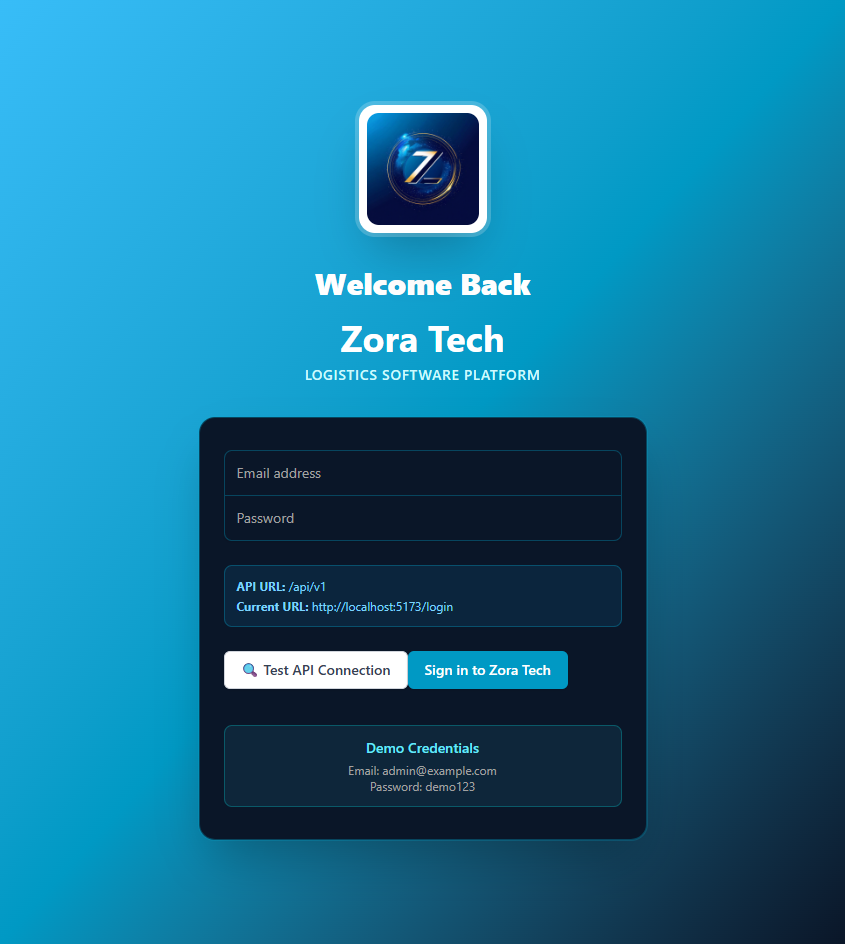
- Open your browser and go to your organization's platform URL.
- Enter your username and password.
-
Choose Sign In.
You land on your dashboard.
Understanding your dashboard
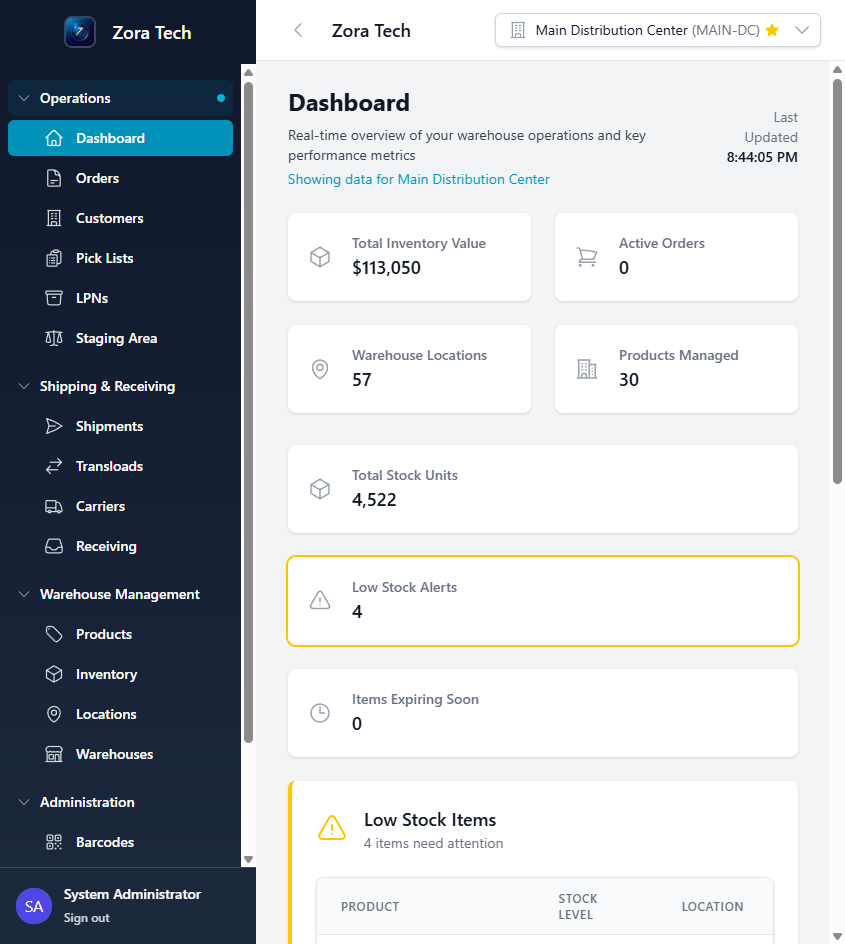
The dashboard is your home screen: key metrics, a navigation menu scoped to your role, notifications, and shortcuts to common tasks. The Dashboard guide covers every part of it in detail.
Your first tasks
For warehouse staff
Receiving a shipment:
- Go to Receiving in the Daily Operations menu.
- Scan the incoming shipment's barcodes.
- Check the quantities and condition against what's expected.
-
Confirm the receipt.
Inventory updates with what you received.
Picking an order:
- Go to Order Processing.
- Open your assigned pick lists.
- Scan each item as you collect it.
- Mark the order picked once everything is collected.
Cycle counting:
- Open Cycle Counting from Daily Operations.
- Follow the on-screen instructions for your assigned locations.
- Scan and count the items.
- Submit the count for verification.
For warehouse managers
Managing inventory:
- Go to Inventory Management.
- Check current stock levels.
- Create an inventory adjustment where the count is wrong.
- Review low-stock alerts.
Viewing reports:
- Go to Reports & Analytics.
- Choose the report you need.
- Filter by date range or warehouse.
- Export the data or review it on screen.
For system administrators
Managing users:
- Go to Users in the administration menu.
- Choose Add User for a new account.
- Assign the role that matches their job.
- Update access as people's jobs change.
Configuring a warehouse:
- Go to Warehouse Setup.
- Set up locations and zones.
- Set up staging areas.
- Set the warehouse's operational parameters.
Using the mobile app
Zora runs on your phone for work on the warehouse floor. There's nothing to install from an app store.
- Open your phone's browser and go to the same address you use on the desktop.
- Sign in with the same email and password.
- Add the page to your home screen when your browser offers to. You then get a full-screen app instead of a browser tab.
- Allow camera access the first time you scan, so the camera can read barcodes.
The mobile app scans barcodes for inventory and orders, updates inventory as you work, and covers picking and packing. You need a signal to record anything — see the mobile app guide for how it behaves in a dead spot.
Next steps
| You want to… | Start here |
|---|---|
| Understand every part of your dashboard | Dashboard |
| Learn daily receiving workflows | Receiving |
| Use the mobile app on the floor | Mobile app guide |
| Set your personal and warehouse settings | Configuration |
Need help?
- Documentation — browse this site for detailed guides and references.
- Email support — contact your system administrator or support@zoratech.io.
- Training — ask your administrator about available training sessions.
Common questions
Forgot your password? Use the Forgot Password link on the login page, or contact your administrator.
Can't access a feature? Check with your administrator about your role's permissions.
Need training? Request a session from your warehouse manager.