Inventory Adjustments - Standard Operating Procedure
Complete step-by-step guide to adjusting inventory quantities in your warehouse.
Quick Info
Time Required: 5-10 minutes per adjustment Role: Warehouse Staff, Inventory Manager Mobile: Recommended - Adjust on the spot Related: Inventory Management Guide | Cycle Counting SOP
Before You Start
Complete these checks before making inventory adjustments:
- Verify you have permission to adjust inventory
- Physically verify the actual quantity
- Have the correct reason code ready
- Know the product SKU or have barcode available
- Understand the financial impact of adjustments
Important
Inventory adjustments affect stock levels and financial reporting. Always double-check quantities and use appropriate reason codes for audit trail purposes.
When to Adjust Inventory
Valid Reasons for Adjustments
✅ Appropriate Uses: - Cycle Count Corrections - Update after physical count reveals discrepancy - Found Items - Discover inventory not in system - Damaged Goods - Remove damaged/unsellable items - Theft/Loss - Record missing inventory - Data Entry Errors - Correct mistakes from previous transactions - Expiration - Remove expired products - Sample/Demo Use - Record items used for samples or demos
❌ Inappropriate Uses: - Receiving shipments (use Receiving process) - Shipping orders (use Order Fulfillment process) - Moving between locations (use Location Transfer) - Returning to vendor (use RMA process)
Best Practice
Use specific warehouse processes (receiving, picking, transfers) instead of adjustments whenever possible. Adjustments should be for corrections and exceptions only.
Step 1: Locate the Product
On Mobile
- Open Zora Tech mobile app
- Tap Inventory from menu or bottom navigation
- Use search or scan barcode to find product
- Tap product to view details
On Desktop
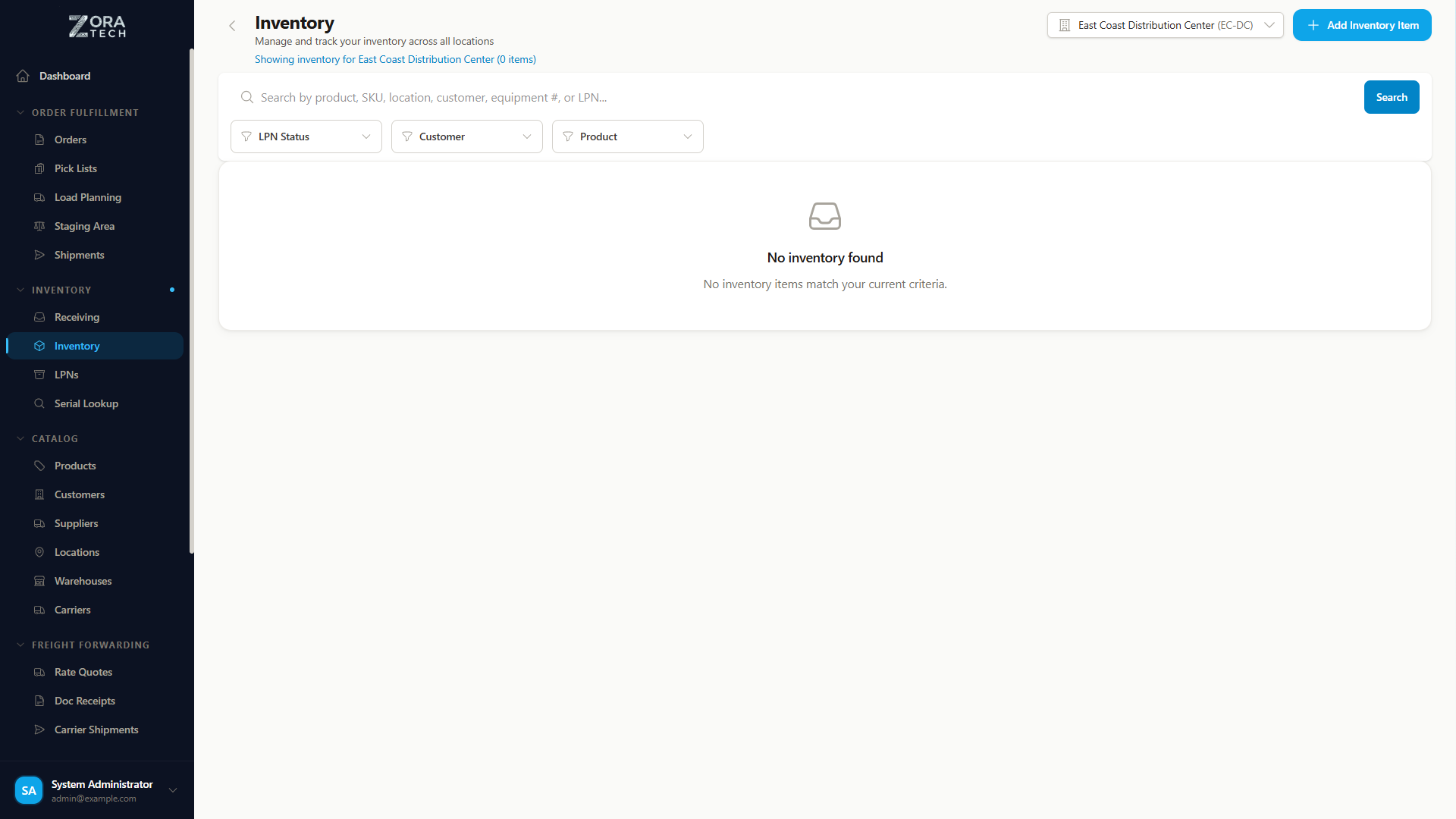
- Navigate to Inventory from sidebar
- Use search field or filters
- Click on product row to view details
Product Search Methods
Barcode Scan (Mobile): - Tap camera icon in search - Scan product barcode - Product details load automatically
SKU Search: - Type SKU in search field (e.g., "PROD-001") - Results filter as you type
Product Name Search: - Type partial product name - Browse filtered results
Step 2: Initiate Adjustment
From Product Details
- View current inventory quantities by location
- Click or tap "Adjust Quantity" button
- Adjustment modal/screen opens
Select Specific Location
Location Selection
If product exists in multiple locations, you must specify which location's quantity you're adjusting.
Choose the location: - Select from dropdown list of locations - Or scan location barcode (mobile) - Current quantity for that location displays
Step 3: Enter Adjustment Details
Adjustment Type
Two methods available:
What it does: Sets inventory to exact count
Example: - Current: 50 units - Set to: 48 units - Result: -2 adjustment
When to use: After physical count, when you know exact quantity
What it does: Increases or decreases by amount
Example: - Current: 50 units - Subtract: 2 units - Result: 48 units final
When to use: When you know the change amount (damage, found items)
Enter New Quantity
- "Set To" method:
- Enter the actual physical count
-
System calculates difference automatically
-
"Add/Subtract" method:
- Enter positive number to add
- Enter negative number to subtract
Select Reason Code
Required field - Choose appropriate reason:
| Reason Code | When to Use | Example |
|---|---|---|
| Cycle Count | Physical count correction | Count shows 48, system shows 50 |
| Damage | Items damaged/unsellable | Forklift damaged 2 boxes |
| Found | Discovered unlisted inventory | Found 10 units during reorganization |
| Lost/Theft | Missing inventory | Cannot locate expected items |
| Expiration | Expired products removed | Food items past expiration date |
| Correction | Fix data entry error | Previous receiving had wrong count |
| Sample | Used for samples/demos | Gave 2 units to sales team |
| Shrinkage | General inventory shrinkage | Annual audit adjustment |
Add Notes (Optional but Recommended)
Provide context for the adjustment:
Good notes examples: - "Cycle count found 48 units, system showed 50" - "2 units damaged during putaway, discarded" - "Found 10 units in staging area not in system" - "Correcting receiving error from 1/15"
Poor notes examples: - "Fixed" (not descriptive) - "Count" (no details) - Blank (no context)
Step 4: Review and Confirm
Pre-Confirmation Checklist
Before saving, verify:
- Product - Correct SKU selected
- Location - Right warehouse and location
- Quantity - Accurate count entered
- Reason - Appropriate reason code selected
- Notes - Descriptive explanation provided
- Impact - Understand increase or decrease
Adjustment Preview
System shows:
Product: Widget A (SKU: PROD-001)
Location: A-01-A (Main Warehouse)

Current Quantity: 50
New Quantity: 48
Change: -2 units

Reason: Damage
Notes: 2 units damaged during putaway
Confirm Adjustment
- Review all details carefully
- Click or tap "Save Adjustment"
- Confirmation message displays
- Inventory updated immediately
Adjustment Complete
Inventory quantity updated. Transaction recorded in audit history.
Common Scenarios
Scenario 1: Cycle Count Discrepancy
Situation: Physical count shows different quantity than system
Steps: 1. Complete physical count of location 2. Find product in system 3. Select location counted 4. Use "Set To" method 5. Enter actual physical count 6. Reason: "Cycle Count" 7. Note: "Physical count: X, System: Y" 8. Save adjustment
Scenario 2: Damaged Products
Situation: Items damaged and must be removed from sellable inventory
Steps: 1. Set damaged items aside 2. Count damaged quantity 3. Find product in system 4. Select location 5. Use "Subtract" method 6. Enter damaged quantity as negative 7. Reason: "Damage" 8. Note: Description of damage and disposal 9. Save adjustment 10. Dispose of items per company policy
Scenario 3: Found Inventory
Situation: Discover inventory not recorded in system
Steps: 1. Count found items 2. Verify product SKU 3. Determine appropriate location 4. Find product in system 5. Select location 6. Use "Add" method 7. Enter found quantity 8. Reason: "Found" 9. Note: Where items were found 10. Putaway items if needed
Troubleshooting
Cannot Find Product
Solutions: - Verify SKU is correct - Check product is active (not disabled) - Try barcode scan instead of manual search - Check with supervisor if product exists
Wrong Location Selected
Solutions: - Cancel adjustment if not yet saved - If saved, create reverse adjustment - Or contact supervisor for correction
Negative Inventory Warning
Issue: Adjustment would result in negative quantity
Solutions: - Verify actual count is accurate - Check if items in other locations - May indicate theft, loss, or data issue - Consult supervisor before proceeding
Best Practices
Accuracy
- ✅ Count twice for high-value items
- ✅ Use scale for bulk items when possible
- ✅ Verify SKU before adjusting
- ✅ Check multiple locations if quantity doesn't match
- ✅ Document thoroughly in notes
Documentation
- ✅ Always add notes explaining why
- ✅ Include details (who, what, when, where)
- ✅ Reference documents (RCV numbers, PO numbers)
- ✅ Be specific rather than vague
Related Guides
- Cycle Counting SOP - Regular inventory counts
- Inventory Management - Complete inventory guide
- Bulk Upload - Bulk adjustment uploads
- Troubleshooting - Common issues
Standard Operating Procedure | Last Updated: January 2025