Inventory adjustments
Correct an inventory quantity and record why — for a cycle count correction, damage, loss, or any other exception.
Looking to view stock rather than change it?
This page covers correcting an on-hand quantity with a reason code.
To search, filter, or export the stock list, or to read an item's history, see Inventory Management.
Before you begin
You need permission to adjust inventory — typically given to warehouse staff and inventory managers. Physically verify the actual quantity before you start, and have the right reason code ready. Budget 5–10 minutes per adjustment.
This affects financial reporting
Adjustments change stock levels and financial reporting. Double-check the quantity and pick the reason code that actually applies — it's what the audit trail relies on.
When to adjust inventory
| Use an adjustment for | Example |
|---|---|
| Cycle count correction | Update after a physical count reveals a discrepancy |
| Found items | Inventory turns up that wasn't in the system |
| Damaged goods | Remove damaged or unsellable items |
| Theft or loss | Record missing inventory |
| Data entry errors | Correct a mistake from an earlier transaction |
| Expiration | Remove expired products |
| Sample or demo use | Record items used for samples or demos |
Don't use an adjustment for:
| Instead, use | For |
|---|---|
| Receiving | Incoming shipments |
| Order fulfillment | Shipping orders |
| Location transfer | Moving stock between locations |
| RMA | Returning stock to a vendor |
Best practice
Use the specific warehouse process — receiving, picking, transfers — instead of an adjustment whenever you can. Adjustments are for corrections and exceptions only.
Locating the product
- Open the Zora Tech app.
- Tap Inventory in the menu or bottom navigation.
- Search or scan the barcode to find the product.
- Tap the product to view its details.
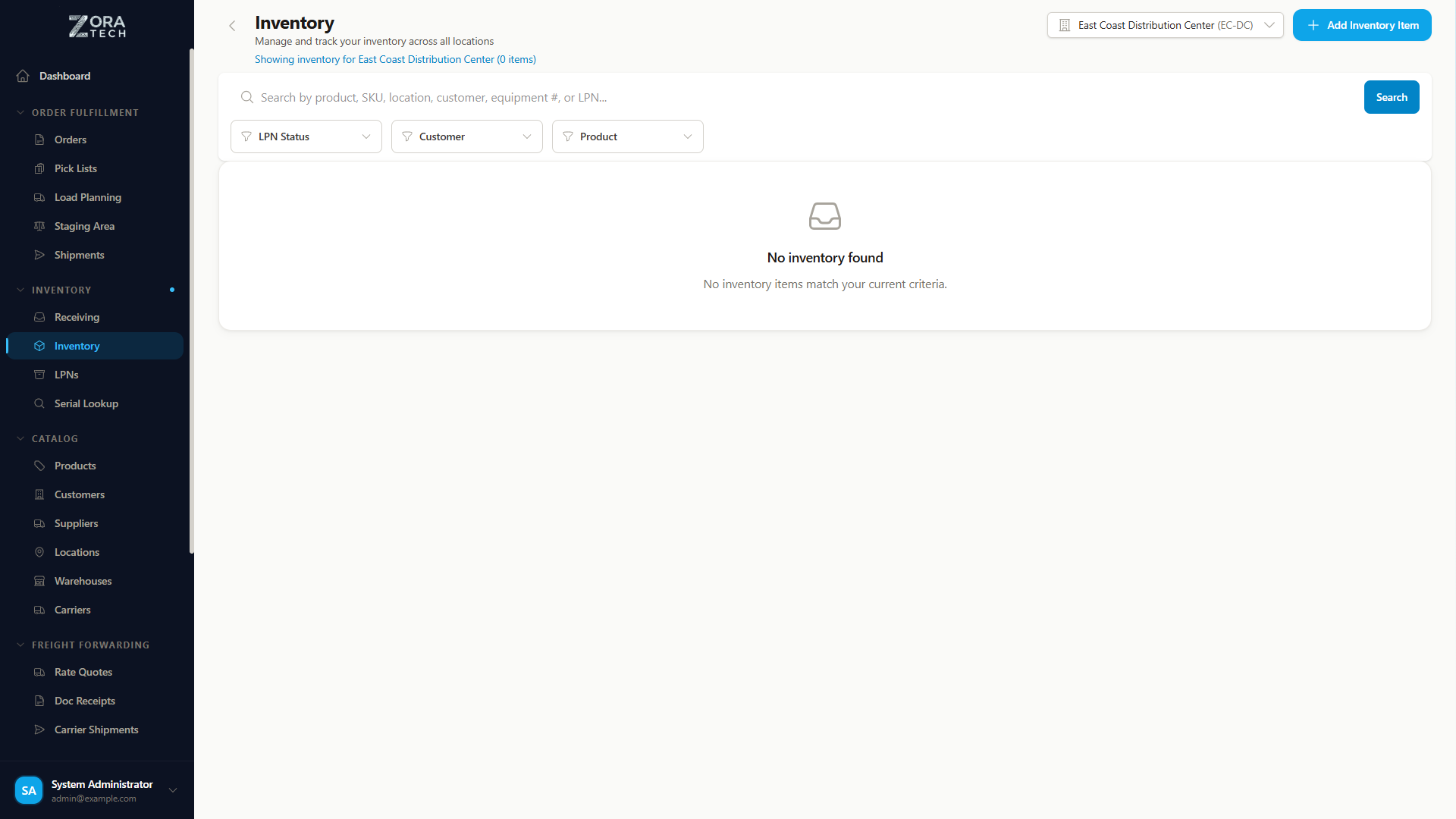
- Go to Inventory in the sidebar.
- Use the search field or filters.
- Click the product row to view its details.
| Method | How |
|---|---|
| Barcode scan (mobile) | Tap the camera icon in search and scan the barcode — product details load automatically |
| SKU search | Type the SKU, such as PROD-001 — results filter as you type |
| Product name search | Type part of the name and browse the filtered results |
Starting the adjustment
- From the product details, view the current quantities by location.
- Choose Adjust Quantity. The adjustment screen opens.
Multiple locations
If the product exists in more than one location, choose which one you're adjusting from the dropdown, or scan the location barcode on mobile. Its current quantity displays once you do.
Entering adjustment details
Sets inventory to an exact count. Use it after a physical count, when you know the actual quantity.
Enter the physical count — the platform calculates the difference for you.
Example: current 50 units, set to 48 → recorded as a -2 adjustment.
Increases or decreases the quantity by an amount. Use it when you know the change itself — damage, found items.
Enter a positive number to add, or a negative number to subtract.
Example: current 50 units, subtract 2 → 48 units.
Choose a reason code — it's required:
| Reason | When to use | Example |
|---|---|---|
| Cycle Count | Physical count correction | Count shows 48, system shows 50 |
| Damage | Items damaged or unsellable | Forklift damaged 2 boxes |
| Found | Discovered unlisted inventory | Found 10 units during reorganization |
| Lost/Theft | Missing inventory | Can't locate expected items |
| Expiration | Expired products removed | Food items past expiration date |
| Correction | Fix a data entry error | Previous receiving had the wrong count |
| Sample | Used for samples or demos | Gave 2 units to the sales team |
| Shrinkage | General inventory shrinkage | Annual audit adjustment |
Add a note — optional, but worth it:
| Good note | Why |
|---|---|
| "Cycle count found 48 units, system showed 50" | Specific, gives the count |
| "2 units damaged during putaway, discarded" | Says what happened and what you did |
| "Found 10 units in staging area not in system" | Says where |
| "Correcting receiving error from 1/15" | References when |
Avoid vague notes like "Fixed", "Count", or leaving it blank — six months later, nobody remembers why.
Reviewing and confirming
Before you save, verify:
- The correct SKU is selected.
- The right warehouse and location.
- The quantity is accurate.
- The reason code fits.
- The note explains it.
- You understand whether it's an increase or a decrease.
The platform shows a preview:
Product: Widget A (SKU: PROD-001)
Location: A-01-A (Main Warehouse)

Current Quantity: 50
New Quantity: 48
Change: -2 units

Reason: Damage
Notes: 2 units damaged during putaway
Review it carefully, then choose Save Adjustment.
The quantity updates immediately, and the transaction is recorded in the audit history.
Common situations
Cycle count discrepancy
After a physical count, use Set To with the actual count, reason Cycle Count, and a note like "Physical count: X, System: Y".
Damaged products
Count the damaged quantity, use Subtract with that amount, reason Damage, and a note describing the damage and how you disposed of it. Dispose of the items per your company's policy.
Found inventory
Count and verify the SKU, use Add with the found quantity, reason Found, and a note on where you found it. Put the items away if they need it.
Troubleshooting
| Problem | What to check |
|---|---|
| Can't find the product | Confirm the SKU, check the product is active (not disabled), try a barcode scan instead of a manual search, and check with your supervisor if it should exist. |
| Wrong location selected | Cancel the adjustment if you haven't saved it. If you already saved it, create a reverse adjustment or contact your supervisor for a correction. |
| Negative inventory warning | Recheck the actual count and whether stock exists in another location — this can point to theft, loss, or a data issue. Consult your supervisor before you proceed. |
Getting it right
Stay accurate. Count high-value items twice, use a scale for bulk items where you can, verify the SKU before adjusting, and check other locations if the quantity doesn't match.
Document everything. Always add a note explaining why — who, what, when, and where — and reference related documents like receiving or PO numbers. Specific beats vague every time.
Related guides
- Cycle Counting - Regular inventory counts
- Inventory Management - Complete inventory guide
- Bulk Upload - Bulk adjustment uploads
- Troubleshooting - Common issues
Need more help? Email support@zoratech.io, or check the FAQ and troubleshooting guide.