Pick Lists
Manage and track every picking operation across the warehouse from one place.
A pick list is the work order that tells a picker which items to pull, in what quantity, and from where, to fulfill an order. While you pick the items for a single order from inside Order Processing, the dedicated Pick Lists page (/pick-lists) is where you manage all pick lists together — assigning them to pickers, watching progress, filtering by status or assignee, and cancelling work that can't be completed.
Use the Pick Lists page when you're coordinating the floor rather than working a single order: who's picking what, what's still pending, and what's stuck.
The pick lists page
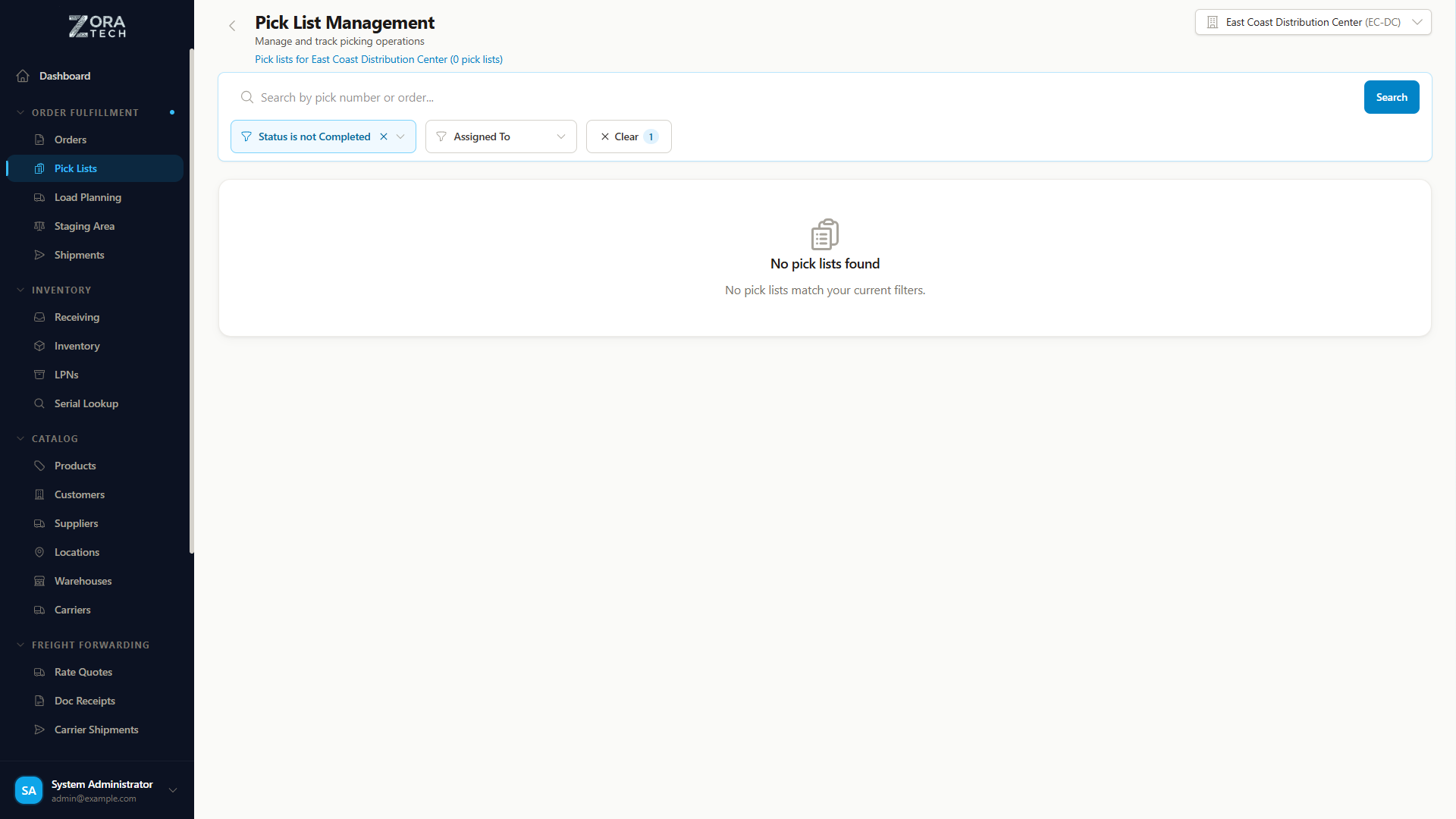
Each row represents one pick list and shows:
| Column | What it tells you |
|---|---|
| Pick List | The pick number, its type, and item count (e.g., PICK-001 • ORDER • 25 items). |
| Order | The linked order number and customer. |
| Staging Area | The destination area picked items are staged to. |
| Status | The pick list's current status (see below). |
| Assigned To | The picker responsible, or Unassigned. |
| Progress | A progress bar with the picked / total ratio (e.g., 20/25). |
| Actions | Buttons that change with status — Assign, Start, Complete, Cancel. |
Pick list statuses
A pick list moves through these statuses:
| Status | Meaning |
|---|---|
| Pending | Created but not yet assigned to a picker. |
| Assigned | Assigned to a picker, waiting to be started. |
| In Progress | Picking is actively underway. |
| Completed | All items have been picked and staged. |
| Cancelled | The pick list was cancelled and any picked inventory was reversed. |
The Progress bar reflects how many of the pick list's items have been picked against the total, so you can spot a stalled In Progress pick at a glance.
Filtering and searching
The page opens showing only active work — by default it hides Completed pick lists. You can refine the list with:
| Filter | What it does |
|---|---|
| Status | Matches one or more statuses. Each filter supports an operator: is / is not for a single value, or is any of / is none of for several. |
| Assigned To | Filters by picker, with the same operators — so a lead can see just their team's queue, or a picker can see only their own. |
| Search | Free-text match on pick number or order number. |
Shareable filtered views
Your filter selections are saved in the page URL. That means a filtered view is a link you can copy and share — for example, a URL that shows only In Progress picks assigned to a specific picker. Whoever opens it sees the same filtered list. Bookmark a URL to return to a view you use often.
Assigning and working a pick list
Before you begin
- A pick list exists only after an order is Allocated and its pick list has been generated. Pick lists are created from allocated orders in Order Processing.
- Assigning a pick list is a shift-lead or Warehouse Manager action; Start and Complete are performed by the assigned picker.
- Assign a Pending pick list to a picker. It moves to Assigned.
- As the assigned picker, select Start. The status becomes In Progress and the start time is recorded.
- Pick each item; the Progress bar updates as you go. A single line can span multiple LPNs (License Plate Numbers), each with its own quantity — the picking interface shows every LPN involved with its per-LPN detail.
- Once every item is picked and staged, select Complete. The status becomes Completed, and the completion time and pick duration are recorded.
Picker attribution
Every pick records who picked it and when, down to the individual LPN — giving you accountability and the data behind picker-performance reporting.
Cancelling a pick list
Sometimes a pick can't be finished — the order changed, stock was short, or the work was started by mistake. Choose Cancel to stop it.
Cancellation has a point of no return
You can cancel a pick list in Pending, Assigned, or In Progress status. Once items have moved downstream — staged, consolidated, or packed — the pick list can no longer be cancelled.
Reason required: if any items have already been picked, you must enter a cancellation reason.
Automatic inventory reversal: when you cancel a partially-picked pick list, the platform automatically restores everything that was picked:
- Picked quantities are added back to the source location and released to available stock.
- Items are removed from the LPNs they were picked into; an emptied LPN returns to Available.
- A reversal inventory transaction is recorded for the audit trail.
- The order's picked quantities are decremented, and any picked serial numbers are restored.
If all of an order's pick lists are cancelled, an order that was in Picking, Ready to Pack, or Ready to Ship reverts to Allocated. The cancellation — including the reason and who performed it — is written to the order's activity history.
Lot numbers carry through the pick
When an order line is restricted to a specific lot, that lot number follows the item through allocation, picking, and — if needed — reversal, so the platform always returns stock to the correct lot record.
Related guides
- Order Processing — picking within a single order
- LPN Movements — moving picked LPNs to staging or shipment
- Inventory Management — the stock levels and locations behind a pick