Receiving Shipments - Standard Operating Procedure
Complete step-by-step guide to receiving inventory shipments into your warehouse.
Quick Info
Time Required: 15-30 minutes per shipment Role: Warehouse Staff, Receiving Clerk Mobile: Recommended - Use mobile app for best experience Related: Mobile Receiving Guide | User Guide: Receiving Operations
Before You Start
Complete these checks before beginning the receiving process:
- Verify shipment is expected in receiving queue
- Ensure receiving area is clear and organized
- Have mobile device or barcode scanner ready
- Check for any special handling instructions
- Review packing slip or ASN (if available)
Mobile Recommended
Use your mobile device for the best receiving experience. The mobile app is optimized for warehouse floor operations with camera barcode scanning and touch-friendly interface.
Step 1: Locate the Receiving Order
On Mobile
- Open Zora Tech mobile app
- Tap Receiving from the bottom navigation
- Find the expected shipment in the list
- Tap to open receiving order details
On Desktop
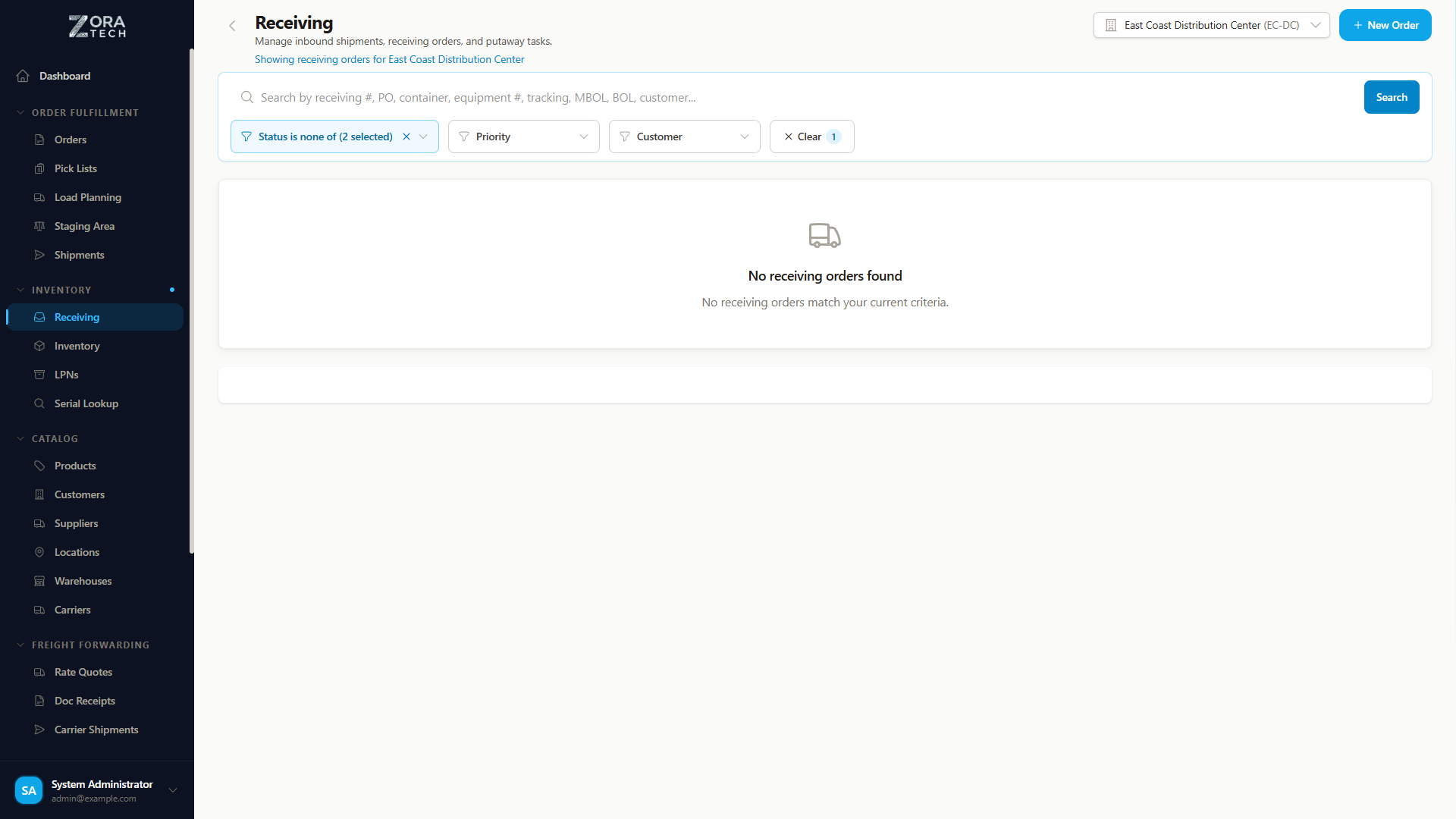
- Navigate to Receiving from the sidebar
- View the receiving queue
- Click on the receiving order to open
What You'll See
- Receiving Order Number (e.g., RCV-0001)
- Supplier/Vendor Name
- Expected Items Count
- Due Date
- Status (Pending, In Progress, Completed)
- Equipment Number (trailer/container number, if entered)
What if I don't see the shipment?
For Unexpected Shipments:
- Click "Create Blind Receiving" or "Add Receiving Order"
- Enter supplier information
- Proceed with receiving process
- Note discrepancy for supervisor review
Step 2: Scan Products
Scanning Process
- Tap "Start Receiving" to begin
- Scan the product barcode using your camera
- System will identify the product and show details
- Enter quantity received
- Tap "Add to Cart"
- Repeat for all products in the shipment
Barcode Scanning Tips
Scanning Best Practices
- Clean the barcode if it won't scan
- Adjust lighting - avoid glare or shadows
- Hold steady - keep camera focused on barcode
- Use manual entry if barcode is damaged (enter SKU)
- Camera button - switch to camera mode if scanner fails
Product Verification
For each item scanned:
- Verify product name matches physical item
- Check quantity against packing slip
- Inspect condition for damage or defects
- Note discrepancies immediately
Quality Control
Do not force-receive products that don't match the order. Report discrepancies to your supervisor and create an exception report.
Step 3: Record Equipment Information
When receiving freight or truckload shipments, record the equipment details:
- Enter the Equipment Number (trailer number, container number, or railcar number)
- This information is saved with the receiving order for reference and audit purposes
Equipment Tracking
Equipment numbers help reconcile shipments with carrier records, resolve discrepancies, and maintain a complete chain of custody for inbound freight.
Step 4: Handle Serial & Lot Tracked Items
Serial Number Tracking
For products requiring serial numbers:
- System will prompt: "Enter Serial Numbers"
- Scan each serial number barcode OR
- Manually type serial numbers (one per line)
- Review list for accuracy
- Tap "Save Serial Numbers"
Serial Number Requirements:
- Must be unique (system validates)
- Cannot be changed after saving
- One serial number per individual item
- Required for high-value or warranty items
Lot Number Tracking
For products with lot tracking enabled:
- System will prompt: "Enter Lot Information"
- Enter or scan Lot Number (required for lot-tracked products)
- Enter Expiration Date (optional, recommended for perishable goods)
- Enter Quantity for this lot
- Tap "Save Lot Information"
Receiving Multiple Lots:
You can receive multiple lots of the same product on a single receiving order:
- Enter the first lot number, expiration date, and quantity
- Tap "Add Another Lot" to add additional lot lines
- Each lot line has its own lot number, expiration, and quantity
- The total quantity across all lots should match the expected receiving quantity
Mixed Receiving:
Receiving orders can include both lot-tracked and non-lot-tracked products. The system only prompts for lot information on products where lot tracking is enabled.
Lot Tracking Requirements:
- Lot number is required when the product has lot tracking enabled
- Lot numbers are matched case-insensitively ("LOT-A" and "lot-a" are the same lot)
- Multiple items can share the same lot number (unlike serial numbers)
- Expiration dates are optional but recommended for perishables
- Lot information carries forward to inventory and putaway tasks automatically
- Used for recalls and FEFO (First Expired, First Out) picking
Serial vs Lot Tracking
Serial Tracking: Individual items (e.g., laptops, phones) Lot Tracking: Batches (e.g., food, medicine, chemicals)
Step 5: Review & Complete Receiving
Review Your Cart
Before completing:
- Review all items in receiving cart
- Verify quantities match packing slip
- Check for any missing items
- Note any discrepancies or damages
Quality Checks
- All expected items scanned
- Quantities accurate
- Serial/lot numbers entered correctly
- Damages or defects documented
- Packing slip attached (if physical)
Complete the Receiving
- Tap "Complete Receiving"
- System creates inventory transactions
- Items are now in "Received" status
- Ready for putaway process
Receiving Completed
Inventory has been added to your system. Items are now available for putaway to storage locations.
Step 6: Putaway (Optional)
Immediate Putaway
If configured, the system may prompt for immediate putaway:
- System suggests optimal storage locations with suitability scores
- Review the suggested location or choose an alternative
- Scan suggested location barcode to confirm
- Place items in the location
- Tap "Confirm Putaway"
- Repeat for all items
Smart Location Selector
The putaway process uses the Smart Location Selector with three modes:
Auto-Suggest Mode (default):
- System recommends the best location automatically
- Shows suitability score (0-100%) for each suggestion
- Displays distance from receiving area and available capacity
- Can be set to auto-select immediately or wait for confirmation
Manual Search Mode:
- Search locations by code, aisle, or zone
- Browse available locations in a scrollable list
- View capacity and status for each location
- Select any available location for putaway
Barcode Scan Mode:
- Scan a location barcode directly with camera or scanner
- Haptic feedback on successful scan
- Validates the scanned location is available
Manual LPN Barcode Lookup
During the LPN selection step of putaway, you can:
- Scan an LPN barcode to find it in the system
- Manually search for specific LPN codes
- Useful when handling LPNs that are not in your current receiving order
Location Suggestions
System suggests locations based on:
- Product category - similar items together
- Available capacity - space optimization
- Pick frequency - popular items in accessible areas
- Product size - appropriate shelf heights
- Storage class compatibility - matching product requirements (temperature, hazmat, etc.)
- Constraints - special handling requirements displayed on suggestion cards
Deferred Putaway
If immediate putaway is not required:
- Items remain in "Received" status
- Can be put away later via Putaway Queue
- Temporary staging area location assigned
- Complete putaway before items are needed for picking
Location Best Practices
- Follow system suggestions for optimal placement — the suitability score accounts for distance, capacity, and product compatibility
- Keep heavy items on lower shelves
- Group similar products together
- Leave adequate space for future stock
- Use manual search when you know a specific location is best for the product
Step 6: After Receiving
Required Actions
- Attach packing slip to receiving order (if physical)
- Update receiving notes with any discrepancies
- Report damages to supervisor
- Clean receiving area for next shipment
- File physical documents per company policy
Communication
Report to Supervisor:
- Significant quantity discrepancies
- Damaged or defective items
- Wrong products received
- Missing expected items
- Quality concerns
Common Scenarios
Scenario 1: Partial Shipment
What to do:
- Receive quantities you have
- System marks remaining as "backordered"
- Outstanding items tracked automatically
- Receive balance when it arrives
Scenario 2: Damaged Items
What to do:
- Photograph damage
- Do NOT putaway damaged items
- Set aside in designated area
- Create damage report
- Notify supervisor for RMA process
Scenario 3: Wrong Product Received
What to do:
- Do NOT force receive
- Take photo of item and packing slip
- Create discrepancy report
- Contact supervisor immediately
- Set item aside (do not putaway)
Scenario 4: No Packing Slip
What to do:
- Use "Blind Receiving" mode
- Scan all items received
- Enter quantities
- Note "No packing slip" in comments
- Supervisor will reconcile with PO
Troubleshooting
Barcode Won't Scan
Solutions:
- Clean the barcode with dry cloth
- Adjust lighting (avoid glare)
- Use camera mode instead of scanner
- Manually enter SKU if barcode damaged
- Report damaged labels to supervisor
Prevention:
- Ensure adequate receiving area lighting
- Keep camera lens clean
- Request better quality labels from supplier
Serial Number Already Exists
Solutions:
- Verify serial number on physical item
- Check for typos in entry
- Scan again to confirm
- Report possible duplicate to supervisor
Causes:
- Item previously received
- Duplicate serial number (vendor error)
- Data entry mistake
Product Not in System
Solutions:
- Verify SKU on product label
- Search by product name
- Check with supervisor
- May need to add new product first
Process:
- Contact supervisor or admin
- Provide product details
- Admin creates product in system
- Resume receiving once product added
System Slow or Frozen
Solutions:
- Check internet connection
- Refresh the page/app
- Save work if possible
- Restart app if necessary
- Contact IT support
Performance Tips
Speed Up Receiving
- Pre-stage items by SKU before scanning
- Use two people - one scans, one verifies
- Learn common barcodes to identify products quickly
- Keep workspace organized to avoid confusion
- Use mobile app for faster barcode scanning
Accuracy Improvements
- Double-check quantities before confirming
- Verify product details match packing slip
- Count twice for high-value items
- Use scale for bulk quantities when available
- Take photos of discrepancies for records
Related Guides
- Mobile Receiving Workflow - Mobile-optimized process
- User Guide: Receiving Operations - Detailed receiving guide
- Barcode Scanning Tips - Improve scanning accuracy
- LPN Receiving - Container-based receiving
- Putaway Process - Location assignment
Need Help?
Questions?
- Check FAQ
- Troubleshooting Guide
- Email Support
- Contact Supervisor - Your warehouse supervisor
Standard Operating Procedure | Last Updated: March 2026