Location management
Set up the storage positions in your warehouse — aisles, shelves, and bins — so putaway and picking know where to send stock.
Before you begin
Set up the warehouse first — a location has to belong to one. See Warehouse Management.
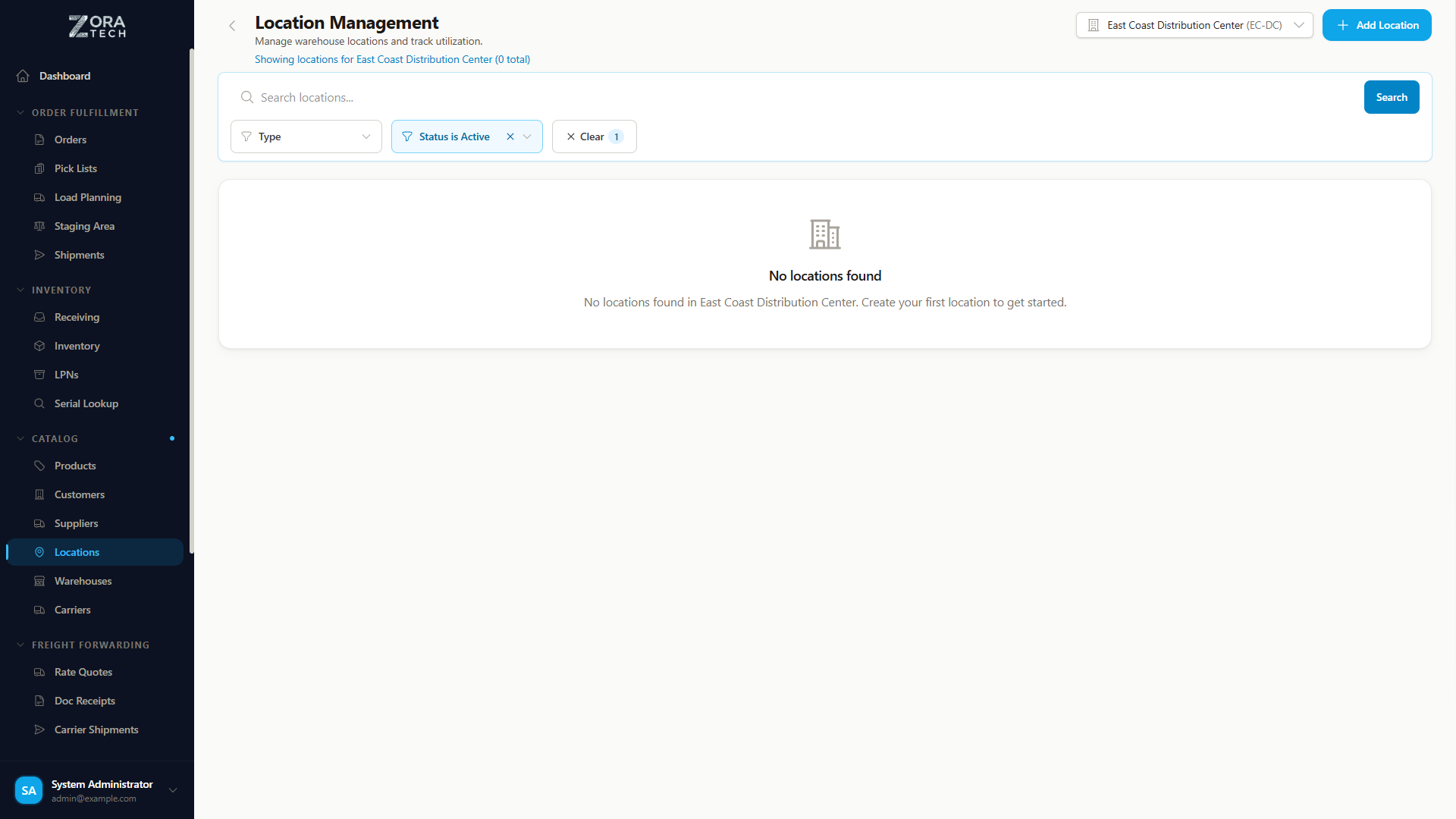
A location is a physical storage position — an aisle, a shelf, a bin. Every location you create shows up as a place putaway can send stock and picking can pull it from.
Location hierarchy
Locations follow Warehouse → Aisle → Shelf → Bin. A code like A-01-A breaks down as:
| Segment | Meaning |
|---|---|
A | Aisle |
01 | Shelf or bay |
A | Bin position |
Creating a location
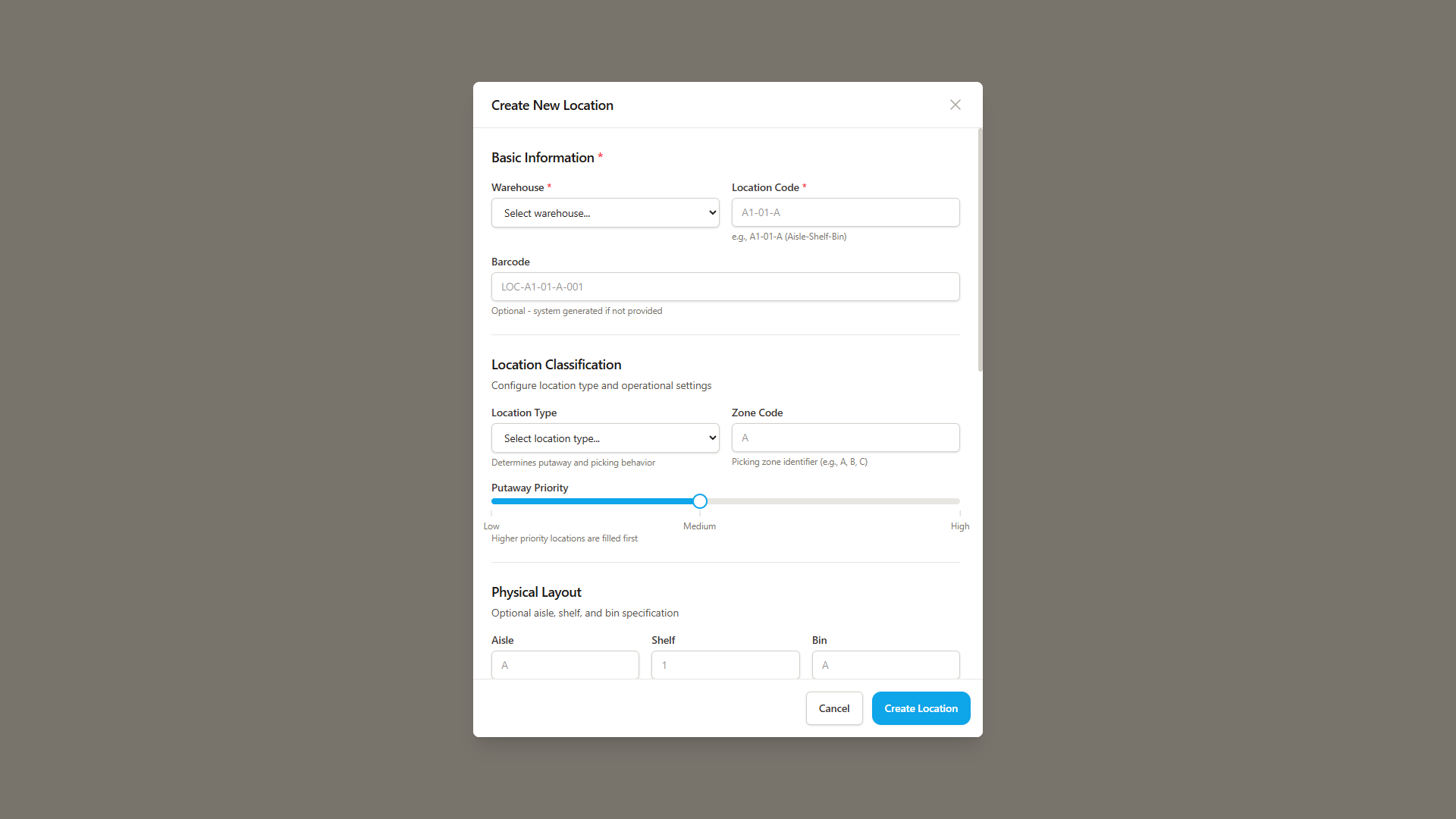
- Go to Catalog → Locations.
- Choose Add Location.
-
Fill in the location's details.
Field What to enter Warehouse The warehouse this location belongs to Location Code Auto-generated, or type your own — it must be unique Aisle The aisle designation Shelf/Bay The shelf or bay number Bin The bin position within the shelf Location Type See location types below Storage Class Ambient, Refrigerated, Hazmat, or another class your organization has defined -
Set its capacity limits.
Field What to enter Max Weight The weight the location can hold Max Volume The cubic volume it can hold Supported Units Pallet, case, each, or others -
Choose Create Location.
Location types
| Type | What it's for | Typical use |
|---|---|---|
| Floor | Ground-level storage | Pallet staging, large items |
| Rack | Shelving and racking positions | Standard pick and reserve storage |
| Bulk | Open bulk storage areas | High-volume, large-quantity storage |
| Receiving | Inbound staging | Temporary holding for received goods |
| Shipping | Outbound staging | Orders staged for carrier pickup |
| Damage | Damaged-goods holding | Quarantine for damaged or rejected items |
Location status
| Status | What it means |
|---|---|
| Empty | No inventory currently stored |
| In Use | Contains inventory |
| Inactive | Disabled, not available for operations |
| Out of Service | Temporarily unavailable — maintenance or similar |
| Damage | Designated for damaged goods |
In Use shows a count
An In Use location shows how many items it holds, so you can see how full it is without opening the location.
Searching and filtering locations
| Tool | What it does |
|---|---|
| Search | Finds locations by code, aisle, or zone |
| Type filter | Shows only one location type |
| Status filter | Shows empty, in-use, or inactive locations |
| Warehouse context | Filters automatically to your selected warehouse |
Location capacity
| Field | What it tracks |
|---|---|
| Weight Capacity | Maximum weight, in your configured units (lb or kg) |
| Volume Capacity | Maximum volume, in cubic units |
The Utilization Bar shows current usage against those limits, color-coded:
| Color | Utilization |
|---|---|
| Green | Under 75% |
| Yellow | 75–90% |
| Red | Over 90% |
Smart location suggestions
During putaway, the platform suggests locations for you:
| Detail | What it tells you |
|---|---|
| Suitability Score | How well the location fits, from 0–100% |
| Available capacity | Remaining weight and volume |
| Constraints | Special requirements the location must meet — temperature, hazmat, and similar |
The score weighs the location's own putaway priority most heavily, then whether it's empty, whether the same product is already there, how full it would end up, and whether it's a pick face. A distance field appears on the card but is not currently calculated.
Three putaway modes are available:
| Mode | How it works |
|---|---|
| Auto-suggest | The platform recommends the best location automatically |
| Manual search | Search locations by code, aisle, or zone |
| Barcode scan | Scan a location barcode directly |
See Receiving Shipments for the full putaway workflow.
Related guides
- Warehouse Management - Set up warehouses first
- Putaway Process - How locations are used
- Picking Process - Location-based picking
- Settings - Configure storage classes and location rules