Inventory Management User Guide
Table of Contents
- Overview
- Accessing Inventory Management
- Adding New Inventory
- Viewing and Managing Inventory
- Advanced Inventory Features
- Understanding Inventory Information
- Warehouse Context Management
- Inventory Workflows
- Best Practices
- Troubleshooting
Overview
The Inventory Management system in Zora Tech's Logistics Platform provides comprehensive tracking of all products across your warehouse facilities. This advanced system offers real-time visibility into stock levels, locations, and product movements with sophisticated tracking capabilities.
Key Features
- Real-time inventory tracking: Monitor current stock levels and availability across all locations
- Advanced product tracking: Support for lot/serial number tracking for full traceability
- Multi-location support: Track products across different warehouse locations with hierarchical organization
- Smart filtering: Find products by status (low stock, expiring, etc.) with intelligent search
- Warehouse context switching: Seamlessly view and manage inventory for specific warehouses
- Comprehensive product details: Access complete product information, tracking history, and transaction records
- Expiration management: Monitor expiration dates with automated alerts for expiring products
- Cost tracking: Track unit costs and calculate total inventory values
- Transaction history: Complete audit trail of all inventory movements and changes
Accessing Inventory Management
Prerequisites
- Valid login credentials to the Zora Tech Logistics Platform
- Appropriate permissions to access inventory data
- At least one active warehouse configured in the system
- Products and locations must be configured before adding inventory
Step 1: Navigate to Inventory
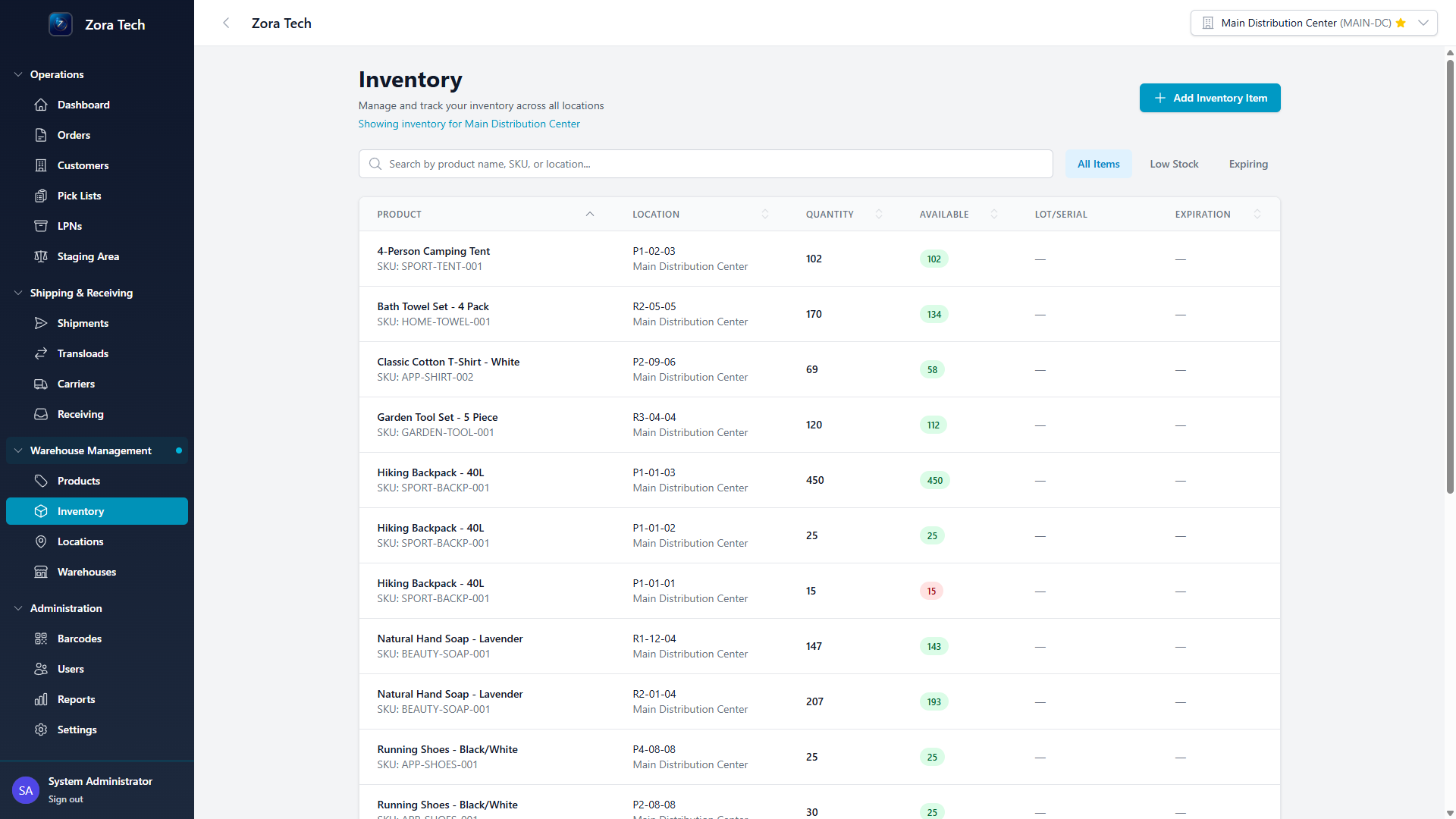
- From the main dashboard, locate the "Inventory Management" section in the left sidebar
- Click on "Inventory"
- The inventory management page displays:
- Page header with warehouse context and inventory summary
- Add Inventory button for adding new inventory items
- Advanced search and filter tools for finding specific products
- Smart status filters (All Items, Low Stock, Expiring)
- Comprehensive inventory table with sortable columns
- Real-time data showing quantities, locations, and status information
Page Layout Elements
- Warehouse Context Indicator: Shows current warehouse (e.g., "Showing inventory for Demo Warehouse Facility")
- URL Parameter Filters: Display active filters from navigation (Product ID, Location ID, etc.)
- Search Bar: Advanced search by product name, SKU, or location code
- Status Filter Buttons: Quick access to All Items, Low Stock, and Expiring inventory
- Inventory Table: Comprehensive view with product, location, quantity, and tracking information
Adding New Inventory
Step 1: Access Add Inventory Modal
- From the inventory management page, click the "Add Inventory Item" button in the top-right corner
- The Add Inventory Modal opens with multiple organized sections for comprehensive inventory entry
Step 2: Complete Inventory Information
The Add Inventory Modal is organized into six main sections:
Warehouse Context (Auto-displayed)
- Shows the current warehouse you're adding inventory to
- Displays warehouse name and code for confirmation
- Cannot be changed from this modal (switch warehouse context from the main page if needed)
Item Selection
- Product Selection:
- Use the advanced Product Selector to search by name, SKU, or barcode
- Type to search and select from available products
- Product information automatically displays once selected
- Location Selection:
- Choose from available locations in the current warehouse
- Locations are filtered by warehouse context
- Shows location codes in hierarchical format (Aisle-Shelf-Bin)
Quantity and Cost
- Quantity Entry:
- Enter the quantity being added to inventory
- For serial-tracked products, quantity is locked to 1
- System validates positive numbers only
- Unit Cost (Optional):
- Enter the cost per unit for inventory valuation
- System automatically calculates total value
- Helps with inventory cost tracking and reporting
Tracking Information (Product-dependent)
This section appears only for products with tracking requirements: 1. Lot Number (for lot-tracked products): - Required field for products with lot tracking enabled - Enter manufacturing lot or batch number - Used for traceability and recall management 2. Serial Number (for serial-tracked products): - Required field for products with serial tracking enabled - Enter unique serial number for the item - Quantity must be 1 for serial-tracked items
Date Information
- Received Date:
- Required field, defaults to today's date
- Cannot be set to future dates
- Represents when inventory was physically received
- Expiration Date (Optional):
- Set expiration date for products with shelf life
- Must be after the received date
- Used for expiration monitoring and alerts
Additional Information
- Notes (Optional):
- Free-text field for additional information
- Record supplier information, condition notes, etc.
- Helps with inventory documentation and history
Step 3: Review and Submit
- Validation: System automatically validates all required fields and business rules
- Review: Check all information before submitting
- Submit: Click "Add Inventory Item" to create the inventory record
- Confirmation: System confirms successful creation and updates inventory list
Smart Features in Add Inventory
Product Information Display
When a product is selected, the modal automatically shows: - Unit of measure - Tracking requirements (lot/serial) - Reorder point information - Product specifications
Automatic Calculations
- Total inventory value calculation (quantity × unit cost)
- Real-time validation of dates and quantities
- Business rule enforcement (serial tracking = quantity 1)
Warehouse-Filtered Locations
- Only shows locations belonging to the selected warehouse
- Prevents cross-warehouse inventory errors
- Maintains data integrity
Viewing and Managing Inventory
Inventory Table Features
The inventory management table provides comprehensive information at a glance:
Table Columns
- Product: Shows product name and SKU
- Location: Displays location code and warehouse name
- Quantity: Total quantity at this location
- Available: Available quantity with smart status badges
- Green badge for normal stock levels
- Red badge for low stock (below reorder point)
- Lot/Serial: Shows lot numbers and serial numbers when applicable
- Expiration: Displays expiration dates with status indicators
- Red "EXPIRED" badge for expired items
- Yellow "EXPIRING_SOON" badge for items expiring within 30 days
Interactive Features
- Sortable Columns: Click column headers to sort data
- Row Selection: Click any row to view detailed information
- Status Indicators: Color-coded badges for quick status identification
- Mobile Optimization: Responsive design with priority-based column display
Advanced Search and Filtering
Search Functionality
- Multi-field Search: Search across product names, SKUs, and location codes
- Real-time Results: Results update as you type
- Case-insensitive: Search works regardless of capitalization
Status-based Filters
- All Items: Shows complete inventory across all locations
- Low Stock: Displays items below their reorder point
- Expiring: Shows items expiring within 30 days
URL Parameter Filtering
The system supports advanced filtering through URL parameters: - Product ID Filter: Shows inventory for a specific product - Location ID Filter: Shows inventory at a specific location
- Warehouse ID Filter: Shows inventory in a specific warehouse - Clear Filters: One-click removal of all active filters
Step 1: Access Inventory Details
To view comprehensive information about any inventory item:
- Click on any product row in the inventory table
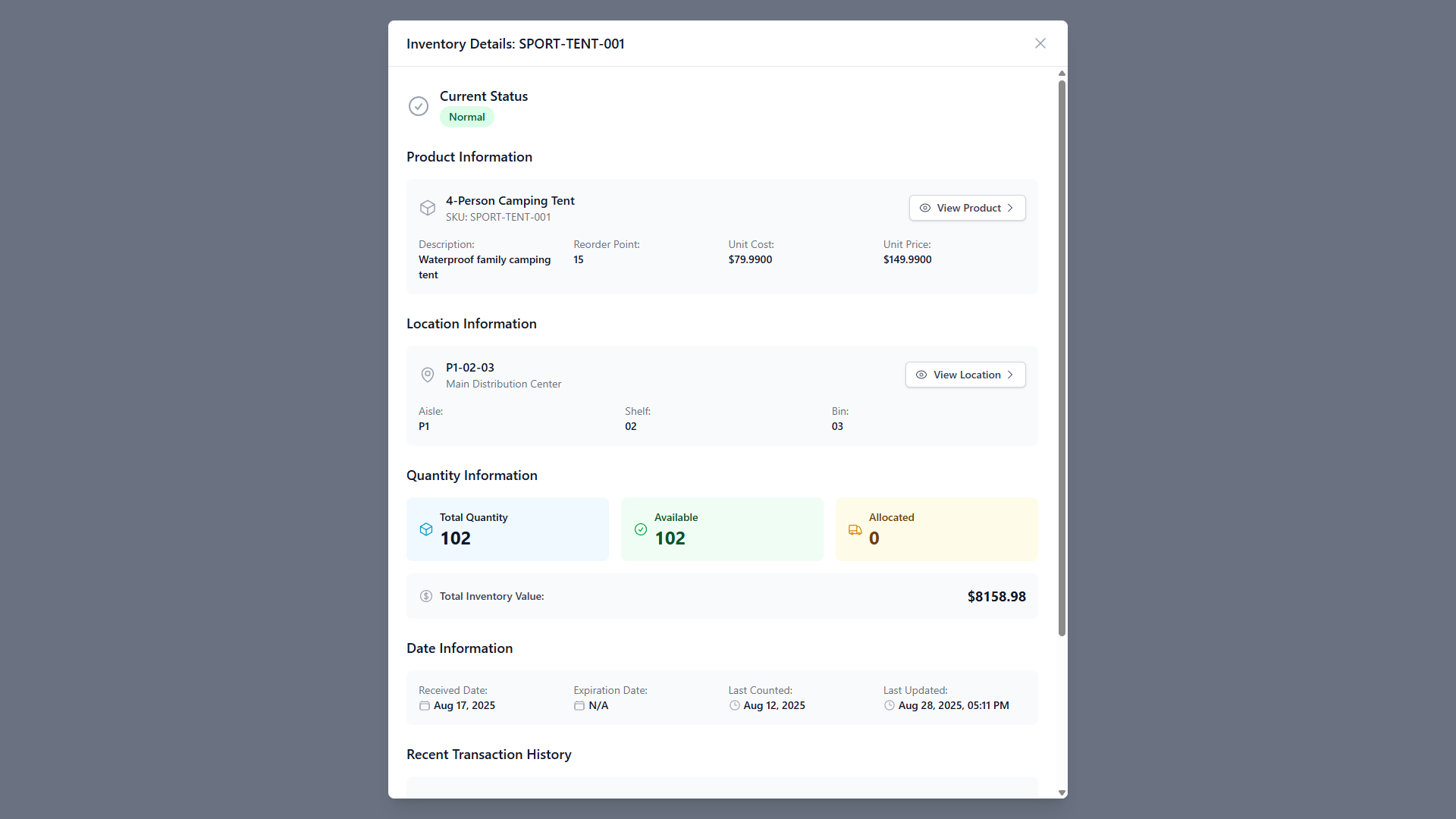
- The Inventory Detail Modal opens with extensive information
Step 2: Review Comprehensive Inventory Information
The inventory details modal provides complete information organized into eight distinct sections:
1. Status Header
- Current Status Badge: Visual indicator showing inventory condition
- Normal: Green badge for healthy inventory levels
- Low Stock: Orange badge when below reorder point
- Expiring Soon: Yellow badge for items expiring within 30 days
- Expired: Red badge for items past expiration date
2. Product Information
- Product Name and SKU: Complete product identification
- Description: Detailed product description and specifications
- Reorder Point: Minimum stock level before reordering
- Unit Cost and Price: Product pricing information
- Tracking Requirements: Lot and/or serial tracking indicators
- View Product Button: Direct navigation to product details page
3. Location Information
- Location Code: Specific warehouse location (Aisle-Shelf-Bin)
- Warehouse Name: Warehouse where inventory is stored
- Location Hierarchy: Complete location path structure
- View Location Button: Direct navigation to location details
4. Quantity Information (Visual Cards)
- Total Quantity: Complete inventory count at this location
- Available Quantity: Stock available for new orders
- Allocated Quantity: Stock reserved for existing orders
- Total Inventory Value: Calculated total value (quantity × cost)
5. Tracking Details (When Applicable)
- Lot Number: Manufacturing lot or batch number
- Serial Number: Unique item serial number
- Tracking Status: Visual indicators for lot/serial tracking
6. Date Information
- Received Date: When inventory was originally received
- Expiration Date: Product expiration date (color-coded by status)
- Last Counted Date: Most recent physical count
- Last Updated: Most recent system modification
7. Recent Transaction History
- Transaction List: Recent inventory movements and changes
- Transaction Types: INBOUND, OUTBOUND, and adjustment transactions
- Transaction Details: Quantity, reason, and timestamp
- Color Coding: Green for inbound, red for outbound, blue for adjustments
8. Navigation Actions
- View Product: Navigate to complete product information
- View Location: Navigate to location details and other inventory
- Close Modal: Return to inventory list
Advanced Inventory Features
Lot and Serial Number Tracking
The platform provides comprehensive traceability through advanced tracking capabilities:
Lot Tracking
- Purpose: Track manufacturing batches for quality control and recalls
- Implementation: Multiple items can share the same lot number
- Requirements: Required for products marked as lot-tracked
- Use Cases: Food products, pharmaceuticals, chemicals
- Recall Management: Quickly identify and isolate affected inventory
Serial Number Tracking
- Purpose: Track individual items with unique identifiers
- Implementation: Each item has a unique serial number
- Quantity Restriction: Serial-tracked items must have quantity = 1
- Use Cases: Electronics, equipment, high-value items
- Warranty Tracking: Individual item service and warranty history
Expiration Date Management
Expiration Monitoring
- Automatic Alerts: System identifies items expiring within 30 days
- Status Badges: Visual indicators for expiration status
- Expiring Soon: Yellow badge for items within 30 days of expiration
- Expired: Red badge for items past expiration date
- FIFO Support: First-In-First-Out rotation management
Expiration Workflows
- Expiring Filter: Quick access to items requiring attention
- Date Validation: System prevents setting past dates or invalid sequences
- Reporting: Track expiration trends and waste reduction
Cost Tracking and Valuation
Unit Cost Management
- Optional Entry: Unit costs can be recorded for valuation purposes
- Total Value Calculation: Automatic calculation of inventory value
- Cost Tracking: Historical cost information for analysis
- Valuation Methods: Support for various costing approaches
Financial Integration
- Inventory Valuation: Real-time inventory asset values
- Cost Analysis: Track cost trends and variances
- Reporting: Financial reporting and cost accounting support
Transaction History and Audit Trail
Complete Transaction Tracking
- All Movements: Track every inventory change and movement
- Transaction Types: INBOUND, OUTBOUND, adjustments, and transfers
- Timestamps: Precise date and time recording
- User Attribution: Track who performed each transaction
Audit Capabilities
- Full Traceability: Complete chain of custody tracking
- Compliance Support: Meet regulatory requirements
- Historical Analysis: Analyze patterns and trends
- Error Investigation: Research discrepancies and issues
Understanding Inventory Information
Advanced Quantity Management
Quantity Types
Total Quantity: The complete count of this product at this location - Represents actual physical inventory on hand - Includes both available and allocated stock - Updates in real-time with all transactions
Available Quantity: Stock ready for new orders and operations - Not reserved for existing orders or allocations - Available for immediate picking and shipping - Reduces when orders are allocated, increases when orders complete
Allocated Quantity: Stock reserved for pending orders - Currently assigned to orders awaiting fulfillment - Protected from other allocation requests - Returns to available when orders are cancelled or completed
Smart Status Indicators
The system provides intelligent status monitoring:
Normal Status (Green Badge): - Available quantity above reorder point - No expiration concerns - Ready for operations
Low Stock (Orange Badge): - Available quantity at or below reorder point - Requires attention for replenishment - May impact order fulfillment
Expiring Soon (Yellow Badge): - Items expiring within 30 days - Requires priority usage or disposition - FIFO rotation recommended
Expired (Red Badge): - Items past expiration date - Requires immediate attention - May need disposal or return
Multi-Location Inventory Management
Location Hierarchy
Products can be stored across multiple locations with hierarchical organization: - Warehouse Level: Top-level organization by facility - Aisle Level: Logical groupings within warehouses - Shelf Level: Specific storage areas within aisles - Bin Level: Precise storage locations on shelves
Location-Specific Tracking
- Individual Records: Each location maintains separate inventory records
- Consolidated Views: System provides warehouse and company-wide totals
- Movement History: Track inventory transfers between locations
- Location Optimization: Analyze location efficiency and utilization
Warehouse Context Management
Understanding Warehouse Context
The inventory management system operates within a warehouse context that filters all operations and views:
Warehouse Context Indicator
- Location: Top of the inventory page
- Display: Shows current warehouse (e.g., "Showing inventory for Demo Warehouse Facility")
- Scope: All inventory operations are filtered by this context
- Switching: Change context from the warehouse selector in the navigation
Context-Filtered Operations
Inventory Viewing: - Only shows inventory for the selected warehouse - Filters all search and status operations - Maintains context across page refreshes
Adding Inventory: - New inventory automatically assigned to current warehouse context - Location selection filtered to current warehouse only - Prevents cross-warehouse errors
Navigation Integration: - Breadcrumbs and navigation maintain warehouse context - Deep links preserve warehouse selection - URL parameters support warehouse filtering
Warehouse Status and Operations Control
Active vs. Inactive Warehouses
Warehouses can be enabled or disabled to control operational access:
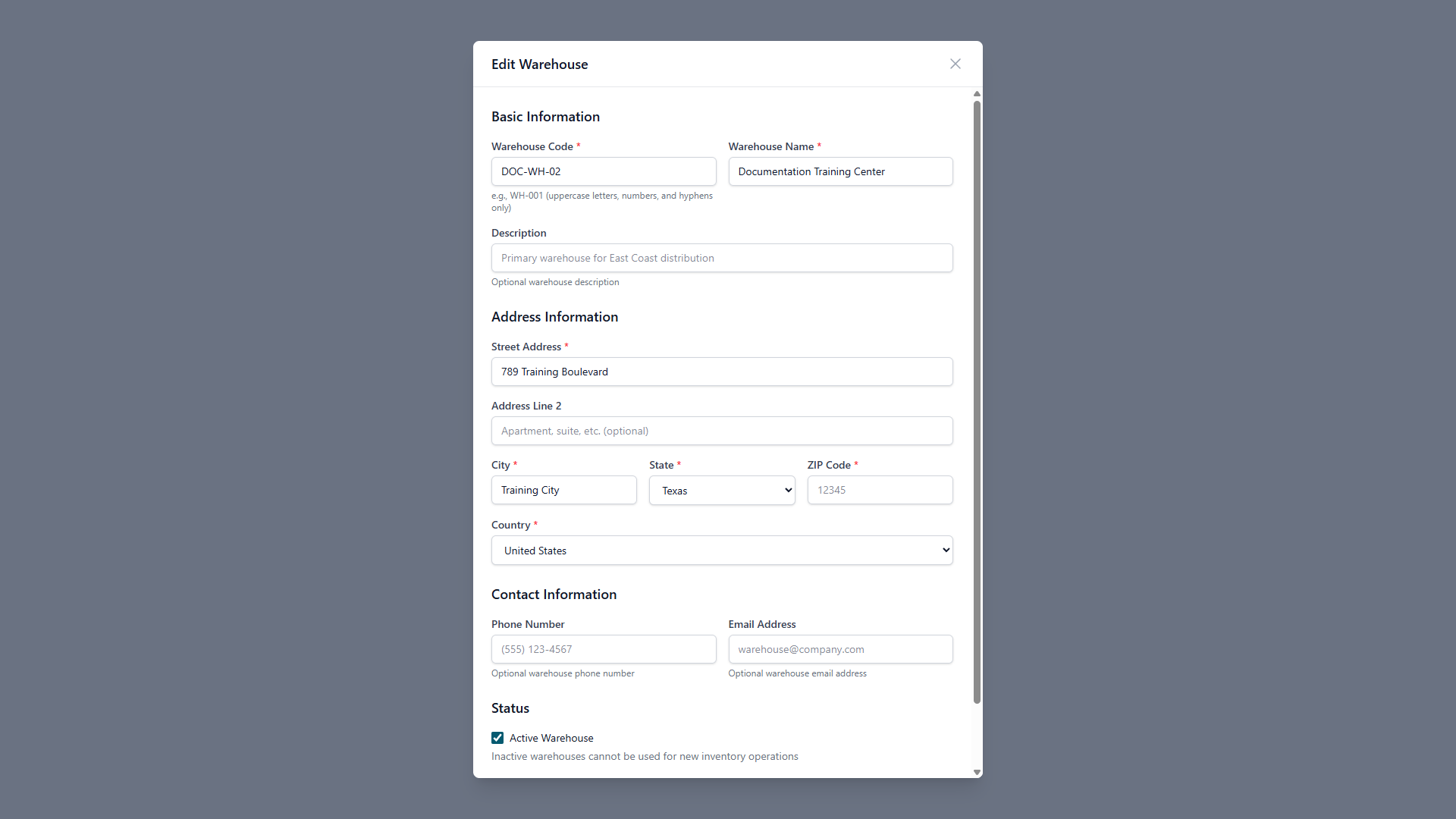
Managing Warehouse Status: 1. Navigate to Warehouse Management → Warehouses 2. Click the "Edit" button next to any warehouse 3. In the edit form, locate the "Active Warehouse" checkbox 4. Checked: Warehouse is active and operational 5. Unchecked: Warehouse is disabled (data preserved but not operational)
Impact of Warehouse Status on Inventory
Active Warehouses: - Full inventory operations available - Can add, modify, and track inventory - Supports receiving, picking, and shipping operations - Complete reporting and analytics access
Disabled Warehouses: - Inventory viewing remains available - Cannot add new inventory or modify existing - Historical data and reporting preserved - Operations suspended until re-enabled
Best Practices for Warehouse Management
- Temporary Closure: Disable warehouses during maintenance or restructuring
- Seasonal Operations: Disable seasonal warehouses during off-periods
- Data Integrity: All historical data preserved when disabled
- Communication: Notify team members before changing warehouse status
- Context Switching: Train users on warehouse context selection
- Access Control: Ensure appropriate warehouse permissions for users
Inventory Workflows
Standard Inventory Addition Workflow
Preparation Phase
- Verify Prerequisites:
- Ensure warehouse context is correct
- Confirm products are configured in system
- Verify locations exist and are active
-
Check user permissions for inventory addition
-
Gather Information:
- Product identification (name, SKU, or barcode)
- Quantity being added
- Location for storage
- Unit cost (if tracking financial values)
- Lot/serial information (if required)
- Received and expiration dates
Addition Process
- Access Add Inventory Modal: Click "Add Inventory Item" button
- Product Selection: Use product selector to find and select item
- Location Assignment: Choose appropriate storage location
- Quantity and Cost: Enter quantities and optional cost information
- Tracking Data: Complete lot/serial information if required
- Date Information: Set received date and optional expiration
- Documentation: Add notes for additional context
- Validation and Submit: Review all information and create record
Post-Addition Activities
- Verification: Confirm inventory appears in system
- Physical Organization: Ensure items are properly stored at location
- Documentation: Update any external tracking systems
- Team Communication: Notify relevant team members if needed
Inventory Research and Analysis Workflow
Locating Specific Inventory
- Search Methods:
- Use search bar for product names, SKUs, or locations
- Apply status filters (All, Low Stock, Expiring)
-
Use URL parameters for specific product/location filtering
-
Analysis Process:
- Click inventory row to open detailed view
- Review status indicators and alerts
- Examine transaction history
- Check tracking information
- Evaluate quantity levels against reorder points
Status Investigation
- Low Stock Items:
- Use "Low Stock" filter to identify items needing replenishment
- Review reorder points and available quantities
- Check recent transaction history for consumption patterns
-
Coordinate with purchasing for replenishment
-
Expiring Items:
- Use "Expiring" filter to identify items requiring attention
- Prioritize items closest to expiration
- Consider FIFO rotation strategies
- Plan disposition for expired items
Cross-System Navigation Workflows
Product-Centric Research
- From Inventory to Product: Click "View Product" in inventory details modal
- Product Analysis: Review complete product information and specifications
- System-Wide Inventory: See all locations where product is stored
- Related Information: Access product history, specifications, and settings
Location-Centric Analysis
- From Inventory to Location: Click "View Location" in inventory details modal
- Location Overview: See all products stored at that location
- Capacity Analysis: Evaluate location utilization and capacity
- Movement History: Review location-based transaction history
Best Practices
Inventory Data Management
Data Entry Best Practices
Consistent Information: - Use standardized lot numbering conventions across your organization - Maintain consistent serial number formats for trackable items - Enter complete product information including unit costs when available - Use descriptive notes to provide context for future reference
Date Management: - Always enter received dates accurately for inventory aging analysis - Set expiration dates for perishable items to enable proper rotation - Use consistent date formats across all entries - Validate date sequences (expiration after received date)
Location Assignment: - Follow logical location assignment patterns (faster moving items in accessible areas) - Maintain location cleanliness and organization standards - Use location hierarchy effectively (warehouse → aisle → shelf → bin) - Consider product compatibility when assigning adjacent locations
Operational Workflows
Daily Operations
Morning Inventory Review: - Check "Low Stock" filter for items requiring replenishment - Review "Expiring" filter for items needing immediate attention - Monitor available vs. allocated quantities for order fulfillment capacity - Verify warehouse context is correctly set for your operations
Ongoing Monitoring: - Use status badges to quickly identify inventory requiring attention - Leverage real-time search capabilities for quick product location - Maintain physical organization matching system locations - Update inventory movements promptly to maintain accuracy
Weekly Analysis
Inventory Health Checks: - Review transaction history for unusual patterns or discrepancies - Analyze slow-moving inventory for disposition decisions - Evaluate location utilization and capacity planning - Assess reorder points against actual consumption patterns
Data Quality Reviews: - Verify lot/serial tracking information accuracy - Check expiration date accuracy and update as needed - Review and clean up obsolete or duplicate inventory records - Validate location assignments and physical organization
Multi-Warehouse Operations
Warehouse Context Management
Context Switching: - Always verify warehouse context before performing operations - Train team members on proper warehouse selection procedures - Use context indicators to avoid cross-warehouse errors - Maintain warehouse-specific operational procedures
Cross-Warehouse Coordination: - Understand inventory visibility across multiple warehouses - Coordinate inter-warehouse transfers through proper channels - Maintain consistent product and location coding across facilities - Use warehouse-specific reporting for operational decisions
Access Control and Permissions
User Training: - Ensure users understand warehouse context implications - Train on proper use of search and filtering capabilities - Emphasize importance of accurate data entry - Provide guidance on status interpretation and action requirements
Technology Utilization
Search and Navigation Optimization
Efficient Searching: - Use specific search terms for faster results (SKU, product name, location code) - Leverage status filters to focus on items requiring attention - Combine search terms with filters for precise results - Bookmark frequently accessed products or locations in browser
System Integration: - Use cross-navigation features to research related information - Leverage URL parameter filtering for specific analysis needs - Take advantage of real-time data updates for current information - Use transaction history for troubleshooting and analysis
Mobile and Accessibility
Mobile Operations: - Use responsive design features for mobile inventory management - Take advantage of touch-optimized interfaces for warehouse floor operations - Leverage mobile search capabilities for quick lookups - Use mobile-friendly status indicators for quick status assessment
Troubleshooting
Common Issues and Solutions
Inventory Data Issues
Issue: Inventory quantities seem incorrect or inconsistent - Immediate Check: Review recent transaction history in inventory details modal - Verification Steps: - Check allocated quantities against open orders - Review INBOUND/OUTBOUND transactions for recent changes - Verify warehouse context is correct for your expectations - Advanced Troubleshooting: Compare available + allocated = total quantity calculation - Escalation: Contact administrator if discrepancies persist after verification
Issue: Cannot find specific products in inventory - Search Strategy: - Try broader search terms or clear all active filters - Use SKU search instead of product name for precise results - Check if you're in the correct warehouse context - Filter Review: Clear URL parameter filters (Product ID, Location ID, Warehouse ID) - Alternative Approach: Navigate to Products page and use "View Inventory" from there - Verification: Confirm product exists in system and has inventory records
Issue: Add Inventory Modal shows no available locations - Warehouse Check: Verify you're in the correct warehouse context - Location Status: Confirm locations exist and are active in the selected warehouse - Permission Verification: Ensure you have access to create inventory in current warehouse - System Check: Contact administrator if locations should exist but aren't visible
Performance and Display Issues
Issue: Inventory details modal not displaying or loading slowly - Immediate Solution: Refresh the page and try again - Network Check: Verify stable internet connection and network performance - Browser Check: Try accessing from a different browser or clear browser cache - Data Volume: Large transaction histories may take time to load - Alternative: Try accessing inventory details for different items to isolate the issue
Issue: Status badges or indicators not displaying correctly - Cache Clear: Clear browser cache and refresh the page - Data Refresh: Close and reopen inventory details modal - Timing: Allow time for real-time updates to propagate - Browser Compatibility: Ensure you're using a supported browser version
Issue: Warehouse context seems stuck or incorrect - Context Reset: Use warehouse selector in navigation to explicitly change context - Browser Refresh: Refresh the page to reload warehouse context - Local Storage: Clear browser local storage if context persists incorrectly - User Default: Contact administrator to verify your default warehouse settings
Functional Operation Issues
Issue: Cannot add inventory (modal not submitting) - Validation Check: Review all required fields and error messages - Product Requirements: Verify lot/serial number requirements for selected product - Date Validation: Ensure received date is not in future, expiration after received date - Permission Check: Verify you have inventory creation permissions - Network Stability: Check network connection during submission
Issue: Search and filtering not working as expected - Filter Combination: Try using filters individually rather than combined - Search Terms: Use more specific or alternative search terms - Case Sensitivity: Search is case-insensitive, but try exact matches - Special Characters: Avoid special characters that might interfere with search - Reset Approach: Clear all filters and search terms, then rebuild query
Issue: Transaction history not loading or incomplete - Wait Time: Allow additional time for transaction data to load - Network Check: Verify stable network connection - Data Scope: Transaction history shows most recent 10 transactions by default - Alternative Access: Try viewing transaction history for different products - System Status: Check if inventory transaction services are operational
Access and Permission Issues
Issue: Warehouse appears inactive or inaccessible - Status Check: Verify warehouse is enabled in warehouse management settings - Permission Verification: Confirm you have access permissions for the warehouse - User Role: Check your user role includes inventory access for this warehouse - Administrator Contact: Contact administrator to enable warehouse or adjust permissions
Issue: Cannot switch between warehouses - Navigation Check: Ensure warehouse selector is accessible in your user interface - Permission Review: Verify you have access to multiple warehouses - Role Verification: Confirm your user role supports multi-warehouse access - Cache Clear: Clear browser cache if warehouse list not updating
Performance Optimization
System Performance Tips
- Regular Cache Clear: Clear browser cache weekly for optimal performance
- Network Stability: Use stable network connection for best experience
- Browser Updates: Keep browser updated to latest version
- Concurrent Users: Be aware that system performance may vary with user load
Data Management for Performance
- Specific Searches: Use specific search terms rather than broad queries
- Filter Usage: Apply filters to reduce data volume for faster loading
- Batch Operations: Group similar inventory operations together
- Regular Maintenance: Keep inventory data clean and up-to-date
Getting Additional Help
Self-Service Resources
- System Status: Check platform status dashboard if available
- Browser Diagnostics: Try different browsers or incognito mode
- Network Testing: Test network connectivity and speed
- Documentation Review: Consult related user guides (Products, Locations, Warehouses)
Escalation Process
- Screenshot Documentation: Capture screenshots of issues for support requests
- Error Information: Note exact error messages and browser console information
- Reproduction Steps: Document steps to reproduce the issue
- Contact Administrator: Report persistent issues with detailed information
- Support Ticket: Follow organizational procedures for technical support requests
Integration Notes
Cross-System Data Flow
Real-time Updates
Inventory levels update immediately when: - Products are received into inventory through receiving workflows - Items are allocated to orders during order processing - Products are shipped or consumed through fulfillment workflows - Manual adjustments are made through inventory management - Inter-warehouse transfers are completed
Multi-Module Integration
Inventory data integrates seamlessly with: - Product Management: Product specifications, tracking requirements, and reorder points - Location Management: Hierarchical location structure and capacity management - Order Management: Automatic allocation and availability checking - Receiving Workflows: Direct inventory updates from inbound shipments
- Shipping Operations: Real-time quantity adjustments during fulfillment - Reporting Systems: Historical and current inventory analytics and valuation
User Permissions and Access Control
Role-Based Access
Inventory Viewer: Can view inventory information and details Inventory Manager: Can view and add inventory items Warehouse Manager: Full inventory operations within assigned warehouses System Administrator: Complete inventory management across all warehouses
Warehouse-Specific Permissions
- Users can be granted access to specific warehouses only
- Warehouse context automatically filters based on user permissions
- Multi-warehouse access requires appropriate role assignments
- Administrative functions require elevated permissions
Last Updated: August 2025
Version: 2.0
For additional assistance, advanced features, or integration support, please contact your system administrator or refer to the complete Zora Tech Logistics Platform documentation.
Integration Notes
Data Flow
Real-time Updates: Inventory levels update immediately when: - Products are received into inventory - Items are allocated to orders - Products are shipped or consumed - Manual adjustments are made
Cross-Module Integration: Inventory data integrates with: - Orders: Automatic allocation and availability checking - Receiving: Direct inventory updates from inbound shipments
- Shipping: Real-time quantity adjustments during fulfillment - Reporting: Historical and current inventory analytics
User Permissions
View Access: All users can typically view inventory information Edit Access: Inventory modifications require specific permissions Administrative Access: Warehouse status changes require admin privileges
Last Updated: August 2025
Version: 1.0
For additional assistance or feature requests, please contact your system administrator or refer to the complete Zora Tech Logistics Platform documentation.