Inventory Management
Track on-hand stock across locations, lots, serials, and containers — all scoped to your active warehouse.
Looking to change a quantity?
This page covers viewing stock: searching, filtering, exporting, and reading an item's detail and history.
To correct an on-hand quantity, see Inventory Adjustments. To correct one from a physical count, see Cycle Counting.
From the Inventory page you can search and filter stock, drill into an item's history, export to CSV, and launch counts and moves.
Before you begin
Inventory is scoped to your active warehouse — set it with the warehouse selector in the top header before you start. You see stock only for the customers your account is permitted to view.
Every stock record carries three quantities:
| Quantity | What it means |
|---|---|
| Quantity | The total on hand |
| Allocated | Committed to orders |
| Available | On hand minus allocated — what's free to allocate |
The inventory page
The page is titled Inventory with the subtitle "Manage and track your inventory across all locations." Stock appears in a table with columns including:
| Column | Description |
|---|---|
| Equipment # | The trailer/container number from the receiving order the stock arrived on. |
| Product | Product name (with SKU (Stock Keeping Unit) and Description available as columns). |
| Location | The storage location (with Aisle, Shelf, and Bin available). |
| Customer | The owning customer (and Customer #). |
| Quantity / Allocated / Available | On hand, committed, and free. |
| Lot/Serial | Lot number and/or serial number for tracked products. |
| Expiration | Expiration date for lot-tracked stock. |
| LPN | The container (License Plate Number) holding the stock, if any. |
| Actions | Count, Move, Edit, and related actions. |
Some columns are hidden by default — you can show, hide, and reorder columns, and your layout is remembered per user. See System Settings.
Equipment # column
The Equipment # column links each stock record back to the equipment (trailer or container) it was received on, so you can trace inventory to its inbound load. (Added in v1.5.)
Searching and filtering
Use the search box to match across product, SKU, location, customer, equipment #, or LPN. Alongside search, operator-based filters narrow the list:
| Filter | Narrows to |
|---|---|
| LPN status | In LPN or Not in LPN |
| Customer | One or more customers |
| Product | One or more products |
Each filter supports the operators is / is not / is any of / is none of. Your filter selections are saved in the page URL, so a filtered view is a link you can bookmark or share.
Operator-based inventory filtering and shareable URL views shipped in v1.3.
Exporting to CSV
Export the inventory list to CSV for analysis or sharing. The export includes all rows that match your current filters across every page — not just the page you're looking at — so a filtered export is complete.
Exporting all matching rows (rather than only the current page) shipped in v1.5.
What you can see across customers
When a user has access to several customer accounts, inventory is scoped by data filters (row-level security): you see only the stock for the customers you're permitted to view. A user assigned to multiple customers sees inventory across all of them.
Customer data-filter access control shipped in v1.2; support for users with multiple customer filters was corrected in v1.5.
Lot tracking
For lot-tracked products, each stock record carries a lot number and an optional expiration date, captured during receiving. A single receiving order can record multiple lots of the same product, each with its own quantity and expiration date.
Expiration dates flow through to the Inventory page (the Expiration column) and drive FEFO allocation and the expiring/expired warnings described below. For the full lot lifecycle, see Serial & Lot Tracking.
Lot tracking with expiration dates shipped in v1.1; multi-lot receiving in v1.4.
Serial tracking
Serial-tracked products are followed individually through their lifecycle — Expected → Received → In Inventory → Allocated → Picked → Shipped (plus Missing / Lost for exceptions). You can register serials in bulk by CSV upload rather than entering them one at a time.
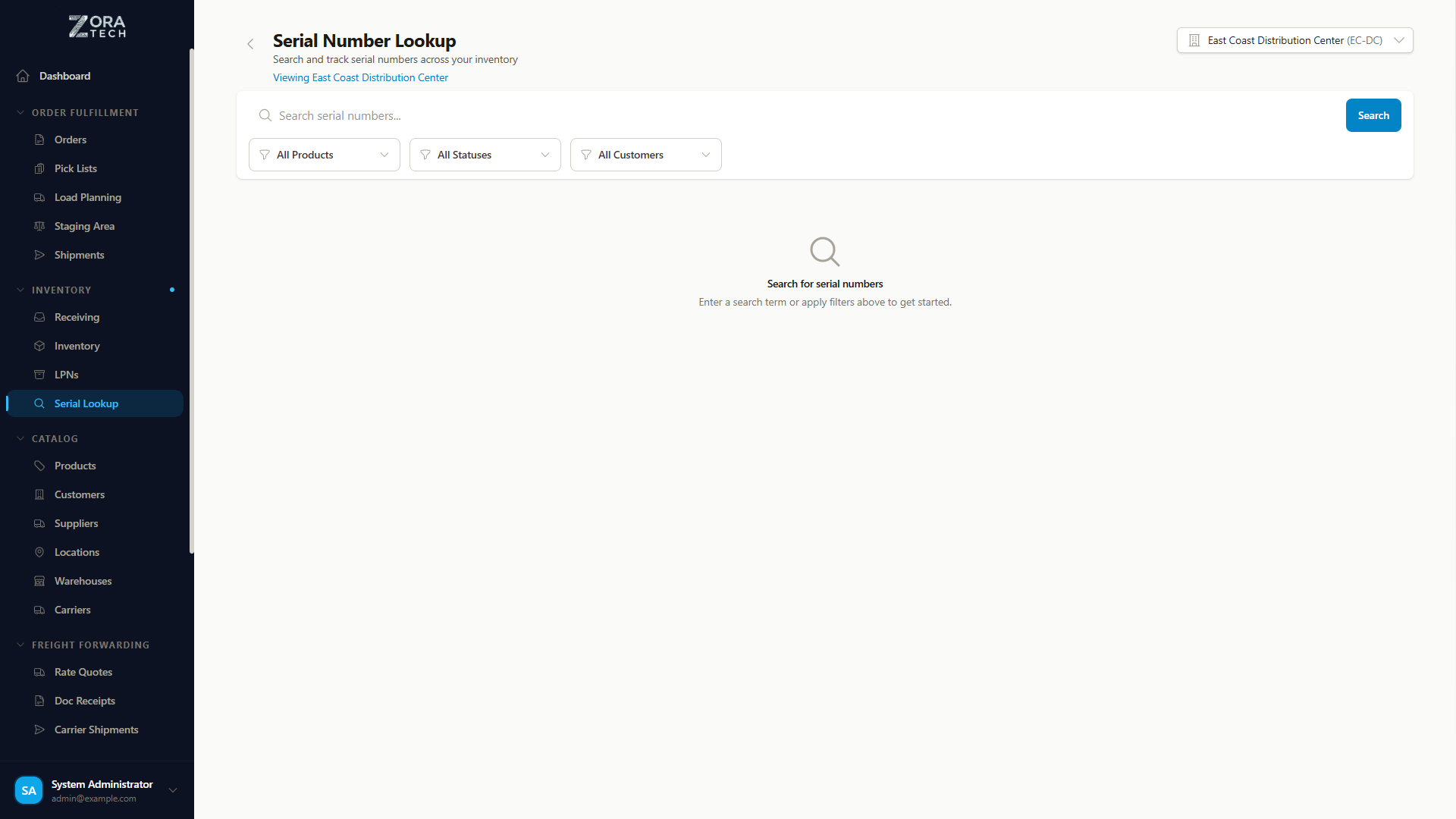
To search for a specific serial across its whole history, use the dedicated Serial Number Lookup page; for how serial tracking works end to end, see Serial & Lot Tracking.
Serial number lifecycle tracking shipped in v1.1; bulk CSV upload in v1.2.
Allocation and finding stock
When orders are allocated, the platform chooses stock using the warehouse's allocation strategy — FIFO, FEFO, or LIFO. Under FEFO, the earliest-expiring stock goes first, and any allocation that includes inventory past its expiration date is flagged with a warning to review.
When you allocate manually, the platform helps you pick the right stock:
| Tool | What it does |
|---|---|
| Lot-Level Allocation Cards | For lot-tracked products, the manual allocation view shows a card per lot with its lot number, expiration date, and available quantity, so you can allocate from the correct lot |
| Manual Location Search | During putaway, search locations by code, aisle, or zone, alongside auto-suggest and barcode scanning |
| Manual LPN Barcode Lookup | Scan or search for a specific LPN barcode in the putaway selector |
All three shipped in v1.5.
Adjusting inventory
Every stock change is recorded as an inventory transaction — receive, putaway, pick, move, adjust, count, allocate/deallocate, damage, return, and more — giving each record a complete history.
To correct on-hand quantities (for damage, loss, expiry, reconciliation, or a found item), use an inventory adjustment with a reason. See Inventory Adjustments for the full procedure, and Cycle Counting for count-driven corrections.
Viewing item details
Click an inventory record to open its detail view, which shows its quantities, location, lot/serial and expiration, the LPN it belongs to, and its transaction history.