Mobile Application
Table of Contents
- Overview
- Getting Started
- Mobile Dashboard
- Mobile Navigation
- Mobile Workflows
- Receiving Workflow
- Order Management
- Inventory Management
- Key Features
- Touch-Optimized Interface
- Best Practices
- Troubleshooting
Overview
The Zora Tech Logistics Platform includes a Progressive Web Application (PWA) optimized for mobile warehouse floor operations. The mobile interface provides touch-optimized workflows for receiving, order processing, inventory management, and more - all accessible from any mobile device with a modern browser.
Key Capabilities: - Responsive mobile-first design with 44px+ touch targets - Camera barcode scanning for product identification - Offline support with automatic sync - Bottom navigation for thumb-reachable controls - Card-based layouts for complex data - Real-time updates and haptic feedback
Getting Started
Accessing the Mobile App
- Open your mobile browser (Chrome or Safari)
- Navigate to your instance URL (e.g.,
https://demo.zoratech.io) - Log in with your credentials
- Optional: Add to your home screen for quick access
Add to Home Screen
iPhone/iPad
- Tap the Share button
- Scroll and tap Add to Home Screen
- Tap Add
Android
- Tap the three-dot menu
- Tap Add to Home screen
- Tap Add
Mobile Dashboard
The mobile dashboard provides quick access to key warehouse metrics and primary workflows, all optimized for mobile devices.
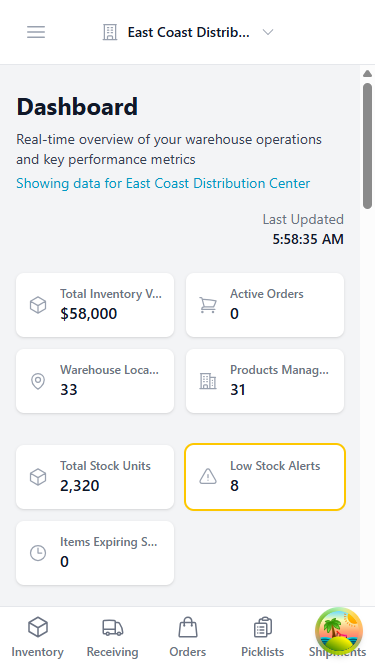
Dashboard Components:
- Warehouse Selector: Tap to switch between warehouses (top of screen)
- Key Metrics Cards: Quick view of today's orders, inventory alerts, and receiving status
- Bottom Navigation Bar: Access primary workflows with thumb-reachable buttons:
- Dashboard (home icon)
- Receiving (inbox icon)
- Orders (shopping cart icon)
- Products (box icon)
- More (hamburger menu icon)
The dashboard automatically updates in real-time as warehouse operations progress throughout the day.
Mobile Navigation
Access all platform features through the mobile navigation sidebar, which complements the bottom navigation bar for quick access to additional modules.
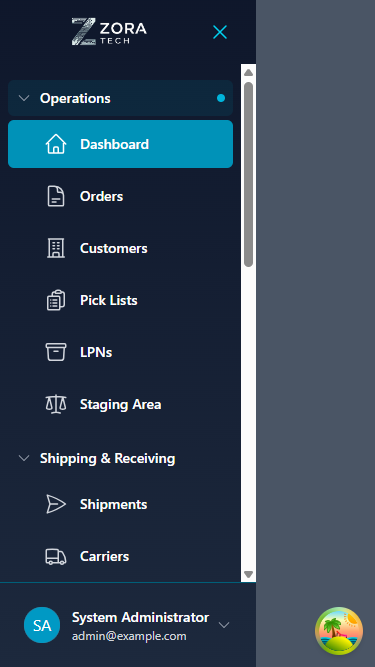
Opening the Navigation:
- Tap the hamburger menu icon (≡) in the bottom navigation
- Sidebar slides in from the left
- Tap any menu item to navigate
- Tap outside sidebar or back button to close
Navigation Sections:
- Core Operations: Dashboard, Inventory, Orders, Customers
- Warehouse Management: Receiving, LPNs, Locations
- Shipping & Logistics: Shipping operations
- Settings & Profile: User preferences, warehouse context
The sidebar adapts to your screen size and provides scrollable access to all platform modules.
Mobile Workflows
The mobile interface optimizes common warehouse workflows with card-based layouts, large touch targets, and barcode scanning integration.
Receiving Workflow
Process incoming inventory directly from your mobile device with an optimized receiving workflow.
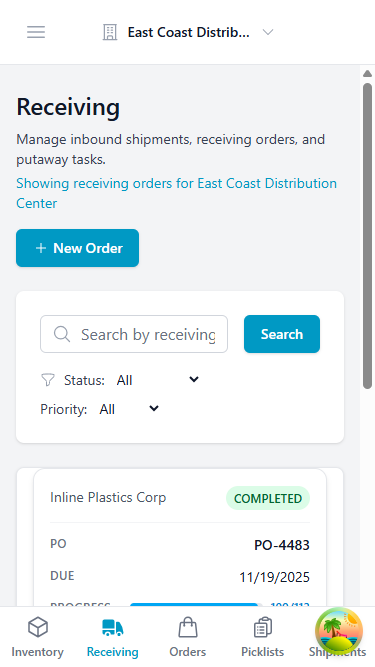
Receiving on Mobile:
- View Receiving Orders: Open orders displayed as cards with key details
- PO number and supplier information
- Expected quantity and status
-
Swipe or tap to expand details
-
Scan Product Barcode: Use camera to scan incoming products
- Tap barcode icon to activate camera
- Point at barcode for automatic detection
-
System validates against expected items
-
Enter Quantity: Large numeric keypad for easy quantity entry
- Visual confirmation of quantities
-
Variance alerts if quantity doesn't match
-
Scan/Generate LPN: Create or scan License Plate Numbers
- Auto-generate LPN labels
-
Print or use existing LPNs
-
Assign Location: Scan or select putaway location
- Location validation
-
Capacity warnings
-
Confirm Receipt: Complete the receiving process
- Review summary
- Submit with haptic feedback
Order Management
View and process customer orders with a mobile-optimized interface designed for warehouse floor operations.
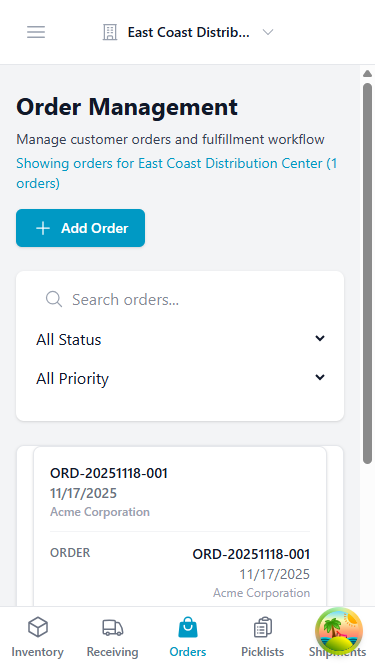
Order Processing Features:
- Order Cards: Each order displayed as a card showing:
- Order number and customer name
- Status badge (New, Allocated, Staged, Shipped)
-
Total items and priority indicators
-
Search & Filters: Find orders quickly
- Search by order number or customer
- Filter by status, warehouse, date range
-
Sort by priority or date
-
Quick Actions: Tap order card to:
- View complete order details
- Start picking workflow
- Print pick list or packing slip
-
Update order status
-
Pick Lists: Mobile-optimized picking interface
- Step-by-step picking guidance
- Location navigation
- Barcode verification
- Quantity confirmation
Inventory Management
Monitor and manage inventory levels with card-based layouts optimized for mobile screens.
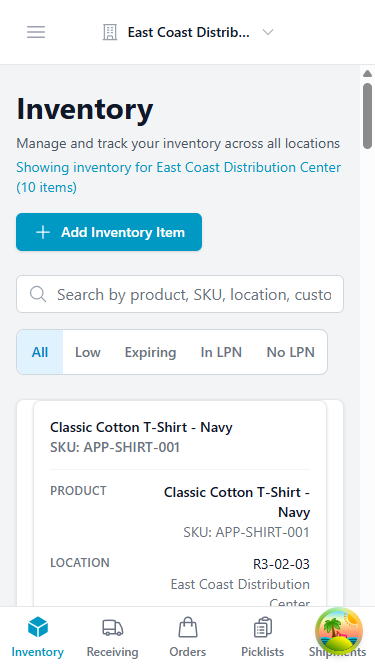
Inventory Features:
- Product Cards: Each product displayed with:
- Product name and SKU
- Current quantity and location information
- Visual status indicators
-
Quick action buttons
-
Search Capabilities:
- Search by product name, SKU, or barcode
- Filter by warehouse, category, or status
-
Sort by quantity, name, or date
-
Quick Inventory Actions:
- Tap product card for full details
- Initiate cycle count
- View inventory history
- Create adjustment
-
Transfer between locations
-
Real-Time Updates: Inventory quantities update automatically as receiving, picking, and transfers occur
Key Features
Barcode Scanning
Camera Access
The mobile app requires camera access for barcode scanning. Grant permission when prompted.
Supported Formats: - Code 128 - Code 39 - EAN-13 - UPC - QR Code
Usage: 1. Tap the barcode scan button 2. Point camera at barcode 3. System automatically detects and processes
Offline Support
Works Offline
The mobile app saves your work even when you lose connection. Changes sync automatically when you're back online.
Offline Capabilities: - Continue working during network interruptions - Automatic queuing of pending changes - Background sync when connection restored - Visual indicators for offline status - Cached data for faster loading
Touch-Optimized Interface
Design Principles
- Large Touch Targets: All buttons are 44px+ for easy tapping
- Mobile Cards: Complex data displayed in card format
- Minimal Scrolling: Key actions always visible
- Haptic Feedback: Tactile confirmation of actions
Navigation Patterns
- Bottom Navigation: Primary navigation at thumb-reachable area
- Dashboard, Receiving, Orders, Products, More
-
Always visible for quick workflow switching
-
Swipe Gestures: Swipe to navigate between sections
- Natural mobile interactions
-
Smooth transitions between views
-
Pull to Refresh: Update data with pull-down gesture
- Manual data refresh capability
- Visual feedback during refresh
Performance Optimization
The mobile app is optimized for warehouse environments with varying network conditions:
- Fast Initial Load: Progressive loading shows content quickly
- Efficient Data Usage: Minimal bandwidth consumption for cellular connections
- Cached Assets: Images and resources cached for offline access
- Optimized Images: Responsive images sized for mobile screens
- Smart Prefetching: Anticipates next screens to reduce wait time
Common Mobile Workflows
Receiving Workflow
- Scan receiving order barcode or enter PO number
- Scan product barcode
- Enter quantity received
- Scan LPN label (or generate new)
- Scan putaway location
- Confirm receipt
Picking Workflow
- Open pick list from order
- Navigate to first location
- Scan location barcode (verification)
- Scan product barcode
- Enter quantity picked
- Move to next item
- Complete pick list
Cycle Count Workflow
- Scan location barcode
- System displays expected inventory
- Scan each product barcode
- Enter actual quantity found
- System calculates variance
- Submit count
Performance
The mobile app is optimized for fast loading and efficient data usage, even on slower connections.
Troubleshooting
Camera Not Working
HTTPS Required
Camera access requires HTTPS. Ensure you're accessing the app via a secure connection.
Solutions: 1. Grant camera permissions in browser settings 2. Check HTTPS connection (look for padlock icon) 3. Reload the app 4. Clear browser cache
Barcode Not Scanning
- Ensure adequate lighting
- Hold camera steady
- Position barcode within frame
- Clean barcode label if dirty
- Try manual entry as fallback
App Running Slow
- Close unused browser tabs
- Clear browser cache
- Check network connection
- Restart browser
- Update browser to latest version
Offline Sync Issues
- Wait for network connection
- Manually trigger sync (pull to refresh)
- Check airplane mode is off
- Verify you're within WiFi range
Best Practices
Battery Management
- Enable auto-brightness
- Close app when not in use
- Use WiFi instead of cellular when possible
- Disable background app refresh for other apps
Data Usage
- Connect to WiFi for bulk uploads
- Enable data compression in settings
- Avoid downloading large reports on cellular
Device Recommendations
Minimum Requirements: - iOS 14+ or Android 8+ - 2GB RAM - Modern browser (last 2 versions)
Recommended Devices: - Rugged warehouse scanners with Android - iPad (6th gen or newer) - Android tablets (10"+)
Related Documentation
Support
For mobile app issues:
- Email: support@zoratech.io
- FAQ: Mobile App FAQ
- Troubleshooting: Mobile Issues