Mobile application
Run receiving, order processing, and inventory management from any mobile device with a modern browser — no app store install required.
Zora's mobile interface is a Progressive Web App (PWA): camera barcode scanning, bottom navigation built for one thumb, and card-based layouts for warehouse data. Pages you have already opened stay readable without a signal, but recording work needs one — see What happens when you lose signal.
Accessing the mobile app
- Open your mobile browser — Chrome or Safari.
- Go to your instance URL, for example
https://demo.zoratech.io. - Log in with your credentials.
- Optionally, add it to your home screen for quick access — see below.
Add to home screen
- Tap the Share button.
- Scroll down and tap Add to Home Screen.
- Tap Add.
- Tap the three-dot menu.
- Tap Add to Home screen.
- Tap Add.
Mobile dashboard
The mobile dashboard gives you quick access to key warehouse metrics and your primary workflows.
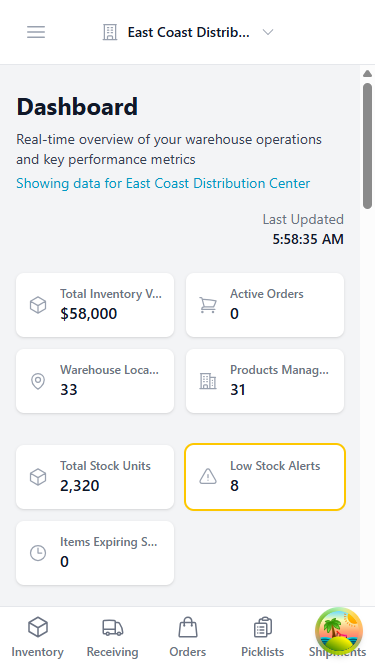
| Component | What it does |
|---|---|
| Warehouse Selector | Tap it, at the top of the screen, to switch between warehouses |
| Key Metrics Cards | Quick view of today's orders, inventory alerts, and receiving status |
| Bottom Navigation Bar | Thumb-reachable buttons for Dashboard, Receiving, Orders, Products, and More |
The dashboard updates in real time as warehouse operations progress through the day.
Mobile navigation
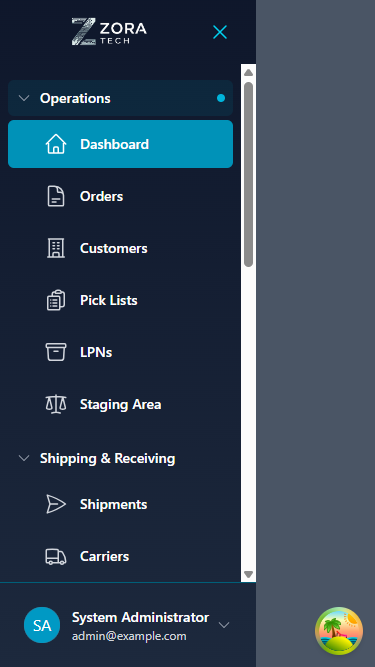
The navigation sidebar reaches every platform feature, complementing the bottom navigation bar's quick access to your main workflows.
-
Tap the hamburger menu icon (☰) in the bottom navigation.
The sidebar slides in from the left.
-
Tap any menu item to go there.
- Tap outside the sidebar, or the back button, to close it.
| Section | Contains |
|---|---|
| Core Operations | Dashboard, Inventory, Orders, Customers |
| Warehouse Management | Receiving, LPNs, Locations |
| Shipping & Logistics | Shipping operations |
| Settings & Profile | User preferences, warehouse context |
The sidebar adapts to your screen size and scrolls to reach every module.
Mobile workflows
Card-based layouts, large touch targets, and barcode scanning carry through every mobile workflow.
Receiving
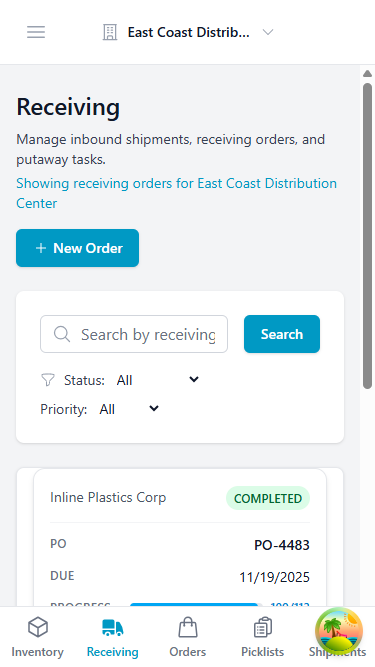
- Open a receiving order — scan its barcode or enter the PO number. Orders also appear as cards with the PO number, supplier, expected quantity, and status; swipe or tap a card to expand it.
- Tap the barcode icon and scan each incoming product. Zora validates it against the expected items.
- Enter the quantity on the numeric keypad. You'll see a variance alert if it doesn't match what's expected.
- Scan an existing LPN or generate a new one. Zora can auto-generate and print the label.
- Scan or select the putaway location. Zora validates it and warns you if it's over capacity.
-
Review the summary and confirm the receipt.
You feel a haptic tap confirming the submission.
Order management
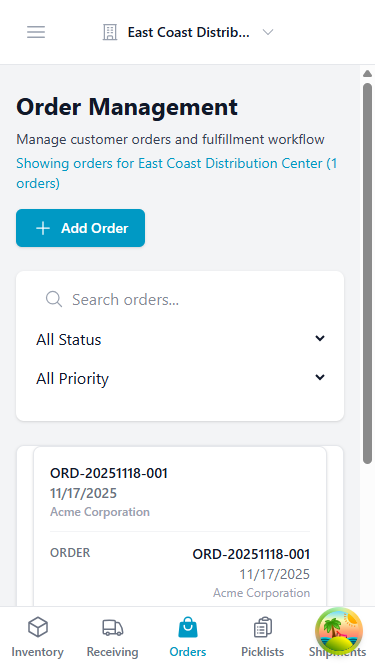
Orders appear as cards showing the order number, customer name, a status badge (New, Allocated, Staged, Shipped), total items, and priority.
Search by order number or customer, filter by status, warehouse, or date range, and sort by priority or date.
Tap an order card to view its full details, start picking, print the pick list or packing slip, or update its status. The picking interface guides you step by step: location navigation, barcode verification, and quantity confirmation.
Inventory management
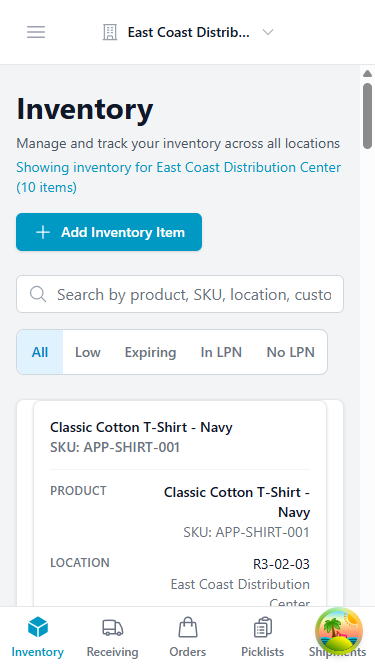
Products appear as cards showing the product name, SKU, current quantity, location, and status, with quick action buttons.
Search by product name, SKU, or barcode; filter by warehouse, category, or status; sort by quantity, name, or date.
Tap a product card for full details, then start a cycle count, view its inventory history, create an adjustment, or transfer it between locations. Quantities update in real time as receiving, picking, and transfers happen.
Cycle count
-
Scan the location barcode.
Zora shows the expected inventory for that location.
-
Scan each product barcode.
-
Enter the quantity you actually counted.
Zora calculates the variance.
-
Submit the count.
Barcode scanning
Camera access
Barcode scanning needs camera access. Grant permission when prompted.
Zora reads Code 128, Code 39, EAN-13, UPC, and QR Code barcodes.
- Tap the barcode scan button.
-
Point the camera at the barcode.
Zora detects and processes it automatically.
See the barcode scanning guide for lighting, positioning, and troubleshooting.
Installing as an app
The mobile app is a Progressive Web App (PWA) — there is nothing to install from an app store, but adding it to your home screen gives you a full-screen app rather than a browser tab.
Once added, it:
- Opens standalone, with no browser address bar
- Locks to portrait orientation
- Carries its own icon on the home screen
Home screen and browser tab are separate
A page added to the home screen is a separate context from the same page open in your browser. Camera permission granted in the browser does not carry across — the home screen app asks again the first time you scan.
What happens when you lose signal
Your work is not saved offline
The app can show you pages you already loaded when the signal drops, but it cannot save anything. Scanning an item, completing a receipt, or confirming a pick while offline fails — nothing is queued and nothing syncs later. Get back into coverage before you record work.
The app fetches data network-first: every request goes to the network, and only falls back to a cached copy if the network hasn't answered within about 10 seconds.
| Situation | What you get |
|---|---|
| Good connection | Live data, every time. The cache is never preferred over the truth. |
| Genuine dead spot | The last cached copy of pages you already visited, straight away |
| Weak signal (the worst case) | Up to a 10-second wait per request before the cached copy appears |
One bar is worse than no bars
On a weak signal you wait out the timeout on every request. Turning WiFi off entirely makes the app fall back to the cache immediately and feel much faster — just remember it can't record anything until you turn it back on.
Updating
The app does not silently update itself. When a new version ships, you are prompted to reload — the running version keeps working until you accept.
If the app seems to be behaving like an older version, fully close it and reopen it, or accept the update prompt when it appears.
The template editor is never cached
Template editing always loads fresh from the network, so it will not work offline. This is deliberate — a cached copy of the editor caused canvas rendering faults.
Touch-optimized interface
Design principles
| Principle | What it means |
|---|---|
| Large touch targets | Interactive controls are at least 44×44px, meeting the accessibility guidance for touch — usable with gloves and without precise aim |
| Mobile cards | Tables convert automatically to cards on small screens (see below) |
| Minimal scrolling | Key actions stay visible |
| Haptic feedback | A tactile confirmation on supported devices, including successful barcode scans |
Tables become cards
Data tables do not scroll sideways on a phone. They convert automatically into a stacked card per row.
Because a card cannot show as much as a table row, each column carries a priority:
| Priority | On a phone |
|---|---|
| High | Always shown |
| Medium | Shown where space allows |
| Low | Hidden |
Some columns are hidden on mobile regardless of priority, and some carry a shorter label for the card view. If a value you need is missing on your phone, it is on the desktop view of the same page.
Navigation patterns
Bottom navigation stays in the thumb-reachable area and is always visible, so you can switch workflows quickly. Swipe between sections for smooth, natural transitions. Pull down on a list to refresh its data, with visual feedback while it reloads.
Performance optimization
The app is built for warehouse networks that come and go:
| Technique | What it does |
|---|---|
| Cached assets | Scripts, styles, images, and fonts are cached on the device, so the app shell loads without waiting on the network |
| Code splitting | Heavy features load only when opened, not on first launch |
| Network timeout | Data requests fall back to cache after about 10 seconds rather than hanging |
| Denser tables | Table rows use tighter spacing on mobile, fitting more records on screen without shrinking touch targets below 44px |
Troubleshooting
| Problem | What to try |
|---|---|
| Camera not working — requires HTTPS | Grant camera permissions in your browser settings. Check for the padlock icon confirming a secure connection. Reload the app. Clear the browser cache |
| Barcode not scanning | Get adequate lighting. Hold the camera steady. Position the barcode within the frame. Clean the barcode label if it's dirty. Try manual entry as a fallback |
| App running slow | Close unused browser tabs. Clear the browser cache. Check your network connection. Restart the browser. Update the browser to its latest version |
| A scan or receipt didn't save | Check you have a signal — work done without one is not saved and is not retried. Confirm airplane mode is off and you're in WiFi range, then redo the step |
Getting it right
Battery management
Enable auto-brightness, close the app when you're not using it, use WiFi instead of cellular where you can, and disable background app refresh for other apps.
Data usage
Connect to WiFi for bulk uploads, and avoid downloading large reports on cellular.
Device recommendations
| Tier | Specs |
|---|---|
| Minimum | iOS 14+ or Android 8+, 2GB RAM, a browser no more than two versions old |
| Recommended | Rugged Android warehouse scanners, iPad (6th gen or newer), or a 10"+ Android tablet |
Camera and browser support
Barcode scanning runs in the browser rather than through a native camera app, so what works depends on the browser as much as the device.
| Platform | Browser | Camera scanning |
|---|---|---|
| iOS / iPadOS | Safari | Supported |
| iOS / iPadOS | Chrome, Edge, Firefox | Supported — these use Safari's engine on iOS |
| Android | Chrome | Supported |
| Android | Firefox, Samsung Internet | Generally supported |
| Desktop | Chrome, Edge, Safari | Supported where a webcam is present |
Requirements on every platform:
- A secure connection. The camera only starts over HTTPS (or on
localhost). This is a browser rule, not a platform setting. - Camera permission granted to the browser, and to the site within it.
- A rear camera for practical scanning. Where a device has several, the app prefers the rear-facing one and lets you switch.
Torch (flash) is offered only where the device and browser expose that control — commonly Chrome on Android, rarely on iOS. When unavailable the control is hidden rather than shown broken; use ambient light instead.
Dedicated scanners still work
A hardware barcode scanner paired over Bluetooth or USB types into the focused field like a keyboard. It needs no camera permission, works regardless of browser support, and is usually faster for sustained high-volume scanning.
Related guides
Support
For mobile app issues:
- Email: support@zoratech.io
- FAQ: Mobile App FAQ
- Troubleshooting: Mobile Issues