Order Processing User Guide
Table of Contents
- Overview
- Accessing Order Management
- Creating Orders
- Viewing Order Details
- Order Fulfillment
- Order Status
- Advanced Features
- Best Practices
- Troubleshooting
Overview
The Order Processing system in Zora Tech's Logistics Platform manages the complete fulfillment workflow from order receipt through shipment. This comprehensive module enables efficient order creation, allocation, picking, packing, and shipping operations.
Key Features
- Multi-channel order creation: Manual entry, bulk import, and API integration
- Intelligent inventory allocation: Automatic FIFO-based allocation with manual override options
- Complete fulfillment workflow: Pick, pack, and ship operations with barcode scanning
- Real-time status tracking: Monitor order progress through each fulfillment stage
- Customer management integration: Seamless customer and address management
- Warehouse context: Filter and manage orders by warehouse location
Accessing Order Management
Step 1: Navigate to Orders
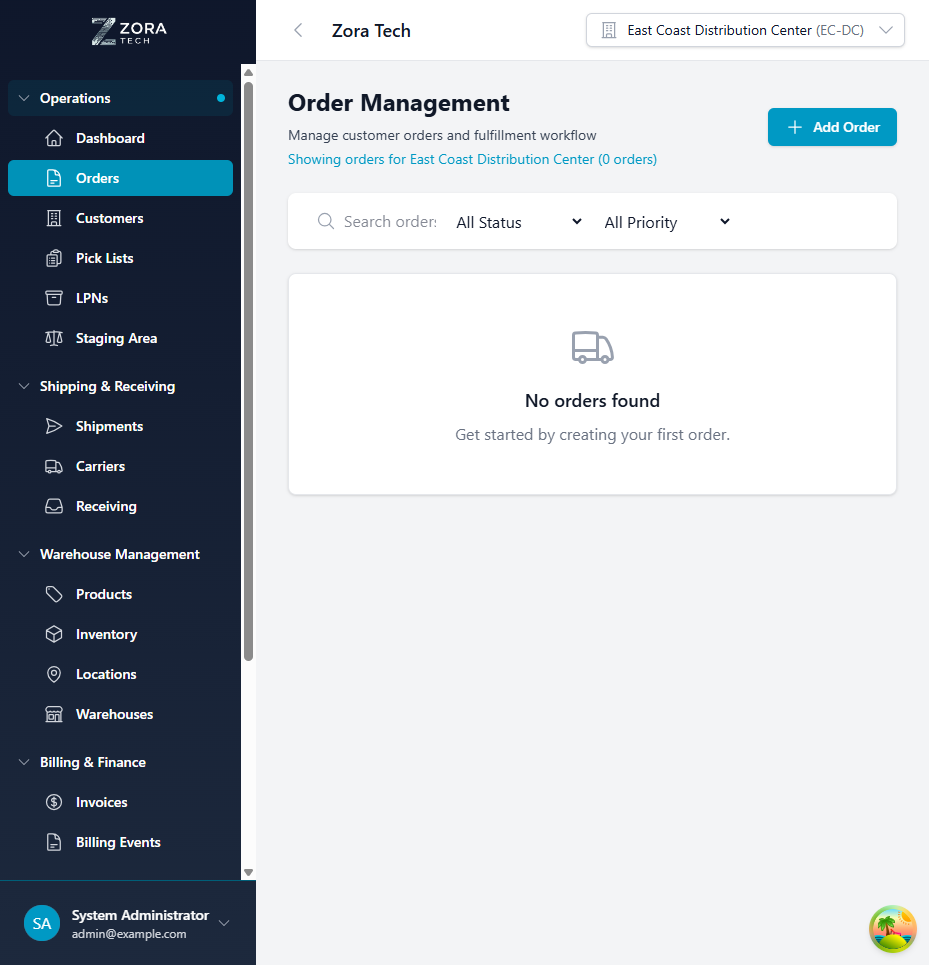
- In the left sidebar, locate the "Order Fulfillment" section
- Click on "Orders"
- You'll see the order management page displaying:
- List of all orders with key details
- "Add Order" button for creating new orders
- Filter options for status and priority
- Search functionality for finding specific orders
- Sortable columns for order details, customer info, and status
Order List Features
The order listing page provides a comprehensive view of all orders:
Search and Filtering
- Search: Find orders by order number, customer name, or email
- Status Filter: Filter by Draft, Pending, Allocated, Picking, Picked, Shipped, etc.
- Priority Filter: View orders by Low, Normal, High, or Urgent priority
- Warehouse Context: Automatically filtered to your selected warehouse
Order Information Display
- Order Number: Unique identifier (e.g., ORD-20251118-001)
- Order Date: When the order was created
- Customer Information: Customer name and contact email
- Qty & Total: Quantity summary and order total value
- Status Badge: Color-coded current order status
- Priority Indicator: Visual priority level display
Creating Orders
Manual Order Entry
Step 2: Initiate Order Creation
From the Orders page, click the "Add Order" button to open the creation form.
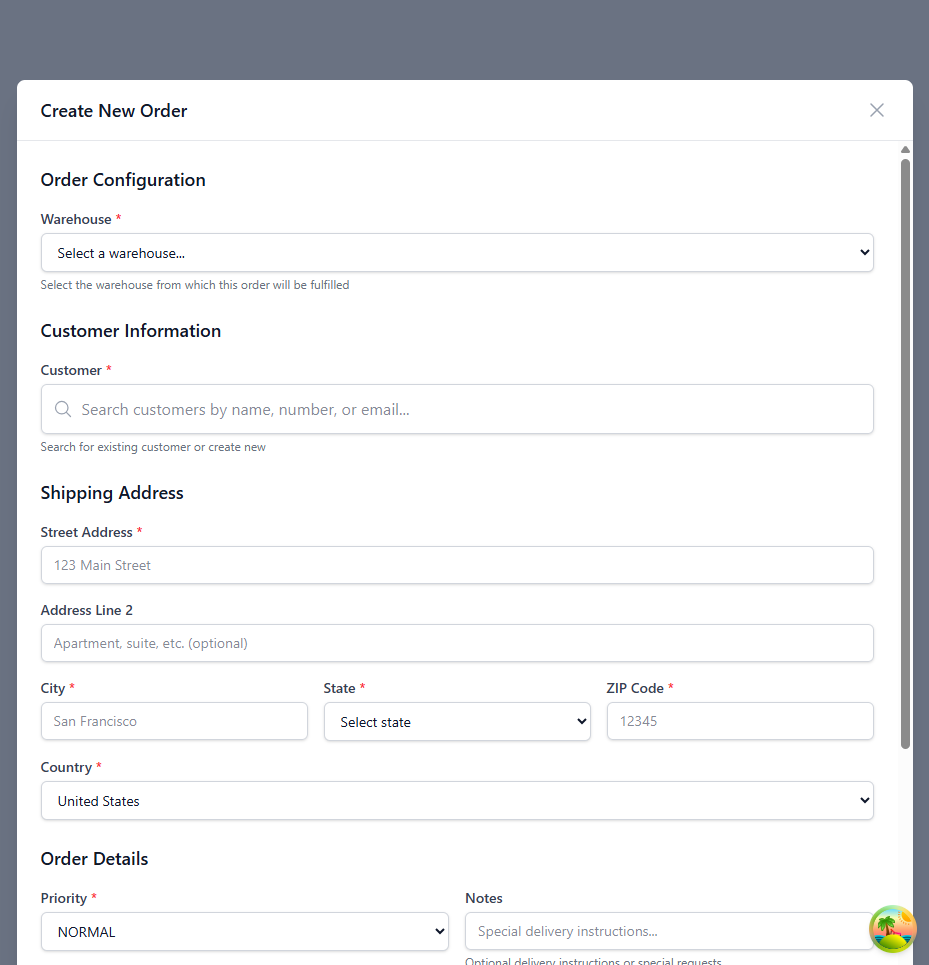
Step 3: Complete Order Information
Order Configuration (Required)
- Warehouse:
- Select the warehouse from which this order will be fulfilled
- Determines available inventory for allocation
- Filters applicable locations and staging areas
Customer Information (Required)
- Customer Selection:
- Search by customer name, number, or email
- Select existing customer or create new
- View customer details including tier, status, and available credit
Shipping Address (Required)
- Address Selection:
- Choose from customer's saved addresses
- Addresses are pre-populated from customer records
- View delivery instructions and contact information
- Option to add new address if needed
Order Details
- Priority (Required):
- LOW: Standard processing time
- NORMAL: Default priority level
- HIGH: Expedited processing
-
URGENT: Immediate attention required
-
Notes (Optional):
- Special delivery instructions
- Internal handling requirements
- Customer-specific requests
Order Items (Required)
- Product Selection:
- Search products by name, SKU, or barcode
- Universal search across all product fields
-
Real-time product availability display
-
Quantity (Required):
- Set quantity for each line item
- System validates against available inventory
-
Supports decimal quantities for certain product types
-
Unit Price (Optional):
- Override default product pricing if needed
- Used for special pricing scenarios
-
Calculated automatically from product catalog
-
Lot Number (Optional):
- Specify a lot number to restrict allocation to a specific lot
- Useful for customers requesting specific production batches
- When set, the system only allocates inventory from the specified lot
Step 4: Submit and Verify
- Review all entered information for accuracy
- Ensure at least one product line item is added
- Click "Create Order" to submit the form
- The system will:
- Validate all required fields
- Check inventory availability
- Create order with PENDING status
- Return to order listing page
Import Orders
For high-volume order processing: - Bulk CSV Import: Upload orders in standardized CSV format - API Integration: Connect e-commerce platforms and external systems - Template Downloads: Access pre-formatted templates for data preparation
Viewing Order Details
Step 5: Access Order Details
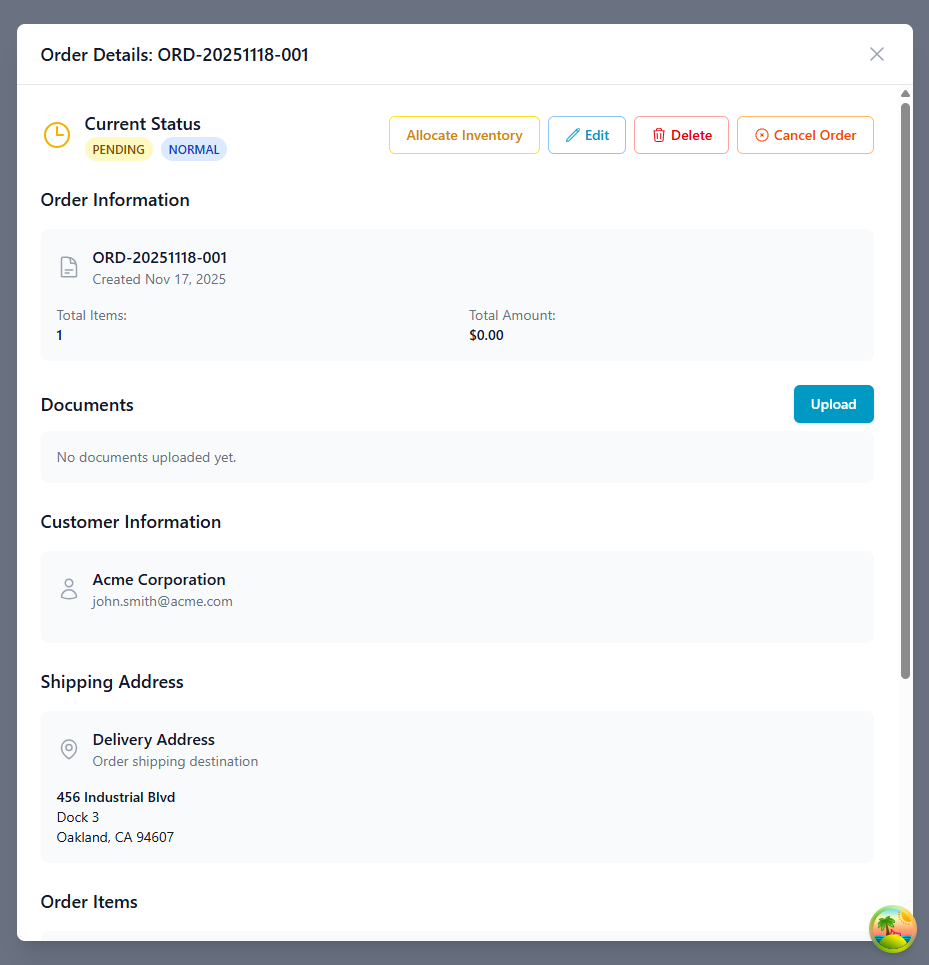
To view comprehensive information about any order:
- Navigate to the Orders page from the Operations section
- Click on any order row in the table
- The order details modal will open, displaying complete order information
Order Details Information
The order details modal provides comprehensive information organized into several key sections:
Current Status Section
- Status Indicator: Shows current order status (Pending, Allocated, Picking, etc.)
- Priority Badge: Visual priority level (Low, Normal, High, Urgent)
- Available Actions: Context-sensitive buttons based on order status
- Allocate Inventory: Begin inventory allocation process
- Edit: Modify order details (available for Draft/Pending orders)
- Delete: Remove order permanently
- Cancel Order: Cancel without deletion (preserves history)
Order Information Section
- Order Number: Unique system-generated identifier
- Created Date: When the order was first created
- Total Items: Number of unique products in the order
- Total Amount: Calculated order value based on pricing
Customer Information Section
- Customer Name: Full customer organization name
- Contact Email: Primary customer email address
- Customer Status: Active/Inactive indicator
- Customer Tier: Enterprise, Standard, or Basic tier level
- Available Credit: Remaining customer credit balance
Shipping Address Section
- Delivery Address: Complete shipping destination
- Address Label: Customer-defined address name
- Delivery Instructions: Special handling requirements
- Contact Information: Warehouse contact phone number
Order Items Section
For each line item: - Product Name: Full product description - SKU: Product stock keeping unit - Unit Price: Price per unit - Quantity: Ordered quantity - Ordered: Total requested quantity - Allocated: Quantity allocated from inventory - Picked: Quantity successfully picked - Progress Indicators: Visual allocation and picking progress
Documents Section
- Document Upload: Attach supporting files (POs, invoices, packing slips)
- Document List: View all attached documents
- Upload Button: Quick access to document management
System Information Section
- Created: Original order creation timestamp
- Last Updated: Most recent modification time
- Audit Trail: Complete change history for compliance
Order Fulfillment
Pick Workflow
- Allocation:
- Click "Allocate Inventory" on pending orders
- System allocates using the warehouse's configured strategy (FIFO, FEFO, or LIFO)
- FEFO allocation: When configured, the system prioritizes inventory with the earliest expiration date, helping prevent waste of perishable goods
- If expired inventory is allocated, the system displays a warning for review before confirmation
-
Review and adjust allocations as needed
-
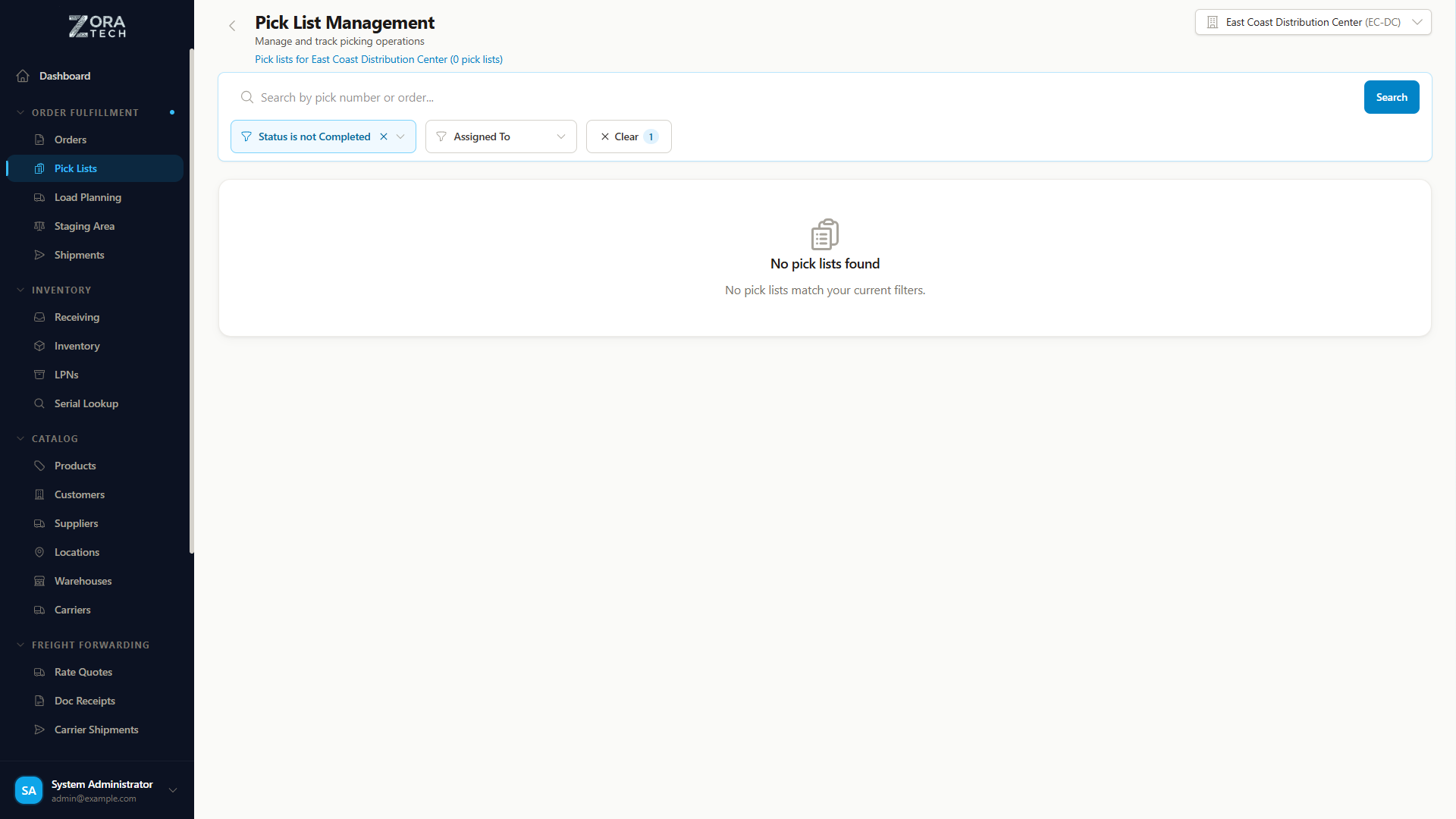
Pick List Generation:
- Create pick lists from allocated orders
- System optimizes pick paths based on location
-
Assign to warehouse staff
-
Picking Process:
- Scan products using barcode scanners
- Verify quantities at each location
- System tracks pick progress in real-time
- Picker attribution: The system records which picker performed each pick for accountability and performance tracking
-
Multi-LPN picks: When an order spans multiple LPNs, all LPNs are displayed in the picking interface with per-LPN quantity details
-
Pick Completion:
- Confirm all items picked
- Move to staging area
- Update order status to "Picked"
Pack Workflow
- Packing Station Setup:
- Retrieve picked items from staging
-
Scan items to begin packing process
-
Packaging Selection:
- Choose appropriate packaging materials
- System suggests based on order dimensions
-
Scan packaging for tracking
-
Label Generation:
- Generate shipping labels automatically
- Print carrier-specific labels
-
Attach to completed packages
-
Pack Confirmation:
- Verify all items packed correctly
- Update order status to "Packed"
- Ready for shipping
Ship Workflow
- Shipment Preparation:
- Scan packed orders at shipping station
-
Verify carrier and service level
-
Carrier Assignment:
- Select shipping carrier
- Choose service level (Ground, Express, Overnight)
-
System generates tracking number
-
Manifest Generation:
- Create end-of-day manifest
- Include all shipped orders
-
Submit to carrier for pickup
-
Ship Confirmation:
- Mark orders as shipped
- Send tracking notifications to customers
- Update inventory levels
Order Status
Understanding order status helps track fulfillment progress:
- Draft: Order created but not yet released for fulfillment
- Pending: Order confirmed, awaiting inventory allocation
- Allocated: Inventory reserved, ready for pick list generation
- Picking: Pick list active, items being retrieved from locations
- Picked: All items successfully picked, ready for packing
- Packing: Items being packed for shipment
- Packed: Packing complete, ready for carrier pickup
- Shipped: Order handed to carrier with tracking number
- Delivered: Customer confirmed delivery receipt
- Cancelled: Order cancelled (inventory released back to stock)
Status Transitions
Orders progress through statuses automatically based on actions: - Creating order → Draft or Pending - Allocating inventory → Allocated - Creating pick list → Picking - Completing picks → Picked - Beginning packing → Packing - Generating shipping label → Packed - Carrier pickup → Shipped - Delivery confirmation → Delivered
Advanced Features
Wave Picking
Batch multiple orders together for efficient picking: - Order Grouping: Combine orders with similar pick locations - Path Optimization: Minimize warehouse travel time - Staff Assignment: Distribute workload across picking team - Performance Tracking: Monitor pick rates and accuracy
Staging Areas
Manage order flow through warehouse: - Quality Control Areas: Inspect picked items before packing - Consolidation Zones: Combine partial picks into complete orders - Shipping Staging: Organize packed orders by carrier and route - Exception Handling: Process orders with special requirements
Multi-Warehouse Orders
Split orders across warehouse locations: - Inventory Visibility: Check stock levels across all warehouses - Automatic Splitting: System divides orders based on availability - Consolidated Shipping: Combine shipments when possible - Customer Communication: Notify of multiple shipments
Load Planning
For LTL, truckload, and freight shipments, use load planning to organize which LPNs are loaded onto each truck:
- Capacity tracking: Real-time weight and cube utilization as LPNs are added
- Pick list generation: Automatically create pick lists from finalized load plans
- Staging and loading workflows: Route LPNs through staging or direct to shipment
- Barcode verification: Scan every LPN during loading for accuracy
See the Load Planning guide for the full workflow.
Picklist Cancellation
Cancel partially-picked pick lists when needed:
- Inventory reversal: Allocated and partially-picked quantities are automatically released back to available stock
- Audit trail: Cancellation is logged with the user and timestamp
- Order impact: The associated order returns to a state where it can be re-allocated
Partial Picks
When cancelling a partially-picked picklist, already-picked items are reversed back to their original locations. Verify physical inventory matches after cancellation.
Lot-Level Manual Allocation
When manually allocating inventory for lot-tracked products, the allocation modal shows lot-level cards:
- Lot number and expiration date displayed per card
- Available quantity for each lot
- Select specific lots to allocate from
- Useful when customers require inventory from particular production batches
Best Practices
Order Creation
- Verify Customer Information: Confirm customer details before order creation
- Check Inventory Availability: Ensure products are in stock before promising delivery
- Use Priority Correctly: Reserve URGENT for truly time-sensitive orders
- Add Delivery Notes: Include specific instructions for carriers and warehouse staff
Allocation Strategy
- FIFO Method: Use First-In-First-Out for general products (default)
- FEFO Method: Use First-Expired-First-Out for perishable goods, pharmaceuticals, and time-sensitive items - configure this at the warehouse level in Settings
- Per-Order Override: Override the warehouse default strategy on individual allocations when needed (e.g., use FEFO for a specific perishable order in a FIFO warehouse)
- Location Optimization: Consider pick path efficiency in allocation
- Reserve Management: Maintain safety stock levels for high-demand items
- Quality Segregation: Allocate from quality-inspected inventory first
Picking Accuracy
- Barcode Scanning: Always scan products to prevent picking errors
- Quantity Verification: Double-check quantities for high-value items
- Location Confirmation: Verify pick location matches system direction
- Exception Reporting: Document any discrepancies immediately
Packing Quality
- Appropriate Materials: Use proper packaging for product protection
- Weight Verification: Confirm package weight matches expected total
- Label Accuracy: Ensure shipping labels are clear and correct
- Documentation: Include all required packing slips and inserts
Troubleshooting
Common Issues
Issue: Cannot create order - "Warehouse required" - Solution: Select a warehouse from the dropdown before submitting - Prevention: Always verify warehouse selection in order form
Issue: Customer not found in search - Solution: Create new customer record before order creation - Check: Verify customer name spelling and search criteria
Issue: Product allocation fails - Solution: Check inventory availability in selected warehouse - Verify: Product is active and has available stock - Alternative: Consider multi-warehouse allocation or backorder
Issue: Order stuck in "Picking" status - Solution: Review pick list progress and completion status - Check: Verify all items have been picked and confirmed - Action: Complete or cancel incomplete picks to proceed
Issue: Cannot generate shipping label - Solution: Verify carrier integration and credentials - Check: Ensure shipping address is complete and valid - Retry: Refresh page and attempt label generation again
Issue: Missing order items in details - Solution: Check order line items in edit mode - Verify: Products still exist and are not deleted - Resolution: Contact administrator if data corruption suspected
Getting Help
If you encounter issues not covered in this guide: 1. Contact your system administrator or warehouse manager 2. Check system status and network connectivity 3. Review recent system updates or changes 4. Try accessing from a different device or browser 5. Submit support ticket with order number and error details
Integration Notes
Order Context
- Orders are warehouse-specific and cannot be transferred between warehouses
- Inventory allocation is performed within the selected warehouse only
- Order numbering follows sequential pattern per warehouse
Permissions
- Order creation requires standard user permissions
- Order allocation may require inventory management permissions
- Order cancellation may require supervisor approval
- Contact your administrator for permission changes
Data Flow
- Orders sync in real-time across all user sessions
- Inventory levels update immediately upon allocation
- Status changes trigger automatic notifications
- Pick lists generate asynchronously for large orders
Last Updated: March 2026 Version: 1.5
For additional assistance or feature requests, please contact your system administrator or refer to the complete Zora Tech Logistics Platform documentation.