Receiving Operations User Guide
Table of Contents
- Overview
- Accessing Receiving Management
- Creating Receiving Orders
- Viewing Receiving Order Details
- Receiving Workflow
- Receiving Order Status
- Advanced Features
- Best Practices
- Troubleshooting
Overview
The Receiving Operations system in Zora Tech's Logistics Platform manages the complete inbound logistics workflow from shipment arrival through putaway. This comprehensive module enables efficient receiving order creation, product verification, quality control, and inventory placement.
Key Features
- Multi-channel receiving: Manual entry, purchase order import, and API integration
- Complete receiving workflow: Shipment check-in, product verification, and putaway operations
- Real-time progress tracking: Monitor receiving progress through each stage
- Serial and lot tracking: Full traceability for tracked products
- LPN management: License plate number support for pallets and containers
- Quality control integration: Inspection and discrepancy handling
- Warehouse context: Filter and manage receiving orders by warehouse location
Accessing Receiving Management
Step 1: Navigate to Receiving
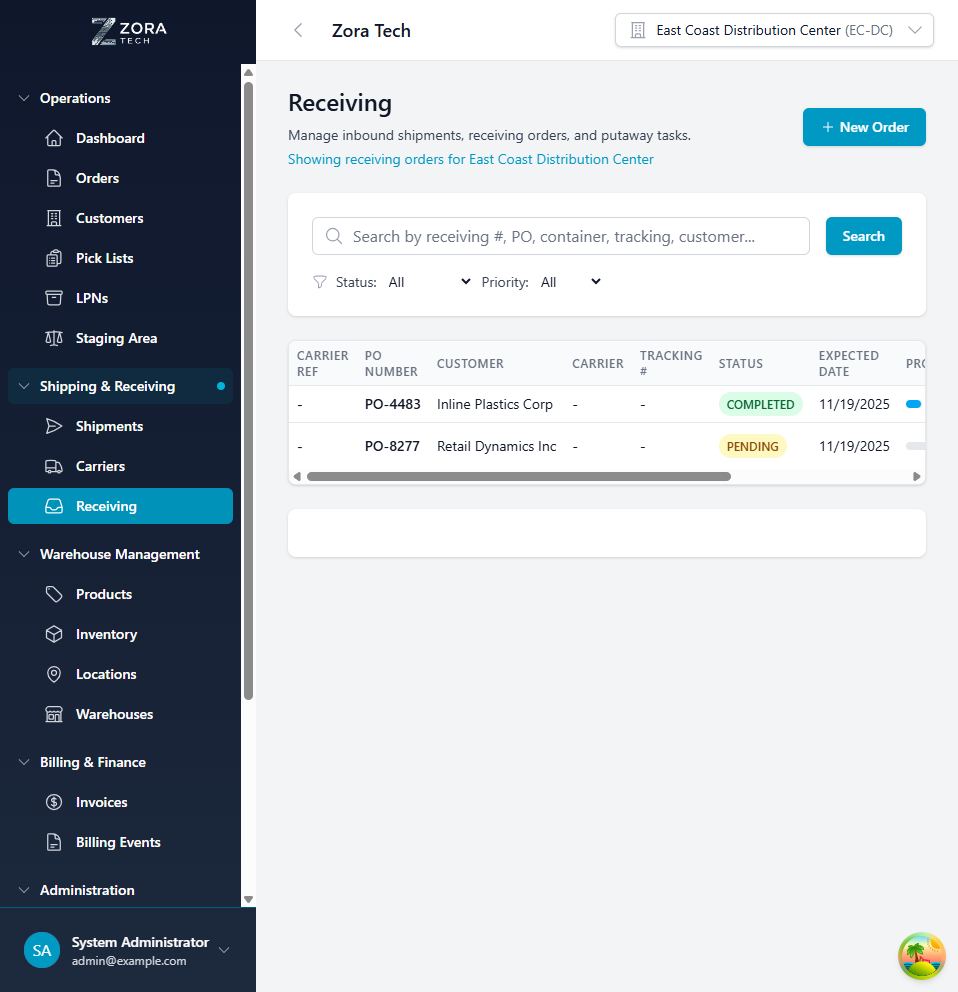
- In the left sidebar, locate the "Shipping & Receiving" section
- Click on "Receiving"
- You'll see the receiving management page displaying:
- List of all receiving orders with key details
- "New Order" button for creating new receiving orders
- Filter options for status and priority
- Search functionality for finding specific receiving orders
- Sortable columns for PO number, customer, carrier, and status
Receiving Order List Features
The receiving listing page provides a comprehensive view of all inbound shipments:
Search and Filtering
- Search: Find orders by receiving number, PO, container, tracking number, or customer
- Status Filter: Filter by Pending, In Progress, Completed, or Cancelled
- Priority Filter: View orders by Low, Normal, High, or Urgent priority
- Warehouse Context: Automatically filtered to your selected warehouse
Receiving Order Information Display
- Carrier Reference: Truck or container identification
- PO Number: Purchase order number for cross-reference
- Customer: Supplier or customer name
- Carrier: Shipping carrier information
- Tracking Number: Shipment tracking identifier
- Status Badge: Color-coded current receiving status
- Expected Date: Scheduled arrival date
- Progress Indicator: Items received vs. expected quantity
Creating Receiving Orders
Manual Receiving Order Entry
Step 2: Initiate Receiving Order Creation
From the Receiving page, click the "New Order" button to open the creation form.
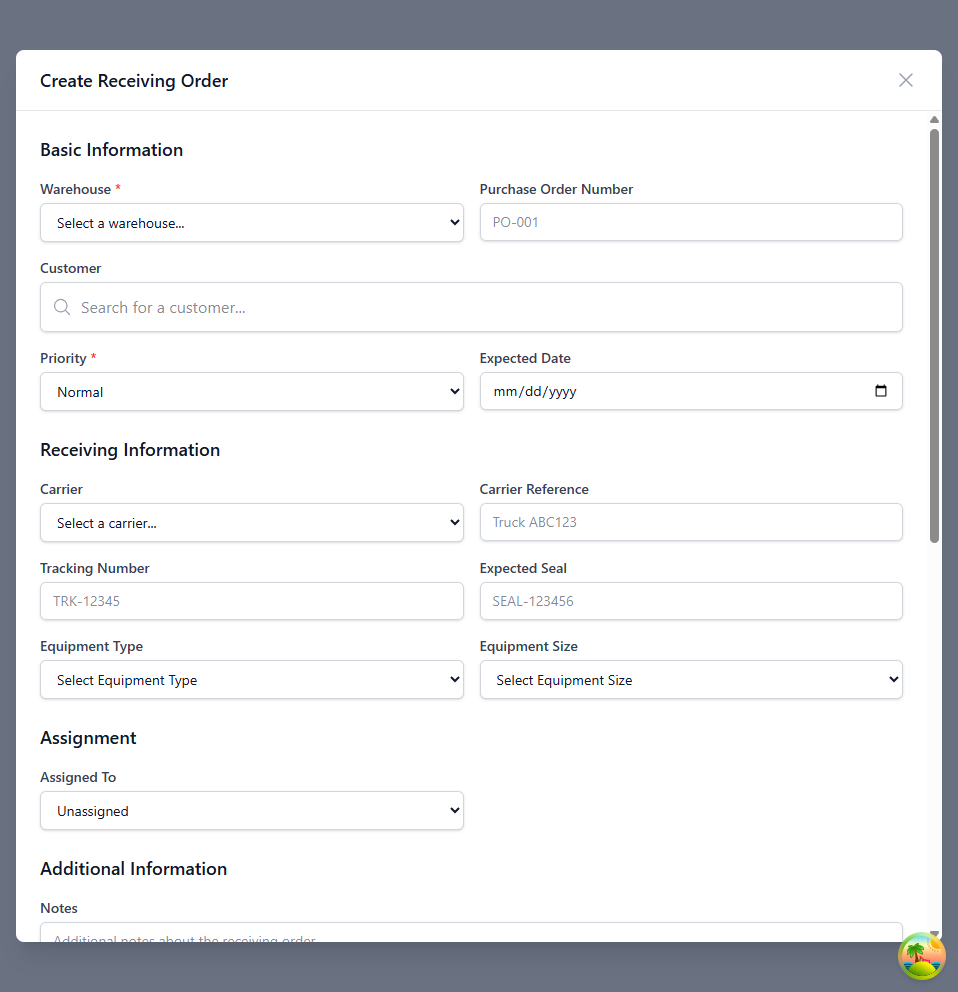
Step 3: Complete Receiving Order Information
Basic Information (Required)
- Warehouse:
- Select the warehouse where inventory will be received
- Determines available locations for putaway
-
Filters applicable receiving staff and resources
-
Purchase Order Number (Optional):
- Reference PO from your procurement system
- Used for cross-reference and reconciliation
-
Helps track expected vs. actual quantities
-
Customer (Optional):
- Select the supplier or customer
- Links receiving to customer records
-
Enables customer-specific receiving rules
-
Priority (Required):
- LOW: Standard processing time
- NORMAL: Default priority level
- HIGH: Expedited processing
-
URGENT: Immediate attention required
-
Expected Date (Optional):
- Scheduled arrival date and time
- Used for dock scheduling
- Helps plan resource allocation
Receiving Information
- Carrier (Optional):
- Select the shipping carrier
- Tracks carrier performance
-
Used for appointment scheduling
-
Carrier Reference (Optional):
- Truck number, trailer ID, or container number
- Dock door assignment reference
-
Physical shipment identifier
-
Tracking Number (Optional):
- Carrier tracking number
- Enables real-time shipment tracking
-
Used for proof of delivery
-
Expected Seal (Optional):
- Security seal number
- Verified upon arrival
-
Ensures shipment integrity
-
Equipment Type:
- Trailer, Container, Flatbed, Flat Rack, Lowboy, or Chassis
- Determines unloading method
-
Affects dock door selection
-
Equipment Size:
- 20', 40', 45', or 53'
- Used for dock planning
- Determines space requirements
Assignment
- Assigned To (Optional):
- Assign to specific receiving clerk or warehouse staff
- Distributes workload
- Tracks individual performance
Additional Information
- Notes (Optional):
- Special handling instructions
- Expected discrepancies
- Customer-specific requirements
Line Items (Required)
- Product Selection:
- Search products by name, SKU, or barcode
- Universal search across all product fields
-
Real-time product information display
-
Expected Quantity (Required):
- Set expected quantity for each line item
- Used to calculate receiving progress
-
Basis for variance tracking
-
Unit Cost (Optional):
- Cost per unit for inventory valuation
- Updates product cost on receipt
-
Used for financial reconciliation
-
Unit Weight (Optional):
- Weight per unit in pounds
- Used for freight verification
-
Helps validate shipment totals
-
Lot Number (Optional):
- Batch or lot identifier
- Required for lot-tracked products
-
Enables lot traceability
-
Serial Number (Optional):
- Individual unit identifier
- Required for serial-tracked products
-
One serial per unit
-
Expiration Date (Optional):
- Product expiration date
- Required for perishable items
-
Used for FEFO allocation
-
Line Item Notes (Optional):
- Item-specific handling instructions
- Quality requirements
- Special storage needs
Step 4: Submit and Verify
- Review all entered information for accuracy
- Ensure at least one product line item is added
- Click "Create Receiving Order" to submit the form
- The system will:
- Validate all required fields
- Create receiving order with PENDING status
- Generate receiving order number
- Return to receiving listing page
Import from Purchase Orders
For automated receiving: - PO Import: Import expected receipts from ERP systems - ASN Integration: Advanced Shipment Notice from suppliers - Template Downloads: Access pre-formatted templates for bulk creation
Viewing Receiving Order Details
Step 5: Access Receiving Order Details
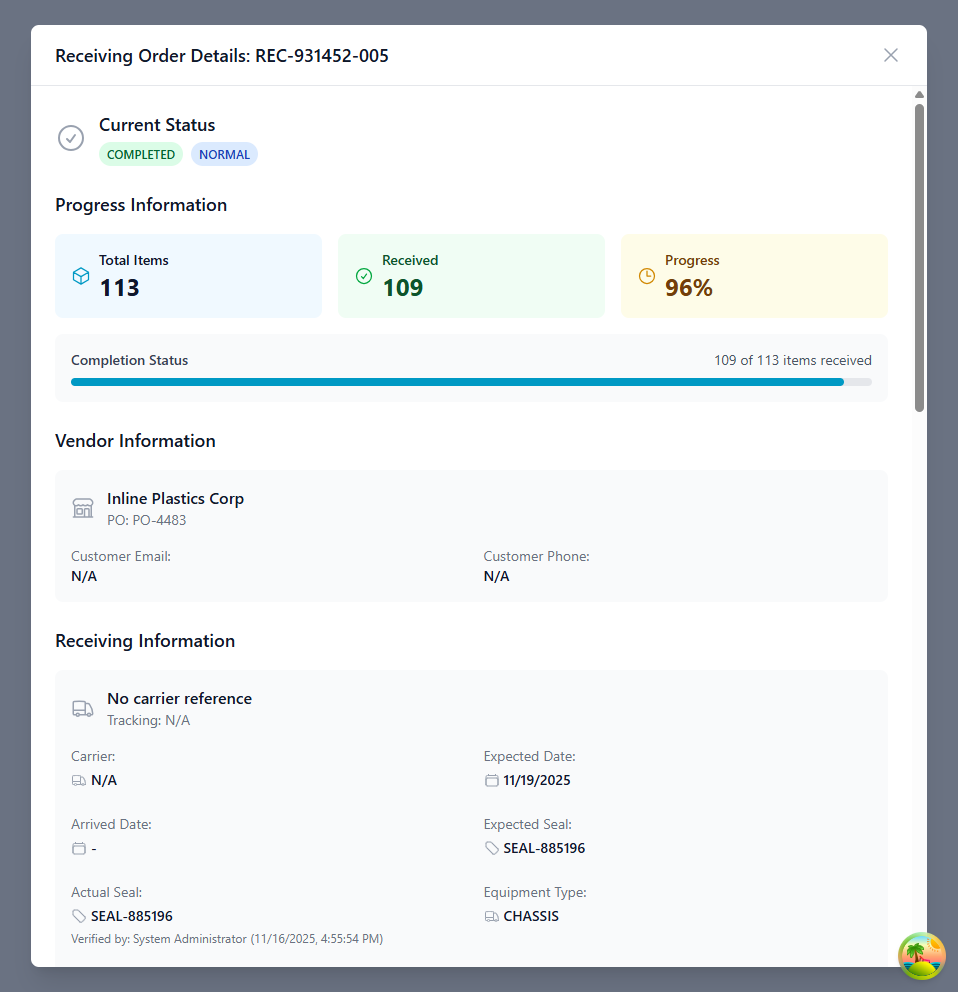
To view comprehensive information about any receiving order:
- Navigate to the Receiving page from the Shipping & Receiving section
- Click on any receiving order row in the table
- The receiving order details modal will open, displaying complete information
Receiving Order Details Information
The receiving order details modal provides comprehensive information organized into several key sections:
Current Status Section
- Status Indicator: Shows current receiving status (Pending, In Progress, Completed, etc.)
- Priority Badge: Visual priority level (Low, Normal, High, Urgent)
- Available Actions: Context-sensitive buttons based on receiving status
- Receive: Begin or continue receiving process
- Edit: Modify receiving order details (available for Pending orders)
- Delete: Remove receiving order permanently
- Cancel: Cancel without deletion (preserves history)
Progress Information Section
- Total Items: Total expected quantity across all line items
- Received: Quantity successfully received and verified
- Progress Percentage: Visual completion indicator
- Completion Status: Progress bar showing items received vs. expected
- Variance Tracking: Over/under receipt indicators
Vendor Information Section
- Customer/Supplier Name: Full organization name
- Purchase Order Number: PO reference
- Contact Email: Primary contact email address
- Contact Phone: Primary contact phone number
Receiving Information Section
- Carrier Reference: Truck, trailer, or container number
- Tracking Number: Shipment tracking identifier
- Carrier: Shipping carrier name and code
- Expected Date: Scheduled arrival date
- Arrived Date: Actual arrival timestamp
- Expected Seal: Security seal number provided by shipper
- Actual Seal: Seal number verified at arrival
- Seal Verification: Who verified and when
- Equipment Type: Trailer, container, or other equipment type
- Equipment Size: Physical dimensions (20', 40', 45', 53')
Assignment Information Section
- Created By: User who created the receiving order
- Assigned To: Current responsible staff member
- Assignment History: Previous assignments and changes
Notes Section
- Order Notes: General receiving order notes
- Special Instructions: Handling requirements and alerts
Line Items Section
For each expected product: - Product Name: Full product description - SKU: Product stock keeping unit - Expected Quantity: Originally anticipated quantity - Received Quantity: Actual quantity received - Variance: Difference between expected and received - Received By: Staff member who received the items - Status: Line item completion status (Pending, In Progress, Completed) - Lot/Serial Information: Tracking numbers if applicable
Putaway Tasks Section
- Task Number: Unique putaway task identifier
- Quantity: Units to be put away
- From Location: Staging area or receiving dock
- To Location: Destination storage location
- Task Status: Pending, In Progress, or Completed
- Assigned To: Putaway worker assignment
Documents Section
- Document Upload: Attach supporting files (BOL, packing slips, photos)
- Document List: View all attached documents
- Upload Button: Quick access to document management
Change History Section
- Created: Original receiving order creation timestamp
- Status Changes: All status transition events
- Modifications: Field-level change tracking
- User Actions: Complete audit trail for compliance
Receiving Workflow
Standard Receiving Process
- Shipment Arrival:
- Carrier arrives at receiving dock
- Dock scheduler assigns door
-
Receiving clerk creates or locates receiving order
-
Check-In Process:
- Verify carrier reference and equipment type
- Inspect seal integrity and record seal number
- Confirm shipment documents (BOL, packing slip)
- Update receiving order with arrival timestamp
Step 6: Seal Verification
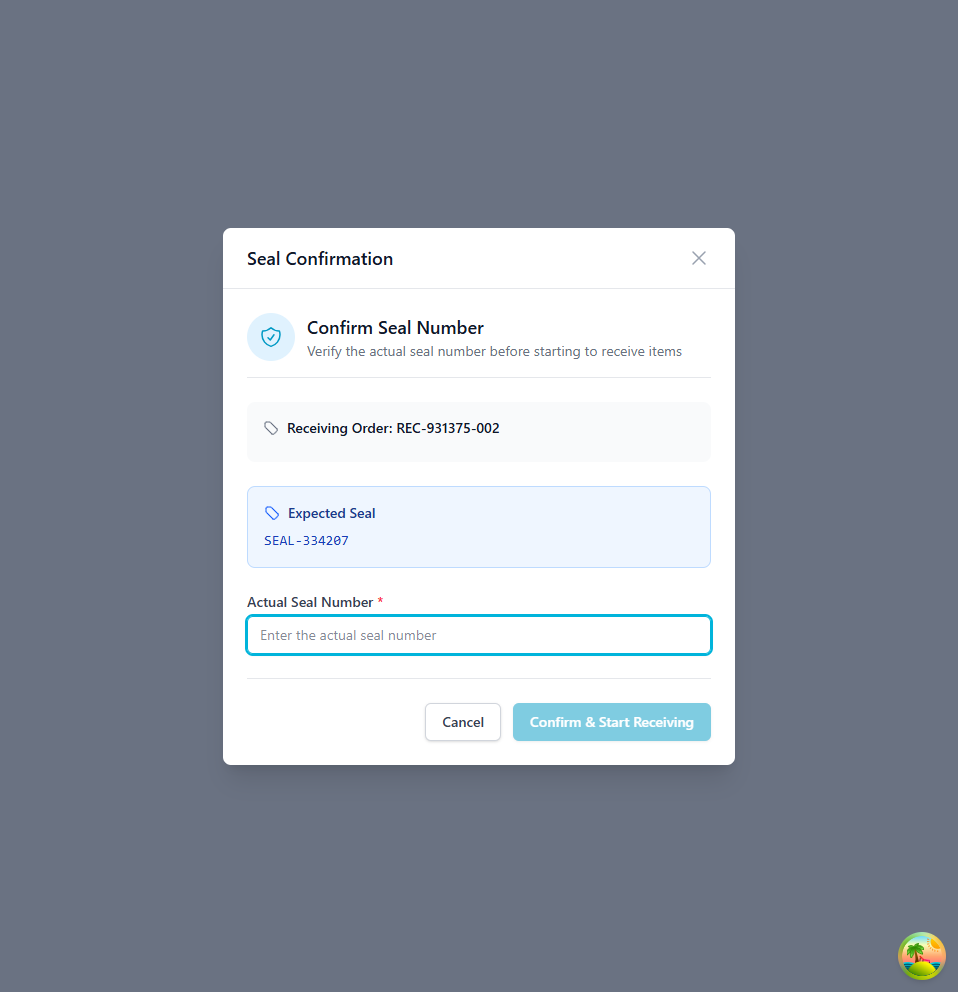
Before beginning the receiving process, verify and confirm the security seal number:
- Click "Receive" on a pending receiving order
- System displays the expected seal number from the receiving order
- Physically inspect the seal on the shipment
- Enter the actual seal number in the confirmation dialog
- Click "Confirm & Start Receiving" to proceed
Important: Seal verification ensures shipment integrity and security. Any discrepancy should be investigated before proceeding.
Step 7: Choose Receiving Method
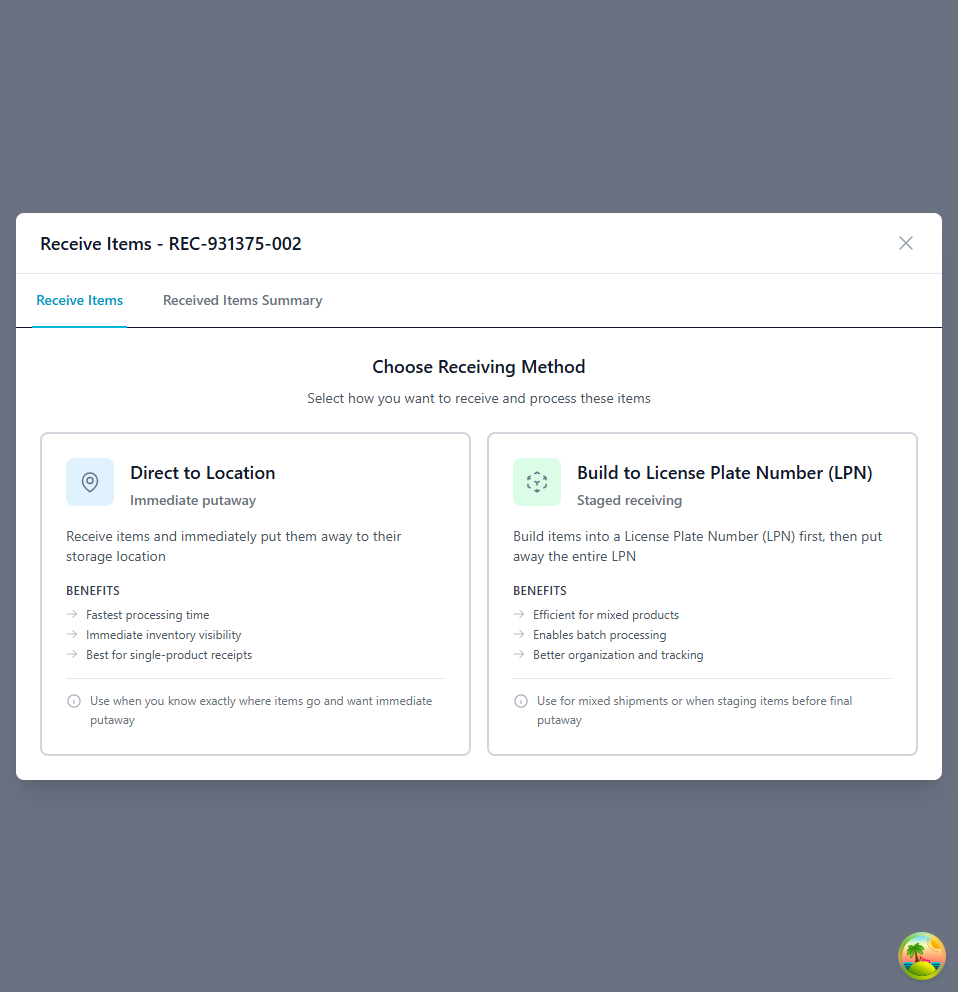
Select the appropriate receiving method based on your workflow:
- Direct to Location (Immediate Putaway):
- Best for: Single-product shipments, known storage locations
- Benefits: Fastest processing, immediate inventory visibility
- Process: Receive items and put them away in one step
-
Use when: You know exactly where items will be stored
-
Build to License Plate Number (LPN) (Staged Receiving):
- Best for: Mixed shipments, multiple products per pallet
- Benefits: Better organization, batch processing, tracking
- Process: Build items into an LPN, then put away the entire LPN
- Use when: Staging items before final putaway or processing mixed loads
Step 8: Product Verification and Receiving
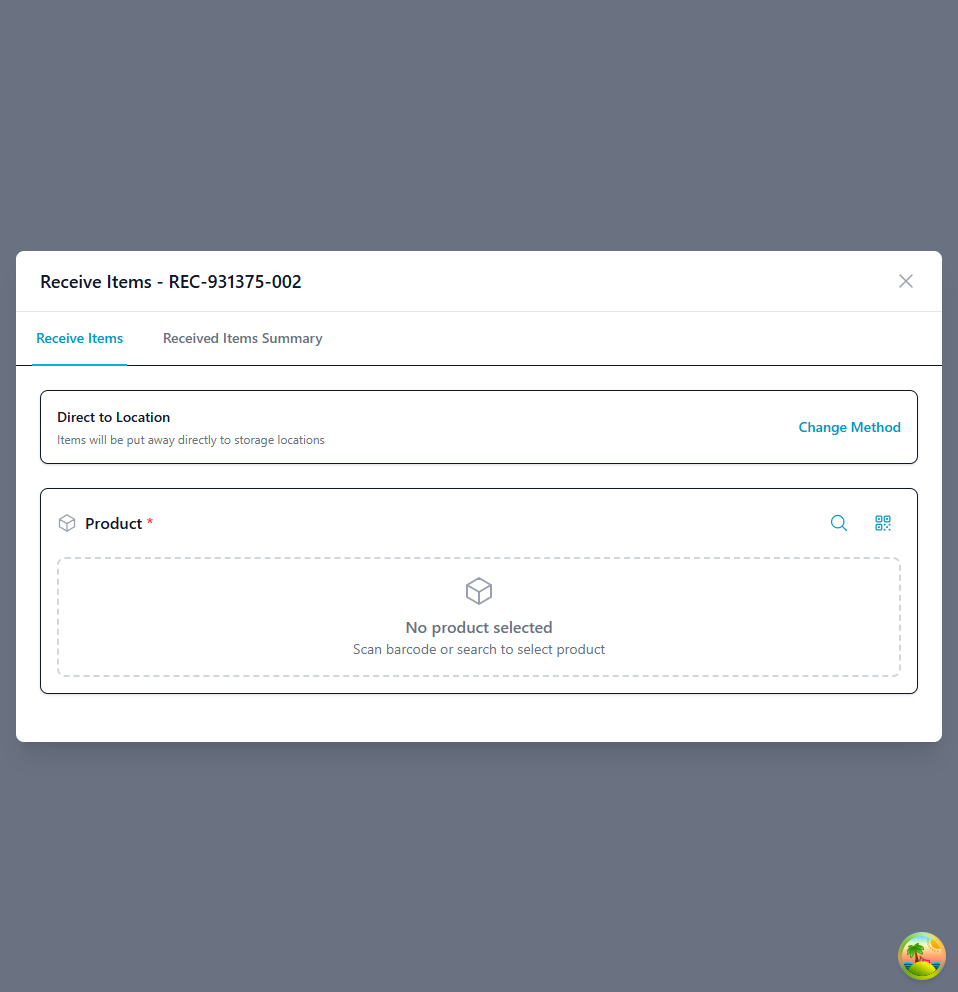
- Product Verification:
- Scan product barcodes or search by SKU
- Enter received quantity for each product
- Verify quantities against expected amounts
- Record actual quantities received
- Document discrepancies (overages, shortages, damages)
- For Direct to Location: Assign storage location immediately
-
For LPN method: Build products into License Plate Number
-
Quality Inspection:
- Perform visual inspection for damage
- Check product condition and packaging
- Verify lot numbers and expiration dates
-
Record serial numbers for tracked items
-
Receiving Completion:
- Confirm all items processed
- Update line item statuses
- Generate putaway tasks
- Update inventory levels
Blind Receiving
For shipments without advance notice: - No pre-created receiving order required - Scan products as they're unloaded - System creates receiving order automatically - Verify quantities after completion
Cross-Dock Receiving
Direct flow from receiving to shipping: - Identify cross-dock candidates during check-in - Route products to staging areas - Bypass putaway process - Assign directly to outbound orders
Receiving Order Status
Understanding receiving order status helps track inbound progress:
- Pending: Receiving order created, awaiting shipment arrival
- In Progress: Receiving process started, items being verified
- Completed: All items received, ready for putaway
- Cancelled: Receiving order cancelled (shipment not arriving)
Status Transitions
Receiving orders progress through statuses automatically based on actions: - Creating order → Pending - Starting to receive → In Progress - All items received → Completed - Manual cancellation → Cancelled
Advanced Features
Serial Number Tracking
Manage individual unit tracking: - Serial Capture: Scan or enter serial numbers during receiving - Serial Validation: Verify uniqueness and format - Serial History: Complete lifecycle tracking - Serial Association: Link to specific inventory units
Lot Number Management
Track batches and production runs: - Lot Assignment: Assign lot numbers during receiving - Expiration Tracking: Record and monitor expiration dates - FEFO Allocation: First-Expired-First-Out order allocation - Lot Traceability: Complete chain of custody
LPN (License Plate Number) Receiving
Efficient pallet and container processing: - LPN Generation: Create LPNs for mixed pallets - LPN Contents: Track multiple products per LPN - LPN Receiving: Receive entire LPNs at once - LPN Putaway: Move LPNs as single units
Quality Control Integration
Systematic inspection workflow: - Inspection Stations: Designated QC areas - Inspection Criteria: Product-specific quality checks - Accept/Reject Decisions: Document quality issues - Quarantine Workflow: Segregate questionable inventory
Discrepancy Handling
Manage receiving variances: - Overage Processing: Handle unexpected excess inventory - Shortage Resolution: Document and report short shipments - Damage Documentation: Photo capture and reporting - Dispute Management: Supplier claim workflows
Best Practices
Pre-Receiving Preparation
- Create Receiving Orders in Advance: Import from POs or ASNs when possible
- Schedule Dock Appointments: Coordinate carrier arrival times
- Assign Resources: Allocate staff and equipment before arrival
- Review Special Requirements: Check for hazmat, temperature-sensitive, or fragile items
Receiving Execution
- Verify Seal Integrity: Always check and record seal numbers
- Count Accurately: Use barcode scanning to minimize errors
- Document Discrepancies Immediately: Record variances as they're discovered
- Photograph Damages: Visual evidence for claims and disputes
Quality Control
- Inspect Random Samples: Quality check representative units
- Verify Expiration Dates: Ensure products meet shelf-life requirements
- Check Product Condition: Look for packaging damage or defects
- Quarantine Suspect Items: Segregate questionable inventory for review
Putaway Optimization
- Follow System Suggestions: Use AI-powered location recommendations
- Batch Similar Items: Group products for efficient putaway
- Prioritize High-Velocity Items: Put fast-movers in accessible locations
- Update Inventory Immediately: Ensure real-time accuracy
Troubleshooting
Common Issues
Issue: Cannot create receiving order - "Warehouse required" - Solution: Select a warehouse from the dropdown before submitting - Prevention: Always verify warehouse selection in receiving form
Issue: Product not found during receiving - Solution: Verify product exists in catalog and is active - Check: Ensure barcode is correctly associated with product - Alternative: Manually search by SKU or product name
Issue: Seal number doesn't match expected - Solution: Document actual seal number and verify with carrier - Check: Confirm expected seal was correct in receiving order - Action: Notify supervisor and investigate potential tampering
Issue: Receiving order stuck in "In Progress" status - Solution: Review line items to ensure all are received or cancelled - Check: Verify all quantities have been entered - Action: Complete or cancel incomplete line items to proceed
Issue: Cannot generate putaway tasks - Solution: Ensure all line items are received - Check: Verify warehouse has available locations - Retry: Refresh page and attempt task generation again
Issue: Serial numbers not validating - Solution: Check serial format matches product configuration - Verify: Ensure serial number is unique and not previously received - Resolution: Contact administrator if validation rules need adjustment
Getting Help
If you encounter issues not covered in this guide: 1. Contact your warehouse supervisor or receiving manager 2. Check system status and network connectivity 3. Review recent system updates or changes 4. Try accessing from a different device or browser 5. Submit support ticket with receiving order number and error details
Integration Notes
Receiving Context
- Receiving orders are warehouse-specific and cannot be transferred
- Inventory is added to the selected warehouse upon receiving completion
- Putaway tasks are generated within the receiving warehouse only
Permissions
- Receiving order creation requires standard user permissions
- Receiving execution may require warehouse operator permissions
- Receiving order cancellation may require supervisor approval
- Contact your administrator for permission changes
Data Flow
- Receiving orders sync in real-time across all user sessions
- Inventory levels update immediately upon receiving completion
- Status changes trigger automatic notifications
- Putaway tasks generate automatically when receiving completes
Last Updated: November 2025 Version: 1.0
For additional assistance or feature requests, please contact your system administrator or refer to the complete Zora Tech Logistics Platform documentation.