Warehouse Management
Create and configure the warehouses that scope every inventory, receiving, and shipping operation on the platform.
A warehouse is a physical facility. Almost everything in the platform — inventory, orders, pick lists, shipments — belongs to a warehouse, and you always work in the context of one active warehouse at a time.
Each warehouse carries a few pieces of configuration that change how it behaves:
- a unique code and name,
- an address,
- a default allocation strategy (how stock is chosen for orders),
- a time zone, and
- an active / inactive status.
You manage warehouses from the Warehouses page, under Warehouse Setup in the sidebar.
Before you begin
Creating and editing warehouses requires administrator access. If you don't see Add Warehouse, contact your administrator.
Switching the active warehouse
Use the warehouse selector in the top header to choose which warehouse you're working in. The platform scopes inventory, orders, and operations to your selection, and remembers it the next time you sign in.
To make a warehouse your standing default, open the selector and choose Set as default (marked with a star). Your default warehouse is selected automatically when you log in, so multi-warehouse users land in the right place without an extra click.
Warehouse context switching with a per-user default shipped in v1.1.
The warehouses page
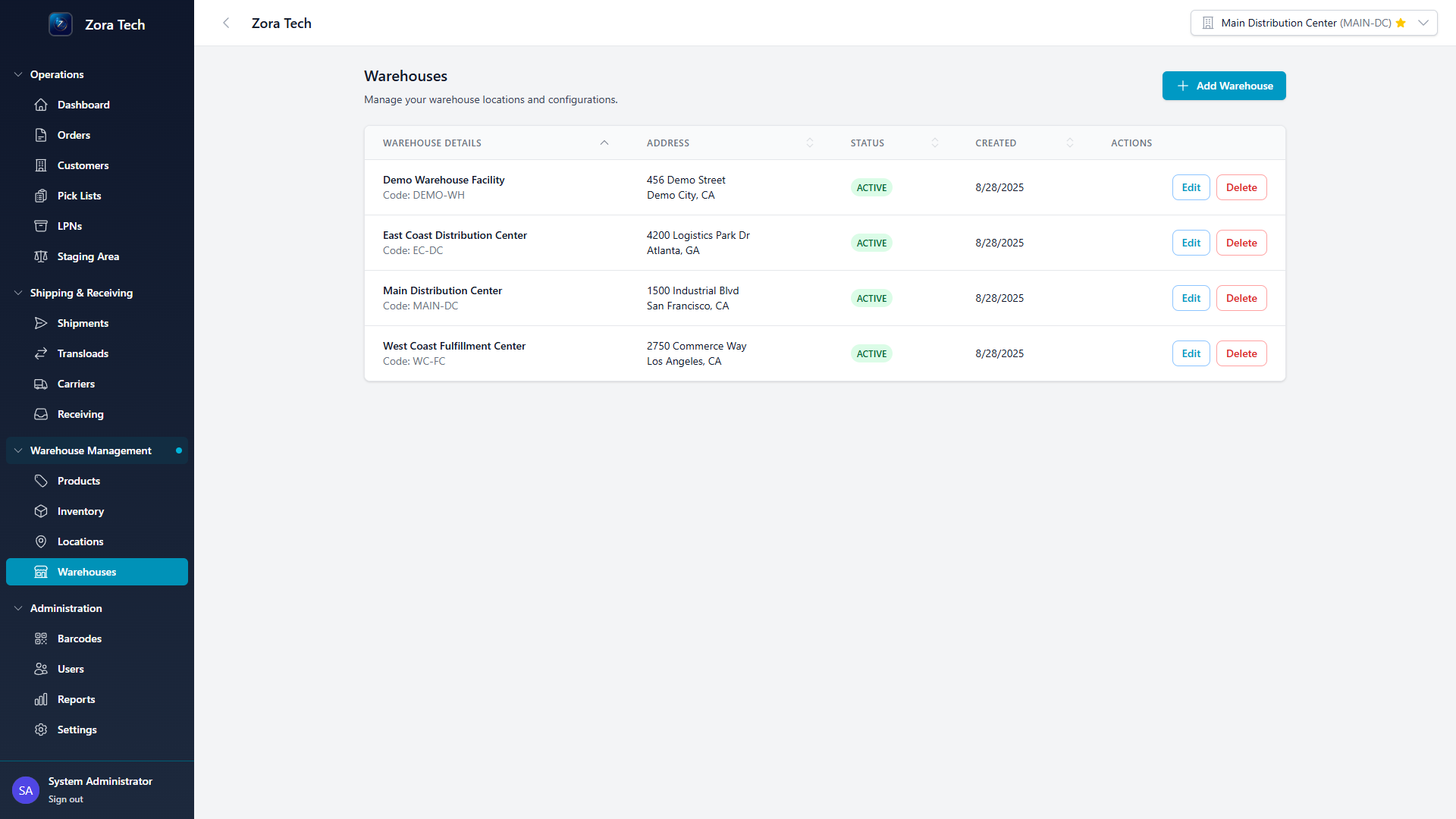
The page lists your warehouses, with Add Warehouse to create one. Each row shows:
| Column | Description |
|---|---|
| Warehouse Details | The warehouse name and code. |
| Address | The facility's address. |
| Status | Active or Inactive. |
| Created | When the warehouse was added. |
| Actions | Edit and Delete. |
Click a row to open the warehouse detail view.
Creating or editing a warehouse
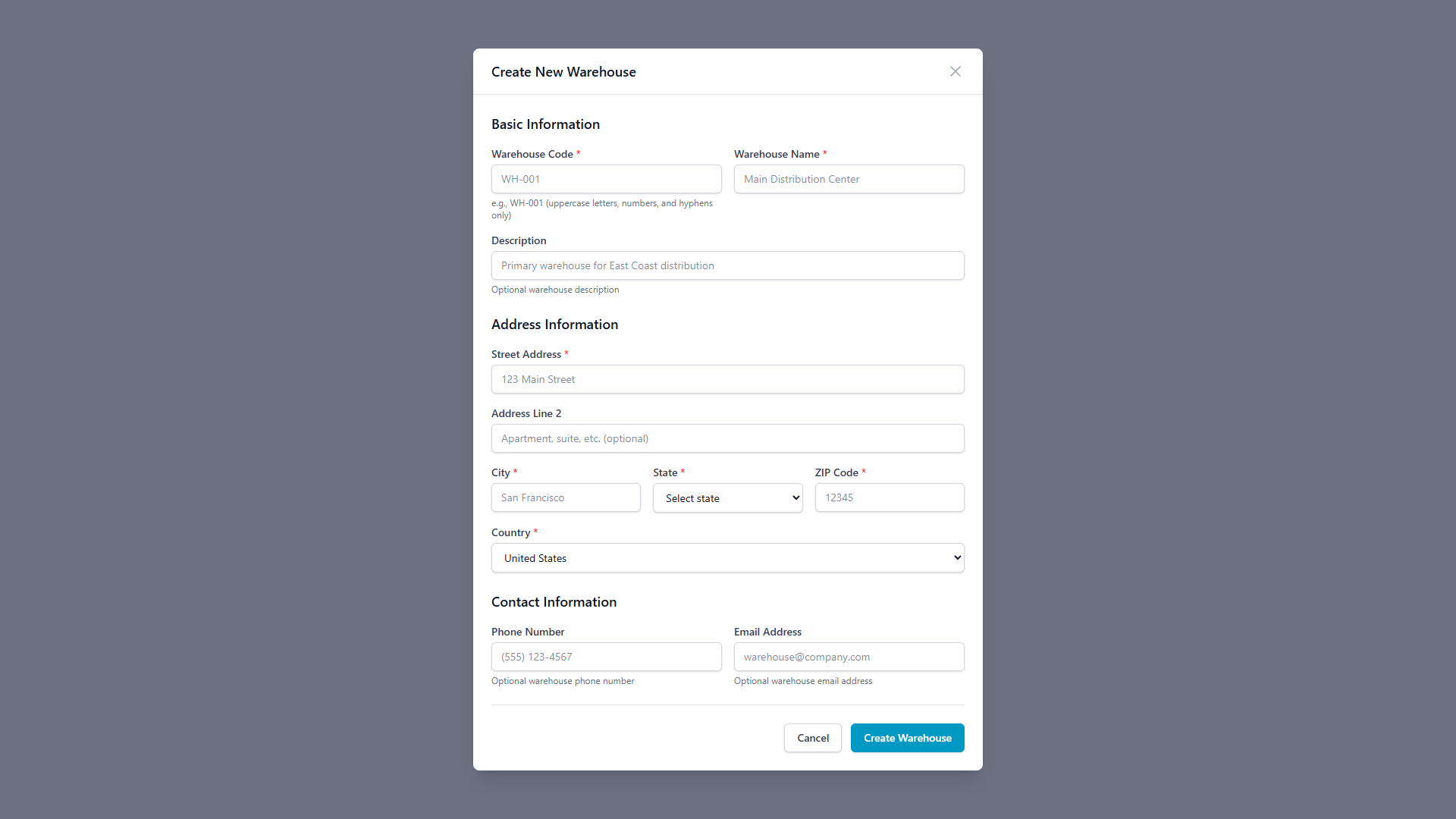
To create a warehouse:
- On the Warehouses page, choose Add Warehouse.
- Under Basic Information, enter a Warehouse Code and a Warehouse Name.
- Under Address Information, enter the street address, city, state, and postal code.
- Under Allocation Settings, choose the default Allocation Strategy (see Allocation strategy).
- Under Timezone, set the warehouse's time zone (see Time zone).
- Choose Create Warehouse. The new warehouse appears in the list with Active status.
To change a warehouse later, choose Edit and update the same fields (plus its Status, which only appears when editing).
Field reference
| Field | Notes |
|---|---|
| Warehouse Code | A unique identifier using uppercase letters, numbers, and hyphens (for example, LA-DC-01). You can't change it after the warehouse is created; if the code is already in use, the platform asks you to pick another. |
| Warehouse Name | The descriptive name shown across the interface. |
| Address | Street address, city, state, and postal code. |
| Allocation Strategy | How stock is chosen for orders by default. See Allocation strategy. |
| Timezone | The warehouse's time zone. See Time zone. |
| Status | Active or Inactive. See Status and deactivation before you delete a warehouse. |
Allocation strategy
Each warehouse has a default allocation strategy that decides which stock is chosen first when inventory is allocated to an order:
| Strategy | How it allocates |
|---|---|
| FIFO — First In, First Out (default) | Oldest inventory first, by received date. |
| FEFO — First Expired, First Out | Earliest expiration date first; items without an expiration date are allocated after those that have one. |
| LIFO — Last In, First Out | Newest inventory first, by received date. |
When a warehouse uses FEFO and the platform allocates stock that is already past its expiration date, the allocation is flagged with an expired-inventory warning so you can review it before confirming.
Per-order override
The warehouse default is just the default. A specific order can be allocated with a different strategy at allocation time — useful when, say, a normally-FIFO warehouse needs FEFO for one perishable order.
Warehouse-level allocation strategy with per-order override and expired-inventory warnings shipped in v1.4.
Time zone
Set each warehouse's time zone so its date-sensitive operations match local time. The time zone governs report timestamps and date-range filtering for that warehouse, which matters when you run facilities across multiple regions.
Per-warehouse time zone shipped in v1.5.
Address and postal code
A warehouse's address — including its postal code — identifies the facility and is available to address-driven workflows such as delivery requests, where postal-code lookup helps complete an address. The warehouse postal code is stored as part of the facility record; it doesn't on its own restrict which deliveries a warehouse can accept.
Status and deactivation
A warehouse is Active when it's available for operations.
Delete deactivates — it does not erase
Choosing Delete marks the warehouse Inactive and hides it from active lists. Its data is preserved, not erased. To bring it back, edit the warehouse and set its status to Active.
Viewing warehouse details
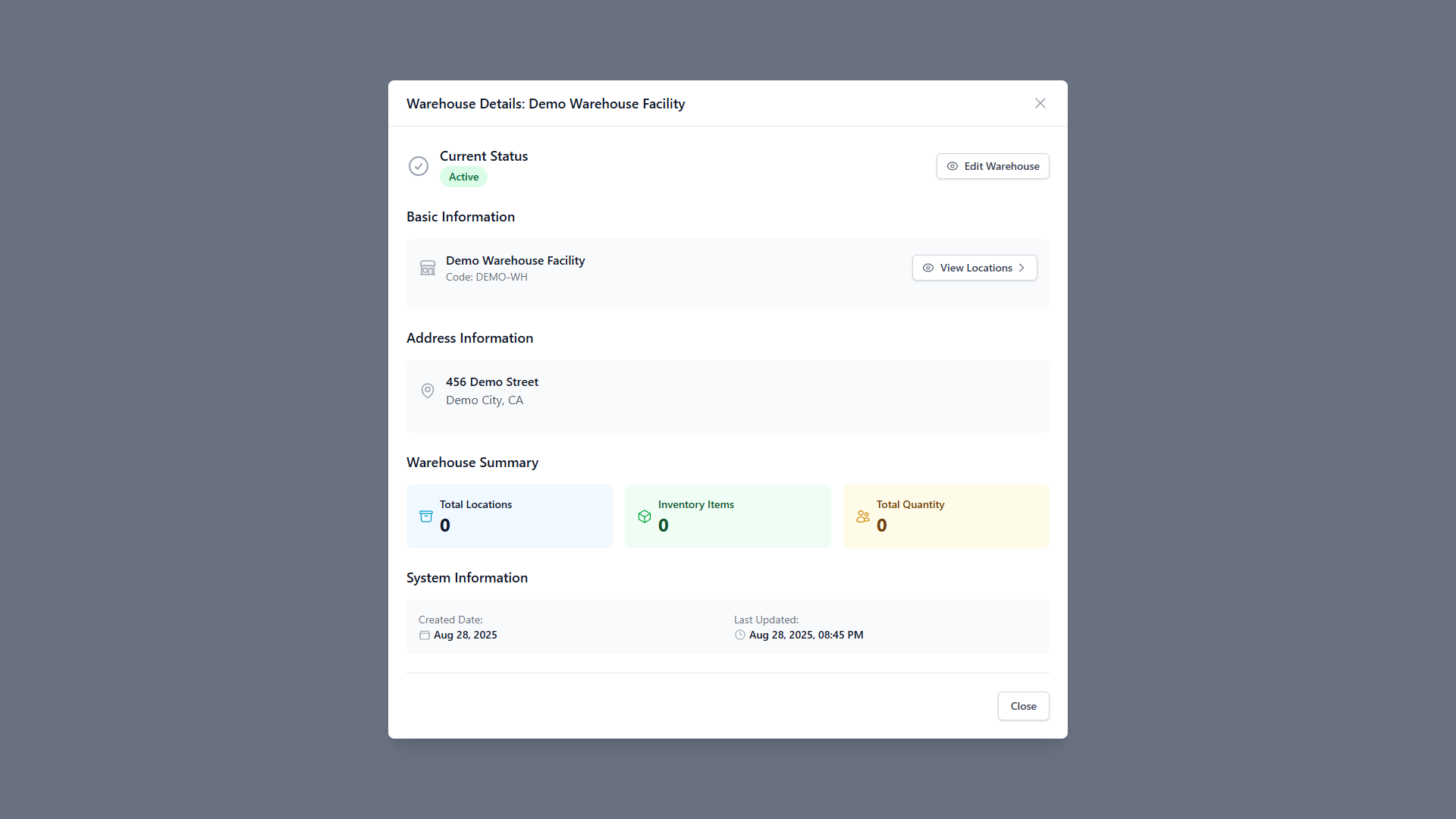
Click a warehouse to open its detail view, which gathers:
- Current Status — Active/Inactive, with quick access to Edit Warehouse.
- Basic Information — name and code, plus a View Locations shortcut into the warehouse's locations.
- Address Information — the full facility address.
- Warehouse Summary — an at-a-glance panel of total locations, inventory items, and total quantity on hand.
- System Information — created and last-updated timestamps.
Related
- Location Management — set up the storage locations inside a warehouse
- Staging Areas
- Inventory Management
- System Settings