Load Planning
Load planning enables warehouse operators to organize and optimize outbound shipments by selecting LPNs, tracking weight and cube capacity in real time, and generating pick lists for efficient warehouse execution.
Overview
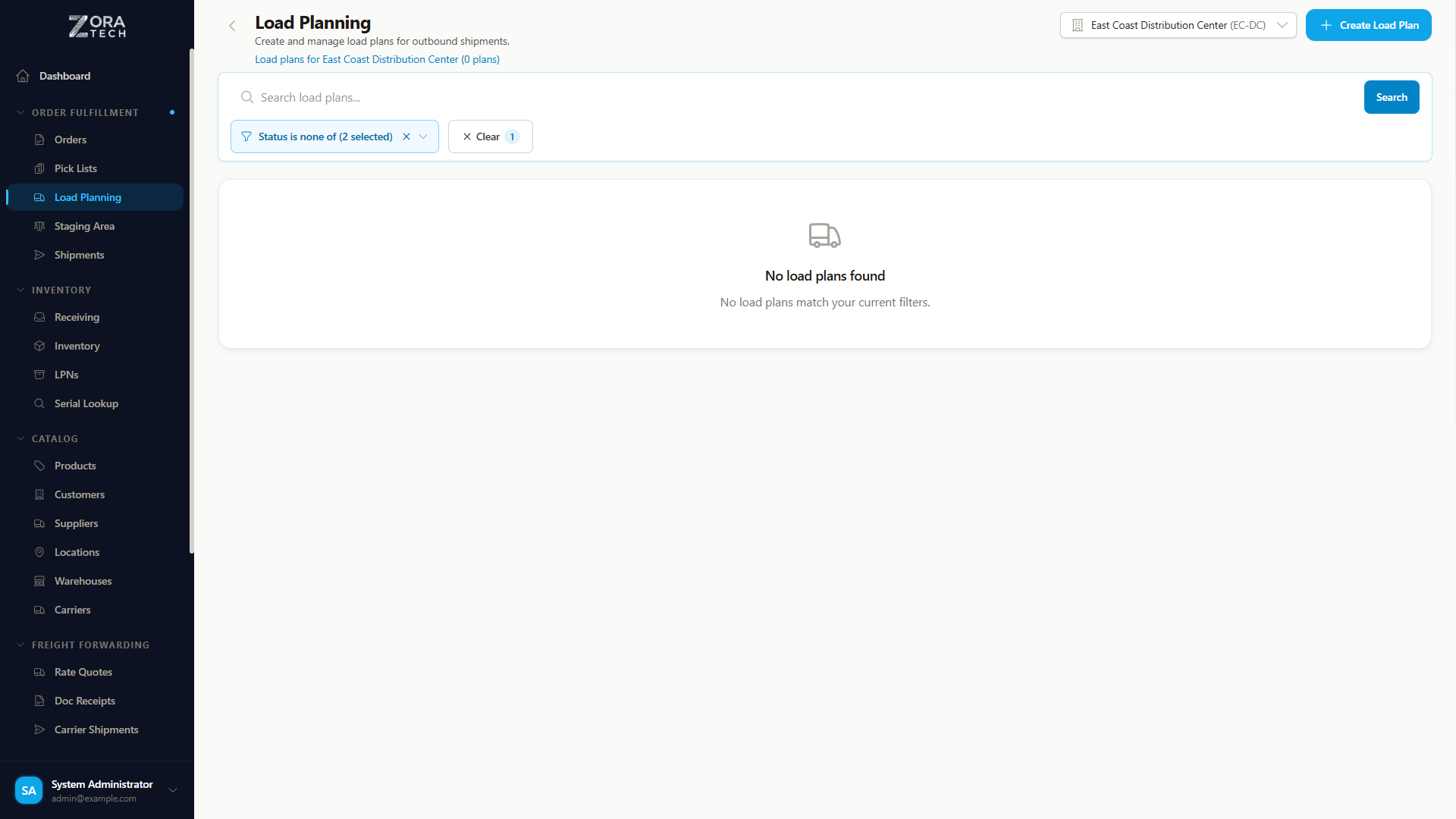
A load plan links to a shipment and defines which LPNs (containers) should be picked, staged, and loaded onto a truck or trailer. The system tracks weight and cube utilization as LPNs are added, helping planners maximize trailer capacity while staying within limits.
Key Capabilities
- LPN-based planning - Select full or partial LPN contents for each load
- Real-time capacity tracking - Weight and cube progress bars update instantly as LPNs are added
- PickList generation - Automatically create pick lists from finalized load plans
- Staging workflow - Route picked LPNs through staging areas or direct-to-shipment
- Barcode verification - Scan LPNs during loading for 100% accuracy
- Load sequence management - Reorder LPNs for optimal loading sequence
Load Plan Lifecycle
Load plans follow a structured status workflow:
stateDiagram-v2
    [*] --> DRAFT: Create
    DRAFT --> PLANNING: Begin Planning
    PLANNING --> READY: Finalize Selection
    READY --> PICKING: Generate PickList
    PICKING --> STAGING: Picks Complete
    PICKING --> LOADING: Skip Staging
    STAGING --> LOADING: LPNs Staged
    LOADING --> COMPLETED: All Loaded
    PLANNING --> CANCELLED: Cancel
    READY --> CANCELLED: Cancel
DRAFT --> CANCELLED: Cancel| Status | Description |
|---|---|
| DRAFT | Load plan created, no LPNs selected yet |
| PLANNING | Actively selecting and organizing LPNs |
| READY | LPN selection finalized, ready for pick list generation |
| PICKING | Pick list generated, warehouse workers executing picks |
| STAGING | Picked LPNs being moved to staging area |
| LOADING | LPNs being scanned and loaded onto the truck |
| COMPLETED | All LPNs verified and loaded |
| CANCELLED | Load plan cancelled |
Creating a Load Plan
Step 1: Initiate the Load Plan
- Navigate to Shipments and select the target shipment
- Click Create Load Plan
- The system creates a load plan in DRAFT status linked to that shipment
Step 2: Configure Capacity Limits
Set the maximum weight and cube (volume) for the load:
| Field | Description | Example |
|---|---|---|
| Max Weight | Maximum load weight (lbs or kg) | 45,000 lbs |
| Max Cube | Maximum volume (cubic feet or meters) | 2,500 cu ft |
Capacity Limits
Capacity limits are soft thresholds. The system will display warnings when limits are exceeded but will not prevent LPN selection, allowing planners to make judgment calls.
Selecting LPNs
Browsing Available LPNs
The LPN selection panel shows all available containers with status IN_INVENTORY or AT_STAGING. Each LPN card displays:
- LPN number and barcode
- Location (warehouse location or staging area)
- Contents - Products, SKUs, and quantities
- Weight and volume totals
- Product details - Dimensions, hazmat flags, fragile warnings, temperature requirements
- Lot/expiration information when applicable
Adding LPNs to the Load
- Click Add to Load on any available LPN card
- The capacity progress bars update immediately
- Review the updated weight and cube utilization
Partial LPN Selection
For multi-SKU LPNs, you can select only a portion of the container's contents:
- Click Partial Select on the LPN card
- Adjust the quantity for each product within the LPN
- Confirm the partial selection
The system calculates accurate weight and volume for partial selections and prevents over-allocation across multiple load plans.
Partial Selection Persistence
Partial selections persist until explicitly cancelled. The remaining inventory stays available for other load plans.
Warning Badges
LPN cards display visual indicators for special handling:
| Badge | Color | Meaning |
|---|---|---|
| HAZMAT | Orange | Contains hazardous materials |
| FRAGILE | Purple | Requires careful handling |
| EXPIRING | Red | Contains items nearing expiration |
Capacity Tracking
The load plan interface provides real-time capacity visualization:
- Weight progress bar - Shows current weight vs. maximum capacity
- Cube progress bar - Shows current volume vs. maximum capacity
- Percentage utilization - Numeric display of capacity usage
Progress bars change color as capacity is consumed:
- Green (0-75%) - Within safe limits
- Yellow (75-95%) - Approaching capacity
- Red (95%+) - At or over capacity
Generating Pick Lists
Once LPN selection is finalized:
- Move the load plan to READY status
- Click Generate PickList
- The system creates a pick list of type LOAD with items for each selected LPN
- The load plan transitions to PICKING status
Pick list items include:
- Source location for each LPN
- Target destination (staging area or direct to shipment)
- LPN barcode for scanning verification
- Quantity details for partial selections
Staging Workflow
By default, picked LPNs are routed through a staging area before loading:
- Picker scans LPN at the source location
- Moves LPN to the designated staging area
- Staging verification confirms LPN arrival
- Load plan updates to STAGING status when all picks complete
Skip Staging
For time-sensitive loads, enable Skip Staging to route LPNs directly from pick locations to the shipment:
- Toggle Skip Staging when creating or editing the load plan
- Picked LPNs go directly to LOADING status
- Barcode scanning still required for verification
Loading and Verification
During the loading phase:
- Open the load plan's Loading view
- Scan each LPN barcode as it is loaded onto the truck
- The system verifies the LPN belongs to this load plan
- Progress tracking shows loaded vs. remaining LPNs
- Once all LPNs are verified, the load plan moves to COMPLETED
Barcode Verification Required
Every LPN must be scanned during loading to ensure accuracy. The system will not allow completion until all assigned LPNs are verified.
Load Sequence Management
Optimize the order in which LPNs should be loaded:
- Open the Load Sequence panel
- Drag and drop LPNs to reorder them
- LPNs at the top of the list should be loaded last (first off the truck)
This is useful for multi-stop deliveries where unloading order matters.
Multi-Warehouse Support
Load plans respect the current warehouse context. Available LPNs are filtered to the selected warehouse, and staging areas are routed accordingly.
Best Practices
- Plan before picking - Finalize LPN selections before generating pick lists to avoid rework
- Monitor capacity - Keep weight utilization below 95% to account for packaging materials
- Use partial selections wisely - Split LPNs only when necessary to minimize handling
- Verify load sequence - Confirm loading order for multi-stop routes before generating picks
- Leverage staging - Use staging areas for quality checks before loading unless time constraints require skip-staging
Troubleshooting
| Issue | Solution |
|---|---|
| LPN not showing in available list | Verify the LPN status is IN_INVENTORY or AT_STAGING and is in the current warehouse |
| Capacity exceeded warning | Review selected LPNs and consider partial selections or splitting across multiple loads |
| Pick list generation fails | Ensure the load plan is in READY status and all selected LPNs are still available |
| Barcode scan rejected during loading | Confirm the LPN belongs to this load plan and hasn't been reassigned |
| Partial selection quantities incorrect | Check that the product quantities don't exceed available inventory |