Freight Forwarding
Complete freight shipping workflow from rate quotes to shipment tracking.
Quick Info
Time Required: 10-15 minutes per shipment Role: Shipping Manager, Warehouse Manager, Logistics Coordinator Mobile: Available - Desktop recommended for rate comparison Related: Carrier Management | Shipping Operations
Overview
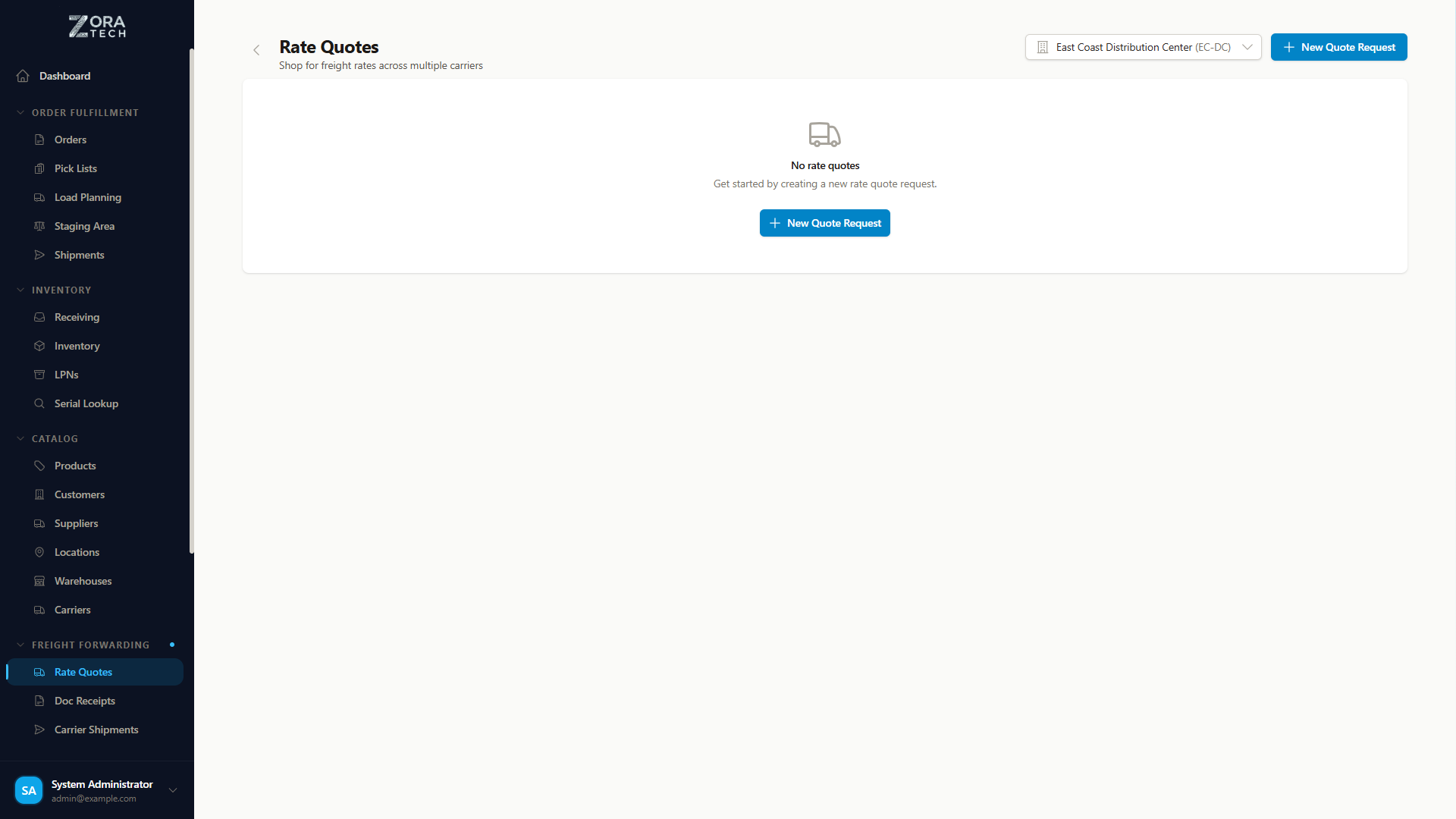
The Freight Forwarding module enables you to ship large or heavy items using LTL (Less Than Truckload) and freight carriers. Request rate quotes from multiple carriers, compare pricing and transit times, book shipments, generate Bill of Lading (BOL) documents, and track shipments until delivery.
Supported Carriers: - TForce WorldWide (formerly UPS Freight) - Unishippers / Speedship - Additional carriers via integration
Key Capabilities: - Request freight rate quotes for LTL shipments - Compare rates from multiple carriers side-by-side - Book shipments directly from rate quotes - Generate and download Bill of Lading (BOL) PDFs - Track shipments with real-time status updates - Manage pickup and delivery time windows - Handle accessorial services (liftgate, residential, etc.)
Freight Forwarding Workflow
Complete Workflow Overview
graph TD
    A[Prepare Shipment Details] --> B[Request Rate Quotes]
    B --> C[Review & Compare Rates]
    C --> D[Select Best Rate]
    D --> E[Book Shipment]
    E --> F[Download BOL]
    F --> G[Schedule Pickup]
    G --> H[Track Shipment]
    H --> I[Confirm Delivery]

    style A fill:#e3f2fd
    style B fill:#e3f2fd
    style C fill:#fff3e0
    style D fill:#fff3e0
    style E fill:#e8f5e9
    style F fill:#e8f5e9
    style G fill:#e8f5e9
    style H fill:#f3e5f5
    style I fill:#f3e5f5
Step 1: Requesting Rate Quotes
Accessing Rate Quotes
- Navigate to Shipping in the sidebar
- Click Freight Forwarding
- Click Request Rate Quote button
Enter Shipment Information
Origin Address
Your Warehouse/Shipping Location:
- Enter Company Name
- Enter Street Address
- Enter City, State, ZIP Code
- Provide Contact Name and Phone Number
Save Origin Addresses
Frequently used origin addresses can be saved as defaults to speed up the quoting process.
Destination Address
Customer/Consignee Location:
- Enter Company Name
- Enter Street Address
- Enter City, State, ZIP Code
- Provide Contact Name and Phone Number
Address Validation: - System validates address format - Suggests corrections for invalid addresses - Confirms residential vs. commercial delivery
Shipment Items
Add each item or pallet:
For each item in your shipment:
- Description - Item description (e.g., "Machinery Parts")
- Pieces - Number of pieces/pallets (e.g., 2 pallets)
- Weight - Total weight in pounds (e.g., 850 lbs)
- Freight Class - NMFC freight class (50, 55, 60, 65, 70, 77.5, 85, 92.5, 100, 110, 125, 150, 175, 200, 250, 300, 400, 500)
- Dimensions - Length x Width x Height in inches (optional but recommended)
Understanding Freight Class:
Freight class is determined by density, stowability, handling, and liability:
| Class | Density (lbs/cu ft) | Example Items |
|---|---|---|
| 50 | Over 50 | Dense items (steel, bricks) |
| 60-70 | 30-50 | Automobile parts, machinery |
| 85-100 | 12-30 | Electronics, furniture |
| 125-150 | 8-12 | Household goods |
| 175-250 | 4-8 | Clothing, plastic items |
| 300-500 | Under 4 | Ping pong balls, bags of gold dust |
Correct Freight Class
Using incorrect freight class may result in reclassification and additional charges. When in doubt, consult NMFC classification guide or carrier for assistance.
Add Multiple Items: - Click Add Item to add additional line items - Each pallet or SKU can be a separate line - Total weight calculated automatically
Accessorial Services
Optional Services:
Select services needed for your shipment:
- Liftgate at Pickup - Required if no loading dock at origin
- Liftgate at Delivery - Required if no loading dock at destination
- Residential Pickup - Origin is residential address
- Residential Delivery - Destination is residential address
- Inside Pickup - Pickup beyond dock/loading area
- Inside Delivery - Delivery beyond dock/loading area
- Limited Access - Churches, schools, storage facilities
- Notify Before Delivery - Requires advance notification
- Appointment Delivery - Requires scheduled delivery time
Accessorial Fees
Each accessorial service adds to shipping cost. Only select services actually needed to avoid unnecessary charges.
Review and Submit
- Review all information for accuracy
- Verify addresses, items, and services
- Click Get Rate Quotes
- System contacts carriers for pricing
Processing Time: - Usually 30 seconds to 2 minutes - Multiple carriers queried simultaneously - Real-time rate calculation
Step 2: Reviewing Rate Quotes
Rate Quote Results
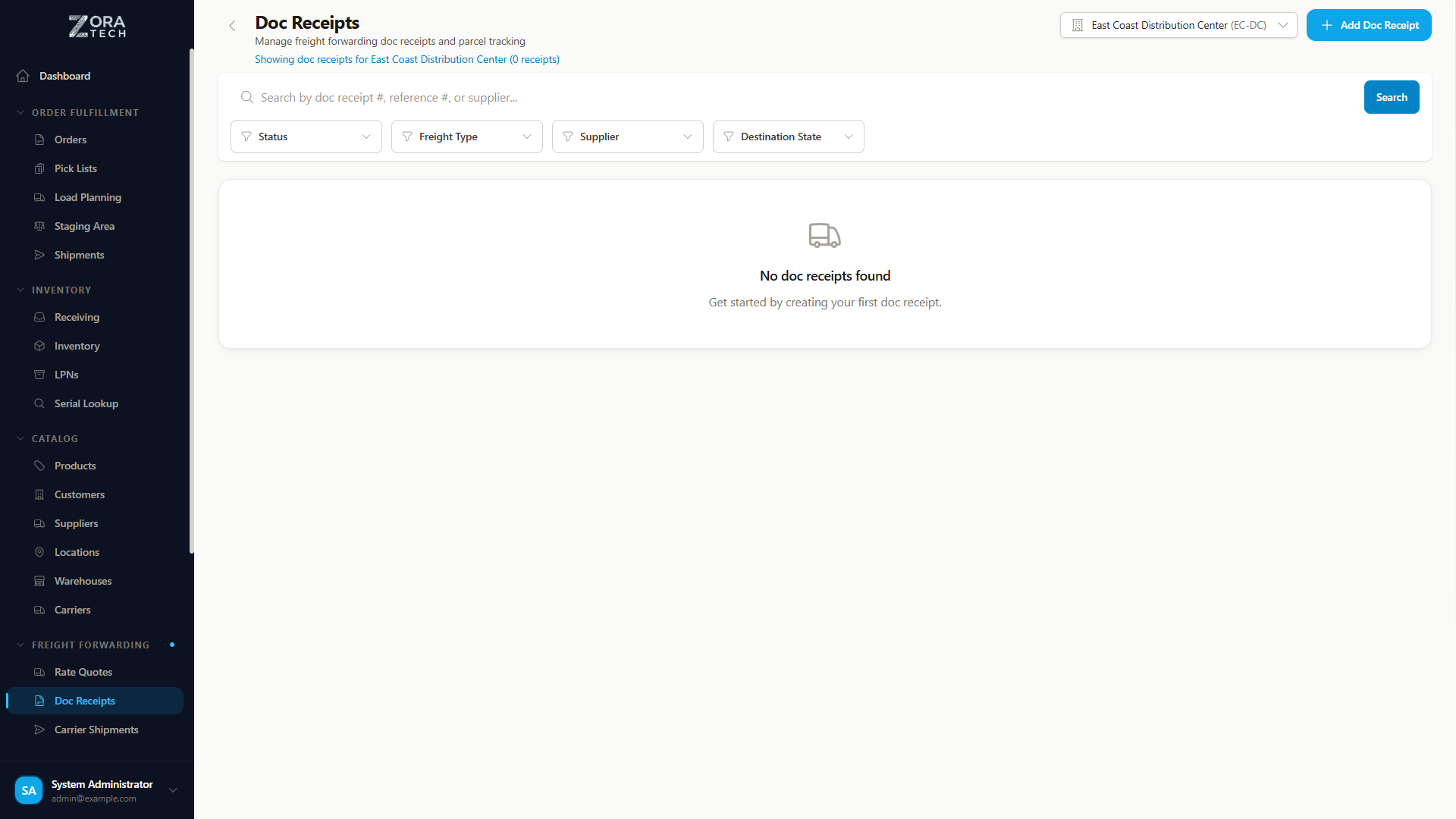
After submitting, you'll see a comparison table with quotes from available carriers.
Rate Quote Information
For Each Carrier Quote:
- Carrier Name - Shipping carrier (e.g., TForce, Speedship)
- Service Type - Service level (Standard LTL, Expedited, etc.)
- Transit Time - Estimated delivery time (e.g., 3-5 business days)
- Total Cost - Complete shipping cost including accessorials
- Base Rate - Freight charges before accessorials
- Fuel Surcharge - Current fuel surcharge
- Accessorial Charges - Itemized accessorial fees
- Rate Quote ID - Unique identifier for this quote
Comparing Rates
Factors to Consider:
Cost: - Compare total cost, not just base rate - Factor in accessorial charges - Consider fuel surcharge variability
Transit Time: - Balance cost vs. delivery speed - Consider customer expectations - Account for time-sensitive shipments
Carrier Reliability: - Review carrier performance history - Consider claims history - Evaluate customer service
Service Options: - Verify all needed services included - Check for service limitations - Confirm coverage area
Rate Quote Details
Click any quote to view detailed breakdown:
- Base Freight Charge - Core transportation cost
- Fuel Surcharge - Percentage-based fuel cost
- Accessorial Charges - Each service itemized
- Liftgate fees
- Residential delivery
- Inside delivery
- Other selected services
- Total Charges - Sum of all fees
Rate Quote Validity: - Quotes typically valid for 24-48 hours - Rates subject to carrier acceptance - Fuel surcharge may change
Step 3: Booking a Shipment
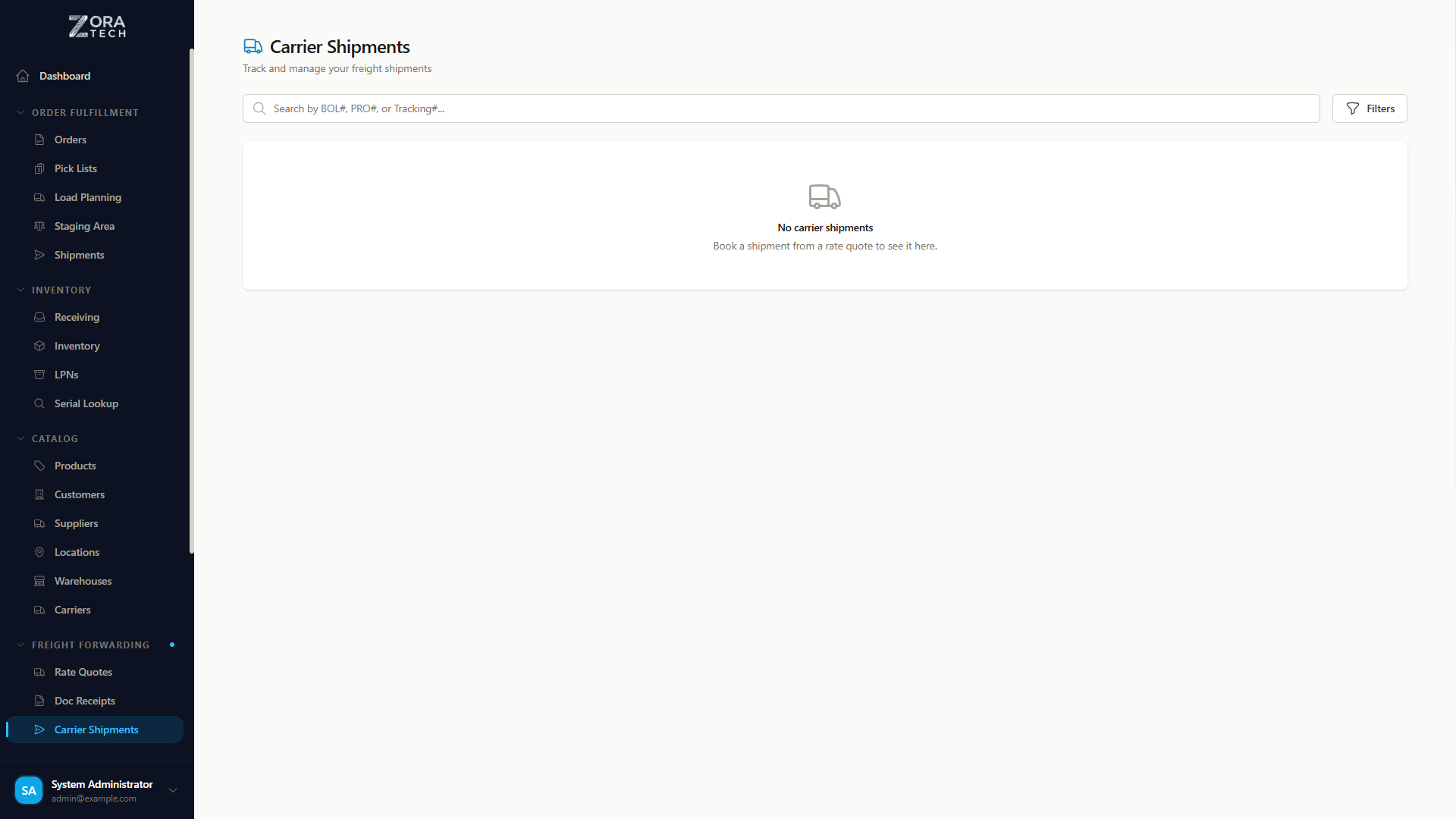
Selecting a Rate Quote
- Review all available rate quotes
- Select the best option for your needs
- Click Book Shipment button
- Booking confirmation modal opens
Booking Confirmation
Verify Shipment Details:
Before confirming booking, review:
- Shipper Information - Origin address and contact
- Consignee Information - Destination address and contact
- Shipment Items - Items, weights, and freight classes
- Selected Rate - Carrier, cost, and transit time
- Accessorial Services - All selected services
- Pickup Date - Earliest pickup date
Additional Booking Information:
Pickup Date and Time Window: - Select desired pickup date - Specify pickup time window (e.g., 8:00 AM - 5:00 PM) - Carrier will schedule within window
Delivery Date and Time Window: - Specify delivery date preference (if applicable) - Set delivery time window - Subject to carrier availability
Reference Numbers:
Add reference numbers for tracking: - Purchase Order Number - Your PO number - Customer Order Number - Customer's order reference - Additional References - BOL number, internal tracking
Special Instructions:
Provide any special handling instructions: - Loading dock instructions - Contact information for pickup/delivery - Handling precautions - Delivery requirements
Complete Booking
- Review all information carefully
- Confirm shipper and consignee details are correct
- Click Confirm Booking
- System submits booking to carrier
- Booking confirmation displays
Booking Confirmation Includes:
- Shipment ID - Zora system shipment ID
- BOL Number - Bill of Lading number
- PRO Number - Carrier tracking number (if assigned)
- Confirmation Number - Carrier booking confirmation
- Pickup Confirmation - Scheduled pickup date and time
Booking Complete
Shipment is now booked with carrier. Download BOL and prepare shipment for pickup.
Step 4: Bill of Lading (BOL)
What is a Bill of Lading?
The Bill of Lading is a legal document that: - Serves as receipt for goods picked up - Acts as contract of carriage between shipper and carrier - Provides title document for goods in transit - Required for freight shipment
BOL Requirements: - Must accompany all freight shipments - Sign and provide to driver at pickup - Keep copy for your records - Required for claims processing
Downloading the BOL
After Booking:
- Shipment detail page displays
- Click Download BOL button
- BOL PDF downloads to your device
- Print multiple copies
BOL Contents:
- Shipper information - Your company and address
- Consignee information - Destination and contact
- BOL Number - Unique BOL identifier
- PRO Number - Carrier tracking number
- Shipment Items - Detailed item list with weights and classes
- Special Instructions - Any handling requirements
- Signature Blocks - For shipper, carrier, and consignee
Printing and Preparing BOL
Print Recommendations: - Print at least 3 copies (shipper, carrier, consignee) - Use standard 8.5" x 11" paper - Ensure barcode is clear and scannable - Staple copies together
Before Pickup: 1. Print BOL copies 2. Sign shipper section 3. Place in document pouch 4. Attach to shipment 5. Keep one copy for files
Step 5: Pickup and Handoff
Preparing for Pickup
Before Carrier Arrival:
- Shipment palletized and stretch-wrapped
- BOL printed and signed
- Freight clearly labeled
- Loading dock area clear
- Forklift available (if needed)
- Staff member designated for handoff
Pickup Time Window: - Carrier will arrive during specified window - Be prepared for early or late arrival - Have contact number for carrier
During Pickup
When Driver Arrives:
- Verify Carrier - Confirm carrier company and driver
- Inspect Shipment - Driver inspects items
- Count Pieces - Confirm piece count matches BOL
- Check Condition - Note any existing damage
- Sign BOL - Driver signs and provides copy
- Exchange Documents - Give BOL to driver, keep copy
- Note PRO Number - Record carrier PRO number if different
Driver May Refuse: - Improperly packaged freight - Hazardous materials without proper documentation - Overweight pallets - Items not matching BOL description
If Issues Arise: - Discuss with driver immediately - Make notes on BOL before signing - Contact carrier customer service - Photograph shipment if disputes exist
After Pickup
- File BOL Copy - Store in shipment records
- Update System - Mark shipment as picked up
- Notify Customer - Provide tracking information
- Monitor Tracking - Watch for status updates
Step 6: Tracking Shipments
Accessing Shipment Tracking
From Freight Forwarding:
- Navigate to Shipping → Freight Forwarding
- Click Track Shipments tab
- View list of active shipments
From Shipment Record:
- Open the specific shipment
- View tracking information in shipment details
- Click Track Shipment for real-time status
Tracking Information
Shipment Status Updates:
- Booking Confirmed - Shipment booked with carrier
- Pickup Scheduled - Carrier scheduled to pick up
- Picked Up - Driver collected shipment
- In Transit - Shipment moving to destination
- Out for Delivery - On truck for final delivery
- Delivered - Shipment delivered to consignee
- Exception - Delay or issue encountered
Tracking Details:
- Current Status - Latest shipment status
- Current Location - Last scan location
- Status Updates - Complete history of scans
- Estimated Delivery - Expected delivery date
- Actual Delivery - Confirmed delivery date and time
Status Update Notifications
Automatic Notifications:
System sends notifications for: - Pickup confirmed - Out for delivery - Delivered successfully - Exceptions or delays
Email Notifications: - Sent to designated email addresses - Include tracking link and status - Provide contact information for carrier
Step 7: Delivery and Confirmation
Monitoring Delivery
Expected Delivery: - Monitor tracking for out-for-delivery status - Contact consignee to confirm readiness - Ensure receiving dock available
Delivery Time Window: - Carrier delivers within specified window - Consignee should be available - Provide contact number for delivery issues
Proof of Delivery (POD)
After Delivery:
- Carrier obtains signature from consignee
- Driver completes delivery section of BOL
- Signed BOL serves as Proof of Delivery
- POD uploaded to carrier system
Accessing POD:
- Navigate to shipment in system
- Click View POD (available 24-48 hours after delivery)
- Download POD PDF for records
POD Contains: - Consignee signature - Date and time of delivery - Delivery location - Condition notes - Piece count confirmation
Delivery Issues
If Consignee Reports Issues:
Shortage: - Verify piece count on POD - Compare to BOL - File shortage claim with carrier within timeframe - Provide documentation
Damage: - Consignee must note damage on POD at delivery - Photograph damage immediately - Contact carrier within 24 hours - File cargo claim with documentation
Refused Shipment: - Carrier will contact shipper - Coordinate return or redelivery - Additional charges may apply
Common Freight Scenarios
Scenario 1: Standard LTL Shipment
Use Case: Shipping 4 pallets of machinery parts to business with loading dock
Steps: 1. Request rate quote 2. Enter 4 pallets with total weight and freight class 3. Select no accessorials (dock-to-dock) 4. Compare rates 5. Book shipment 6. Download and print BOL 7. Prepare pallets 8. Hand off to driver at pickup
Typical Timeline: - Book: Day 1 - Pickup: Day 2 - Delivery: Day 5-7
Scenario 2: Residential Delivery
Use Case: Shipping large item to residential customer without loading dock
Steps: 1. Request rate quote 2. Enter item details 3. Select accessorials: - Residential delivery - Liftgate at delivery - Notify before delivery 4. Book shipment with higher cost for services 5. Provide customer phone number for notification 6. Coordinate delivery time with customer
Important: - Residential delivery costs more - Limited access areas add fees - Liftgate required without dock - Driver may need assistance
Scenario 3: Time-Sensitive Shipment
Use Case: Urgent delivery needed for production line
Steps: 1. Request rate quote 2. Filter for expedited service 3. Compare transit times 4. Select fastest service (may cost 30-50% more) 5. Book shipment 6. Specify delivery date requirement 7. Add "Time-sensitive" to special instructions 8. Monitor tracking closely 9. Contact carrier if delays occur
Scenario 4: Oversized/Heavy Freight
Use Case: Shipping industrial equipment over 500 lbs
Steps: 1. Measure and weigh accurately 2. Determine correct freight class (usually lower for dense items) 3. Request rate quote with accurate dimensions 4. Note special handling requirements 5. Specify forklift available at both locations 6. Book shipment 7. Ensure proper packaging and securing 8. Have forklift operators ready at pickup
Best Practices
Accurate Freight Classification
Measure Precisely: - Use accurate scales for weight - Measure all dimensions (L x W x H) - Calculate density: (weight / cubic feet) - Determine correct freight class
Why Accuracy Matters: - Prevents reclassification fees - Avoids unexpected charges - Ensures accurate quotes - Reduces carrier disputes
Packaging and Palletization
Proper Palletization: - Use standard pallet sizes (48" x 40") - Stretch wrap all pallets - Secure with strapping if needed - Label clearly on multiple sides - Stack evenly to prevent shifting
Packaging Requirements: - Protect items from damage - Use appropriate cushioning - Secure loose items - Weatherproof if needed - Label "Fragile" or "This End Up" as appropriate
Documentation
Keep Complete Records: - Filed BOL copies - Rate quote confirmations - Booking confirmations - Proof of delivery - Claim documentation
Record Retention: - Keep BOLs for at least 2 years - Maintain claim records for 3+ years - Digital copies recommended - Organize by shipment date
Communication
Internal Coordination: - Notify warehouse of pickup schedule - Assign staff for driver handoff - Prepare equipment (forklift, dock plate) - Clear loading area
External Communication: - Confirm addresses with customers - Provide tracking information - Set delivery expectations - Follow up on delivery confirmation
Troubleshooting
Quote Request Fails
Possible Causes: - Invalid address format - Unsupported service area - Missing required information - Carrier system unavailable
Solutions: 1. Verify all address fields complete 2. Check ZIP codes are correct 3. Confirm freight class selected 4. Try again after a few minutes 5. Contact support if persists
No Quotes Returned
Possible Causes: - Outside carrier service areas - Restricted freight class or commodity - Weight exceeds carrier limits - Invalid origin/destination combination
Solutions: 1. Verify addresses are in carrier coverage areas 2. Check freight class is standard (not hazmat) 3. Review weight and dimension limits 4. Try different carrier or service 5. Contact carrier directly for specialized freight
Booking Fails
Possible Causes: - Quote expired (usually 24-48 hours) - Carrier capacity full - Address validation failed - Missing required information
Solutions: 1. Request new rate quote 2. Try different pickup date 3. Verify all fields completed 4. Correct any address issues 5. Select alternative carrier
Pickup Not Completed
Possible Causes: - Shipment not ready - Incorrect pickup address - Dock closed or inaccessible - Driver scheduling issue
Solutions: 1. Contact carrier immediately 2. Verify pickup address and hours 3. Confirm shipment is ready 4. Reschedule pickup if needed 5. Check tracking for carrier notes
Tracking Not Updating
Possible Causes: - Carrier hasn't scanned yet - Tracking number incorrect - System sync delay - Weekend or holiday (no scans)
Solutions: 1. Wait 24 hours after pickup 2. Verify PRO/tracking number 3. Contact carrier directly 4. Check carrier website for updates
Freight Forwarding Costs
Understanding Freight Charges
Base Freight Charge: - Determined by weight, distance, and freight class - Calculated using carrier rate tables - Affected by market rates and capacity
Fuel Surcharge: - Percentage of base charge - Fluctuates with diesel prices - Updated weekly or monthly - Typically 15-25% of base
Accessorial Charges: - Each service adds flat fee or percentage - Vary by carrier - Can significantly increase total cost
Typical Accessorial Costs
| Service | Typical Fee |
|---|---|
| Residential Delivery | \(75-\)150 |
| Liftgate Service | \(75-\)125 |
| Inside Delivery | \(50-\)100 |
| Limited Access | \(50-\)100 |
| Notify Before Delivery | \(25-\)50 |
| Appointment Delivery | \(50-\)100 |
Costs Vary
Accessorial fees vary by carrier, region, and shipment size. Always review detailed rate quote for accurate pricing.
Cost Optimization
Reduce Shipping Costs:
- Accurate Classification - Use correct freight class to avoid reclassification
- Minimize Accessorials - Only select needed services
- Consolidate Shipments - Combine orders when possible
- Flexible Pickup/Delivery - Standard service costs less than appointment
- Negotiate Rates - High-volume shippers can negotiate with carriers
- Compare Carriers - Always request multiple quotes
Integration with Orders
Freight Forwarding from Orders
Create Shipment from Order:
- Open customer order
- Click Create Freight Shipment
- System pre-fills:
- Destination address from order
- Items and weights from order
- Customer contact information
- Complete origin and freight details
- Request rate quotes
- Book shipment
- Shipment automatically linked to order
Benefits: - Reduces data entry - Maintains order linkage - Tracks shipping costs by order - Simplifies reporting
Carrier-Specific Features
TForce WorldWide (UPS Freight)
Capabilities: - National LTL coverage - Guaranteed service options - Extensive tracking - BOL integration - Claims processing
Special Features: - TForce Connect platform - Time-definite services - Volume discounts - Pickup scheduling
Unishippers / Speedship
Capabilities: - Multi-carrier network - Competitive pricing - Regional optimization - Volume aggregation
Special Features: - Load board integration - Carrier negotiation - Claims advocacy - Reporting tools
Related Documentation
- Carrier Management - Configure carriers and integrations
- Shipping Operations - Standard parcel shipping
- Warehouse Management - Warehouse setup
- Order Processing - Order fulfillment
Need Help?
Questions?
- Check FAQ
- Troubleshooting Guide
- Email Support
- Carrier Support - Contact your carrier directly
Last Updated: January 2025