Cycle Counting - Standard Operating Procedure
Complete step-by-step guide to performing cycle counts for inventory accuracy.
Quick Info
Time Required: 15-30 minutes per location Role: Warehouse Staff, Inventory Manager Mobile: Recommended - Count on the floor Related: Inventory Adjustments SOP | Inventory Management
What is Cycle Counting?
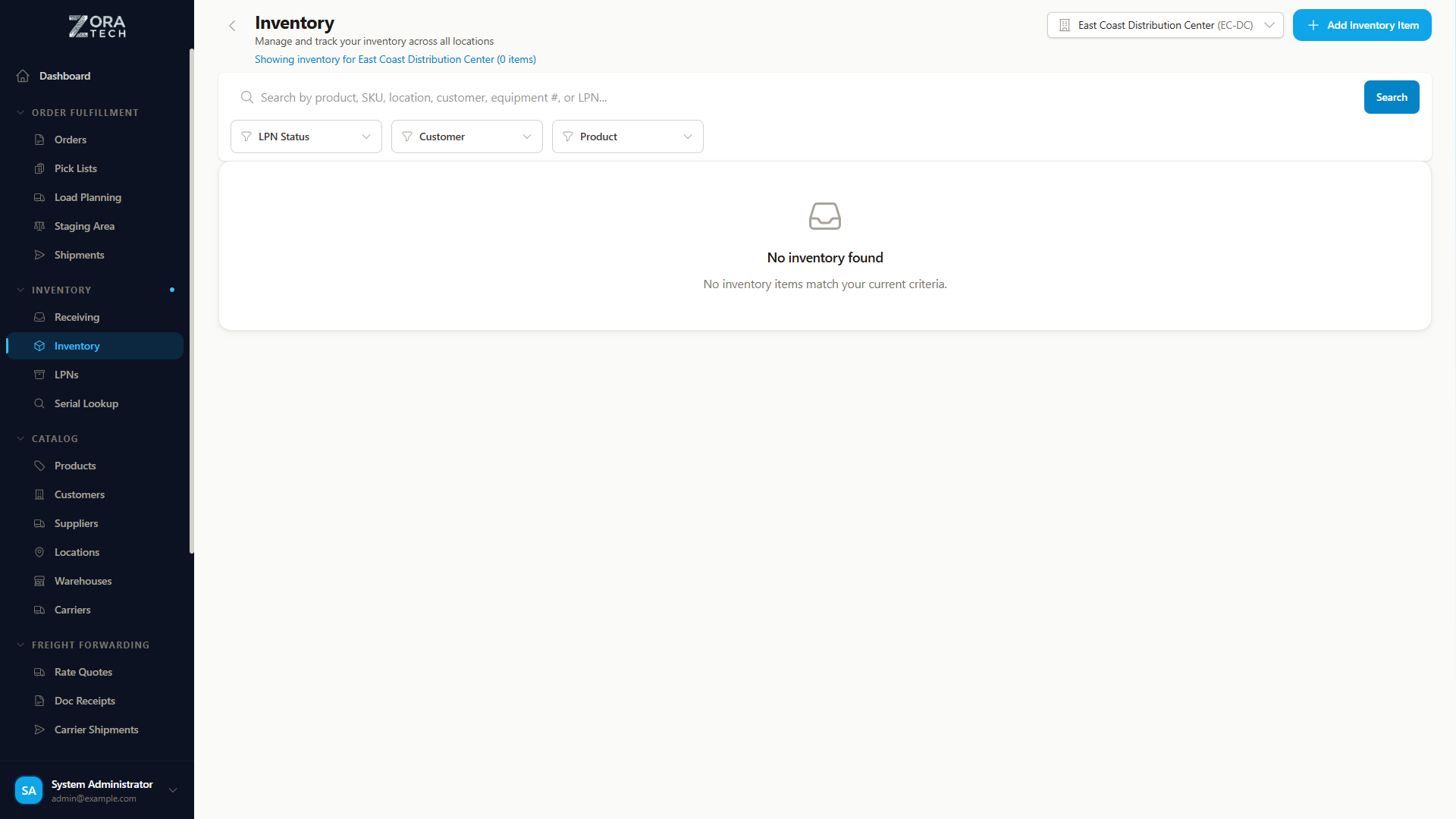
Cycle counting is a regular, systematic process of counting a subset of inventory to verify accuracy without shutting down operations for a full physical inventory.
Benefits
- Maintain accuracy - Regular verification prevents drift
- No downtime - Count during normal operations
- Identify issues - Catch problems early
- Improve processes - Find root causes of discrepancies
- Financial accuracy - Ensure correct inventory valuation
Cycle Count vs Physical Inventory
| Cycle Counting | Physical Inventory |
|---|---|
| Continuous process | Once or twice yearly |
| Count subset daily/weekly | Count everything at once |
| No business interruption | Requires shutdown |
| Proactive accuracy | Reactive correction |
| Part of daily operations | Special event |
Before You Start
Complete these preparations before cycle counting:
- Review assigned count locations or products
- Ensure counting area is organized and accessible
- Have mobile device or barcode scanner ready
- Understand expected products in count area
- Know how to handle discrepancies
- Clear any active work from count area
Timing
Schedule cycle counts during slower periods when location activity is minimal. Avoid counting locations with active picks or putaways.
Step 1: Receive Count Assignment
How Counts Are Assigned
ABC Classification (Most Common): - A Items - High value, count monthly - B Items - Medium value, count quarterly - C Items - Low value, count annually
Location-Based: - Count all products in specific location - Rotate through all locations systematically
Random Selection: - System randomly selects products - Unbiased sampling
View Your Assignment
On Mobile: 1. Open Zora Tech app 2. Tap Cycle Counts from menu 3. View assigned count tasks 4. Tap task to begin
On Desktop: 1. Navigate to Inventory → Cycle Counts 2. View assigned counts in queue 3. Click to start counting
Step 2: Prepare the Count Area
Before Counting
- Clear active work from location
- Complete any pending picks
- Finish any putaways
-
Remove empty pallets/containers
-
Organize products for easier counting
- Face products forward
- Stack neatly
-
Separate different SKUs
-
Check lighting and accessibility
- Ensure adequate lighting
- Clear pathways
- Safe access to items
Count Area Requirements
Freeze the Location
During counting, no one should: - Pick from the location - Putaway to the location - Move items in/out
Inform nearby workers you're counting.
Step 3: Count Physical Inventory
Counting Methods
Best for most situations
- Scan product barcode
- System identifies product
- Count physical units
- Enter count
- Repeat for all products in location
When barcodes unavailable
- Identify product by label
- Enter SKU manually
- Count physical units
- Enter count
- Repeat for all products
Counting Tips
For Accurate Counts:
- ✅ Count systematically - Left to right, top to bottom
- ✅ Count twice if unsure
- ✅ Open boxes to verify contents
- ✅ Check behind items for hidden stock
- ✅ Verify SKU matches physical product
- ✅ Use scale for bulk items (if available)
Common Mistakes:
- ❌ Rushing through counts
- ❌ Estimating instead of counting
- ❌ Missing items behind front stock
- ❌ Counting wrong SKU
- ❌ Counting display samples as inventory
Recording Counts
For each product:
- Scan or enter SKU
- Count physical quantity
- Enter count in system
- Note any issues:
- Damaged items
- Wrong location
- Expired products
- Questionable items
Zero Counts
If product shows in system but not physically present: - Double-check you're in correct location - Look in nearby locations - Check if items were recently picked - Record zero if truly not present
Serial Number Handling
For Serial-Tracked Products:
Cycle counts for serial-tracked items have special requirements:
Count Matches Expected:
If your physical count matches the system quantity: - ✅ Skip serial scanning - System optimization - System assumes serial numbers are correct - Count proceeds quickly - Saves time on routine counts
Count Does NOT Match Expected:
If your physical count differs from system: - ⚠️ Serial scanning REQUIRED - Must verify each item - Scan each serial number present - System compares to expected serials - Identifies which serials are missing or unexpected - Creates detailed discrepancy report
Serial Number Discrepancy Types:
Expected Serials: SN-001, SN-002, SN-003
Found Serials: SN-001, SN-004

Issues:
❌ SN-002 missing (expected but not found)
❌ SN-003 missing (expected but not found)
⚠️ SN-004 unexpected (found but not in system)
Resolving Serial Discrepancies:
- Missing Serials:
- Check if items were recently picked
- Look in adjacent locations
- Verify not mis-labeled
-
Report to supervisor if truly missing
-
Unexpected Serials:
- Verify product SKU matches
- Check if from different location
- Look up serial in Serial Number Lookup
- May need location correction
Serial Count Workflow:
graph TD
    A[Start Cycle Count] --> B{Serial Tracked?}
    B -->|No| C[Count Units]
    B -->|Yes| D[Count Physical Units]
    D --> E{Count Matches?}
    E -->|Yes| F[Skip Serial Scan]
    E -->|No| G[Scan All Serials]
    G --> H[System Identifies Discrepancies]
    H --> I[Resolve Issues]
    F --> J[Complete Count]
    I --> J
    C --> J

    style F fill:#e8f5e9
    style G fill:#fff3e0
    style H fill:#ffebee
Serial Efficiency
The "skip serial scan when count matches" feature significantly speeds up cycle counts for serial-tracked items while maintaining accuracy. Only discrepancies require detailed serial verification.
Step 4: Handle Discrepancies
System Comparison
After entering your counts, system compares:
Product: Widget A (SKU: PROD-001)
Location: A-01-A

System Quantity: 50
Your Count: 48
Variance: -2 units
Discrepancy Thresholds
Within Tolerance (Usually ±2%): - System may auto-accept - Or prompt for confirmation - Proceed to next item
Outside Tolerance: - Recount required - System prompts: "Count again" - Perform second count carefully
Recount Procedure
If discrepancy is significant:
- Stop and recount
- Verify location is correct
- Check system record for recent transactions
- Count more carefully:
- Open boxes
- Check behind items
- Look for partial units
-
Verify SKU matches
-
Enter recount
- If still different:
- Note reason for discrepancy
- Supervisor may need to verify
Step 5: Complete the Count
Review Summary
Before finalizing:
- All products counted
- Discrepancies recounted
- Notes added for issues
- Damaged items documented
- No products missed
Submit Count
- Review count summary
- Tap "Complete Count"
- System processes results:
- Accepts counts within tolerance
- Flags large discrepancies for review
- Updates inventory quantities
- Creates adjustment transactions
Count Complete
Inventory updated based on your physical count. Adjustment transactions recorded in audit log.
After Submission
System automatically: - Updates inventory quantities - Creates adjustment transactions - Records count accuracy metrics - Assigns next count location
Step 6: Follow-Up Actions
Investigate Discrepancies
For significant variances:
- Review recent transactions
- Check if items were recently moved
- Verify picks/putaways processed
-
Look for timing issues
-
Check for process issues
- Receiving errors
- Picking mistakes
- Location confusion
-
Data entry problems
-
Take corrective action
- Retrain staff if needed
- Improve labeling
- Fix location issues
- Update procedures
Handle Found Issues
Damaged Items: - Set aside damaged products - Create adjustment to remove - Document damage - Follow disposal process
Wrong Location: - Note correct location - Transfer items to proper location - Update system
Expired Products: - Remove from sellable inventory - Create adjustment - Follow company expiration policy
Cycle Count Schedule
Frequency Guidelines
High-Value Items (A): - Count monthly - Examples: Electronics, high-cost materials - Highest impact on financials
Medium-Value Items (B): - Count quarterly - Examples: Standard products - Moderate financial impact
Low-Value Items (C): - Count annually - Examples: Supplies, low-cost items - Minimal financial impact
Daily Count Goals
Typical targets: - 10-20 locations per day (small warehouse) - 20-50 locations per day (medium warehouse) - 50+ locations per day (large warehouse)
Consistency
Regular small counts are better than infrequent large counts. Aim for steady daily progress.
Best Practices
Counting Accuracy
- ✅ Count during slow periods - Fewer interruptions
- ✅ Same person recounts - Consistency
- ✅ Use scale for bulk - Faster, more accurate
- ✅ Organize before counting - Easier to count
- ✅ Good lighting - Prevent mistakes
Process Improvement
- ✅ Track accuracy by counter - Training opportunities
- ✅ Analyze variance patterns - Find root causes
- ✅ Review high-variance items - Process issues
- ✅ Document findings - Continuous improvement
- ✅ Share learnings - Team education
Common Issues to Watch
Frequent Variances: - May indicate theft or shrinkage - Process problems (receiving, picking) - Location management issues - Training needs
Specific Products: - Always wrong? Check receiving process - Wrong location? Improve labeling - Damaged frequently? Storage issues
Cycle Count Metrics
Key Performance Indicators
Count Accuracy: - Target: 98%+ first-count accuracy - Measure: (Correct counts ÷ Total counts) × 100
Cycle Count Coverage: - All locations counted per schedule - A items monthly, B quarterly, C annually
Variance Rates: - Track $ value of variances - Monitor trends over time
Time per Count: - Track efficiency - Identify training needs
Reporting
- Navigate to Reports → Inventory
- Select "Cycle Count Report"
- View:
- Count accuracy by user
- Variance trends
- Coverage completion
- Problem products/locations
Troubleshooting
Product Not in Location
Possible Reasons: - Already picked for order - Moved to different location - Receiving not completed - Data entry error
Solutions: 1. Check if picked recently 2. Look in nearby locations 3. Verify with supervisor 4. Record as zero if not found
Cannot Scan Barcode
Solutions: - Clean barcode - Use manual SKU entry - Use camera scan mode - Report damaged barcode
System Shows Different Location
Solutions: - Verify you're in correct location - Check if item was moved - Item may be in multiple locations - Report if product in wrong location
Recount Still Shows Variance
Solutions: - Have different person count - Supervisor verification - Check for partial units - Review recent transactions - Accept count if accurate
Mobile Cycle Counting
Mobile Advantages
- On-the-floor counting - No desk needed
- Barcode scanning - Camera-based
- Real-time updates - Immediate system sync
- Touch-friendly - Large number pads
- Offline capable - Count without WiFi
Mobile Workflow
- View count assignment
- Navigate to location
- Scan location to confirm
- Scan each product
- Enter count on number pad
- Submit when complete
Related Guides
- Inventory Adjustments SOP - How to adjust inventory
- Inventory Management - Complete guide
- Serial Number Lookup - Find and verify serial numbers
- Serial & Lot Tracking - Serial number tracking guide
- Mobile Workflows - Mobile counting tips
- Reports - Count accuracy reports
Need Help?
Questions?
- Check FAQ
- Troubleshooting Guide
- Email Support
- Contact Supervisor - Your warehouse supervisor
Standard Operating Procedure | Last Updated: January 2025