LPN Movements
Move LPN containers between locations, staging areas, and shipments.
Quick Info
Time Required: 2-5 minutes per LPN movement Role: Warehouse Staff, Warehouse Manager Mobile: Recommended - Mobile-optimized with barcode scanning Related: LPN Management | Inventory Management
Overview
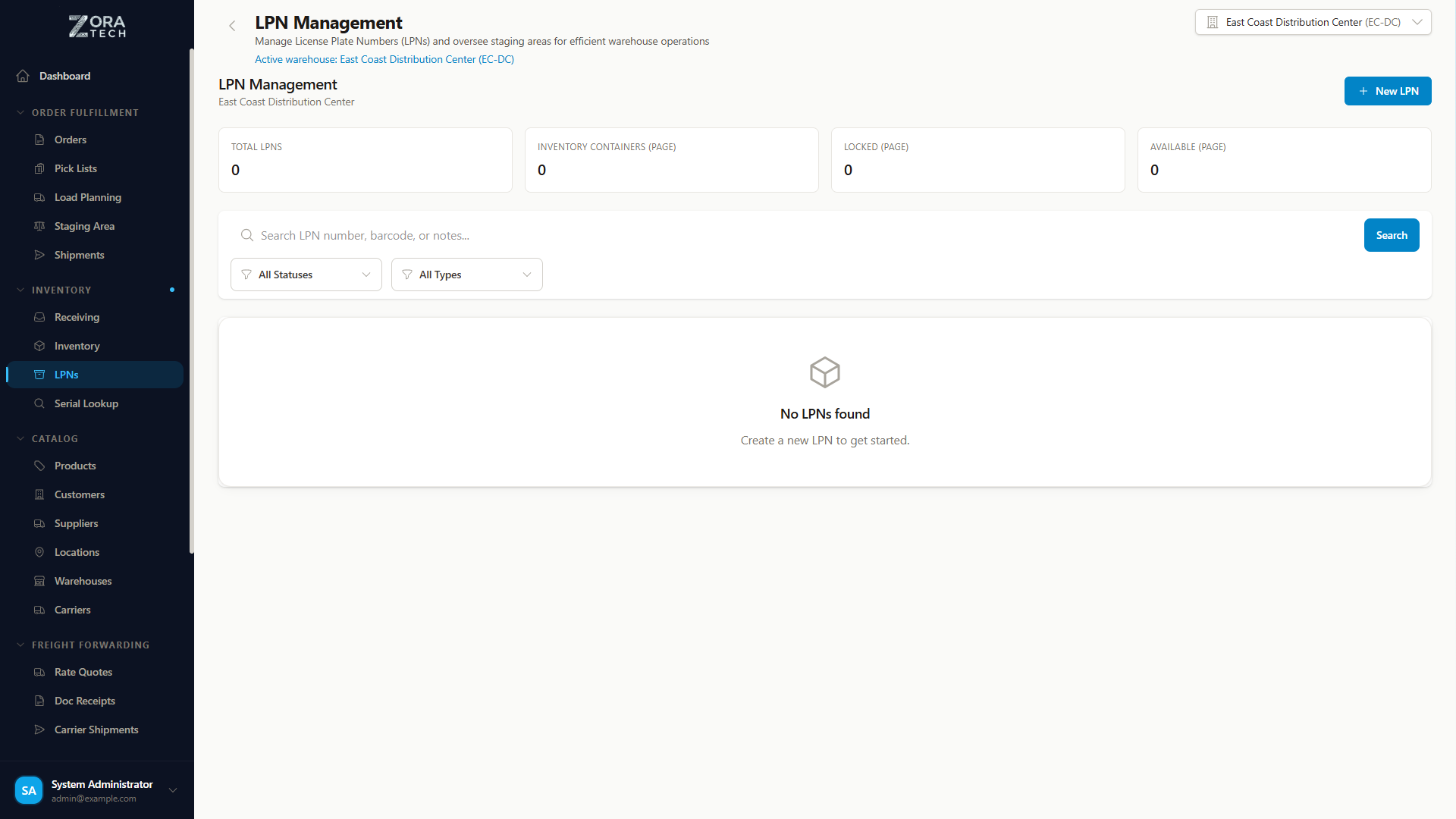
LPN (License Plate Number) Movements allow you to relocate LPN containers throughout your warehouse independently of standard workflows like receiving, picking, and shipping. This provides flexibility for warehouse reorganization, replenishment, and inventory management.
What is LPN Movement?
LPN Movement is the process of changing an LPN's location or status by scanning and moving it from one place to another. Unlike standard workflows that move LPNs automatically, arbitrary LPN movement gives you manual control.
When to Use LPN Movement:
- Warehouse Reorganization - Optimize storage locations
- Replenishment - Move items from bulk to pick locations
- Consolidation - Combine partial pallets or containers
- Staging Preparation - Move items to shipping staging areas
- Returns Processing - Move items from staging back to inventory
- Error Correction - Fix incorrectly located LPNs
LPN Movement Types
Inventory to Inventory
Move LPN Between Storage Locations
Use Cases: - Reorganizing warehouse layout - Moving slow-moving items to less accessible areas - Consolidating similar products - Creating space for new inventory
Example: - Move LPN-12345 from A-01-A to B-15-C - LPN stays in IN_INVENTORY status - Contents remain unchanged - New location recorded in system
Inventory to Staging
Move LPN to Shipping Staging Area
Use Cases: - Preparing items for shipment - Staging partial orders - Pre-positioning for next day shipping - Consolidating multi-LPN orders
Example: - Move LPN-12345 from A-01-A to Staging-Zone-1 - LPN status changes to STAGED - Ready for shipment assignment - Tracks which staging area
Staging to Shipment
Load LPN onto Outbound Shipment
Use Cases: - Loading staged LPNs onto truck - Assigning LPNs to specific shipments - Completing shipment loading - Final step before dispatch
Example: - Move LPN-12345 from Staging-Zone-1 to Shipment SHIP-789 - LPN status changes to SHIPPED - Linked to specific shipment - Ready for dispatch
Staging to Inventory
Return LPN from Staging to Storage
Use Cases: - Order cancelled after staging - Shipment delayed or postponed - Wrong items staged - Restocking after customer refusal
Example: - Move LPN-12345 from Staging-Zone-1 to A-01-A - LPN status returns to IN_INVENTORY - Available for new orders - Tracks return reason
LPN Movement Workflow
Mobile Workflow (Recommended)
graph TD
    A[Scan Source LPN] --> B[System Shows Current Location]
    B --> C[Scan Destination]
    C --> D[System Validates Move]
    D --> E[Confirm Movement]
    E --> F[LPN Updated]

    style A fill:#e3f2fd
    style B fill:#fff3e0
    style C fill:#e3f2fd
    style D fill:#fff3e0
    style E fill:#e8f5e9
    style F fill:#e8f5e9
Step-by-Step: Moving an LPN
Step 1: Access LPN Movements
On Mobile (Recommended):
- Open Zora Tech mobile app
- Tap Menu (☰) from bottom navigation
- Select LPNs → LPN Movements
- Mobile movement interface opens
On Desktop:
- Navigate to Inventory Management in sidebar
- Click LPNs → LPN Movements
- LPN movement page opens
Step 2: Scan or Select Source LPN
Using Mobile Barcode Scanner:
- Tap Scan LPN button
- Camera activates
- Point at LPN barcode
- System scans automatically
- LPN details display
Manual Entry:
- Tap Enter LPN Number field
- Type LPN number (e.g., LPN-12345)
- Tap Search or Enter
- LPN details display
LPN Information Displayed:
- LPN number
- Current location or status
- Contents (products and quantities)
- Current status (IN_INVENTORY, STAGED, etc.)
- Warehouse name
Step 3: Verify LPN Contents
Review LPN Contents:
- Product name and SKU
- Quantity in LPN
- Serial numbers (if applicable)
- Weight and dimensions
Verify Physically:
Before moving, confirm: - LPN matches physical container - Contents match system records - LPN is in expected location - Condition is acceptable for move
Step 4: Select Destination
Choose Destination Type:
The system presents valid destination options based on current LPN status:
If LPN is IN_INVENTORY: - Move to another inventory location - Move to staging area
If LPN is STAGED: - Move to shipment - Move back to inventory location
Scan or Select Destination:
For Inventory Location: 1. Tap Scan Location or Select Location 2. Scan location barcode OR select from dropdown 3. Location details display 4. System validates location exists and is active
For Staging Area: 1. Tap Select Staging Area 2. Choose from available staging zones 3. Staging area details display
For Shipment: 1. Tap Scan Shipment or Enter Shipment ID 2. Scan shipment barcode or type shipment number 3. Shipment details display 4. System validates shipment is not yet dispatched
Step 5: Confirm Movement
Review Movement Details:
Before confirming, verify:
- Source: Current LPN location
- Destination: Where LPN will move
- LPN Contents: Products and quantities
- Status Change: New status after move
Movement Summary Example:
Move LPN-12345
FROM: Location A-01-A
TO: Staging-Zone-1
Contents:
  - Product ABC (Qty: 10)
  - Product XYZ (Qty: 5)
Status: IN_INVENTORY → STAGED
Confirm the Move:
- Review all details carefully
- Tap Confirm Movement button
- System processes the movement
- Confirmation message displays
Step 6: Physical Movement
After System Confirmation:
- Move the Physical LPN to new location
- Place in correct position
- Ensure LPN label visible
- Update any physical location tags if used
Physical Movement Required
System movement does NOT automatically move the physical LPN. You must physically relocate the container to match the system record.
Step 7: Verify Movement
Confirmation Details:
- Movement successful message
- New location confirmed
- Updated status (if changed)
- Timestamp of movement
- User who performed movement
Movement History:
All LPN movements are recorded: - Previous location - New location - Date and time - User who moved it - Reason (if provided)
Mobile Scanning Workflow
Quick Scan and Move
For Warehouse Floor Efficiency:
- Scan Source LPN - Camera auto-scans
- Scan Destination - Immediately scan destination barcode
- Confirm - Single tap confirmation
- Move - Physically relocate LPN
- Next - Repeat for next LPN
Mobile Optimization:
- Large touch targets for gloved hands
- Minimal screen transitions
- Haptic feedback on successful scan
- Offline queueing (moves sync when online)
- History of recent movements for reference
Batch Movement
Moving Multiple LPNs to Same Destination:
- Scan first LPN
- Select common destination
- Confirm movement
- System remembers destination
- Scan next LPN
- Destination pre-selected
- Confirm and continue
Use Case: Moving multiple LPNs to same staging area or location
Movement Validations
System Validations
The system validates all movements before allowing them:
Valid Source: - LPN must exist in system - LPN must be in movable status - LPN must not be locked or in process
Valid Destination: - Location/staging area must exist - Location must be active - Location must have sufficient capacity (if enforced) - Shipment must not be dispatched (for shipment moves)
Valid Movement: - Movement type allowed for current LPN status - No circular movements (same source and destination) - Warehouse context matches
Prevented Movements
System Will Not Allow:
- Moving LPN from shipment (once loaded, can't unload)
- Moving LPN during active receiving or picking
- Moving to non-existent locations
- Moving to disabled locations
- Moving to over-capacity locations (if limits enforced)
If Movement Blocked: - Error message displays - Reason for block explained - Suggested resolution provided
Common Movement Scenarios
Scenario 1: Warehouse Reorganization
Situation: Optimizing storage layout for efficiency
Steps:
- Identify LPNs to relocate
- Determine new optimal locations
- Use LPN Movement to update system
- Physically move containers
- Verify placement
Example: - Move slow-moving items from prime pick locations to bulk storage - Relocate 20 LPNs from A-aisle to C-aisle - Free up space for fast-moving items
Scenario 2: Replenishment
Situation: Pick location running low, need to move items from bulk
Steps:
- Identify low-stock pick location
- Find LPN in bulk storage with needed product
- Move LPN from bulk to pick location
- System updates inventory
- Items now available for picking
Example: - Pick location A-01-A has 5 units left - Bulk location C-20-F has full pallet (LPN-789) - Move LPN-789 to A-01-A for replenishment
Scenario 3: Staging for Shipment
Situation: Order requires multiple LPNs, pre-stage for loading
Steps:
- Identify LPNs needed for order
- Move each LPN from inventory to staging
- All LPNs in same staging zone
- Ready for loading when shipment created
- Move from staging to shipment when ready
Example: - Order needs items from LPN-111, LPN-222, LPN-333 - Move all three to Staging-Zone-2 - Create shipment and load all LPNs together
Scenario 4: Order Cancelled After Staging
Situation: Items staged but order cancelled, need to return to inventory
Steps:
- Locate staged LPNs for cancelled order
- Move LPN from staging back to original location
- System returns status to IN_INVENTORY
- Items available for other orders
- Remove from staging area
Example: - LPN-456 staged in Zone-1 for cancelled order - Move back to original location B-10-D - Status: STAGED → IN_INVENTORY
Best Practices
Accurate Scanning
Scan Correctly: - Scan source LPN before moving - Scan destination location after moving - Verify barcode scans correctly - Use manual entry only if barcode damaged
Physical Verification: - Confirm LPN label matches container - Verify contents match system record - Check condition before moving - Report discrepancies immediately
Organized Workflow
Systematic Approach: - Plan movements before starting - Group similar movements together - Move in logical warehouse path - Update system immediately after physical move
Batch Operations: - Move multiple LPNs to same destination together - Reduce travel time in warehouse - Maintain system accuracy
Safety
Safe Handling: - Use appropriate equipment (forklift, pallet jack) - Follow weight limits - Stack securely - Clear pathways before moving
Warehouse Rules: - Follow warehouse traffic patterns - Maintain clear aisles - Use proper lifting techniques - Wear safety equipment
Data Integrity
Keep System Accurate: - Update system immediately after moving - Don't move physically without system update - Report system errors promptly - Verify movements in system history
Audit Trail: - All movements tracked automatically - Review movement history for verification - Use for troubleshooting discrepancies - Maintain compliance records
Movement History and Reporting
Viewing Movement History
For Specific LPN:
- Navigate to LPN detail page
- View Movement History section
- See chronological list of all movements
Movement History Includes: - Previous location - New location - Date and time - User who performed movement - Movement type
Movement Reports
Available Reports:
LPN Movement Activity Report: - All LPN movements in date range - Filter by warehouse, user, or LPN - Export to CSV for analysis
Location Movement Report: - All movements to/from specific location - Useful for analyzing location usage - Identify high-traffic locations
Staging Activity Report: - All movements to/from staging areas - Track staging efficiency - Monitor staging capacity
Troubleshooting
LPN Not Found
Possible Causes: - LPN number incorrect - LPN in different warehouse - LPN deleted or archived
Solutions: 1. Verify LPN number spelling 2. Check warehouse context 3. Try scanning barcode again 4. Search by contents or product 5. Contact supervisor if LPN should exist
Destination Invalid
Possible Causes: - Location doesn't exist - Location disabled or inactive - Capacity limit reached - Wrong warehouse context
Solutions: 1. Verify location code spelling 2. Check location is active 3. Confirm warehouse context correct 4. Try alternative location 5. Contact admin to activate location
Movement Not Allowed
Possible Causes: - LPN status prevents movement - LPN locked by other process - Invalid movement type - System validation failed
Solutions: 1. Check LPN current status 2. Verify no active receiving/picking 3. Try different destination type 4. Wait for other process to complete 5. Contact support if unclear
System Shows Different Location
Possible Causes: - LPN moved but system not updated - Someone else moved LPN - System sync delay - Physical location incorrect
Solutions: 1. Verify physical LPN location 2. Check movement history 3. Perform cycle count to verify 4. Update system if incorrect 5. Report discrepancy to supervisor
Integration with Other Features
Inventory Management
- LPN movements update inventory locations automatically
- Inventory quantities reflect new location
- Location capacity updated
- Inventory transactions created
Order Fulfillment
- Staged LPNs available for shipment loading
- System tracks which LPNs ready for orders
- Allocation aware of LPN locations
- Picking optimized by LPN location
Receiving Operations
- Received LPNs can be moved to storage
- Putaway process uses LPN movement
- Consolidation of received items
- Organization of receiving staging
Warehouse Management
- Track LPN movements across warehouse
- Analyze location utilization
- Optimize warehouse layout
- Monitor efficiency metrics
Related Documentation
- LPN Management - Complete LPN guide
- Inventory Management - Inventory operations
- Warehouse Management - Warehouse setup
- Location Management - Location configuration
- Mobile Workflows - Mobile operations
Need Help?
Questions?
Last Updated: January 2025