Serial Number Lookup
Track and locate serial-tracked items across your entire warehouse system.
Overview
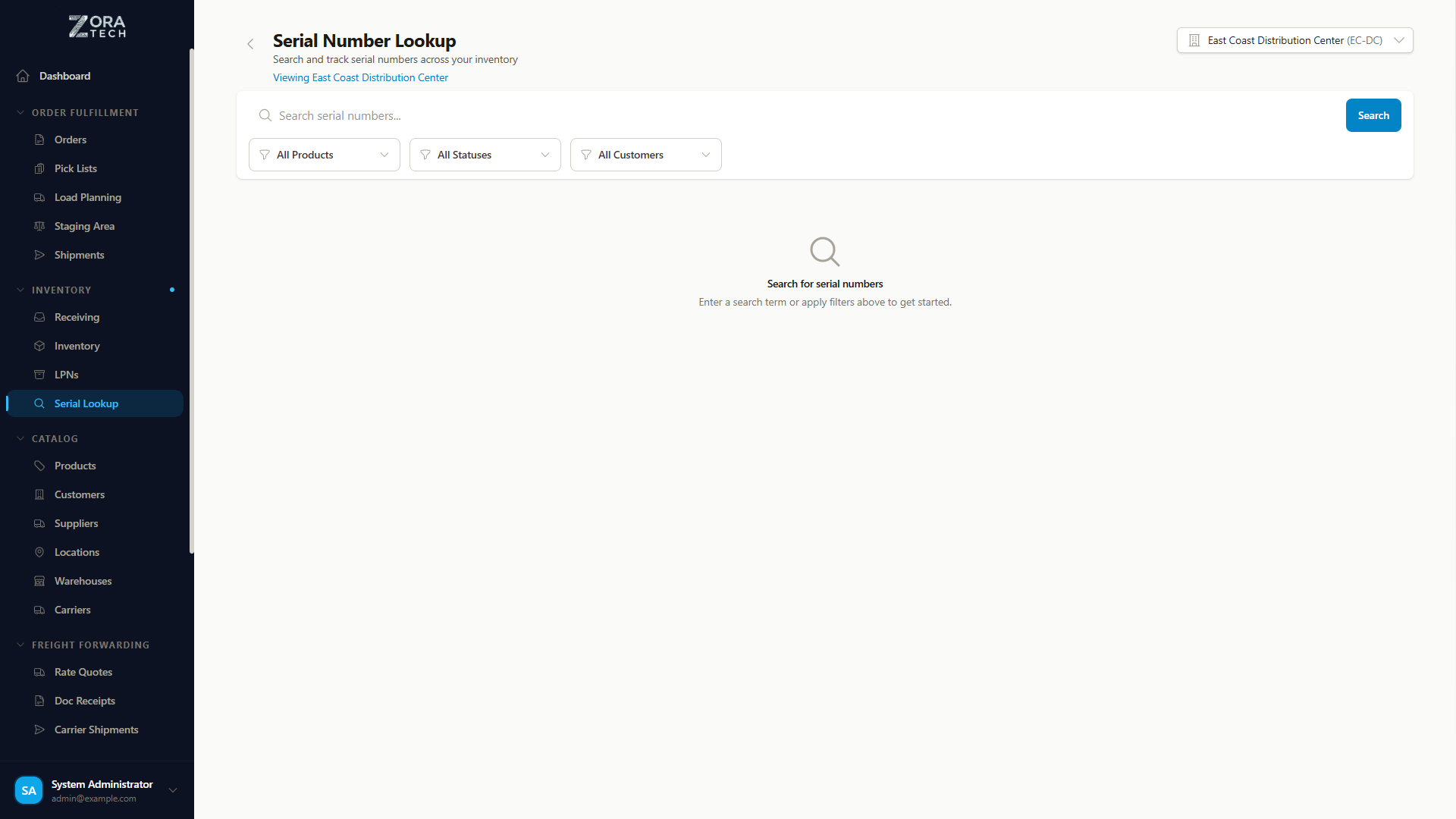
The Serial Number Lookup feature provides a centralized, read-only view of all serial numbers in your system. Quickly search for serial numbers, view their current status and location, and track their complete movement history from receiving through shipping.
Unified Tracking
Serial Number Lookup consolidates information from receiving, inventory, orders, and shipments into a single searchable interface, making it easy to locate and track individual items.
Key Capabilities:
- Search serial numbers by partial or complete number
- View current status and location for any serial number
- Track complete movement history
- Filter by product or status
- Navigate directly to related records
- Mobile-optimized for warehouse floor use
Accessing Serial Number Lookup
From the Navigation Menu
- Navigate to Products in the sidebar
- Click Serial Number Lookup
- The Serial Number Lookup page opens
Direct Search
The Serial Number Lookup page provides:
- Search bar - Find serial numbers by partial match
- Product filter - Narrow results to specific products
- Status filter - Filter by serial number lifecycle status
- Results table - View all matching serial numbers
Searching for Serial Numbers
Quick Search
Search by Serial Number:
- Enter any part of the serial number in the search bar
- Results filter as you type
- Click any result to view detailed information
Examples:
- Search "SN-123" to find all serial numbers starting with SN-123
- Search "456" to find all serial numbers containing 456
- Search exact serial number for precise match
Filter by Product
Narrow search to specific product:
- Click Product filter dropdown
- Select a product from the list
- Only serial numbers for that product display
Use Case: Finding all serial numbers for a specific model or SKU
Filter by Status
Filter by lifecycle status:
- Click Status filter dropdown
- Select one or more statuses
- Results show only serial numbers in selected states
Available Statuses:
- EXPECTED - Serial number created during receiving order setup
- RECEIVED - Item physically received into warehouse
- IN_INVENTORY - Currently stored in inventory location
- ALLOCATED - Reserved for a specific order
- PICKED - Picked from inventory for shipment
- SHIPPED - Dispatched with a shipment
Combining Filters
You can combine search with filters for precise results:
Example: Search "SN-2024" + Product "Laptop Model X" + Status "IN_INVENTORY"
Result: All Laptop Model X serial numbers starting with SN-2024 currently in inventory
Serial Number Lifecycle
Understanding serial number statuses helps track items through your warehouse operations.
Status Flow
graph LR
    A[EXPECTED] --> B[RECEIVED]
    B --> C[IN_INVENTORY]
    C --> D[ALLOCATED]
    D --> E[PICKED]
    E --> F[SHIPPED]

    D -.Cancel Order.-> C
    E -.Return.-> C
Status Definitions
EXPECTED - Serial number created when receiving order is planned - Item not yet physically received - Common for advance shipment notifications (ASN)
RECEIVED - Item physically received at warehouse - May be in receiving staging area - Not yet put away to inventory location
IN_INVENTORY - Item stored in inventory location - Available for allocation to orders - Normal resting state for inventory
ALLOCATED - Reserved for a specific customer order - Not available for other orders - Waiting to be picked
PICKED - Item picked from inventory location - Staged for packing and shipping - Order fulfillment in progress
SHIPPED - Item dispatched with shipment - Out of warehouse custody - Final status in warehouse system
Viewing Serial Number Details
Opening Detail View
- Click any serial number in the search results
- Serial Number Detail modal opens
- View comprehensive information
Detail View Sections
Serial Number Information: - Serial number identifier - Current status badge - Product details (name, SKU, description) - Link to product page
Current Location: - Warehouse name - Inventory location (if IN_INVENTORY) - LPN container (if applicable) - Staging area (if staged for shipment)
Order Information: - Associated receiving order (if EXPECTED or RECEIVED) - Customer order number (if ALLOCATED or PICKED) - Shipment details (if SHIPPED) - Direct links to order/shipment records
Quantity Information: - Quantity: Always 1 (serial-tracked items) - Status indicator with color coding
Movement History: - Complete audit trail of all movements - Timestamps for each status change - LPN transfers and relocations - User who performed each action
Date Information: - Date received - Date allocated (if applicable) - Date picked (if applicable) - Date shipped (if applicable) - Last updated timestamp
Common Use Cases
Locating a Specific Item
Scenario: Customer calls asking about a specific serial number
Steps: 1. Open Serial Number Lookup 2. Search for the serial number 3. View current status and location 4. Provide customer with accurate information
Example: Customer inquires about warranty item SN-2024-5678 - Search "SN-2024-5678" - Status: SHIPPED on 2024-01-15 - Shipment tracking available
Inventory Verification
Scenario: Verify which serial numbers are currently in inventory
Steps: 1. Open Serial Number Lookup 2. Filter Status: "IN_INVENTORY" 3. Optionally filter by Product 4. Review list of available serial numbers
Use Case: Confirming available inventory for high-value items before promising to customers
Tracking Item Through Warehouse
Scenario: Follow an item's journey from receiving to shipping
Steps: 1. Search for serial number 2. Open detail view 3. Review Movement History section 4. See complete timeline of status changes
Example Timeline: - Jan 5, 10:00 AM - EXPECTED (Receiving Order RCV-001) - Jan 5, 2:30 PM - RECEIVED (Received by John) - Jan 5, 3:15 PM - IN_INVENTORY (Put away to A-15-C) - Jan 8, 9:00 AM - ALLOCATED (Order ORD-456) - Jan 8, 2:00 PM - PICKED (Picked by Sarah) - Jan 8, 4:30 PM - SHIPPED (Shipment SHIP-789)
Resolving Discrepancies
Scenario: Customer claims item not received, but you show it shipped
Steps: 1. Search for serial number from customer's order 2. Verify status is SHIPPED 3. Check shipment details and tracking 4. Review movement history for audit trail 5. Provide documentation to customer or carrier
Finding Available Units
Scenario: Need to find which serial numbers of a product are available
Steps: 1. Filter by specific Product 2. Filter Status: "IN_INVENTORY" 3. Review available serial numbers 4. Note their locations for picking
Use Case: Customer requests specific model, need to identify available units for order fulfillment
Mobile Access
Serial Number Lookup is fully optimized for mobile devices.
Mobile Features
Touch-Optimized Interface: - Large search bar for easy typing - Card-based results layout - Swipe to view details - Bottom navigation for quick access
Barcode Scanning: - Tap camera icon in search bar - Scan serial number barcode - Instant lookup results
On-the-Floor Usage: - Look up serial numbers while walking warehouse - Verify locations during cycle counts - Confirm status during picking operations
Mobile Workflow Example
Scenario: Warehouse worker needs to verify serial number location
- Open mobile app
- Navigate to Serial Number Lookup
- Tap camera icon
- Scan serial number barcode
- View current location instantly
- Navigate to location for pick or count
Integration with Other Features
Product Management
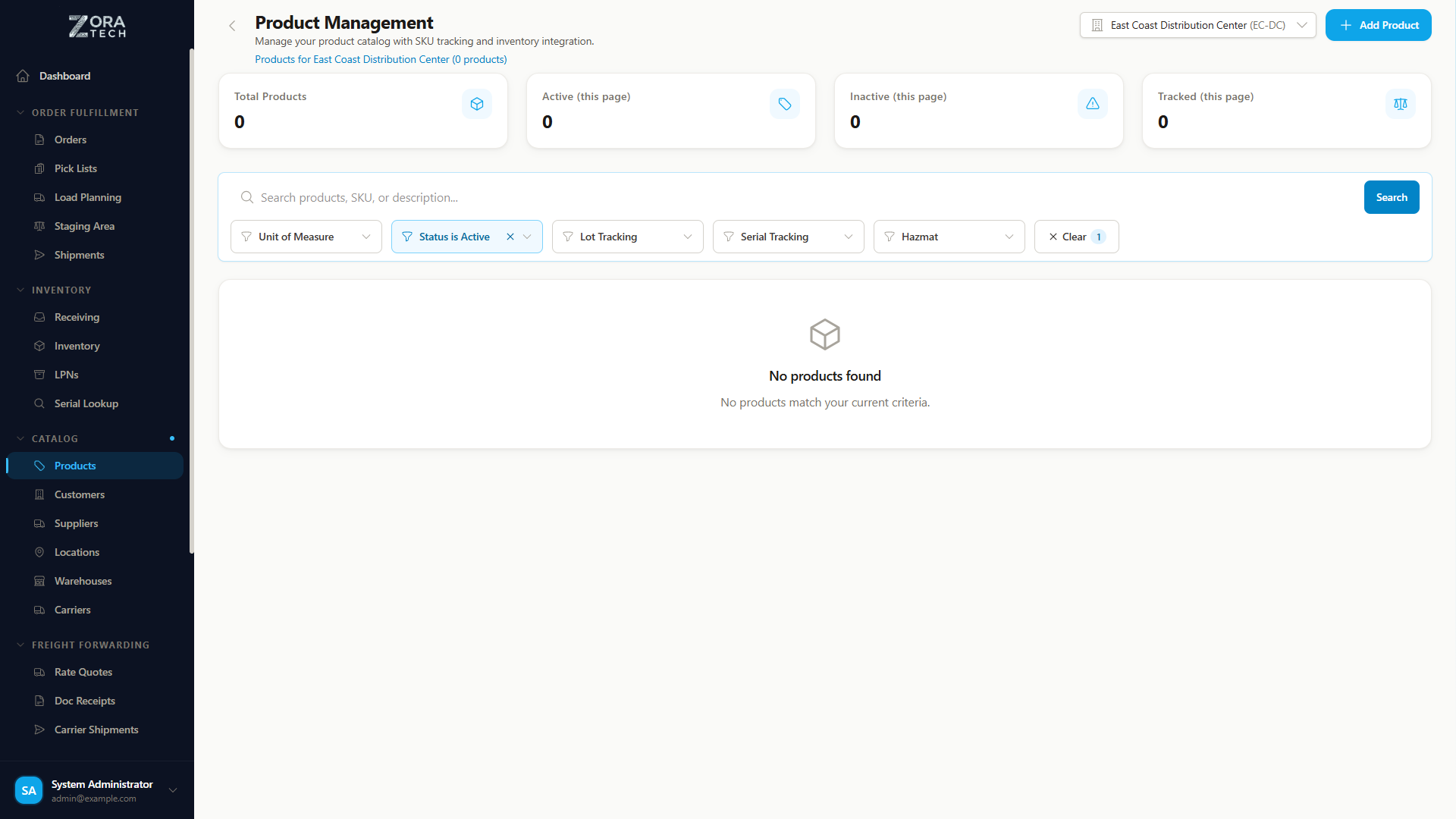
- Link from serial number detail to product page
- View all serial numbers for a product
- Product tracking requirements displayed
Inventory Management
- Serial numbers in inventory show precise locations
- Click location to view all inventory at that location
- Useful for putaway and location verification
Order Management
- Allocated/picked serial numbers link to orders
- View which order a serial number is assigned to
- Track order fulfillment status
Receiving Operations
- Expected serial numbers link to receiving orders
- Verify which serial numbers are planned for receipt
- Confirm receipt status
Shipping Operations
- Shipped serial numbers link to shipment records
- View shipment tracking information
- Access bill of lading or shipping labels
Reporting and Analytics
Available Reports
Serial Number Status Report: - Count of serial numbers by status - Identify bottlenecks in workflow - Monitor inventory levels
Serial Number Movement Report: - Average time in each status - Identify slow-moving items - Warehouse efficiency metrics
Product Serial Number Report: - All serial numbers by product - In-stock vs. shipped analysis - Warranty tracking
Exporting Data
Export Options: - Export search results to CSV - Include status and location information - Use for external reporting or analysis
Best Practices
Search Efficiency
Use Partial Matches: - Search "2024" to find all 2024 serial numbers - Use product prefixes for quick filtering - Combine with status filter for precision
Bookmark Common Searches: - Bookmark frequently accessed products - Create shortcuts for inventory status searches - Save time on repetitive lookups
Data Accuracy
Verify Information: - Always check status and location before making decisions - Use movement history to verify recent changes - Confirm timestamps for time-sensitive inquiries
Report Discrepancies: - If location doesn't match physical inventory, report to supervisor - Use cycle counting to verify and correct - Maintain data integrity
Warehouse Operations
Cycle Counting: - Use Serial Number Lookup to verify expected serial numbers at location - Compare physical items to system records - Investigate missing or unexpected serial numbers
Putaway Verification: - After receiving, verify serial numbers show IN_INVENTORY status - Confirm correct location assignment - Check for any stuck in RECEIVED status
Order Fulfillment: - Before picking, verify serial numbers are ALLOCATED - After picking, confirm status changed to PICKED - Verify serial numbers match pick list
Troubleshooting
Serial Number Not Found
Possible Causes: - Serial number not yet entered in system - Typo in serial number - Serial number from different warehouse or system
Solutions: 1. Verify serial number spelling 2. Check if receiving order exists but not yet received 3. Try partial search (e.g., last 4 digits) 4. Contact administrator if serial should exist
Incorrect Status Displayed
Possible Causes: - Status not updated due to workflow interruption - System lag in updating status - Data sync issue
Solutions: 1. Refresh the page to reload data 2. Check movement history for recent changes 3. Verify related records (orders, shipments) 4. Report to supervisor if status clearly wrong
Location Not Showing
For IN_INVENTORY Status: - Location should always display - If missing, item may need putaway - Check if in receiving staging area
For Other Statuses: - Location may not display if not yet put away - Check receiving order for staging location - Verify putaway was completed
Missing Movement History
Possible Causes: - Serial number recently created - Movement tracking not enabled historically - Data migration issue
Solutions: 1. Recent serial numbers have complete history 2. Older serial numbers may have partial history 3. Check related records for additional information
Related Documentation
- Serial & Lot Tracking Overview
- Receiving Operations
- Inventory Management
- Order Processing
- Shipping Operations
Need Help?
Questions?
Last Updated: January 2025