Delivery Requests (staff)
Review, book, and manage the inbound and outbound delivery requests your customers submit.
A delivery request is a customer's ask to bring goods into a warehouse (Inbound) or send goods out (Outbound) on a chosen date and time. A request is a load of one or more stops, each with its own address and its own line items; direction is set for the whole load, so its stops are either all pickups or all drop-offs. Customers create these themselves from the customer portal. Your job as staff is to:
- Review each request to confirm it's valid.
- Book the ones you'll fulfill.
- Convert it into the right operational record — a receiving record for inbound, or an order for outbound.
The Delivery Requests page (/delivery-requests) is the staff workspace for this. When a customer-portal user opens the same address, they see their self-service form instead — the page adapts to your role.
Permissions
Working with delivery requests is permission-gated: view to see the list, and manage to review, book, and cancel. Customers submit requests with a separate create grant scoped to their own company.
The delivery requests list
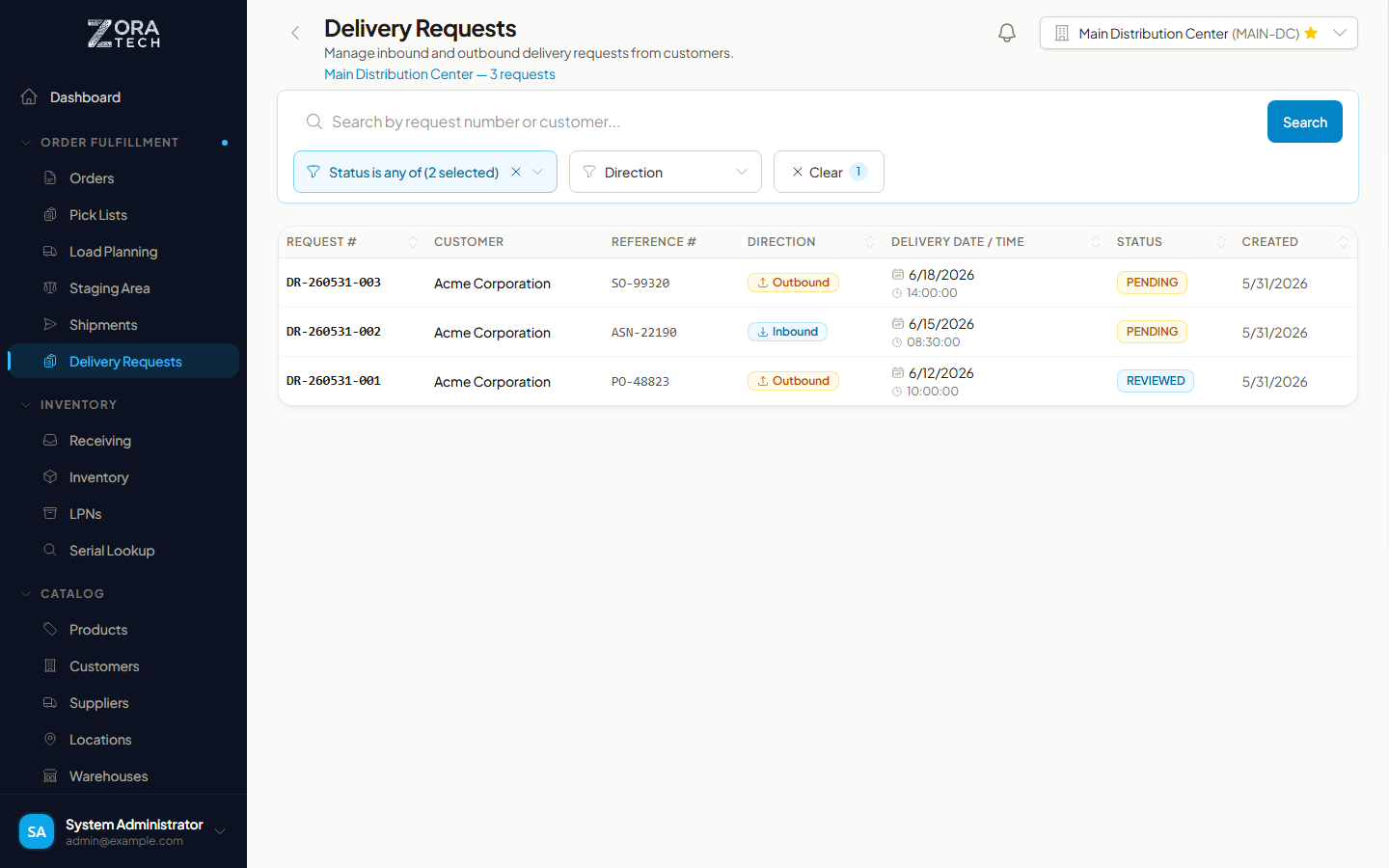
The list opens showing the requests that still need attention — Pending and Reviewed — and hides terminal ones by default. Each row shows:
| Column | What it tells you |
|---|---|
| Request # | The request identifier (format DR-YYMMDD-NNN). |
| Customer | The company that submitted the request. |
| Reference # | The customer's own PO or reference number, if they supplied one. |
| Direction | Inbound or Outbound. |
| Stops | How many stops the load has, as a count badge. Hidden on mobile. |
| Delivery Date / Time | When the customer wants the delivery. |
| Status | The request's current status (see below). |
| Created | When the request was submitted. |
Filtering and searching
- Status — match one or more statuses (operators: is / is not / is any of / is none of).
- Direction — Inbound or Outbound.
- Delivery date — a from/to date range.
- Search — by request number or customer name.
Status lifecycle
A delivery request moves through these statuses:
| Status | Meaning |
|---|---|
| Pending | Submitted by the customer, waiting for staff review. |
| Reviewed | Staff have checked the request and confirmed it's valid. |
| Booked | Staff have committed to fulfilling it; the next step is creating the receiving record or order. |
| Cancelled | The request was withdrawn. |
The transitions are manual — staff drive each one:
graph LR
    A[Pending] -->|Mark as Reviewed| B[Reviewed]
    B -->|Book| C[Booked]
    A -.Cancel.-> D[Cancelled]
    B -.Cancel.-> D
You can cancel a request while it's Pending or Reviewed, but not once it's Booked.
Reviewing and booking a request
- Click a request to open Delivery Request Details. Check the customer, requested date and time, and any notes, then work down the Stops section — each stop is listed in sequence with its own address, its Pickup or Dropoff type, and its own line items.
- For a Pending request, choose Mark as Reviewed once you've confirmed it's valid. The status moves to Reviewed.
- When you're ready to commit, choose Book. The status moves to Booked.
-
Create the operational record from the same detail view:
- Inbound requests show Create Receiving Record, which opens receiving pre-filled from the request.
- Outbound requests show one of three buttons, depending on where the request has got to — see Creating the orders below.
- If a request line references a custom product (a product not yet in the catalog), you'll also see Create Product so you can add it to the catalog first.
These buttons are shown on any request that isn't Cancelled.
Booking confirms, it doesn't fulfil
Book records that you've committed to the request. It does not by itself create a receiving record or order — you do that with the Create Receiving Record / Create Orders action.
Creating the orders
The outbound button changes as the request progresses, and the two creation paths behave differently:
| Button you see | When | What it does |
|---|---|---|
| Create Order | The request is not yet Booked | Opens the Orders page with the create-order form pre-filled from the request's drop-off stop — one order, which you submit yourself. |
| Create Orders | The request is Booked and has no orders yet | Creates the orders directly, one per drop-off stop, without opening a form. |
| View Orders | The request already has orders | Opens the orders that were created from this request. |
Book first. Booking is what fixes the stop identifiers, so the Create Orders path only becomes available once the request is Booked — and it is the path to prefer for a multi-stop load, because it handles every drop-off stop in one action instead of one form at a time.
Create orders (a booked request)
Creates one order per drop-off stop, in stop sequence order. Pickup stops are skipped, and no shipment is created — orders are the only records produced.
Conversion happens once, and it's all-or-nothing
A request can only be converted once. Afterwards the button becomes View Orders, and asking again is refused — so edit the orders that were created rather than trying to re-run it.
If any line on any stop references a custom product, the whole conversion is refused and no orders are written at all — not even for the stops that were fine. Use Create Product to add those products to the catalog first, then convert.
Creating orders this way needs the manage:delivery_requests permission.
What create order carries over (a request that isn't booked yet)
Create Order opens the standard create-order form with the request's details already filled in. You'll see a brief Loading delivery request… message while it gathers them. Pre-filled:
| Field | Filled from |
|---|---|
| Customer | The customer that submitted the request. |
| Warehouse | The request's warehouse. |
| Shipping address | The drop-off stop's address — matched to the customer's saved address when the request used one, otherwise carried over as a manually entered address. |
| Line items | The drop-off stop's lines, with their quantities. Unit price comes from the product catalog. |
| Notes | A note recording the request number, plus the request's own notes and the stop's delivery instructions. |
Everything is a starting point — edit anything before you submit, and the form keeps your edits if you reopen it.
This form carries over one stop only
An order ships to a single address, so the pre-filled form covers one drop-off stop. If the load has several, the notes field says so and names the stop that was used — book the request and use Create Orders instead, which covers them all. Lines pointing at a custom product are left out here (they aren't in the catalog yet) and are counted in the notes — use Create Product first, then add them to the order.
If you follow a stale link for an inbound request, the page tells you the request is inbound and opens a blank order form instead — use Create Receiving Record for those.
Cancelling a request
Open the request, choose Cancel, and enter a reason — the reason is required and is kept on the record along with who cancelled it and when. You can cancel a Pending or Reviewed request; a Booked request can't be cancelled here (handle it through the resulting order or receiving record instead).
Stops, line items, and products
Each request has one or more stops, numbered in sequence, and each stop carries its own delivery or pickup address, optional per-stop instructions, and its own line items. A load always has at least one stop, and every stop has at least one line item.
Older requests
Requests created before multi-stop support shipped are shown as a single stop built from the request's original address, so the detail view reads the same way for them.
Each line carries a quantity and a unit — pallet (the default), each, or crate. A line points to one of:
- an approved catalog product,
- a product submission still awaiting approval, or
- a custom product — a product not yet in the catalog.
When a line references a custom product, use Create Product before fulfilling so the item exists in the catalog.
Related guides
- Delivery Requests — Customer Portal - The self-service form your customers use to submit requests
- Order Processing
- Receiving Shipments
- Packing & Shipping
- Customers
The Delivery Request Portal shipped in v1.6.0.
Need more help? Email support@zoratech.io, or check the FAQ and troubleshooting guide.