Freight forwarding
Ship freight too large or heavy for parcel carriers: request LTL (Less Than Truckload) rate quotes, compare them, book the shipment, generate the Bill of Lading (BOL) and labels, then track it to delivery.
Quick info
Time required: 10–15 minutes per shipment Role: Shipping Manager, Warehouse Manager, Logistics Coordinator Mobile: Available — desktop recommended for comparing rates Related: Carrier management | Shipping operations
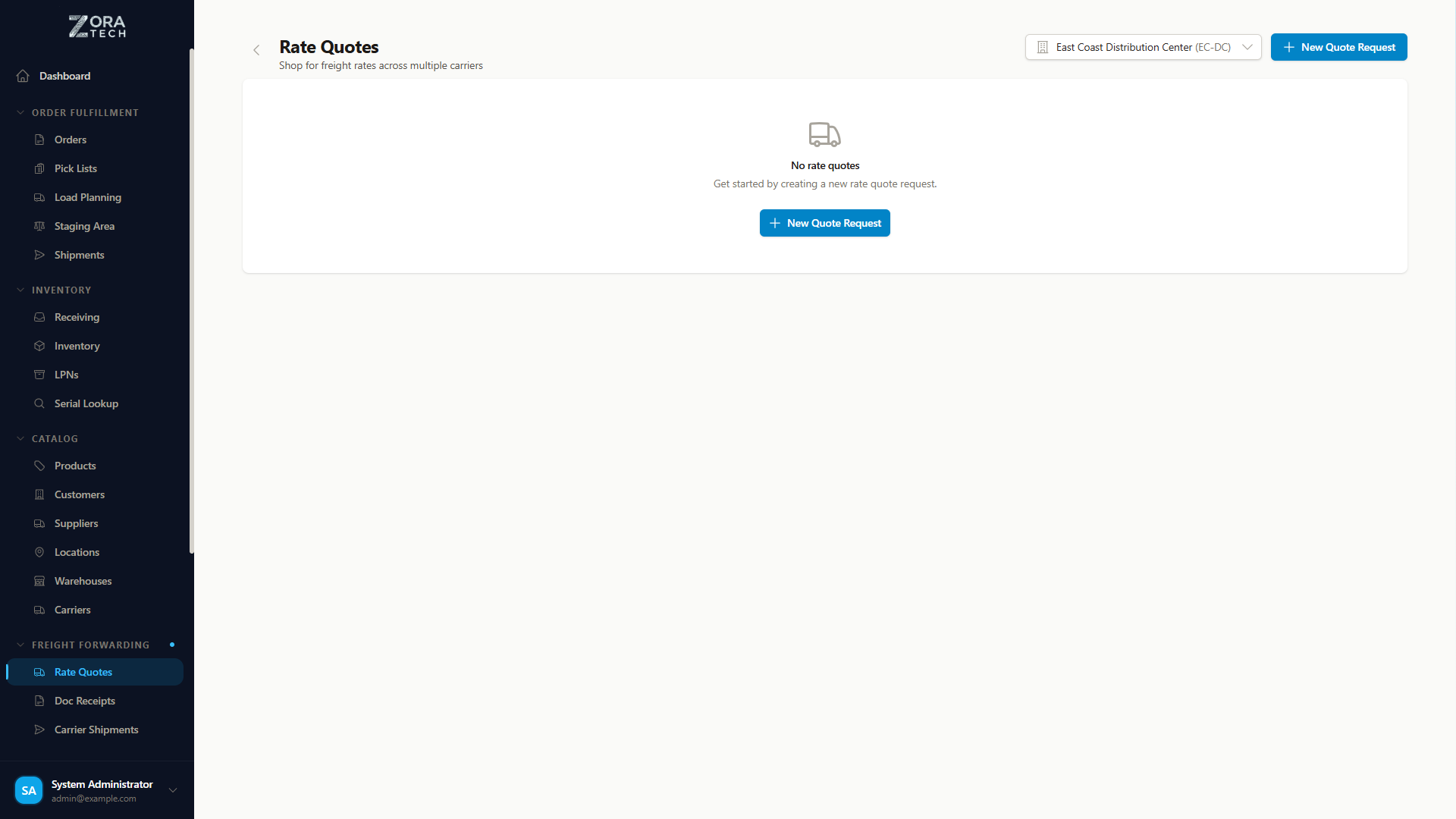
Zora requests rates through freight brokers, not from carriers directly.
Supported brokers:
- TForce Worldwide
- Unishippers
Each broker returns rates from the carriers it works with — Estes Express Lines, XPO Logistics Freight, FedEx, SAIA, and others — so one request can return quotes spanning many carriers.
The freight forwarding workflow
graph TD
    A[Prepare Shipment Details] --> B[Request Rate Quotes]
    B --> C[Review & Compare Rates]
    C --> D[Select Best Rate]
    D --> E[Book Shipment]
    E --> F[Download BOL + Labels]
    F --> G[Schedule Pickup]
    G --> H[Track Shipment]
    H --> I[Confirm Delivery]

    style A fill:#e3f2fd
    style B fill:#e3f2fd
    style C fill:#fff3e0
    style D fill:#fff3e0
    style E fill:#e8f5e9
    style F fill:#e8f5e9
    style G fill:#e8f5e9
    style H fill:#f3e5f5
    style I fill:#f3e5f5
Step 1: Requesting rate quotes
Opening a rate quote
- Go to Shipping → Freight Forwarding.
- Choose Request Rate Quote.
Enter shipment information
Origin address
Enter the address you're shipping from:
- Enter the Company Name.
- Enter the Street Address.
- Enter the City, State, and ZIP Code.
- Enter a Contact Name and Phone Number.
Save an address you use often
Save a frequently used origin address as a default so you don't retype it on every quote.
Destination address
Enter the customer's (consignee's) address the same way:
- Enter the Company Name.
- Enter the Street Address.
- Enter the City, State, and ZIP Code.
- Enter a Contact Name and Phone Number.
Zora checks the address format, suggests a correction if it looks wrong, and confirms whether the delivery is residential or commercial.
Shipment items
Add a line for each item or pallet in the shipment:
| Field | What to enter |
|---|---|
| Description | What the item is, e.g. Machinery Parts |
| Pieces | Number of pieces or pallets, e.g. 2 pallets |
| Weight | Total weight in pounds, e.g. 850 lbs |
| Freight Class | The NMFC freight class: 50, 55, 60, 65, 70, 77.5, 85, 92.5, 100, 110, 125, 150, 175, 200, 250, 300, 400, or 500 |
| Dimensions | Length × width × height in inches. Optional, but include it if you have it |
Choose Add Item for each additional line — one per pallet or SKU. Zora totals the weight for you.
Freight class is set by density, stowability, handling, and liability:
| Class | Density (lbs/cu ft) | Example items |
|---|---|---|
| 50 | Over 50 | Dense items (steel, bricks) |
| 60–70 | 30–50 | Automobile parts, machinery |
| 85–100 | 12–30 | Electronics, furniture |
| 125–150 | 8–12 | Household goods |
| 175–250 | 4–8 | Clothing, plastic items |
| 300–500 | Under 4 | Ping pong balls, bags of gold dust |
Get the freight class right
The wrong freight class can get the shipment reclassified in transit, with extra charges added after pickup. If you're not sure, check the NMFC classification guide or ask the carrier before you book.
Accessorial services
Select any extra service the shipment needs:
| Service | When you need it |
|---|---|
| Liftgate at Pickup | No loading dock at the origin |
| Liftgate at Delivery | No loading dock at the destination |
| Residential Pickup | The origin is a residential address |
| Residential Delivery | The destination is a residential address |
| Inside Pickup | The driver has to go past the dock or loading area to collect it |
| Inside Delivery | The driver has to go past the dock or loading area to deliver it |
| Limited Access | Churches, schools, storage facilities |
| Notify Before Delivery | The consignee needs advance notice |
| Appointment Delivery | Delivery has to be scheduled for a specific time |
Each service adds cost
Every accessorial service you select adds to the shipping cost. Select only what the shipment actually needs.
Review and submit
- Check the addresses, items, and services you entered.
-
Choose Get Rate Quotes.
Zora assigns the request a quote number and queries every carrier at once, usually in 30 seconds to 2 minutes.
Quote numbers
Zora assigns every rate quote request a unique quote number in the form RQ-YYMMDD-NNN — for example, RQ-260911-001. It allocates the number the moment you save the request, before any carrier has responded, so it appears on the Fetching carrier quotes... overlay while the pull is still running.
One number per request, not per quote. A single request fans out to several carriers, and every rate that comes back belongs to the same number. Give the customer that one number and it covers all the rates in the pull.
The NNN sequence restarts at 001 each day, so RQ-260911-001 is the first request pulled on 11 September 2026. Numbers are never reused, and requests created before quote numbering shipped were backfilled — every request in the list has one.
The quote number appears in four places:
| Where | What you see |
|---|---|
| Quote # column | First column on the rate quote list (the card title on mobile) |
| Rate quote details modal | In the title and again in the Quote Request header |
| Delete confirmation | So you can check you're removing the right request |
| Book Shipment page | Notes which quote the booking came from |
Use it as the customer-facing reference
Put the quote number on anything you send the customer. Unlike the carrier's quote or PRO number, it is stable from the moment you pull the rates and stays valid whichever carrier is booked.
Step 2: Reviewing rate quotes
Rate quote results
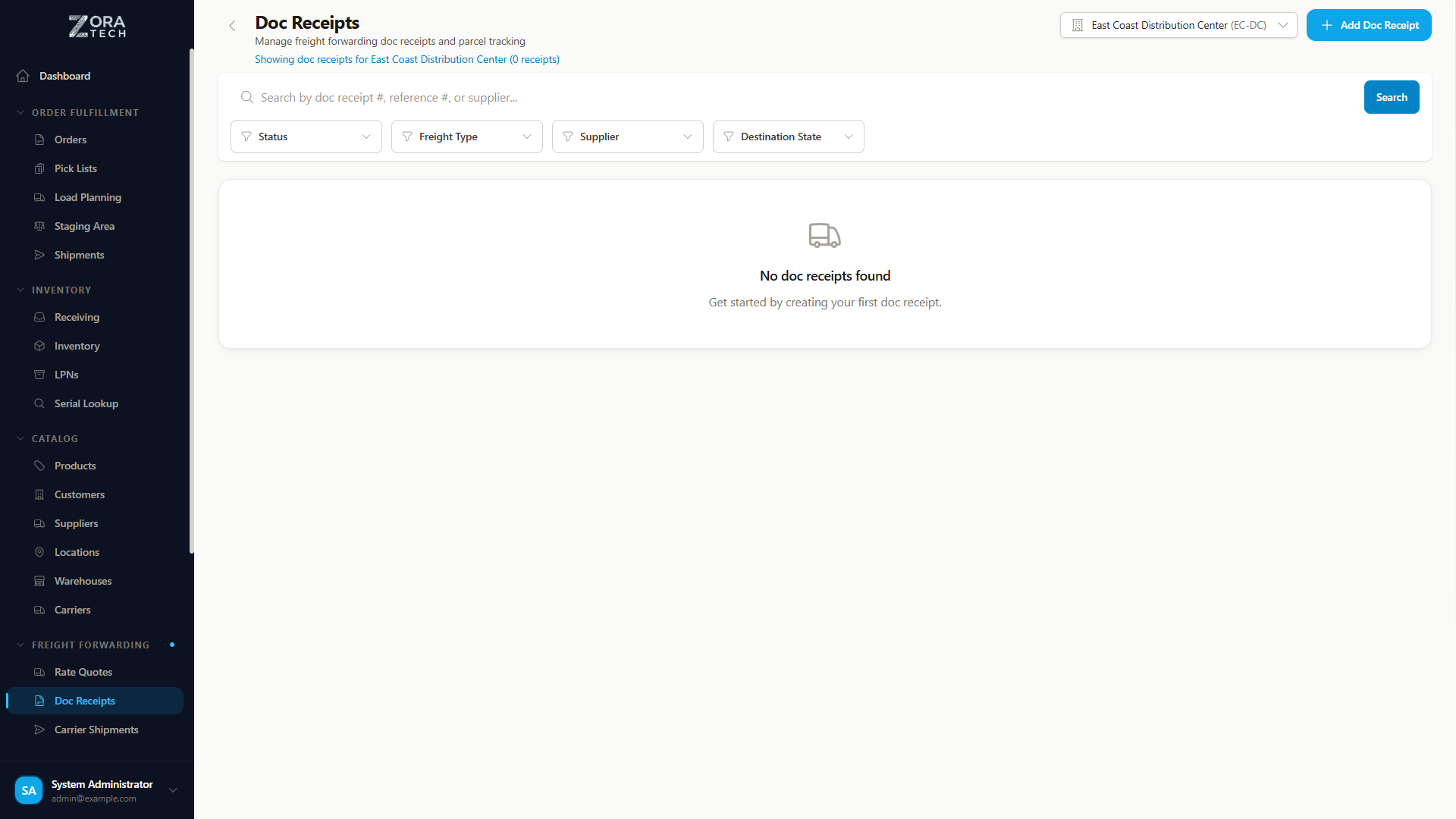
After you submit, you see a comparison table with quotes from available carriers.
Rate quote information
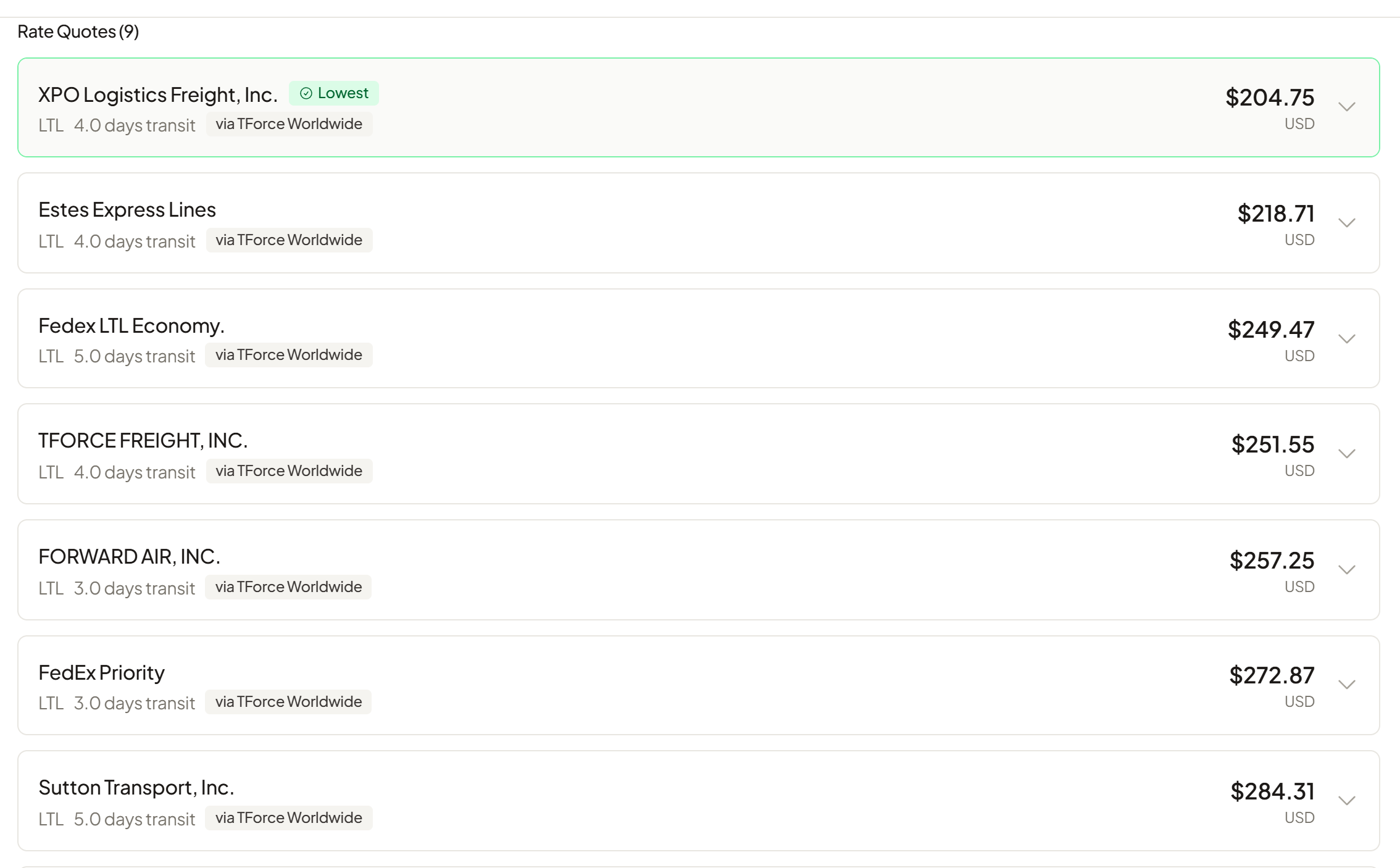
Quotes are sorted cheapest first, and the lowest-priced quote is tagged Lowest.
Each quote card shows:
| Field | What it shows |
|---|---|
| Carrier Name | The carrier that will move the freight, e.g. Estes Express Lines, XPO Logistics Freight |
| Broker | The broker that sourced the rate, as a via [broker] badge, e.g. via TForce Worldwide |
| Service Type | The service level — Standard LTL, Expedited, and so on |
| Transit Time | Estimated delivery time, e.g. 3–5 business days |
| Total Cost | Complete shipping cost, including accessorials |
| Base Rate | Freight charges before accessorials |
| Fuel Surcharge | The current fuel surcharge |
| Accessorial Charges | Itemized accessorial fees |
| Quote Number | The RQ-YYMMDD-NNN number of the request that produced this rate; every quote in the same pull shares it |
Comparing rates
| Look at | Not just |
|---|---|
| Total cost | The base rate alone — add in accessorial charges and the fuel surcharge |
| Transit time against the delivery date you promised | The cheapest option, if the customer needs it fast |
| The carrier's track record on this lane | The price — an unreliable carrier costs more in claims and delays |
| Whether the quote covers every service you selected | The headline price — check nothing you need is missing |
Rate quote details
Choose any quote to see the full breakdown:
| Line | What it covers |
|---|---|
| Base Freight Charge | The core transportation cost |
| Fuel Surcharge | A percentage-based fuel cost |
| Accessorial Charges | Each selected service itemized — liftgate fees, residential delivery, inside delivery, and so on |
| Total Charges | The sum of everything above |
An expanded quote also footnotes its sourcing details: Broker, the carrier's SCAC (Standard Carrier Alpha Code), and the lane Distance in miles.
Quotes are typically valid for 24–48 hours. Rates are subject to carrier acceptance, and the fuel surcharge can change before you book.
Finding a past rate quote
The rate quote list at Shipping → Freight Forwarding shows the most recent requests first, ten to a page. To pull up an older one, use the search box above the table:
- Type any part of the quote number —
RQ-260911, or just047. - The list filters shortly after you stop typing and returns to page 1.
- Click the row to open the full quote details.
Search is case-insensitive and matches anywhere in the number, so a partial sequence finds the request without the date. When nothing matches, the list shows No matching rate quotes — clear the box to get the full list back.
Search covers the quote number only
The box does not search by city, carrier, customer, or date. If you only know roughly when a quote was pulled, clear the search and page through the list instead — it is ordered newest first.
Step 3: Booking a shipment
Selecting a rate quote
- Compare the rate quotes and pick the one you want.
-
Choose Book Shipment.
The booking confirmation dialog opens.
Booking confirmation
Before you choose Confirm Booking, check:
| Section | What to check |
|---|---|
| Shipper Information | Origin address and contact |
| Consignee Information | Destination address and contact |
| Shipment Items | Items, weights, and freight classes |
| Selected Rate | Carrier, cost, and transit time |
| Accessorial Services | Every service you selected |
| Pickup Date | The earliest pickup date |
You can also set:
| Field | Notes |
|---|---|
| Pickup date and time window | e.g. 8:00 AM - 5:00 PM. The carrier schedules within it. |
| Delivery date and time window | Optional. Subject to carrier availability. |
| Purchase Order Number | Your PO number |
| Customer Order Number | The customer's own order reference |
| Additional References | BOL number, internal tracking, or similar |
| Special Instructions | Loading dock instructions, pickup or delivery contact info, handling precautions, delivery requirements |
Complete booking
- Check the shipper and consignee details one more time.
-
Choose Confirm Booking.
Zora submits the booking to the carrier and shows the booking confirmation.
The confirmation panel summarizes the booking:
| Field | What it shows |
|---|---|
| Shipment # | The Zora shipment number |
| BOL # | The Bill of Lading number |
| PRO # | The carrier's PRO number, once the carrier returns one |
| Tracking # | The carrier tracking number, once the carrier returns one |
| Carrier | The carrier that will move the freight |
| Total Charge | The booked cost and currency |
| Est. Pickup | The estimated pickup date |
| Est. Delivery | The estimated delivery date, when the carrier provides one |
Some fields depend on the carrier
PRO number, tracking number, total charge, and estimated delivery only appear when the carrier returned them at booking. A missing PRO number is normal at this stage — it often arrives later and appears on the shipment once it does.
| Action | What it does |
|---|---|
| View Shipment Details | Opens the booked shipment, where tracking, documents, and activity live |
| Download BOL | Generates the Bill of Lading PDF (first time) and opens it |
| Download Labels | Generates the shipping labels PDF (first time) and opens it |
| Back to Shipments | Returns to the shipments list |
Booking complete
The shipment is booked with the carrier. Download the BOL and labels, then prepare the shipment for pickup.
Both documents open in a new tab
Downloads open the PDF in a new browser tab. If your browser blocks the popup, Zora saves the file to your downloads folder instead and tells you so — the document isn't lost.
Step 4: Shipment documents
Everything the platform produces for a booked freight shipment lives on the shipment's Documents tab: Shipping → Freight Forwarding → open the shipment → Documents. The tab label carries a count of the documents already on file.
Generating documents
Documents are produced on demand, not at booking time. The Documents panel shows a button for each document that has not been generated yet:
| Button | When it appears | What it does |
|---|---|---|
| Generate BOL | No Bill of Lading on file yet | Issues the BOL and opens the PDF |
| Generate Labels | No shipping labels on file yet | Renders the labels and opens the PDF |
| Regenerate Labels | Labels already on file | Re-renders the labels from the shipment's current data |
Once a document exists it is listed below with its format and generation timestamp, and two actions:
- View - opens the stored PDF in a new tab
- Download - saves the stored PDF to your device
Generated once, then stored
The first request generates the document and files it against the shipment; every later request streams the stored file. The Generate button disappears once its document exists — reach for View or Download instead.
These documents need a rate quote
The BOL and labels are derived from the rate quote the shipment was booked from. A shipment with no source rate quote cannot produce either, and the request fails, telling you the shipment has no source rate quote to derive the document from.
What is a bill of lading?
The Bill of Lading (BOL) is a legal document. It's your receipt for the goods picked up, the contract of carriage between you and the carrier, and the title document for the goods while they're in transit. Every freight shipment needs one.
It has to travel with the shipment. Sign it and hand a copy to the driver at pickup, and keep a copy for your own records — you'll need it if you ever file a claim.
Getting the BOL
After booking:
- Open the shipment and select the Documents tab.
-
Choose Generate BOL (or View / Download if one's already been issued).
The BOL PDF opens in a new tab.
-
Print the copies you need.
The Bill of Lading is issued as a numbered revision the first time you request it, and every later request streams the latest revision — so you never download a superseded copy.
Editing the BOL before you issue it
The Bill of Lading card at the top of the Documents tab has an Open BOL Editor button. The editor lets you correct derived values, issue revisions, and capture shipper and driver signatures at the dock. It's documented in full under Shipping operations → Bill of lading.
The BOL carries:
| Field | Contents |
|---|---|
| Shipper information | Your company and address |
| Consignee information | Destination and contact |
| BOL Number | The unique BOL identifier |
| PRO Number | The carrier tracking number |
| Shipment Items | The item list with weights and classes |
| Special Instructions | Any handling requirements |
| Signature Blocks | For the shipper, carrier, and consignee |
Shipping labels
Alongside the BOL, Zora renders a shipping labels PDF for the booked freight — one label per shipping unit, sized for carrier label stock.
Label format:
- 4 x 6 inch pages, portrait — the stock carrier label printers use
- One page per unit: each rate-quote line item contributes its quantity, so a two-line quote of 3 and 2 pieces produces 5 pages
- Each page is numbered
N/Totalin the corner - Your warehouse branding logo is printed on each label when one is configured
Each label prints:
| Block | Contents |
|---|---|
| SHIPPER: | Origin company name and address |
| CONSIGNEE: | Destination company name and address |
| Carrier: | Carrier that will move the freight |
| Pro #: | Carrier PRO number |
| PO Ref: | Primary purchase order reference from the booking |
| Load/BOL #: | Bill of Lading number, falling back to the shipment number |
| Shipper #: | Booking references plus the quote number |
| Box #: | Always blank, for writing on at the dock |
Blank lines are intentional
Pro # and PO Ref print as an underscored blank line when the shipment does not have that value yet, so an operator can write it in by hand.
Addresses come from the booking: the shipper and consignee blocks print exactly what was entered at booking time. Long names and addresses shrink to fit the label and are truncated with an ellipsis rather than overflowing.
Regenerating labels
Regenerating replaces the old file
Unlike the BOL, which keeps every issued revision, shipping labels are stored as a single document. Regenerating overwrites the previous rendering, and you can't get it back. Discard any labels you've already printed.
If the shipment's data changes after you first generated the labels, choose Regenerate Labels on the Documents tab to re-render them from the current values.
Printing and preparing the BOL
Print at least 3 copies — shipper, carrier, and consignee — on standard 8.5" × 11" paper, and staple each set together.
Before pickup:
- Print the BOL copies.
- Sign the shipper section.
- Place the copies in the document pouch.
- Attach the pouch to the shipment.
- Keep one copy for your files.
Step 5: Pickup and handoff
Preparing for pickup
Before the carrier arrives:
- Shipment palletized and stretch-wrapped
- BOL printed and signed
- Freight clearly labeled
- Loading dock area clear
- Forklift available, if needed
- Staff member designated for the handoff
The carrier arrives sometime in the pickup window you booked. Be ready for an early or late arrival, and keep the carrier's contact number on hand.
During pickup
When the driver arrives:
- Confirm the carrier company and the driver match the booking.
- Let the driver inspect the shipment.
- Confirm the piece count matches the BOL.
- Check for and note any existing damage.
- Have the driver sign the BOL and give you a copy.
- Give the driver the BOL, and keep your copy.
- Record the carrier's PRO number if it's different from what's on file.
A driver can refuse freight that's improperly packaged, hazardous material without the right paperwork, an overweight pallet, or anything that doesn't match the BOL description.
If something goes wrong: raise it with the driver immediately, note it on the BOL before anyone signs, contact carrier customer service, and photograph the shipment if there's a dispute.
After pickup
- File your BOL copy in the shipment records.
- Mark the shipment as picked up in Zora.
- Send the customer the tracking information.
- Watch tracking for status updates.
Step 6: Tracking shipments
Accessing shipment tracking
Two ways in:
- Go to Shipping → Freight Forwarding and select the Track Shipments tab to see every active shipment.
- Or open a specific shipment and choose Track Shipment for its real-time status.
Tracking information
| Status | Means |
|---|---|
| Booking Confirmed | Booked with the carrier |
| Pickup Scheduled | The carrier is scheduled to collect it |
| Picked Up | The driver has collected the shipment |
| In Transit | Moving to the destination |
| Out for Delivery | On the truck for final delivery |
| Delivered | Delivered to the consignee |
| Exception | A delay or issue has come up |
The tracking panel also shows the current location (the last scan), the full history of scans, the estimated delivery date, and — once delivered — the actual delivery date and time.
Status update notifications
Zora sends a notification when the shipment is picked up, goes out for delivery, is delivered, or hits an exception or delay.
Notifications go by email to the addresses you've set up, and each one includes the tracking link, the current status, and the carrier's contact information.
Step 7: Delivery and confirmation
Monitoring delivery
Watch tracking for the Out for Delivery status, confirm the consignee is ready to receive it, and make sure their receiving dock is clear.
The carrier delivers within the window you booked. The consignee should be available during that window, and should have a contact number on hand in case something comes up.
Proof of delivery (POD)
At delivery, the carrier gets the consignee's signature and the driver completes the delivery section of the BOL. That signed BOL is the Proof of Delivery (POD), and the carrier uploads it to their own system.
To get your copy:
- Open the shipment in Zora.
-
Choose View POD.
This is available 24–48 hours after delivery.
-
Download the POD PDF for your records.
The POD carries the consignee's signature, the date and time of delivery, the delivery location, any condition notes, and confirmation of the piece count.
Delivery issues
| If the consignee reports | Do this |
|---|---|
| A shortage | Check the piece count on the POD against the BOL, then file a shortage claim with the carrier within their timeframe, with documentation. |
| Damage | Make sure the consignee noted the damage on the POD at delivery. Photograph it immediately, contact the carrier within 24 hours, and file a cargo claim with documentation. |
| A refused shipment | The carrier contacts you to coordinate a return or redelivery. Additional charges may apply. |
Common freight scenarios
Scenario 1: Standard LTL shipment
Shipping 4 pallets of machinery parts to a business with a loading dock — no accessorials needed.
- Request a rate quote.
- Enter the 4 pallets with total weight and freight class.
- Leave accessorials unselected — it's dock-to-dock.
- Compare rates and book the shipment.
- Download and print the BOL.
- Prepare the pallets and hand them off to the driver at pickup.
Typically: book on day 1, pickup on day 2, delivery on days 5–7.
Scenario 2: Residential delivery
Shipping a large item to a residential customer with no loading dock.
- Request a rate quote and enter the item details.
- Select Residential Delivery, Liftgate at Delivery, and Notify Before Delivery.
- Book the shipment — expect a higher cost for these services.
- Give the carrier the customer's phone number for the delivery notification.
- Coordinate the delivery time with the customer.
Residential delivery and liftgate service both add cost, and a limited-access address adds more. Without a dock, the driver may need help unloading.
Scenario 3: Time-sensitive shipment
An urgent delivery needed for a production line.
- Request a rate quote and filter for expedited service.
- Compare transit times and select the fastest option — expect it to cost 30–50% more.
- Book the shipment and set the delivery date you need.
- Add "Time-sensitive" to the special instructions.
- Watch tracking closely, and contact the carrier straight away if anything looks delayed.
Scenario 4: Oversized or heavy freight
Shipping industrial equipment over 500 lbs.
- Measure and weigh it accurately — dense items usually get a lower freight class.
- Request a rate quote with the accurate dimensions.
- Note any special handling requirements, and confirm a forklift is available at both ends.
- Book the shipment.
- Package and secure it properly, and have a forklift operator ready at pickup.
Getting it right
Freight classification
Weigh the shipment on an accurate scale, measure length, width, and height, and work out the density (weight ÷ cubic feet) to get the freight class right. Getting it wrong risks a reclassification fee, an unexpected charge, or a dispute with the carrier once the freight is already moving.
Packaging and palletization
Use standard 48" × 40" pallets, stretch-wrap them, strap them if the load needs it, and label them clearly on more than one side so a forklift driver can read it from any angle. Stack evenly so nothing shifts in transit.
Protect what's inside: cushion it, secure any loose items, weatherproof it if needed, and mark Fragile or This End Up where it applies.
Documentation
Keep the BOL, rate quote confirmation, booking confirmation, proof of delivery, and any claim paperwork together, organized by shipment date. Keep BOLs for at least 2 years and claim records for 3 years or more — a digital copy is easier to find later than a paper one.
Communication
Internally, tell the warehouse the pickup schedule, assign someone to the driver handoff, and have the forklift and dock plate ready with the loading area clear.
With the customer, confirm the address before you book, send them the tracking information, set expectations on delivery timing, and follow up once it's confirmed delivered.
Troubleshooting
| Problem | What to check |
|---|---|
| Quote request fails | Address fields are complete and ZIP codes are correct, a freight class is selected, and carrier systems are up. Wait a few minutes and try again; contact support if it keeps failing. |
| No quotes returned | The addresses are inside carrier service areas, the freight class isn't hazmat or otherwise restricted, and the weight and dimensions are within carrier limits. Try a different carrier or service, or contact a carrier directly for specialized freight. |
| Booking fails | The quote hasn't expired — quotes are typically valid 24–48 hours. Try a different pickup date, check every field is filled in and addresses are correct, or select an alternative carrier. |
| Pickup not completed | The shipment is actually ready, the pickup address and hours are correct, and the dock is open and accessible. Contact the carrier, and reschedule the pickup if needed. |
| Tracking not updating | It's been at least 24 hours since pickup, and the PRO or tracking number is correct. Weekends and holidays mean no carrier scans. Check the carrier's own website, or contact them directly. |
Freight forwarding costs
Understanding freight charges
| Charge | What sets it |
|---|---|
| Base Freight Charge | Weight, distance, and freight class, from the carrier's rate tables — moves with market rates and capacity |
| Fuel Surcharge | A percentage of the base charge that moves with diesel prices, updated weekly or monthly — typically 15–25% of the base |
| Accessorial Charges | A flat fee or percentage per service, set by the carrier — these add up fast if you select more than you need |
Typical accessorial costs
| Service | Typical Fee |
|---|---|
| Residential Delivery | \(75-\)150 |
| Liftgate Service | \(75-\)125 |
| Inside Delivery | \(50-\)100 |
| Limited Access | \(50-\)100 |
| Notify Before Delivery | \(25-\)50 |
| Appointment Delivery | \(50-\)100 |
Costs vary
Accessorial fees vary by carrier, region, and shipment size. Check the detailed rate quote for the actual price before you book.
Cutting the cost
- Get the freight class right the first time — a reclassification fee costs more than getting it right.
- Select only the accessorials the shipment actually needs.
- Consolidate shipments where you can, instead of sending several small ones.
- Take standard pickup and delivery windows over an appointment where the customer doesn't need one — appointments cost more.
- If you ship high volume, ask your carrier about negotiated rates.
- Always compare more than one carrier's quote.
Creating a freight shipment from an order
- Open the customer order.
-
Choose Create Freight Shipment.
Zora pre-fills the destination address, items and weights, and customer contact information from the order.
-
Complete the origin and freight details.
-
Request rate quotes and book the shipment.
The shipment is linked back to the order automatically, so shipping costs and reporting stay tied to it and you don't retype what's already on the order.
The two brokers
Zora quotes through TForce Worldwide and Unishippers. Each returns rates from the carriers it works with, so one request can come back with quotes from several carriers.
Whichever broker sources the rate, Zora does the same four things with it: fetches rates, books the shipment, tracks it, and retrieves the documents. Anything else a broker offers — negotiated rates, claims handling, their own portal — is arranged with the broker directly and is not part of Zora.
Related guides
- Carrier management - Configure carriers and integrations
- Shipping operations - Standard parcel shipping
- Warehouse management - Warehouse setup
- Order processing - Order fulfillment
Need help?
Questions?
- Check the FAQ
- Troubleshooting guide
- Email support
- Carrier support - Contact your carrier directly