LPN movements
Move a container — a License Plate Number (LPN) — between locations, staging areas, and shipments, without going through receiving, picking, or shipping.
Before you begin
You need the Warehouse Staff or Warehouse Manager role. A barcode scanner makes this faster, but you can type LPN, location, and shipment numbers by hand. Most single-LPN movements take 2–5 minutes.
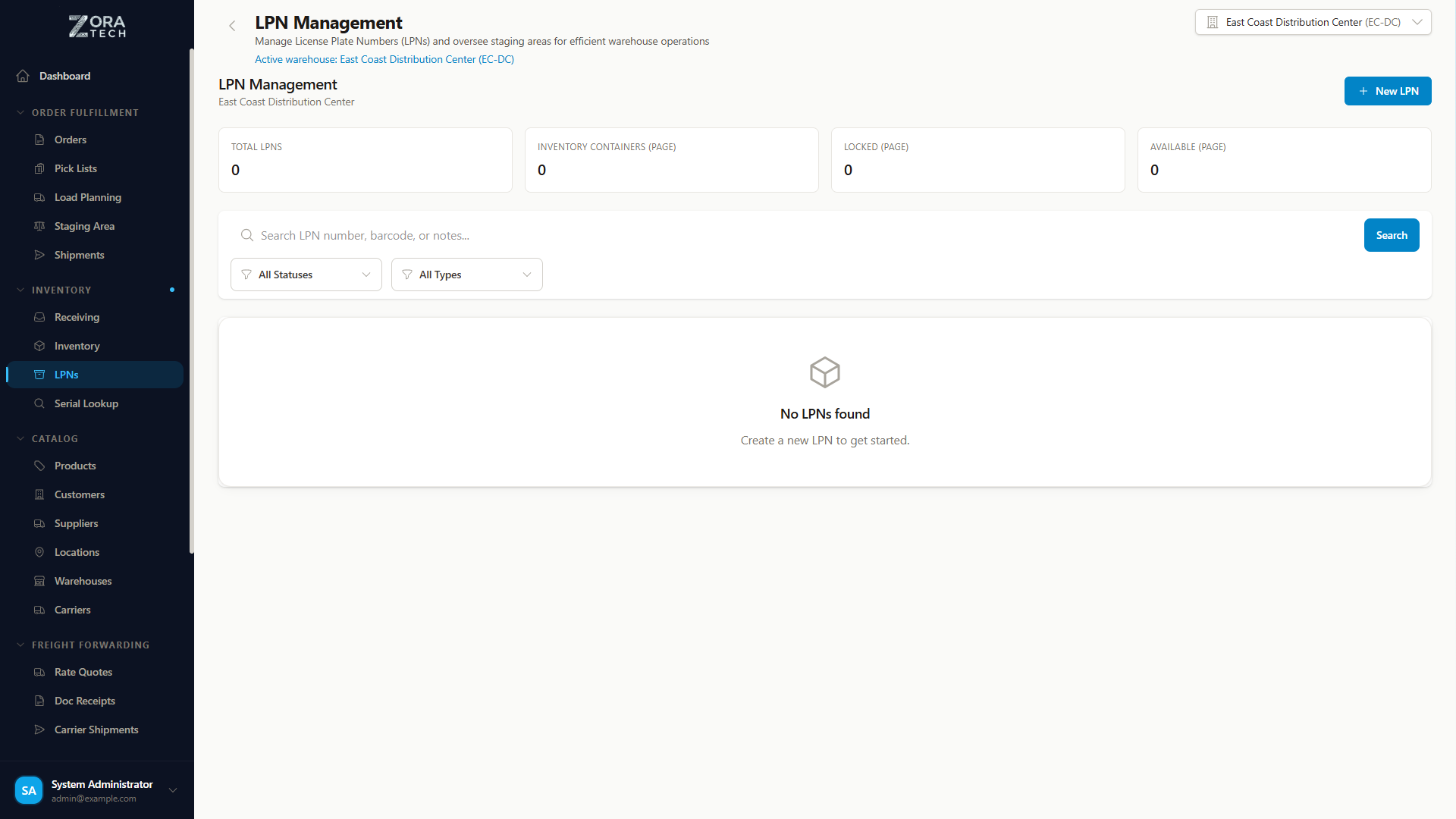
An LPN movement changes where an LPN is, or what status it's in, by scanning it and moving it from one place to another. The standard receiving, picking, and shipping flows move LPNs for you automatically — a movement gives you the same control by hand.
Use it to:
- Reorganize the warehouse
- Replenish a pick location from bulk storage
- Consolidate partial pallets or containers
- Stage items ahead of a shipment
- Return items from staging to inventory
- Fix an LPN that ended up in the wrong place
Movement types
| Move | What changes | Use it when |
|---|---|---|
| Inventory → inventory | New storage location. Status stays IN_INVENTORY; contents don't change. | Reorganizing the warehouse, replenishing a pick location from bulk, or consolidating similar products |
| Inventory → staging | Status changes to AT_STAGING. | Staging items ahead of a shipment |
| Staging → shipment | Loaded onto an outbound shipment. | Loading staged LPNs for dispatch |
| Staging → inventory | Status returns to IN_INVENTORY. | An order was cancelled, a shipment was postponed, or the wrong items were staged |
The movement workflow
Mobile workflow (recommended)
graph TD
    A[Scan Source LPN] --> B[System Shows Current Location]
    B --> C[Scan Destination]
    C --> D[System Validates Move]
    D --> E[Confirm Movement]
    E --> F[LPN Updated]

    style A fill:#e3f2fd
    style B fill:#fff3e0
    style C fill:#e3f2fd
    style D fill:#fff3e0
    style E fill:#e8f5e9
    style F fill:#e8f5e9
Moving an LPN
1. Open LPN movements
- Tap Menu (☰) from the bottom navigation.
- Choose LPNs → LPN Movements.
- Go to Inventory Management in the sidebar.
- Choose LPNs → LPN Movements.
2. Scan or select the source LPN
Tap Scan LPN and point the camera at the barcode — it scans automatically. If the barcode's damaged, tap Enter LPN Number, type the number (like LPN-12345), and tap Search.
The LPN's number, current location or status, contents, status, and warehouse appear.
3. Verify the LPN before you move it
Compare what's on screen — product name, SKU, quantity, serial numbers if the product tracks them, weight, and dimensions — against the physical container. Confirm the label matches the container, the contents match the system record, the LPN is in the location you expect, and its condition is fit to move.
4. Select the destination
What you can choose depends on the LPN's current status:
| LPN status | You can move it to |
|---|---|
IN_INVENTORY | Another inventory location, or a staging area |
AT_STAGING | A shipment, or back to an inventory location |
| Destination | How to select it |
|---|---|
| Inventory location | Tap Scan Location or Select Location — scan the barcode or choose from the dropdown. The platform checks the location exists and is active. |
| Staging area | Tap Select Staging Area and choose from the available zones. |
| Shipment | Tap Scan Shipment or Enter Shipment ID. The platform checks the shipment hasn't already dispatched. |
5. Confirm the move
Review the summary before you confirm:
Move LPN-12345
FROM: Location A-01-A
TO: Staging-Zone-1
Contents:
  - Product ABC (Qty: 10)
  - Product XYZ (Qty: 5)
Status: IN_INVENTORY → AT_STAGING
Confirming in the system doesn't move the container
The system update and the physical move are two separate actions. Confirming here does not relocate the LPN — you still have to move it yourself.
Choose Confirm Movement. The platform processes the move and shows a confirmation message.
6. Move the physical LPN
Move the container to its new position, and make sure the label stays visible. Update any physical location tags your warehouse uses.
The move is recorded with the previous location, new location, timestamp, and who performed it — see movement history below.
Moving several LPNs to the same destination
- Scan the first LPN and select the destination.
- Choose Confirm Movement. The platform remembers that destination.
- Scan the next LPN — the destination is already selected.
- Confirm, and repeat for the rest.
Built for the warehouse floor
Large touch targets work with gloved hands, and a successful scan gives you haptic feedback. Moves made without a signal queue up and sync once you're back in range, and recent movements stay in view for reference.
When the platform blocks a move
| Blocked because | Detail |
|---|---|
| The LPN doesn't exist, isn't in a movable status, or is locked by another process | Includes an LPN mid-receiving or mid-picking |
| The destination doesn't exist, is inactive, or is full | Capacity limits are enforced where they apply |
| The shipment has already dispatched | A dispatched shipment can't be unloaded |
| Source and destination are the same | Nothing would change |
If a move is blocked, the platform shows an error message explaining why, with a suggested fix.
Typical scenarios
| Scenario | What you do |
|---|---|
| Reorganizing the warehouse | Move slow-moving LPNs from prime pick locations to bulk storage, working a logical path through the warehouse |
| Replenishing a pick location | Move an LPN holding the product from bulk storage to the pick location |
| Staging a multi-LPN order | Move each LPN the order needs to the same staging zone, then move them to the shipment together |
| Order cancelled after staging | Move the LPN from staging back to its original inventory location |
Getting it right
Scan every step. Scan the source before you move it and the destination after — a barcode you didn't scan is a location the system doesn't know about.
Verify physically before you move. Confirm the LPN label matches the container and the contents match the system record before you commit the move.
Update the system before you walk away. Don't move a container and leave the system update for later — an LPN whose status doesn't match its shelf sends the next person to the wrong place.
Batch similar moves. Group LPNs headed to the same destination and move them together, in one pass through the warehouse.
Follow your warehouse's safety rules for equipment, weight limits, and clear aisles whenever you move a loaded container.
Movement history and reports
To see one LPN's history, open its detail page and check the Movement History section — a chronological list with the previous location, new location, date and time, user, and movement type for every move.
| Report | Shows |
|---|---|
| LPN Movement Activity | Every movement in a date range, filterable by warehouse, user, or LPN. Exports to CSV. |
| Location Movement | Every movement to or from a specific location — useful for spotting high-traffic spots. |
| Staging Activity | Every movement to or from staging areas, for tracking staging efficiency and capacity. |
Troubleshooting
| Problem | What to check |
|---|---|
| LPN not found | The LPN number is typed correctly, you're in the right warehouse, and it hasn't been deleted or archived. Try scanning the barcode again, or search by contents. |
| Destination invalid | The location or staging area exists and is active, it has room, and your warehouse context is correct. Try a different destination, or ask an admin to activate it. |
| Movement not allowed | The LPN's current status allows a move, it isn't locked by another process, and no receiving or picking is active on it. |
| System shows a different location than the shelf | Someone may have moved it without updating the system, or there's a sync delay. Check the movement history, then run a cycle count to confirm. |
Related guides
- LPN management - The full LPN guide
- Inventory management - Inventory operations
- Warehouse management - Warehouse setup
- Location management - Configuring locations
- Mobile workflows - Mobile operations
Need more help? Email support@zoratech.io, or check the FAQ and troubleshooting guide.